Indie game storeFree gamesFun gamesHorror games
Game developmentAssetsComics
SalesBundles
Jobs
TagsGame Engines

General Decker Question and Answer Thread Sticky

A topic by ahmwma created Aug 06, 2025 Views: 3,873 Replies: 146
Viewing posts 21 to 39 of 39 · Previous page · First page
(1 edit) (+1)

Hi how would i make it so a piece of text follows me throughout the whole deck. Like if i wanted a score to be tracked across the entire deck so it can get updated and is seen in all cards how would i do that? Like the score would be in the top right corner! thank you!
Developer(+1)

State in a deck, like a score counter, needs to live in a widget, on some card.

The straightforward way to have a global score counter would be to make a field (or slider) widget somewhere on a specific card; let's call the card "inventory" and the field "score". Scripts on another card can then refer to that field by one of its "fully-qualified" names:

deck.cards.inventory.widgets.score
inventory.widgets.score

For example, to add 100 points to the score, a button script might be

on click do
 inventory.widgets.score.data:100+inventory.widgets.score.data
end

Or, using a local variable to reduce repetition,

on click do
 s:inventory.widgets.score
 s.data:100+s.data
end

In fact, if you're referring to this widget constantly throughout your deck, you might consider setting up an alias in the deck-level script:

scoreCounter:deck.cards.inventory.widgets.score

After which point you could just use the name "scoreCounter" in any script, on any card.

Each card could have their own "score" field (perhaps volatile) that is drawn from the central source-of-truth score counter and updated when the card gets a view[] event:

on view do
 score.data:scoreCounter.data
end

(Note that when you change the score counter you will generally also want to call view[] to perform this update.)

Does that make sense?

If you're interested in making this even tidier- at the cost of some additional up-front complexity- I could describe how to use a contraption to build a "game HUD" that behaves like a single object shared across many cards.

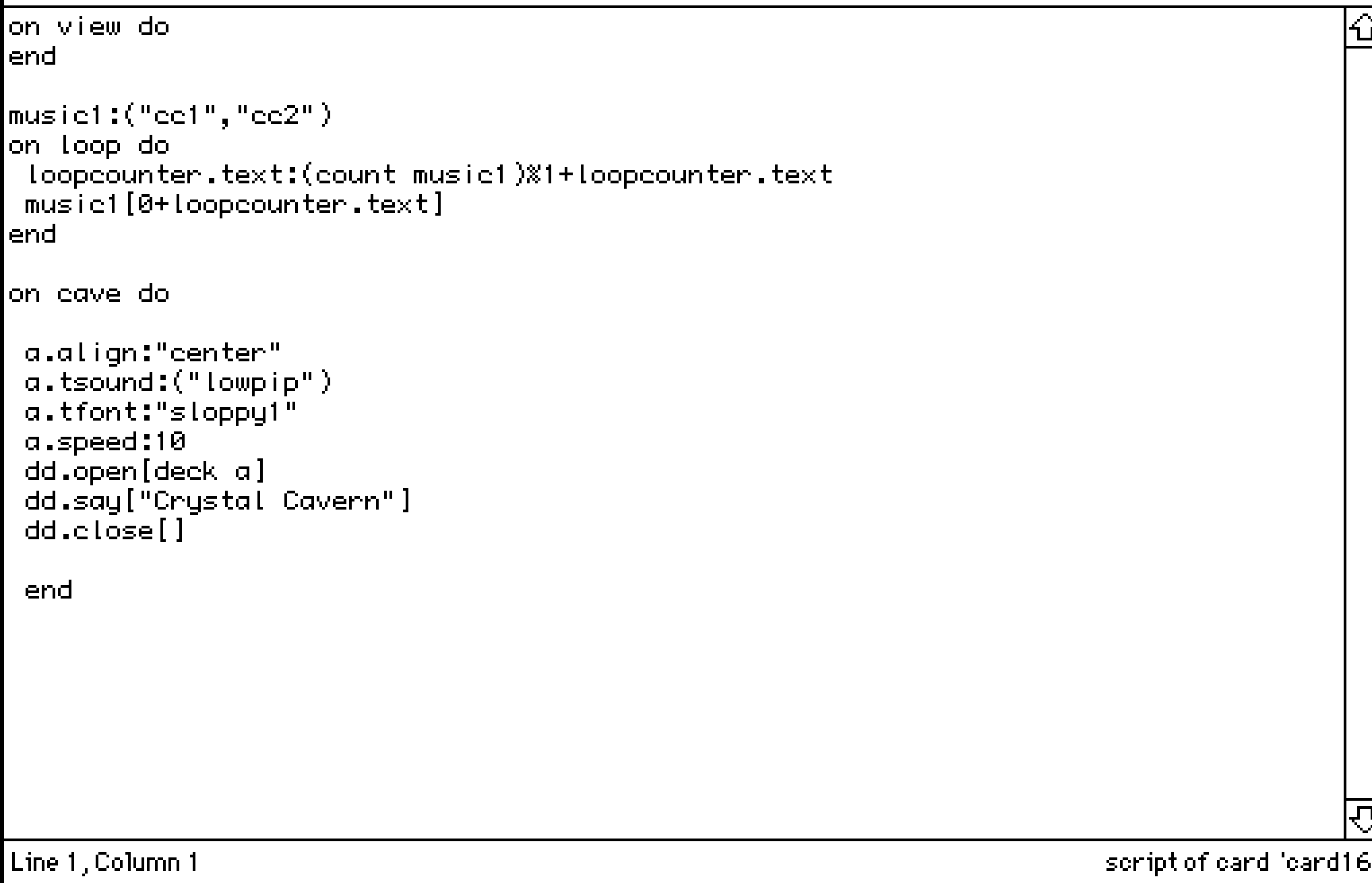
Hi! I am looping two pieces of audio, however it ONLY loops the second piece, rather than first -> second -> first -> second. How can I fix this? Does it have to be about my duration of audio? (cc1 is 10 seconds and cc2 is around 7 seconds)

(+3)

Your audio duration should be fine! 

After experimenting with a deck where I have a similar audio looping setup I think my best guess is that the script is expecting to find a Field that has the name "loopcounter" on the same card you're on and it's not finding it so it can't correctly loop through your clips. 
(Because nothing is loopcount-ing, y'know?)

It could be that it doesn't exist, or it has a typo in the name or it does exist by that name but it's on another card... something like that. 

(+2)

That was exactly the case, had the field in another card 😭 Thank you so much!

Is there a way to have a button pressed on another card, then have it checked by another button on a different card?

For instance, if I have a card/room called Pieces, and two other cards that are Puzzle Rooms, I want a button in each puzzle room to be pressed in order for the button in Pieces to do something. To make it sound simpler, I want the player to steal treasures from both rooms, before going into final room to leave.

This is what I have, however it keeps believing  that the buttons are not being pressed.

on click do
if puzzleroom.button1.pressed and puzzpleroom2.button2.pressed
 dd.open[deck]
 dd.say["You successfully stolen all treasures!"]
 dd.close[]
 go["end"]
else
  alert["You must collect all treasures to leave!."]
end
end

And then for my puzzle rooms buttons, I have the same thing:

on click do
pressed:true 
end

Am I doing it right? Forgive me if this is silly, I am still trying to wrap my around this...

(+1)

You’re almost there, but unfortunately Decker doesn’t allow you to add a pressed attribute to a button like that. If you want to keep track of a flag like “treasure taken”, the easiest thing would be to make a button in the puzzle-room called treasuretaken, configure it to be a checkbox, and “Show None”. Then the button that takes the treasure can do:

on click do
 treasuretaken.value:1
end

(note that you have to say 1, not true: Decker’s scripting language Lil does not recognise true and false specially, and treats them both as undefined variables)

…and the button that checks for taken treasures can do:

on click do
if puzzleroom1.treasuretaken.value & puzzleroom2.treasuretaken.value
 dd.open[deck]
 dd.say["You successfully stolen all treasures!"]
 dd.close[]
 go["end"]
else
 alert["You must collect all treasures to leave!"]
end
end

(note that the way to say “both these things must be true” is & not and - Lil does not recognise and either)

Thank you so much, this helped a ton! But weirdly, I don't know if it's just me, but when I make it checkbox + show none, I am unable to press it.

(+3)

Yes, if a checkbox is set to "show none" you can't interact with it. I think in the example given the idea is you have a hidden checkbox that stores whether the button is pressed, and then you have your normal visible button with code in it to set the value in the checkbox. I hope this makes sense?

I see! Thank you so much, was feeling kind of stupid LOL I will mess around with this!

(+2)

Hopping in too (Hello!)

There is a fun thing about buttons which is often overlooked -- All buttons can store a value, not just checkboxes.

So you don't need a second button to be a checkbox at all.

We often talk about checkboxes because the mark is visible and easier to understand but if you don't want to have a separate hidden checkbox you can change your button back to what it was originally and use this script in it:

on click do  
me.value:1 
end

When you use "me" like this in a script it refers to the widget the script is attached to... so the button (of any style you like and any name) will set it's own value to "1" when this script is inside of it and the button is clicked.

One more small correction, in the beginning of your progress checking script:

on click do  
if puzzleroom.widgets.button1.value & puzzleroom2.widgets.button2.value

Putting .widgets. between the card name and the widget name is an important part of telling Decker where to find your widget. 

Of course, use the correct names for your particular buttons and cards at this moment!

A side note about setting the value in a hidden or non-checkbox button:

Doing it this way has a side effect of being a little harder to uncheck the buttons when you want to reset the game while testing it.... but you could set these two particular buttons as 'Volatile' if you wanted to. 

That makes it so you can clear their .value anytime using [ File > Purge Volatiles ] in the menu. 

This would also remove their .value when the project is saved.

Volatile is dangerous to use on anything precious and irreplaceable -- but it's fine for temporary things like progress checkmarks.

If you feel comfortable using it you can select the widget you're using to store this progress .value and use [Widgets > Volatile] to make it Volatile.

(Again, this is not for anything precious like your art assets! Disposable .values only here!)

This whole project sounds lovely :D We're all rooting for you.

(+2)

You don't understand how much I appreciate the help! The .widgets helped a lot-- I was not understanding why it wasn't working until I realized. I cannot wait to show everyone what I was able to make during the last few weeks! It is very scuffed though!

(+2)

I tried to use unless operator with side-effects, and I was surprised that it doesn't short circuit.

potato_card: deck.add["card" "potato"] unless deck.cards["potato"]

The above creates a new card regardless of whether a "potato" card exists. I was hoping that the left term would not be evaluated  (a.k.a short-circuits) if the right term was not nil.

Is there a better (more idomatic) way to get this short circuit behavior? This is what I'm currently doing:

potato_card: if deck.cards["potato"] deck.cards["potato"] else deck.add["card" "potato"] end

Thank you!

Developer(+3)

"unless" does not short-circuit; No operators in Lil do.

In this specific case I would probably write

if !deck.cards.potato deck.add["card" "potato"] end

and then subsequently use "deck.cards.potato". Even if you then also assign it to a variable, the end result is slightly shorter.

(+2)

I'm working on a game in decker that includes a few doll-maker/dress up games. For the clothes I've pasted images into draggable canvases (i'm basing it on the layouts of games like dollzmania), and I was just wondering if there's an easy way to be able to have a button for players to reset the card so that the clothes are in their original spots. i saw in another thread someone asked a similar question and it was suggested that they use the listener to get the canvas position and set it so that the canvas returns to that spot when they go to the next card. however, that'd mean scripting in the position of each separate object, and for my project it would be really fiddly to do if there's like 15 items of clothing on the card. Any advice? I'm new to Decker so I'm still getting the hang of things, but i'm loving it so far! 

Developer(+1)

You could write a script to record the position of all the canvases automatically (rather than recording every coordinate by hand), stash those positions in a field somewhere, and then have another script re-apply them when appropriate.

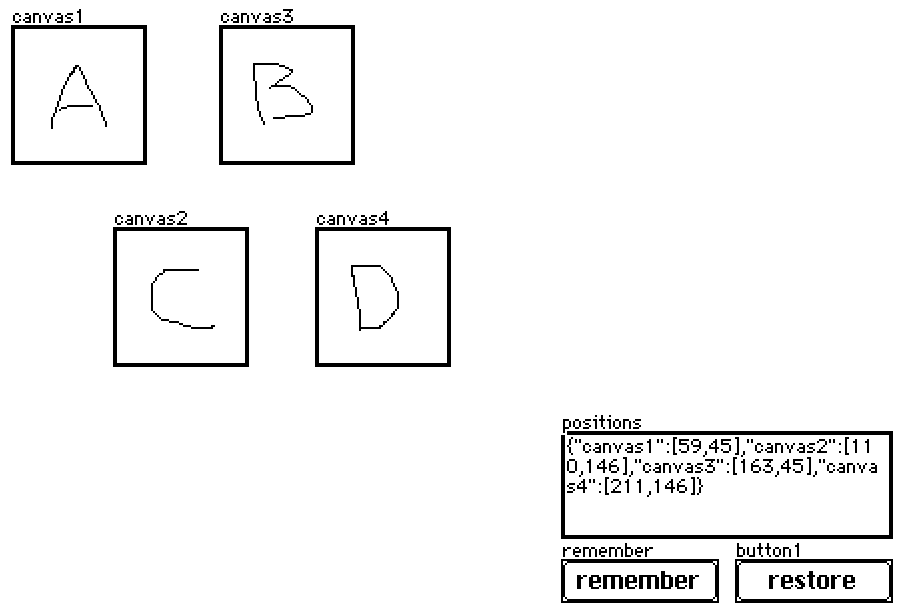
Let's say you have widgets something like this:

The "remember" script looks like:

on click do
 p:select key value..pos where value..type="canvas" from card.widgets
 positions.data:raze p
end

And the "restore" script looks like:

on click do
 each pos name in positions.data
  card.widgets[name].pos:pos
 end
end

In practice, this field and buttons will probably be hidden (set to "show none"). If you ever want to record the current state of the canvases without un-hiding the buttons you can simulate a click via the listener:

remember.event.click

Does that make sense?

(+2)

this works perfectly, thanks!

(+1)

Is there any hotkey for swapping between widget and interact mode, and if not could add one? I'm aware of the option to click between in the toolbar, but would prefer to have bound key. Currently, it requires a lot of cursor travel for something need to do quite often when testing out a project. Thanks!

(1 edit) (+1)

The keyboard shortcuts that I know (In native Decker) for swapping between modes are F1 for Interact Mode, F2 for Widget Mode (And F3 - F12 are for the drawing tools). I hope this helps!

(+2)

Ah, that works with function modifier on mac, thanks! 

(+1)

Hi! I am a total newbie on Decker and English is not my native language so sorry for the mistakes :).
I am trying to make invisible cliking buttons or an « object button » , like when i click on a fish it takes me to another card. I am currently using the button widget and make it invisible but when i click on it it show the rectangle shape in white :( .  I was trying to use the canvas widget but i really don’t understand how it work…  I am begging for help 🙏

Developer(+3)

If you want a button to be clickable but have absolutely no visual effect when clicked, set the style to "Invisible" and then additionally apply "Show Transparent" (found in the Widgets menu).

I'm making a prototype, where I set a button's text based off a string attribute.

This works until I open the button's prototype, whereupon that attribute gets reset and the button's text resets to the prototype's default is. I don't observe this behavior for example when using field.text as the string persists between opening's of the prototype. 

I'm reading through the documentation but missing what the determining factor in whether a property gets reset between prototype openings. 

I can use a hidden field, but that complicates things as the button will still get reset when opening the prototype so needs a restore call etc.

Deck with an example of the behavior: https://munro.itch.io/decker-question

Developer(+1)

From the reference manual's description of the Prototype Interface,

when a definition is updated, the nameposshowlockedanimatedvolatilefontpattern, and script attributes of Contraptions will be preserved, as well the valuescrollrowcol, and image content of the widgets they contain (as applicable) if they have been modified from their original values in the prototype, but everything else will be regenerated from the definition. The state of contraptions is kept, and the behavior and appearance is changed.

Any other state that you wish to survive prototype modification should be stashed in internal widgets; I recommend refreshing these settings (alongside applying settings from the enclosing contraption instance like .font and .locked, where appropriate) in the view[] event handler in the prototype script.

(+1)

Ah, so because button's text is not the value it doesn't get kept, however a field's text is a value so field text does get kept? Thanks for clarification and the snippet!

Developer (1 edit) (+1)

Just to be clear, a field's .value attribute, which is represented as a rich text table, is the complete, underlying contents stored in the field. Fields have .text, .images, and .data attributes which can be read and written, but all three are alternate views/subsets of the same contents (as a plain-text string, as a list of inline images, and as encoded/decoded LOVE data, respectively), as scripting conveniences.

Buttons have a .value attribute as well, but it represents the boolean (1/0) value of checkboxes, and has no relationship to the .text attribute of the button, which controls the button's label.

Sliders have a .value attribute which corresponds to their numerical value, and Grids have a .value attribute which corresponds to the table data they contain.

Hellooo complete and utter noob here. I've used Macromedia Director back in the day which in tunr was very inspired by HyperCard so i was delighted to find this project :) However i have a small question: is there any way to get more colors working in a project? Again, i will admit i know next to nothing about the tool (yet) apart from a bit of tinkering but i think if we were able to at least use graphics with 256 colors the possibilities for retro adventure games would be endless :)


Thanks so much for creating it!

(+2)

Currently, no. 16 colors is the cap. Though the troublemaker in me might mention that it's 16 colors at a time, not per project.

The way I look at it is that 16 colors is definitely a creative constraint... but you can do a surprising amount with a well crafted palette.

Having fun tinkering! :D

(1 edit)

Is there a way to enable microphone recording in the downloaded version on mac? I get the prompt to allow microphone permissions in the browser version, but the desktop version I haven't gotten the prompt. I don't see it as an option in Privacy & Security settings. Tried reseting microphone permissions but no luck.

(1 edit)

any way to only have "on loop" fire when background loop completes but NOT when a card is navigated to?

I'm trying to loop two songs (play sound 1 then play 2 then 1 then 2 etc) using a deck-level script for the "loop" event that updates a counter on one of the cards

it works perfectly EXCEPT this event is fired (and so the music immediately switches from whatever is playing to the other sound) every time a new card is navigated to

(i also just don't know why "loop" event is essentially a "on loop OR on view" sort of thing)

I think on loop is checked when you visit a new card, so that the new card has a chance to stop the loop, or start a new one. For example, if one card represents the player standing beside a waterfall, it would be more atmospheric if a loop of waterfall noise played whenever that card was visible. When the player visits that card, the loop should start immediately (even if some other loop was already part-way through playing) and when the player leaves that card, the loop should stop immediately (even if the waterfall noise was part-way through). Calling on loop on card transitions makes that kind of effect possible.

If your two songs are less than 10 seconds in total, you could combine them into one sound and loop that quite easily.

If your two songs are more than 10 seconds long in total, you might add a “last loop started at” field on the same card as the counter that switches between them. When you start playing a sound, update the counter, and set the “last loop started at” field to sys.ms (the current time in milliseconds). When on loop is called, it passes in the old sound - if the “last loop started at” time, plus the duration of the old sound in milliseconds (old.duration*1000, since the duration is in seconds), is nearly equal to sys.ms, then we’re probably looping because we got to the end of the sound. If the start time + the duration is greater than sys.ms, then the loop has been called early, probably because of a card change. If you return the original sound, it will continue playing it, rather than restarting it.

I have returned!I have two questions!

My first question has to do with Button Shortcuts. As of right now, I have a puppet that does something when it is clicked, and another when it is released. I wanted to see if I could activate the puppet using a keyboard button, like spacebar. The only issue is that as far as I know, the button widget is the only way to create a shortcut like this, and whenever I use it to send a click event to my puppet, it treats the puppet like it is being perpetually being clicked down after the button press, and doesn't seem to respond to being released either. I tried making the button animated and making sure it wasn't on toggle, but so far it does not look like there is any way to make a button widget that responds to being released. (My guess is because buttons dont typically count as "clicked" until they are released, making releasing them kind of impossible.) My main goal is to just interact with the puppet using the spacebar though, so if there is another way of both clicking and releasing the puppet using keyboard, that should work too.

My second question is about Puppeteer itself. I was just wondering if you could make puppeteer code refer to variables somehow. Something along the lines of "!show [variable] smile", to make it possible to basically just costume change a puppet without having to make an all new one to sit around on the same card. (Clearing puppets won't work for what I'm doing since I need them to retain the scripts that I gave them.) 

(+4)

The Canvas is the only widget that has both click and release events, and the Button is the only widget that responds to keyboard presses, so you can’t make something that starts when you hold a key and stops when you release.

However, you can make the button send a click, then wait a while, then send a release, which is probably as close as you’re going to get:

on click do
 canvas1.event["click" 0,0]
 sleep[15] # in 60ths of a second
 canvas1.event["release" 0,0]
end

That can look a little weird, since Decker disables all interactive widgets (drawing them greyed out) until the sleep time is complete, but it prevents the player from doing more things while the previous things are still going on.

If you don’t want to freeze things like that, you can build something a little more complex that lets Decker keep doing things while you wait. Create a field to hold the timer countdown, and change the button click handler to:

on click do
 canvas1.event["click"]
 field1.data:15
 field1.animated:1
end

So when the button is clicked, it sends the click event to the Canvas, it loads 15 into the field, and sets the field to be animated (so Decker sends it view events 60 times a second). The field’s view handler looks like this:

on view do
 me.data:me.data - 1
 if me.data = 0
  canvas1.event["release" 0,0]
  me.animated:0
 end
end

So every time view is called (that is, 60 times a second), it subtracts 1 from the value it stores. When it reaches 0, it sends the release event to the canvas, and turns off animation again. As a result, when the button is clicked, the canvas is “clicked”, then things keep happening as usual while the timer ticks down, and when it does the canvas is “released”.

The field can be made “Show None” if you don’t want the player to see it; if you make the button “Show None” then it won’t react to the keyboard. However, you can make the button use the “Invisible” style to hide it, and “Show Transparent” to make it invisible even when clicked. You can also just move it off-screen.

I've actually been messing around with animated timers for a bit now, but I never realized you could actually toggle widgets being animated like that. It actually made me pretty anxious from adding too many so I wouldn't lag out the program. I'll definitely be using that second solution you gave, thank you so much for your help!

In the “Events” section of the Decker documentation, one of the listed events is view for any widget, described as “The surrounding card is active, repeatedly at 60hz.” I expected this to be something like “The surrounding card is active and the widget’s animated property is true, repeatedly at 60hz.”

Have I missed something? Is there some way to get a 60hz event without setting the animated property?

Developer (1 edit) (+2)

I've made some clarifications to that table to be more precise.

Primitive widgets will ONLY be sent automatic view[] events when they are set to be "animated" AND the card upon which they appear is the active card.

Before the .animated property existed, a cruder way of obtaining a 60hz event pump was to go[] to the current card without any transition effects, indirectly scheduling the view[] event for the card to be re-triggered. One advantage of this old approach- which still works fine- is that by making the "dispatch plumbing" within  a card explicit, it's very easy for blocking scripts to send their own "synthetic"view[] events to the current card and keep everything ticking along in the background. Dialogizer provides a synthetic animate[] event while its blocking dialogs are open that can be forwarded to view[] if desired.

(+1)

Hello! I'm having trouble getting the built-in Audio Editor to record sound. I click record, but it's not picking up my microphone. I've tried on two different MacBooks with the same result. Any ideas what might be going on?

(+2)

I realise it's not exactly a solution, but have you tried recording sound separately (in like Audacity for example) and then importing into Decker? I've found even when the audio editor is working I get better results this way since I can adjust the levels and such in Audacity before converting down into Decker's format

(+2)

Thank you, Millie! This is a good suggestion. I'm still wondering if anyone else has had this recording issue though... I like the convenience of being able to record directly in if possible...

I think I really need some help. I tried making a pop-up following the content in dd:visual-novel modals, but I didn't expect that even if I copied it exactly as it was into my software, I still couldn't get a visual novel-style pop-up to show up using the button. I later ruled out potential issues with the button (I used alert and confirmed the content in the text box was normal), so I think the problem lies with the dd function. But I copied it exactly—could it be that my Decker software can't use it?

(+1)

Decker and Dialogizer should always work with each other, unless there's of a very old copy of one of them and a very new copy of the other. So let's check that. The current version of Dialogizer is 1.7 and the current version of Decker is 1.63, for reference.

You can see the current version of your module (and update to a newer one if needed) in the same popup where you transferred it into your project from the Dialogizer example deck [File > Resources]

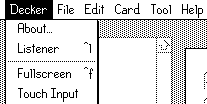
You can see the current version of Decker by using the menu [Decker > About].

If the version numbers seem fine then the other thing to check is whether you have dd.open[deck] before you dd.say[] anything. Like this:

on click do
 dd.open[deck]
 dd.say["hi"]
 dd.close[]
end

Hopefully one of these two things will be the answer, but if not please let me know.

You really helped me a lot! After following the steps, the pop-up I set up actually appeared! It works perfectly! But I still have two questions. First, I noticed that when I import a black-and-white image, the Add Outline function works, which creates a particle-like animation for the image (I use this as a shortcut to make dynamic effects). However, if I check the color option, Add Outline stops working (I also want to create similar particle animations for colored images...).

Second, I wonder if there’s a code that makes the next page button I set up only appear after the user clicks on certain elements. I’ve looked through plenty of related tutorials, but I’m still a bit confused—definitely looking like a total newbie lol....

(+2)

If you just want the “next page” button to appear after you click some other button, you can make the “next page” button be “Show None” (in Widget mode, select the button, then from the Widget menu, pick “Show None”), and have the other button make the “next page” button solid:

on click do
 nextpage.show:"solid"
end

Of course, once you test that button, you’ll have to go back and hide the “next page” button again. It might be worth having your deck begin with a “start game” button that specifically goes through and resets all these things before the game begins, so you don’t personally have to remember to do it each time you save the deck.

(+2)

谢谢你的提示!

(+2)

I see that Screwtapello explained about showing and hiding widgets so I'll try to take the outline question.

I'm going throw a couple little pieces of information out there, hopefully it will all make sense.

The first is since you're doing art stuff I recommend turning the toolbars on if you haven't yet with [Decker > Toolbars]. They're really useful.

----

The second thing is that there are two kinds of white in Decker. One is a solid opaque white, which is always treated as solid white in every circumstance

The other one is a sometimes-transparent white that you can tell Decker to treat that white as 'clear' by turning on transparency in the Style menu or setting a widget to 'show: transparent'.

You can see the difference between them with a setting called Transparency Mask which makes that transparent white appear to be a different color (if you haven't modified the default Decker palette it'll become a neutral gray, if you have modified your colors then it'll be whatever happens to be in pattern slot 45). You can make this difference visible (only to you, it doesn't change anything in the project)  with [View > Transparency Mask] or 'R' on your keyboard.

Here's an example of both transparency and transparency mask.

So there are two kinds of white:

When you import an image in black and white it will always import that image into black and transparent white.

When you import an image in color and it has any areas of solid opaque white Decker will use opaque white for that area. That includes any big white background area! If the image has transparent areas, those areas will remain transparent in Decker.

----

Because [ Add Outline ] only looks at the 'empty'/transparent white pixels around an image to know where to draw the outline... if there's a big rectangle of opaque white pixels around the image it can't see any 'empty' spaces to draw the outline.

You can fix this inside Decker though! We can just remove the extra white area.

Turn on Transparency Mask with and then select the flood bucket tool. Right click on the opaque white to 'erase' it all back in transparent, clear white. Clean up the edges if you need to and then you should be able to use [Add Outline] around your image like normal.

----

I think you were using either a 1-bit logical pattern or an animated pattern for the special outline effect? (Very cool!)

And I think the opaque white issue was why it wasn't working but I also want to talk about another option for a special outline effect if you didn't want to use the black and white 1-bit patterns for the outline effect on your color images.

Because the 1-bit patterns can only use whatever colors are in pattern slots 32 and 47 (which are black and white by default) and neither color can be replaced by another color in the palette.

But you can get a different kind of shifting color effect out of the Animated Patterns! 

The way those work is that they cycle through a sequence of other patterns and colors that exist. The default versions only use the 1-bit patterns (for example 1,1,1,1,0,0,0,0 is an animated pattern that blinks between black and white) but absolutely nothing is stopping you from putting things from the 16-color palette in that sequence instead! Maybe blinking between colors or shifting around between them slowly. I dunno!

If this seems interesting to play with here's an editing tool for changing the animated patterns: https://itch.io/post/14641530

Click 'Read' to get the current lists of numbers, change the lists however you want and the click 'Write' to set them and see what you think.

You can copy this canvas into your project to have an easy reference for the numbers for each pattern:

%%WGT0{"w":[{"name":"patternpreview","type":"canvas","size":[103,140],"pos":[138,187],"locked":1,"show":"transparent","border":0,"image":"%%IMG2AGcAjAFoAGUBAgAbAQEABQEBAB0BAQANAQEAFwECABsBAQAFAQEAKwEBABcBAgANAQQAAwEEAAIBBAACAQQAAgEDAAIBAQABAQIAAgEBAAEBAgAKAQEAAwEBAAEBAgADAQQAAgEDAAIBAQADAQEACwECAA0BAQADAQEAAQEBAAMBAQADAQEABQEBAAMBAQADAQEAAQECAAIBAQABAQIAAgEBAAkBAQADAQIAAgEBAAEBAQADAQEAAQEBAAMBAQACAQEAAQEBAAwBAgANAQEAAwEBAAEBAQADAQEAAwEBAAUBAQADAQUAAQEBAAUBAQADAQEACQEBAAMBAQADAQEAAQEBAAMBAQABAQUAAwEBAA0BAgANAQEAAwEBAAEBAQACAQIAAwEBAAUBAQADAQEABQEBAAUBAQADAQEACQEBAAMBAQADAQEAAQEBAAMBAQABAQEABgEBAAEBAQAMAQIADQEEAAMBAgABAQEABAECAAQBAgACAQQAAQEBAAUBAQADAQEACQEBAAMBAQADAQEAAgEEAAIBBAABAQEAAwEBAAsBAgANAQEAVwECAA0BAQBXAQIAZQFpAGUBAgAJAQMACwEBAAkBAwAJAQMACQEBAAEBAQAJAQMACQEDAAkBAwAFAQIACQEBAAEBAQAKAQIACwEBAAsBAQAJAQEAAQEBAAkBAQALAQEADQEBAAUBAgAJAQEAAQEBAAsBAQAJAQMACgECAAkBAwAJAQMACQEDAAoBAgAFAQIACQEBAAEBAQALAQEACQEBAA0BAQALAQEACwEBAAkBAQABAQEACgEBAAYBAgAJAQMACwEBAAkBAwAJAQMACwEBAAkBAwAJAQMACgEBAAYBAgBlAQIAAgFhAAIBAgACAQEACwENAgsBAQMLAQEICwEBBQsBAQYLAQEHCwEBAAIBAgACAQEACwENAgsBAQMLAQEICwEBBQsBAQYLAQEHCwEBAAIBAgACAQEACwENAgsBAQMLAQEICwEBBQsBAQYLAQEHCwEBAAIBAgACAQEACwENAgsBAQMLAQEICwEBBQsBAQYLAQEHCwEBAAIBAgACAQEACwENAgsBAQMLAQEICwEBBQsBAQYLAQEHCwEBAAIBAgACAQEACwENAgsBAQMLAQEICwEBBQsBAQYLAQEHCwEBAAIBAgACAQEACwENAgsBAQMLAQEICwEBBQsBAQYLAQEHCwEBAAIBAgACAQEACwENAgsBAQMLAQEICwEBBQsBAQYLAQEHCwEBAAIBAgACAQEACwENAgsBAQMLAQEICwEBBQsBAQYLAQEHCwEBAAIBAgACAQEACwENAgsBAQMLAQEICwEBBQsBAQYLAQEHCwEBAAIBAgACAQEACwENAgsBAQMLAQEICwEBBQsBAQYLAQEHCwEBAAIBAgACAWEAAgECAGUBAgAJAQMACQEDAAcBAQABAQMABwEBAAMBAQAIAQEAAQEDAAcBAQABAQMABwEBAAEBAQABAQEABwEBAAEBAwAEAQIACQEBAAEBAQAJAQEAAQEBAAYBAgABAQEAAQEBAAYBAgACAQIABwECAAMBAQAGAQIAAwEBAAYBAgABAQEAAQEBAAYBAgABAQEABgECAAkBAwAJAQMABwEBAAEBAQABAQEABwEBAAMBAQAIAQEAAQEDAAcBAQACAQIABwEBAAEBAwAHAQEAAQEDAAQBAgAJAQEAAQEBAAsBAQAHAQEAAQEBAAEBAQAHAQEAAwEBAAgBAQABAQEACQEBAAMBAQAHAQEAAwEBAAcBAQADAQEABAECAAkBAwAJAQMABwEBAAEBAwAHAQEAAwEBAAgBAQABAQMABwEBAAEBAwAHAQEAAwEBAAcBAQABAQMABAECAGUBAgACAWEAAgECAAIBAQgLAQEJCwEBCgsBAQsLAQEMCwEBDQsBAQ4LAQEPCwEBAAIBAgACAQEICwEBCQsBAQoLAQELCwEBDAsBAQ0LAQEOCwEBDwsBAQACAQIAAgEBCAsBAQkLAQEKCwEBCwsBAQwLAQENCwEBDgsBAQ8LAQEAAgECAAIBAQgLAQEJCwEBCgsBAQsLAQEMCwEBDQsBAQ4LAQEPCwEBAAIBAgACAQEICwEBCQsBAQoLAQELCwEBDAsBAQ0LAQEOCwEBDwsBAQACAQIAAgEBCAsBAQkLAQEKCwEBCwsBAQwLAQENCwEBDgsBAQ8LAQEAAgECAAIBAQgLAQEJCwEBCgsBAQsLAQEMCwEBDQsBAQ4LAQEPCwEBAAIBAgACAQEICwEBCQsBAQoLAQELCwEBDAsBAQ0LAQEOCwEBDwsBAQACAQIAAgEBCAsBAQkLAQEKCwEBCwsBAQwLAQENCwEBDgsBAQ8LAQEAAgECAAIBAQgLAQEJCwEBCgsBAQsLAQEMCwEBDQsBAQ4LAQEPCwEBAAIBAgACAQEICwEBCQsBAQoLAQELCwEBDAsBAQ0LAQEOCwEBDwsBAQACAQIAAgFhAAIBAgBlAQIAZQECAAgBAQABAQMABwEBAAEBAwAHAQEAAQEDAAcBAQABAQMABQEDAAEBAwAGAQMAAgEBAAYBAwABAQMABQEDAAEBAwADAQIABwECAAEBAQAIAQIAAwEBAAYBAgABAQEAAQEBAAYBAgABAQEAAQEBAAcBAQABAQEAAQEBAAgBAQABAQIACAEBAAMBAQAHAQEAAwEBAAMBAgAIAQEAAQEDAAcBAQACAQIABwEBAAEBAwAHAQEAAQEDAAUBAwABAQEAAQEBAAYBAwACAQEABgEDAAEBAwAFAQMAAgECAAMBAgAIAQEAAQEBAAEBAQAHAQEAAgEBAAgBAQABAQEAAQEBAAcBAQADAQEABQEBAAMBAQABAQEABgEBAAQBAQAGAQEAAwEBAAcBAQAFAQEAAwECAAgBAQABAQMABwEBAAIBAQAIAQEAAQEDAAcBAQABAQMABQEDAAEBAwAGAQMAAgEBAAYBAwABAQMABQEDAAEBAwADAQIAZQECAAIBYQACAQIAAgEBEAsBARELAQESCwEBEwsBARQLAQEVCwEBFgsBARcLAQEAAgECAAIBARALAQERCwEBEgsBARMLAQEUCwEBFQsBARYLAQEXCwEBAAIBAgACAQEQCwEBEQsBARILAQETCwEBFAsBARULAQEWCwEBFwsBAQACAQIAAgEBEAsBARELAQESCwEBEwsBARQLAQEVCwEBFgsBARcLAQEAAgECAAIBARALAQERCwEBEgsBARMLAQEUCwEBFQsBARYLAQEXCwEBAAIBAgACAQEQCwEBEQsBARILAQETCwEBFAsBARULAQEWCwEBFwsBAQACAQIAAgEBEAsBARELAQESCwEBEwsBARQLAQEVCwEBFgsBARcLAQEAAgECAAIBARALAQERCwEBEgsBARMLAQEUCwEBFQsBARYLAQEXCwEBAAIBAgACAQEQCwEBEQsBARILAQETCwEBFAsBARULAQEWCwEBFwsBAQACAQIAAgEBEAsBARELAQESCwEBEwsBARQLAQEVCwEBFgsBARcLAQEAAgECAAIBARALAQERCwEBEgsBARMLAQEUCwEBFQsBARYLAQEXCwEBAAIBAgACAWEAAgECAGUBAgBlAQIABgEDAAEBAQABAQEABQEDAAEBAwAFAQMAAQEDAAUBAwABAQMABQEDAAEBAwAFAQMAAQEDAAUBAwABAQMABgEDAAIBAQAEAQIACAEBAAEBAQABAQEABwEBAAEBAQAJAQEAAQEBAAkBAQADAQEABwEBAAEBAQABAQEABwEBAAEBAQABAQEABwEBAAEBAQABAQEACAEBAAEBAgAEAQIABgEDAAEBAwAFAQMAAQEDAAUBAwABAQMABQEDAAIBAgAFAQMAAQEDAAUBAwABAQMABQEDAAEBAQABAQEABgEDAAIBAQAEAQIABgEBAAUBAQAFAQEABQEBAAUBAQADAQEAAQEBAAUBAQAEAQEABgEBAAMBAQABAQEABQEBAAUBAQAHAQEAAQEBAAEBAQAIAQEAAgEBAAQBAgAGAQMAAwEBAAUBAwABAQMABQEDAAEBAwAFAQMAAgEBAAYBAwABAQMABQEDAAEBAwAFAQMAAQEDAAYBAwACAQEABAECAGUBAgACAWEAAgECAAIBARgLAQEZCwEBGgsBARsLAQEcCwEBHQsBAR4LAQEfCwEBAAIBAgACAQEYCwEBGQsBARoLAQEbCwEBHAsBAR0LAQEeCwEBHwsBAQACAQIAAgEBGAsBARkLAQEaCwEBGwsBARwLAQEdCwEBHgsBAR8LAQEAAgECAAIBARgLAQEZCwEBGgsBARsLAQEcCwEBHQsBAR4LAQEfCwEBAAIBAgACAQEYCwEBGQsBARoLAQEbCwEBHAsBAR0LAQEeCwEBHwsBAQACAQIAAgEBGAsBARkLAQEaCwEBGwsBARwLAQEdCwEBHgsBAR8LAQEAAgECAAIBARgLAQEZCwEBGgsBARsLAQEcCwEBHQsBAR4LAQEfCwEBAAIBAgACAQEYCwEBGQsBARoLAQEbCwEBHAsBAR0LAQEeCwEBHwsBAQACAQIAAgEBGAsBARkLAQEaCwEBGwsBARwLAQEdCwEBHgsBAR8LAQEAAgECAAIBARgLAQEZCwEBGgsBARsLAQEcCwEBHQsBAR4LAQEfCwEBAAIBAgACAQEYCwEBGQsBARoLAQEbCwEBHAsBAR0LAQEeCwEBHwsBAQACAQIAAgFhAAIBAgBlAQIAZQECAAYBAwABAQMABQEDAAEBAwAFAQMAAQEBAAEBAQAFAQMAAQEDAAUBAwABAQMABQEDAAEBAwAFAQMAAQEDAAUBAwABAQMABAECAAgBAQADAQEABwEBAAMBAQAHAQEAAQEBAAEBAQAHAQEAAQEBAAkBAQABAQEACQEBAAMBAQAHAQEAAQEBAAEBAQAHAQEAAQEBAAEBAQAEAQIABgEDAAEBAwAFAQMAAQEDAAUBAwABAQMABQEDAAEBAwAFAQMAAQEDAAUBAwACAQIABQEDAAEBAwAFAQMAAQEDAAQBAgAIAQEAAQEBAAkBAQADAQEABwEBAAMBAQAHAQEAAwEBAAcBAQABAQEAAQEBAAcBAQACAQEACAEBAAEBAQABAQEABwEBAAMBAQAEAQIABgEDAAEBAwAFAQMAAQEDAAUBAwADAQEABQEDAAEBAwAFAQMAAQEDAAUBAwACAQEABgEDAAEBAwAFAQMAAQEDAAQBAgBlAQIAAgFhAAIBAgACAQEgCwEBIQsBASILAQEjCwEBJAsBASULAQEmCwEBJwsBAQACAQIAAgEBIAsBASELAQEiCwEBIwsBASQLAQElCwEBJgsBAScLAQEAAgECAAIBASALAQEhCwEBIgsBASMLAQEkCwEBJQsBASYLAQEnCwEBAAIBAgACAQEgCwEBIQsBASILAQEjCwEBJAsBASULAQEmCwEBJwsBAQACAQIAAgEBIAsBASELAQEiCwEBIwsBASQLAQElCwEBJgsBAScLAQEAAgECAAIBASALAQEhCwEBIgsBASMLAQEkCwEBJQsBASYLAQEnCwEBAAIBAgACAQEgCwEBIQsBASILAQEjCwEBJAsBASULAQEmCwEBJwsBAQACAQIAAgEBIAsBASELAQEiCwEBIwsBASQLAQElCwEBJgsBAScLAQEAAgECAAIBASALAQEhCwEBIgsBASMLAQEkCwEBJQsBASYLAQEnCwEBAAIBAgACAQEgCwEBIQsBASILAQEjCwEBJAsBASULAQEmCwEBJwsBAQACAQIAAgEBIAsBASELAQEiCwEBIwsBASQLAQElCwEBJgsBAScLAQEAAgECAAIBYQACAQIAZQECAGUBAgAGAQEAAQEBAAEBAwAFAQEAAQEBAAIBAQAGAQEAAQEBAAEBAwAFAQEAAQEBAAEBAwAFAQEAAQEBAAEBAQABAQEABQEBAAEBAQABAQMABQEBAAEBAQABAQMABQEBAAEBAQABAQMABAECAAYBAQABAQEAAQEBAAEBAQAFAQEAAQEBAAEBAgAGAQEAAQEBAAMBAQAFAQEAAQEBAAMBAQAFAQEAAQEBAAEBAQABAQEABQEBAAEBAQABAQEABwEBAAEBAQABAQEABwEBAAEBAQADAQEABAECAAYBAwABAQEAAQEBAAUBAwACAQEABgEDAAEBAwAFAQMAAQEDAAUBAwABAQMABQEDAAEBAwAFAQMAAQEDAAUBAwACAQIABAECAAgBAQABAQEAAQEBAAcBAQACAQEACAEBAAEBAQAJAQEAAwEBAAcBAQADAQEABwEBAAMBAQAHAQEAAQEBAAEBAQAHAQEAAgEBAAUBAgAIAQEAAQEDAAcBAQACAQEACAEBAAEBAwAHAQEAAQEDAAcBAQADAQEABwEBAAEBAwAHAQEAAQEDAAcBAQACAQEABQECAGUBAgACAWEAAgECAAIBASgLAQEpCwEBKgsBASsLAQEsCwEBLQsBAS4LAQEvCwEBAAIBAgACAQEoCwEBKQsBASoLAQErCwEBLAsBAS0LAQEuCwEBLwsBAQACAQIAAgEBKAsBASkLAQEqCwEBKwsBASwLAQEtCwEBLgsBAS8LAQEAAgECAAIBASgLAQEpCwEBKgsBASsLAQEsCwEBLQsBAS4LAQEvCwEBAAIBAgACAQEoCwEBKQsBASoLAQErCwEBLAsBAS0LAQEuCwEBLwsBAQACAQIAAgEBKAsBASkLAQEqCwEBKwsBASwLAQEtCwEBLgsBAS8LAQEAAgECAAIBASgLAQEpCwEBKgsBASsLAQEsCwEBLQsBAS4LAQEvCwEBAAIBAgACAQEoCwEBKQsBASoLAQErCwEBLAsBAS0LAQEuCwEBLwsBAQACAQIAAgEBKAsBASkLAQEqCwEBKwsBASwLAQEtCwEBLgsBAS8LAQEAAgECAAIBASgLAQEpCwEBKgsBASsLAQEsCwEBLQsBAS4LAQEvCwEBAAIBAgACAQEoCwEBKQsBASoLAQErCwEBLAsBAS0LAQEuCwEBLwsBAQACAQIAAgFhAAIBAgBlAQIAZQFo","scale":1}],"d":{}}

Each animated pattern can have a list of up to 256 other patterns in it... which is mostly useful because you can slow down how quickly it cycles through colors by listing them more than once like 38,38,38,38 instead of just a single 38 which would only be visible for a short moment.

Hopefully something in this helped you! 

(+1)

I'll try it!

(+1)

It's me, I'm back again, and now I've encountered another strange issue...

I added an extra button to the card, intending to jump to the next interface after the dd mode finishes playing. However, after I edited it in the widget and switched to interactive playback, it played normally once. Then I clicked the button, but the dd popup on the next interface inexplicably played the content twice! And when I used the menu shortcut to jump back, the content still played twice! Oh my god, I really can't figure out why this is happening... Here is my card code:

on view do (I want it to jump to dd mode as soon as it appears)  

 play["xxx""loop"]  

 dd.open[deck]   

 dd.show[0]  

 sleep[80]  

 dd.show[1]  

 dd.style[().speed:6]  

 dd.say[""]  

 dd.say[""]  

 dd.close[]  

end  

```


The button is just a regular on click ... then go next.


Since I set the previous card to automatically jump to the next page after the dd playback finishes, it didn’t appear. But after it automatically jumped to the next page, the card content on that page played twice (I think this might not be due to switching between interactive or widget). When jumping to a similar popup again, it played twice again. I’m really about to cry... Please save me. Or perhaps I need a lock code so that it pauses after playing once?

Developer(+1)

See this thread.

(+2)

Thank you so much!:D

apologies if this was covered elsewhere, my search-fu is terrible and i'm rushing ahead of what might be a power outage

is there any way to change the font of the Decker menus themselves? i spent my formative years with hypercard but my old eyes can't take this interface, i'm afraid. (it's not a sizing issue bc i don't seem to have a problem with the small editing font) 

(+1)

The menus basically just use the "menu" font built into Decker. It is possible to edit this font or the other built-in fonts (using for example the editor in the example fonts.deck) and these changes will be saved along with the deck.

If you've got a separate Decker font and want to use it to replace the default fonts, I'd assume this is possible somehow but I'm not sure the best way to do it.

Although if it's eyestrain that's the issue, it could be worth looking into changing the palette instead?

(+1)

Yeah, there's a way to do it! We'll be using the font editor in examples/fonts.deck to modify the menu font.

The one slightly fussy element is that "menu" is not a font that can be transferred between decks through the DA/Font mover... but after making the change you can save the editor deck as a new file and empty it out to use it as a starting point for future projects.

(There might be other ways to move the font around, but I'm less sure about how....)

If that sounds okay to you then this is how I'd do it: We're going to copy the glyphs of an existing font and apply them to the menu font.

Step one would be to open examples/fonts.deck and hit the button for the Font Editor. Look through the list to find a font you like. A lot of them tend towards whimsical or deliberately handwritten but perhaps there's something in there that would work for you. 

There's also the option of using something from this font pack which has some very nice ones but you'd probably want to edit them to have less empty space above the glyphs. (I can explain more if you find one that you prefer in there)

I'm going to use 'ahmCasual' from fonts.deck for my example here. The existing 'menu' font is 16 by 13 pixels, and ahmCasual is 16 by 16. The difference in width might cause a letter to get cut of in some places where 'menu' is currently used but... it's probably okay? It's close enough.

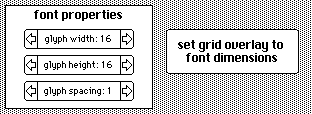
At the top right of this card you'll find a couple of sliders labeled 'font properties' and a button labeled 'set grid overlay to font dimensions' -- the button may be grayed out if the grid overlay already matches the font dimensions listed.


We want to set the grid overlay to match the dimensions of the font we're taking our new glyphs from. So after you find a font you like you should click that button (if it isn't gray already).

Now click the Sheet button at the bottom of the card. 

Go into Widgets mode and use the View menu to turn on 'Snap to Grid'. (You can also turn on 'Show Grid Overlay' if you'd like to see what's going on.) 

With 'Snap to Grid' active the positions and sizes of widgets will snap to the dots on the grid overlay whenever we move or resize them.

And because we're in Widgets mode you'll also be see the hidden widget that marks the area where the glyphs are drawn on the card. (the widget is named 'workzone')

(an image of the workzone widget as I found it..... not at all aligned with my new grid overlay dimensions but that's fine)

Drag 'workzone' around once to make the top left corner snap to a point on the grid near the top left of the card. Then resize 'workzone' once so the widget  is moderately large on the card and the other dimensions will snap to the grid too. You don't need to be too specific about the size or position. 

If it's not big enough during the next step you can resize it and try again. It's also okay if there are still unrelated glyphs on the card -- they'll be erased automatically in a moment.

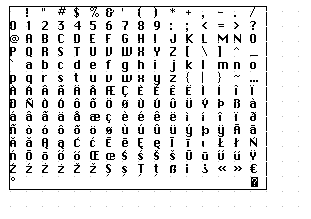
Go back to Interact mode on this same card and click the 'Load' button. The glyphs of the font you selected should now be shown on the card inside the space marked by the 'workzone' widget.

Click the Font button at the bottom of this card to go back to the card with the font list and select 'menu' towards the top of the list.

Use the arrows on the 'font properties' sliders to match the grid overlay dimensions of the other font we're using (in the case of my example, ahmCasual, that's 16 by 16). The 'set grid overlay to font dimensions' button (which we're not clicking now) should become gray/locked automatically when your selected dimensions in the sliders match the current grid overlay.

And now we go back to the Sheet editor card one last time and click the Apply button.

The glyphs that were on the card in the 'workzone' should be applied to the menu font. :) 

Save this deck as a new file and enjoy?

(+3)

Here’s a more automated way to clobber the menu font with a custom one.

  1. Copy this text to the clipboard:

    %%WGT0{"w":[{"name":"clobberfont","type":"button","size":[112,16],"pos":[208,64],"script":"on click do\n s:me.font\n t:deck.fonts.menu\n \n t.size:s.size\n t.space:s.space\n each i in range 256\n  t[i]:s[i]\n end\nend","font":"body","text":"Clobber menu font"}],"d":{}}
    
  2. Open a deck with a font you like

  3. Go into Widget-editing mode (Tool → Widgets)

  4. Paste the widget (Edit → Paste Widgets)

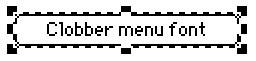
  5. This should give you a button like this:

    image.png

  6. Set the button’s font to be the font that you want to use as the menu font (Widgets → Font…)

  7. You now have a button that will clobber the menu font of the deck it’s in, with a font of your choosing

To set the font of a deck:

  1. Copy your customised button to the clipboard (Edit → Copy Widgets)
  2. Open the deck whose menu font you want to change
  3. Go into Widget-editing mode (Tool → Widgets)
  4. Paste your customised button into the deck (Edit → Paste Widgets)
  5. Go into Interact mode (Tool → Interact)
  6. Click the button
  7. You should see the font in Decker’s menu-bar change
  8. Now this deck has a custom menu font, you can delete the button and save the deck, and the change will persist

Warning: Unlike patterns and palettes, Decker does not have an easy way to reset a font to its default appearance. If you decide you want the old font back again, that’s going to be trickier.

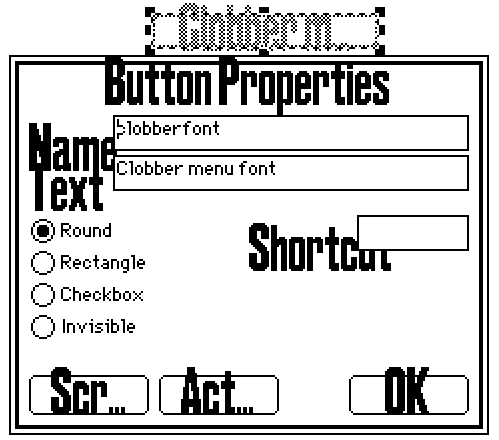
Also note that Decker’s interface does not adapt well to fonts that are larger than the default. It does its best, but there are limits:

image.png

(+1)

Passing arguments with event calls from Contraptions?

Hi! I was going through the "Breakout Three Ways" tutorial, and decided I wanted to make my own game-like object. I have an array of tiles (Contraptions from a Prototype Tile) and when the user clicks one, I want it to pass the tile's label (kept in a hidden field) to the top level Card script. That top-level script looks like this:

on moving which do
 alert["Yes, this is the card top level."]
 alert[which]
end

So, the event should be "moving[]" which accepts an argument (`which`), right?

So, in my Prototype, I have this script attached to the invisible button that makes up the tile's face. The "which" field is hidden, keeping track of the label for the tile:

on click do
  card.parent.event.moving[which.text] 
end

This is based on the "Breakout" example, but none of the Card level event handlers take arguments, so I'm trying to supply the argument as I would with a regular function. I've also tried without the brackets and using literal strings or numbers instead of the text from the hidden "which" text field. And every time, all I get is zero, or null or empty (with event handler code above).

Can someone give me a hint on where I've gone wrong? This seems to be a reasonable way to call the event (other events seem to do it?). But if I can't get it to work, I'm going to have to do something stupid like set a flag on the Contraption and call the event and have the handler grovel through all the widgets to find out who's got the flag set.  I guess if it works, it's not stupid, but it seems inefficient since I know what tile is raising the event?

Thanks!

Developer (1 edit)

In Lil, dot-indexing with an identifier and bracket-indexing with a string are equivalent:

card.parent.event.moving
card.parent.event["moving"]
card.parent["event"]["moving"]
card["parent"]["event"]["moving"]

This is a very convenient shorthand when functions take a single string as their argument, but I can see how it might leave you puzzled about passing extra arguments to the "event" method of deck-parts. You're looking for something like:

card.parent.event["moving" which.text]

Make sense?

(1 edit) (+2)

Okay... So I guess this is the relevant bit in the manual:


I thought that ".event" was just a dictionary, not actually a function (method?) that was taking event names(and optional arguments) as its arguments. Obviously, I need to read more carefully... Thanks very much for pointing me in the right direction!


With that resolved, I think I'm getting very close to the endgame here!

(+1)

Hi! Thanks again for your help! I got it working: https://oofoe.itch.io/puz15
(password "puz15" -- I just don't want it showing up on my profile yet because not finished.)

Another question, if you're willing... I'm trying to use the array language capabilities to figure out if there's an opening to move a tile into by vector adding to get the orthogonal neighbours:

np:2 window (p,p,p,p)+(1,0,0,1,-1,0,0,-1)

Then I get the contents of my tracking map (canvas that I write the actual tile positions into) at those positions to determine if one of the neighbouring spaces is empty (=0):

0=map@np  # Yields something like (0,1,0,0)

I know that a lot of array languages have some kind of operator to filter one array by a boolean other, so I could apply the result of the 0=map@np to np and arrive at just the coordinates of the empty space (or nil, if no empty space in neighbours). Currently, I'm grovelling through with an each loop -- is there a way to one-shot the operation like that?

Thanks!

Developer

In K, you'd solve this kind of problem with the "where" (&) operator:

 &0 1 0 0 1
1 4
 *&0 1 0 0 1
1

Lil doesn't have an independent monadic primitive for this operation; it's folded into the query language:

first extract value where 0=map@value from np

This is a little bulky when you're doing something simple.

When you only need a single result, you could consider forming a dictionary:

((0=map@np)dict np)[1]

It's also possible to perform an equivalent "masking" operation just with arithmetic:

m:0,0,0,1,0     # "one-hot" boolean vector
m*keys m        # (0,0,0,3,0)
sum m*keys m    # 3

Hello everyone! I really truly appreciate all the help from everyone before; you guys solved so many problems! But now I have many new issues.

The good news is, my game is already half-finished, and I want to create a screen shake effect, similar to gunfire or vibrations. I tried using fixed-point screen movement, but it looks really strange... I feel like there might be a better way to achieve this kind of performance effect, I just haven't found it? 💥💥💥

Secondly, I originally wanted to add other language fonts to this game, but even though I copied all the fonts over, some other countries' languages still throw errors and can't be used, such as Chinese, Japanese, Korean, etc... It seems like these fonts just aren't here? But if I really did add these fonts, it would be a massive amount of work—I need hundreds of cards lol...

Also, I really hope someone could personally teach me, step by step, how to export this game and publish it on itch.io when it's done, so that everyone can download and play it. I currently understand that I need to add a little txt file to the software package to include the author's copyright notice? : ) I got it.

And also, after it's really exported, how do I hide the top work panel so that players can only click the cards to play? I found something similar in the Locked decks... but... oh, I feel like I just can't understand it. Does it need something else?

I'm without a doubt a complete computer beginner. If someone is really willing to answer these questions in detail, I'd be really touched. Thank you ❤️

Developer(+2)

Puppeteer includes a simple screenshake effect. If you're using that library already, you can just include the !shake command in your dialog scripts like in the example. Here's a simplified version of how that works internally that could be used elsewhere- adjusting "shake_mag" and the duration of the transition (here 15) can tune how the effect looks:

go[card on shake_trans c a b t do
  local shake_mag:30,30
  local m:shake_mag*1-t
  c.pattern:1
  c.rect[0,0 c.size]
  c.paste[a (random@2*m)-m]
end 15]

Unfortunately, supporting non-Latin-alphabet languages in Decker is not straightforward. Phinxel has a few suggestions for workarounds, but any way you slice it a great deal of work would be involved.

To hide Decker's main menu, you'll need to lock the deck. (The following page describes how you can save a "protected" copy of the current deck.) Whether you're exporting a protected copy of a deck or using the ordinary save menu, all you need to do to create a web-playable version of a deck is save with an ".html" extension.

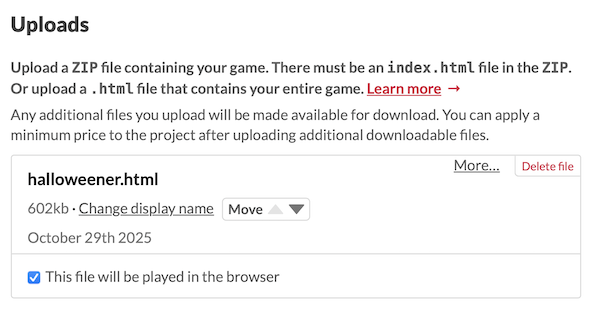
When you create your project page on Itch.io, upload the .html file you saved, and mark it as "played in browser". It'll look something like this:

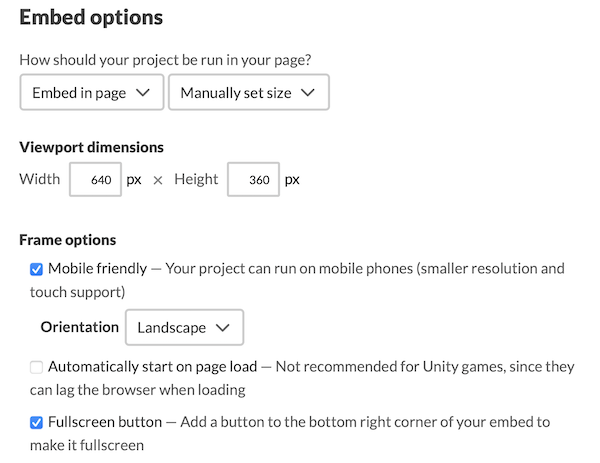
There are also additional settings to configure how your game will be embedded in the web page:

The defaults are mostly fine, but I recommend enabling the "fullscreen button" for most projects.

(+1)

Oh my god, this is amazing! I used the code and the result is absolutely perfect!

Thank you so much for your help—I’m going to work hard on creating my game with Decker ✨🔆

Viewing posts 21 to 39 of 39 · Previous page · First page