On Sale: GamesAssetsToolsTabletopComics
Indie game storeFree gamesFun gamesHorror games
Game developmentAssetsComics
SalesBundles
Jobs
TagsGame Engines

Screwtapello

46
Posts
3
Topics
8
Followers
7
Following
A member registered Oct 02, 2017 · View creator page →

Creator of
Recent community posts

I think on loop is checked when you visit a new card, so that the new card has a chance to stop the loop, or start a new one. For example, if one card represents the player standing beside a waterfall, it would be more atmospheric if a loop of waterfall noise played whenever that card was visible. When the player visits that card, the loop should start immediately (even if some other loop was already part-way through playing) and when the player leaves that card, the loop should stop immediately (even if the waterfall noise was part-way through). Calling on loop on card transitions makes that kind of effect possible.

If your two songs are less than 10 seconds in total, you could combine them into one sound and loop that quite easily.

If your two songs are more than 10 seconds long in total, you might add a “last loop started at” field on the same card as the counter that switches between them. When you start playing a sound, update the counter, and set the “last loop started at” field to sys.ms (the current time in milliseconds). When on loop is called, it passes in the old sound - if the “last loop started at” time, plus the duration of the old sound in milliseconds (old.duration*1000, since the duration is in seconds), is nearly equal to sys.ms, then we’re probably looping because we got to the end of the sound. If the start time + the duration is greater than sys.ms, then the loop has been called early, probably because of a card change. If you return the original sound, it will continue playing it, rather than restarting it.

This is pretty handy!

As a tip, since the YouTube URL is always based on the base URL, the ID, and the timestamp, instead of creating it at insert time and adding it as an extra column, you can create it when the user clicks on the grid. That way, you get extra space on-screen for the description column, and if you edit the timestamp, you don’t also have to edit the URL to make it “stick”.

Also, that is a very cool video to use as the default example. :)

I love all the era-appropriate clip-art! The contrast between the wholesome pictures and the cynical tone is fun.

That’s a nice collection of photos, and the dithering makes them just a bit more surreal. I particularly like the way you’ve filled some parts with Decker patterns - a creepy door with a sky filled with cute polka-dots behind it just adds to the creepiness.

One minor issue: on the final card, the “END” text isn’t locked, so you can select it and type over it; I assume that’s unintended.

I just played through the current version. It was fun, even if the setting was a bit gruesome.

When I started playing, it took me a while to figure out I could click on the person in the other cell; I didn’t recognise it as the silhouette of a person at first.

In the “guess the ages of the children” puzzle, I got a bit annoyed that one of the clues was apparently “on the wall behind me”, but I couldn’t find a way to turn around; I actually rewound the game back to the previous section looking at the desk to see if there was a number on the wall I couldn’t remember. Turns out there wasn’t, and even if there had been a way to get that clue it wouldn’t have helped - it’s not necessary to solve the puzzle. I feel like it’s a distraction to mention it at all. On the other hand, I really liked the final clue - it was a great “But why would.. ohhh!” moment.

I used two hints on “guess the occupation” and one hint on “guess the number of the safe”, but I made it through.

There’s a certain audacity in publishing a photo album as a series of low-resolution, dithered black-and-white images, and I really admire it. They look great!

I know a lot of Decker projects are just people trying to make a cool little thing, so I don’t expect a credit, but “Screen melt transitions by Screwtapello” would be nice.

Are you using a .deck file (which you have to load into a program running on your desktop or laptop) or a .html file (which you run in a web browser)?

If you are using a .deck file, you don’t need to replace it. You can replace the old Decker.exe with a new one downloaded from Itch, and it will be up-to-date.

If you are using a .html file in a web browser, it contains both your deck and a copy of Decker that runs in the browser. To update that version of Decker, you can:

  • go to https://beyondloom.com/decker/tour.html which always has the latest HTML version of Decker
  • from the File menu, choose “Open…”
  • you should be prompted for a deck to open; choose the deck you want to update
  • your deck should now be running in the updated Decker in the browser
  • from the File menu, choose “Save As…”
  • when asked, choose a filename that ends in .html and click Save
  • your browser should start downloading a file with the name you chose; it will be your deck wrapped in an updated version of Decker

Thanks!

When you assign a value to a name in an event handler, like this:

on view do
 p:1+2
end

…when Decker decides the thing is being viewed:

  • it calls the view event handler
  • it creates a new name p inside that event handler
  • it assigns the value 3 to p
  • the event handler ends
  • p vanishes along with it

If you have some other event handler somewhere else, like on click do ... end, that event handler does not have access to p, it can’t use the value. If you say p:2*3 in that event handler, it will have its own p that will also vanish when the event handler completes.

In the first code block in your comment, you have:

on view do   
p:"%p" parse "%e" format sys.now  utc_offset:1  
p.hour:24%utc_offset+p.hour  b:(p.hour)
me.text:"%f:" format b      
end

That creates a p with date-time information in it, it adjusts the hour part of that date time, it uses the p for some text formatting, and then the event handler ends and that p is lost.

In your second code-block, which I assume is from a button’s on click do ... event handler, you have:

...
p:"%p" parse "%e" format sys.now
...
if (p.hour=12)&(p.minute=13) 
...

Because that’s a separate event handler, that’s a separate and unrelated p, and its p.hour has not been modified. Every event handler where you want to use the modified time, you need to modify it again.

Also, a little further down:

...
elseif ((p.hour) <10) & ((p.hour) >20) 
...

I don’t think the hour can be less than ten and greater than 20. Perhaps you wanted to switch those around to be “greater than 10 and less than 20”?

Assuming that’s what you want, here’s a button that behaves that way (although it uses Decker’s built-in alert[] rather than the dd.say[] module):

%%WGT0{"w":[{"name":"timelock","type":"button","size":[95,20],"pos":[226,161],"script":"on click do\n p:\"%p\" parse \"%e\" format sys.now  utc_offset:1  \n p.hour:24%utc_offset+p.hour\n\n if ((p.hour) >10) & ((p.hour) <20)\n  alert[\"###ACCES AUTORISE ENTRE 20H ET 10H###\"]\n else\n  alert[\"###ACCES INTERDIT ENTRE 10H ET 20H###\"]\n end\nend","text":"Attempt Unlock"}],"d":{}}

Copy that text to the clipboard, then in Decker you should be able to switch to the widget-editing mode and use Edit → Paste Widgets to add the button to the current card, where you can poke at it.

I was having a rough day yesterday, and having something so beautiful and cheerful and playful to look through absolutely brightened my day!

I did find some minor problems:

On the card “lockeddecks”, the label “How to lock a deck” is editable, and I think it shouldn’t be?

On the card “gridscale”, it says Decker’s Fat Bits mode was named after “a program that magnified the screen on classic Macs”, but it links to a program for OS/2, not for classic Macs, and the program came out six years after MacPaint was released with a Fat Bits mode.

I think the real reason Decker has a “Fat Bits” mode is because somebody somewhere had the experience of using HyperCard (or MacPaint), seeing “Fat Bits” mode in a menu, enabling it out of curiosity, and then (after a moment’s confusion) realising it was a super-power for making even better art. “Zoom” is a thing you find in professional software like Microsoft Word and Photoshop, “Fat Bits” is playful discovery and better suited to Decker.

It’s hard to squeeze all that into a little “why is zoom called fat bits” aside, though. :/

Still, this is an amazing resource. There was a lot of stuff in there I didn’t already know (especially about the art side of things) and probably things I didn’t know I needed yet - but at least now I can look them up easily. I will definitely be showing it to people who want to know about Decker!

As somebody coming from a Python background, it’s taking me a while to adjust to making the most use of Decker’s strengths. So far, I’ve found the “Cards are Workbenches” to be the most empowering thing - where in Python I might write a suite of unit-tests, in Decker I can drop down some sliders and a canvas, wire them up, and see the thing I’m working on updating at 60fps. And once I’ve gotten the thing to work the way I want, other cards can just read the values of those sliders.

I discovered a bunch of things from that post, including:

  • making a button transparent, and then drawing a custom icon behind it
  • there’s a navigation history so that go["Back"] always does the right thing
  • the correspondence between foo.key and foo["key"] is not just for dicts (as in JavaScript) but you can also do card.event.reset instead of card.event["reset"] to invoke an event handler
  • I had thought about “cards as objects”, but didn’t realise it could be so ergonomic to use them that way; the link between cards and contraptions seems even stronger

Thanks for writing it!

I love the intro animation where the letters teleport in, Mega Man style. Very cool!

You’re almost there, but unfortunately Decker doesn’t allow you to add a pressed attribute to a button like that. If you want to keep track of a flag like “treasure taken”, the easiest thing would be to make a button in the puzzle-room called treasuretaken, configure it to be a checkbox, and “Show None”. Then the button that takes the treasure can do:

on click do
 treasuretaken.value:1
end

(note that you have to say 1, not true: Decker’s scripting language Lil does not recognise true and false specially, and treats them both as undefined variables)

…and the button that checks for taken treasures can do:

on click do
if puzzleroom1.treasuretaken.value & puzzleroom2.treasuretaken.value
 dd.open[deck]
 dd.say["You successfully stolen all treasures!"]
 dd.close[]
 go["end"]
else
 alert["You must collect all treasures to leave!"]
end
end

(note that the way to say “both these things must be true” is & not and - Lil does not recognise and either)

Ah, here’s what I see:

  • when I start the game, no sound
  • when I click on the background, the background loop plays once
  • when I click on the “next” button, there’s still no background music
  • if I press the left-arrow key on the keyboard to go back to the first card, the background loop begins playing, and loops properly

From the documentation, under Web-Decker and Native-Decker:

Most web browsers do not allow programs to play audio until the user has interacted with a page, so any play[] commands issued before a user has clicked, tapped, or pressed a keyboard key will have no effect.

I think this is what you’re bumping into, since your deck tries to play audio when the first card appears. The simplest workaround would be to also start looping the sound on the second card, so that whether somebody’s using Web Decker or Native Decker, they get the background loop eventually. A more complex solution would be to add a pre-title card that the user has to click through to get to the title card.

Does looping work for you in the official All About Sound deck? In my browser (Firefox on Linux) I can click “Start Loop” and it runs for at least 11 loops (that’s when I got bored).

What browser are you using, on what platform?

How long is the sound that you’re looping?

How long does it pause for?

(1 edit)

When you use go[] with a transition, the transition animation needs two Images to animate between, so it sends the view[] event to the target card to see what it’s going to look like. Then, when the transition is complete and the new card is visible, it gets another “view” event like normal.

So no, you’re not doing something wrong, that’s just how Decker works.

If you’re struggling to get the solutions in that other thread working, here’s another alternative: by default, a transition takes 30 frames (half a second), so if view gets called twice within the same second, it’s probably because of a transition, and we can ignore the second one.

If you put a field named lastview on your card, you can use it to keep track of the last time view was called, like this:

on view do
 # If the current frame is more than
 # 60 frames (one second) since
 # the last time view[] was called,
 # call realview[].
 if sys.frame > lastview.data + 60
  realview[]
 end

 # Log that view[] was called
 show["viewed" card.name]

 # Update our records for next time
 lastview.data:sys.frame
end

on realview do
 show["real view"]
end

You should make the lastview field invisible and locked so that players don’t accidentally mess with it.

If you go to this card without a transition, in the Listener you should see the log messages:

"real view"
"viewed" card1

If you go to this card with a transition, you should see the log messages:

"real view"
"viewed" card1
"viewed" card1

realview[] was called for the first view, but the second view happened so soon afterwards, that it skipped calling realview[] the second time.

Ah, yeah. The “margins” of a prototype also divide up the prototype background into a 3x3 grid. When a contraption is resized: the top-left tile of the prototype is drawn at the top-left corner of the contraption; the top-centre tile of the prototype is tiled horizontally across the top of the contraption; the top-right tile of the prototype is drawn at the top-right corner of the contraption, and so forth.

The default introduction/tutorial deck you get when you launch Decker has a page on “contraptions”, and one of the examples is a “resizable decorative border” contraption that demonstrates the behaviour nicely.

If you want to draw the background with code, you’ll need a canvas widget if only because the Image protocol you get from card.image doesn’t provide a lot of drawing primitives. You can use a “hidden” canvas widget, draw the background you want, then do card.image:canvas.copy[0,0 canvas.lsize] to paste it onto the contraption background, or (much easier) just make the canvas widget cover the area of your prototype, and Decker’s default resize behaviour (with the margins and such) will make sure it stays in place as the contraption is resized.

Lil’s vector-handling made more sense to me when I learned that it was inspired by a language called K, which was inspired by a language called APL, which was designed (among other things) to be a more modern alternative to traditional mathematical notation. Mathematicians will use + to represent addition of integers or complex numbers or matrixes or anything other random thing that obeys the algebraic laws of addition, and APL (and eventually Lil) uses + in a similar way.

If you think about vectors in the way they’re normally handled in languages that weren’t designed around the concept (like Python or Fortran), then yeah, you’re not going to get the full benefit. I also have found Lil to be a bit mind-bending (I came up with 1+0*range 5 for what I’ve now learned is more idiomatically expressed as 5 take 1), but it’s still so much more approachable than APL or even K, and there’s this whole cool retro-themed multimedia sketchpad tool built around it.

If you can provide an example contraption that exhibits the behaviour you describe, that would help. If you can set it up in a new deck, you can select the contraption, do Edit → Copy Widgets, and then paste the result into a reply here. That’s what I did to create the examples in my reply - if you copy a contraption, Decker even includes its prototype.

Is there ANY way to resize an internal canvas(es) on a contraption resize?

If you make your prototype “resizable” (when you’re editing a prototype, from the “Prototype” menu make sure the last item “Resizable” is ticked), then you should be able to resize the contraption when you add it to a card. If you also tick “Show Margins” in the Prototype menu, you’ll also get four little handles you can use to mark the left, right, top and bottom margins of the prototype: any part of a widget that is between the edge of the prototype and the margins will stay at that fixed distance from the edge, any part of a widget that is in the middle will be proportionally resized as the contraption is resized.

%%WGT0{"w":[{"name":"prototype11","type":"contraption","size":[98,91],"pos":[86,66],"def":"prototype1","widgets":{"canvas1":{"size":[81,41]}}}],"d":{"prototype1":{"name":"prototype1","size":[100,100],"resizable":1,"margin":[0,25,0,0],"widgets":{"canvas1":{"type":"canvas","size":[83,46],"pos":[8,9]}}}}}

If you paste the above widget definition into a card, you’ll get a contraption with a canvas in the top half of it. The top edge of the canvas is between the top edge of the prototype and the top margin, so it stays at a fixed distance from the top of the contraption as it is resized. The bottom edge of the canvas is between the top and bottom margins, so it moves proportionally as the contraption is resized.

If you are trying to write code to reposition widgets in a deck, that should work, but it may be overidden by the “built in” resizing behaviour described above? I’m not sure, I haven’t tried it.

But, then that raises another question, I am uncertain where to initialize long term state on a card or contraption.

The best place to put long-term state on a card or contraption is in a widget. Widgets don’t have to be in the centre “white” part of a prototype, you can stash them in the dark-grey border area - but make sure they’re locked so the user can’t accidentally interact with them. For most data types (numbers, strings, lists, dicts, tables) you can just use a regular field, and read and write its .data property. If you want to store a bunch of images (such as sprites), the best way is to use a rich-text field; you can paste the images in, and access them from code by reading the .images property.

Also, is there a working example of get_ and set_ for prototypes?

If you edit a prototype and choose “Script…” from the Prototype menu, you can enter a handler like this:

on get_foo do
 "here's a foo"
end

Then, let’s say you make a contraption from this prototype, called mycontraption. If you say mycontraption.foo, that will evaluate to the string "here's a foo". Here’s a pasteable example of that in action:

%%WGT0{"w":[{"name":"mycontraption","type":"contraption","size":[100,100],"pos":[86,66],"def":"prototype1","widgets":{}},{"name":"button1","type":"button","size":[84,20],"pos":[93,40],"script":"on click do\n alert[mycontraption.foo]\nend","text":"Gimme a foo"}],"d":{"prototype1":{"name":"prototype1","size":[100,100],"margin":[0,0,0,0],"script":"on get_foo do\n \"here's a foo\"\nend","widgets":{}}}}

Setting works the same way: define on set_foo val do ... end and it will be called when code does mycontraption.foo:somevalue.

If you want to be able to get and set values interactively, rather than just through code, you can also use “attributes”, but that’s an optional, additional layer on top of get_foo and set_foo that you don’t have to worry about otherwise.

That’s a good point, thanks!

I’m working on a deck right now, using my laptop, and I’ve been using the arrow keys to quickly switch between cards. I gave it to a friend (who is unfamiliar with Decker) to test on their phone, and their very first comment was “when I swipe left to go to the next card, it takes me to the previous card instead”.

I want to address this, but I’m not sure how.

  • I could say “that’s just how it is, deal with it”, but I imagine other people will get tripped up by this too
  • I could override the navigate event to work “backwards”, which will make touch-screens feel more natural, but then arrow-key navigation is weird
  • I could override the navigate event to do nothing, which prevents a convenient shortcut but also prevents confusion

I already have “back” and “next” buttons on every card, as well as a table-of-contents card, so losing the navigation shortcuts wouldn’t be the worst thing in the world, and that is probably what I’ll go for.

Are there any other alternatives?

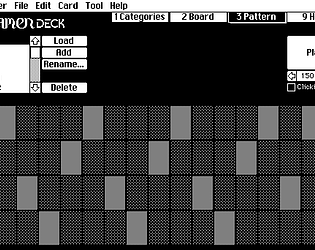
The “Patterns Interface” section of the Decker docs describes the animated patterns as:

A list of up to 256 pattern indices for animated patterns.

You can include solid “red” and “black” in the animated sequence because they have pattern indices (35 and 1). But if you want a pattern pattern, those are described as:

An 8x8 image interface comprised of patterns 0 and 1.

So actual patterns can’t have red in them, only patterns 0 and 1, which are (by default) white and black. You could set palette 32 to be red instead of white to get red-and-black animations, but that would make every white pixel red, which probably isn’t what you want.

How did you get the decks to have custom icons in the file manager?

(1 edit)

For your first question, a canvas gets the click event on mouse-down, and the release event on mouse-up, so you can make the canvas change colour while the button is held down:

on click pos do
 me.pattern:colors.red
 me.rect[0,0 me.lsize]
end

on release pos do
 me.pattern:colors.white
 me.rect[0,0 me.lsize]
end

(obviously you can do fancier painting than that if you want)

The release event also gives you the position of the pointer at the time the button was released, relative to the top-left corner of the canvas. If the position is below and to the right of the top-left corner, and above and to the left of the bottom-right corner, then it’s within the canvas, and you can do whatever the canvas-button is supposed to do:

if min (pos>0,0),(pos<me.lsize)
 alert["whatever I'm supposed to do"]
end

For your second question, I can’t easily spot an error (though I’m pretty sure you don’t need set); in this situation I’d wrap show[] around different parts of the code to double-check that the values being calculated were the ones I expected. show[] takes a sequence of expressions, logs them to the Listener, and returns the first one, so you can wrap it around expressions without changing how your code runs. So, this code will run exactly the same as the example above:

if min show[(pos>0,0) "<-- to the bottom right"],show[(pos<me.lsize) "<-- to the top left"]
 alert["whatever I'm supposed to do"]
end

…but produces this output in the Listener:

(1,1) "<-- to the bottom right"
(0,1) "<-- to the top left"

For your third question, the floor operator drops the fractional part of a number:

 floor 1.0,1.4,1.5,1.6,2.0
(1,1,1,1,2)

If you want round-to-nearest rather than always-round-down, you can add 0.5 before hand:

 floor 0.5+(1.0,1.4,1.5,1.6,2.0)
(1,1,2,2,2)

It looks like it does! Thanks!

I had hoped I could check "card"=typeof card.parent to see if contraption was being used on a card (in which case, the button needs to be moved out of the way) or if the prototype was being edited (in which case, leave the button where it is so we can edit it). Unfortunately it seems like a prototype’s parent is always some card, even if that card does not contain any contraptions.

Still, if I really need to, I can still bring the button back on-screen by setting its position in the Listener.

To be clear, I do have a clickable button, it’s just that I’m using a canvas so I can get the click event as well as the release event. I figured that, like regular buttons, it would be nice to support shortcuts as well as clicks.

I’m not currently targeting Web Decker, but it’s cool that getting key-down events is at least sometimes possible. Thanks for letting me know!

I have hit a snag. I have a contraption I want to be able to trigger with a keypress, so I put a secret button inside it, and when you set the shortcut attribute on the contraption, it sets the shortcut attribute on the secret button. This works pefectly - keypresses outside the contraption trigger the secret button inside it.

Unfortunately it also triggers the behaviour described above - clicking on the card where the secret button would be also triggers it, even if that area is supposed to be some other widget. And unlike the above workaround, setting the secret button to “Locked” or “Show None” deactivates the shortcut behaviour.

I suppose the workaround to the workaround would be to remove the shortcut feature from the contraption, and just add buttons to the card directly… and hide them by moving them off the side of the screen, rather than with “Show None”.

I’m not sure if this is a bug or Just The Way It Works, but it surprised me so I figured I’d talk about it and let other people know.

Let’s say we make a new contraption. It’s going to need to store some data, so we’ll stick a big field outside the visible area. We haven’t put any widgets inside the visible area, so let’s just paint the background red so we can see where the contraption is:

image.png

We can plonk that contraption in the middle of a card and see that it is the only widget there, there’s nothing else around it:

image.png

But when we switch to Interact mode, and move the mouse cursor to the right of the red box, it turns into the text-editing I-beam cursor! And if we drag around, we can select text and get access to the formatting menu!

image.png

This confused me for quite a while, but the solution is simple: in the Prototype editor, select the field and make it Locked:

image.png

Then the user won’t be able to accidentally interact with it. Making the field “Show None” might also work, but that makes it harder to test the contraption interactively in the prototype editor.

(1 edit)

Memory Watcher

This contraption shows a log of Native Decker’s memory usage. I thought Decker was using a lot of memory, but it turned out that I just didn’t understand how it was supposed to work, and studying this helped me figure it out.

image.png

The graph scrolls to the right, so the newest data is on the left. The height of the graph represents the total size of Decker’s heap (which is given as a specific number in the caption at the top). The black lines represent how many allocations were added on that frame (“allocs” in the caption is the number of allocations in the most recent frame), and the dithered portion represents how full the heap is.

In the screenshot above, you can see the heap was pretty empty, then I did some things that created a lot of allocations, and the heap filled up. When it gets above 90% or so, Decker cleans up all the unused allocations, freeing up space to do more allocations in future.

The lesson I learned is that it’s better to do lots of small memory allocations over several frames than one big memory allocation, especially if there’s a chance your big memory allocation might happen when the heap is already quite full. Badly-timed allocations can balloon the heap until it’s 10 times bigger than your allocation, and that can be gigabytes of memory.

%%WGT0{"w":[{"name":"memwatcher1","type":"contraption","size":[199,45],"pos":[182,265],"def":"memwatcher","widgets":{"history":{"size":[199,45]},"lastallocs":{"size":[199,16],"pos":[0,77]},"lastheap":{"size":[199,16],"pos":[0,93]},"label":{"size":[199,45]}}}],"d":{"memwatcher":{"name":"memwatcher","size":[96,96],"resizable":1,"margin":[2,3,5,3],"description":"A live-updating log of Decker's memory usage.\n\nThe dithered area represents how full Decker's heap is, the solid area represents new allocations on that frame.","image":"%%IMG2AGAAYABQAQEA/wD/AP8A/wD/AP8A/wD/AP8A/wD/AP8A/wD/AP8A/wD/AP8A/wD/AP8A/wD/AP8A/wD/AP8A/wD/AP8A/wD/AP8A/wD/ANI=","widgets":{"history":{"type":"canvas","size":[96,96],"pos":[0,0],"locked":1,"animated":1,"volatile":1,"script":"on view do\n # Extract values we'll need a lot\n lheap:0+lastheap.text\n cheap:sys.workspace.heap\n lallocs:0+lastallocs.text\n callocs:sys.workspace.allocs\n clive:sys.workspace.live\n cw:history.lsize[0]\n ch:history.lsize[1]\n\n\n # If the heap size has changed,\n # scale the histogram\n i:history.copy[0,0 history.lsize]\n if cheap > lheap\n  i:i.scale[1,lheap/cheap \"bottom_center\"]\n end\n\n # Scroll the histogram along\n history.clear[]\n history.paste[i (1,0) 0]\n\n # Draw a stipple for how full the heap is\n barh:ch*clive/cheap\n history.pattern:12\n history.line[0,ch 0,ch-barh]\n\n # Draw a solid line for how much was allocated this frame.\n barh:ch*(callocs-lallocs)/cheap\n history.pattern:1\n history.line[0,ch 0,ch-barh]\n\n label.text:\"heap:%i allocs:%i\" format cheap,callocs-lallocs\n\n lastheap.text:cheap\n lastallocs.text:callocs\nend","scale":1},"lastallocs":{"type":"field","size":[96,16],"pos":[0,128],"volatile":1},"lastheap":{"type":"field","size":[96,16],"pos":[0,144],"volatile":1},"label":{"type":"field","size":[96,96],"pos":[0,0],"locked":1,"volatile":1,"show":"transparent","border":0,"style":"plain","align":"right"}}}}}
Decker community · Created a new topic UXN Fonts for Decker

You might have heard of [UXN], another retro fantasy console/virtual machine like Decker - but where Decker echoes HyperCard for the Macintosh, UXN is a lot closer to programming the original 8-bit Nintendo Entertainment System. Anyway, UXN comes with some example fonts from various places - some extracted from the original MacOS, some from 8-bit home computers, etc. - and I figured it would be fun to convert them to Decker’s font format.

So, here’s a deck with conversions of all the UXN fonts, for you to play with:

https://screwtapello.gitlab.io/uxn-fonts-deck/

Note that UXN doesn’t have a standard character encoding like Decker’s DeckRoman, so although many of the fonts have accented characters, they’re probably not going to be where Decker looks for them. If you want to put in the manual work to move all the characters around to the right places, you can load the fonts into Decker’s “All About Fonts” deck and use the font editor there.

(1 edit)

If I put show[piece_data.tmini] directly after the extract expression, it prints:

("%%IMG2ADAAMAD/AP8A/wBHAQEALgEDAC0BAQAvAQEAAQEBAC0BAQACAQEAKwEBAAYBAgAmAQMAAgEBAAIBAgAmAQEAAQEBAAMBAgABAQEAJgEBAAEBAQADAQIAAgEBACcBAQAEAQEAAgEBACcBAQAIAQEALwEBAC8BAQAwAQEA/wD/AP8ARQ==")

…which represents a list containing a single string (even though that’s not the syntax for creating a list containing a single string). Let’s call it imglist:

imglist:list "%%IMG2ADAAMAD/AP8A/wBHAQEALgEDAC0BAQAvAQEAAQEBAC0BAQACAQEAKwEBAAYBAgAmAQMAAgEBAAIBAgAmAQEAAQEBAAMBAgABAQEAJgEBAAEBAQADAQIAAgEBACcBAQAEAQEAAgEBACcBAQAIAQEALwEBAC8BAQAwAQEA/wD/AP8ARQ=="

Now print[imglist] will try to convert the list to a string, which works and produces the intended result (as you saw with your “this is what I want” message). However, image[imglist] wants its argument to be an x,y size, and only falls back to trying to interpret a string if it can’t do that. The argument it gets is a list, just not a list of two integers, so you wind up with an 0x0 image.

In general, you probably want to change the way you extract the row from the table:

 piece_data: first rows select
  tname:tname 
  tdesc:tdesc
  tmini:tmini
 where index=row
 from me.value

Now piece_data is a dictionary, as you expected, rather than a table.

In this specific instance, since this is the click handler of a grid, we can assume that the relevant row of the grid is already selected, and we can just say:

piece_data:me.rowvalue

And now the rest of your code should work as you expect.

I have some cards with a bunch of fields in them, and I want them to line up nicely, so I used the “snap to grid” function. Eventually I decided that the default 16x16px grid was a bit too chunky, and dropped down to an 8x8px grid so I could have spaces smaller than a field, as well as larger.

But now when I need to adjust a field, I have to go in and change the grid spacing back to 8x8px every time - it defaults to 16x16px every time I start Decker.

Is there a way to have the default grid size stored in the deck?

Here’s an example script that uses a “bool” modal:

 petting:alert["Do you want to pet the bunny?" "bool" "Pet"]
 if petting
  alert["The bunny basks in your affection."]
 else
  alert["The bunny wanders off, looking for carrots."]
 end

The documentation says “Prompt the user with two buttons, “Cancel” and a verb given by x (or "OK", by default).” so I’m pretty sure you can’t change the “Cancel” text.

If you want the player to choose between options with no “I clicked the wrong button, get me out” option, like in a visual novel, you might be interested in the Dialogizer library, which lets you show visual-novel style dialog boxes, including choices.

A deck contains cards, cards contain widgets.

When you click a button in the “interact” mode, or a script runs somebutton.event["click"], Decker looks inside the button’s script for an on click do ... handler.

If it can’t find one, the event “bubbles up” to the card, and Decker looks for an on click do ... handler there.

If it can’t find one, the event “bubbles up” to the deck, and Decker looks for an on click do ... handler there.

If it can’t find one, Decker has built-in default handlers for certain events (like dragging on a canvas to draw on it), but most events wind up being ignored.

The script on the “Make Magnet” button just creates a new Canvas widget and adds it to the card. You can set or retrieve the script of a widget with the .script attribute. So:

mycanvas.script:"on click do alert[\"boo\"] end"

Alternatively, when a widget doesn’t have a handler for a particular event, that event bubbles up to the card, then the deck. If you want a bunch of widgets that all have the same behaviour, you can put the on click ... end handler in the card, and not have to worry about adding it to each widget individually.

In the original HyperCard, if you picked a pattern (say, bricks) and filled an area, then picked another pattern (say diagonal lines) and clicked in the same place, only one brick would fill with diagonal lines: the pattern is converted to black-and-white pixels on the canvas, and that limits the next use of the flood tool.

In Decker, filling with diagonal lines replaces all the area that was filled with bricks, not just one brick.

That means the drawing tools aren’t drawing black-and-white pixels, they’re drawing pattern numbers, and sixty times a second Decker converts those pattern numbers into patterns of black-and-white pixels. Animated patterns would work by just changing which pattern to use on every consecutive frame.

As a result, the flood-fill tool works how childhood-me expected it to, and things like canvas.segment[] do the right thing with tiled dither patterns, instead of messing them up. However, it might also mean that “coloured patterns” are more difficult than you’d expect.

The js_decker_html variable should be defined in c/resources.h which should be automatically built when it needs to be.

If you rm c/resources.h and then make V=1 c/resources.h do you get any error message?