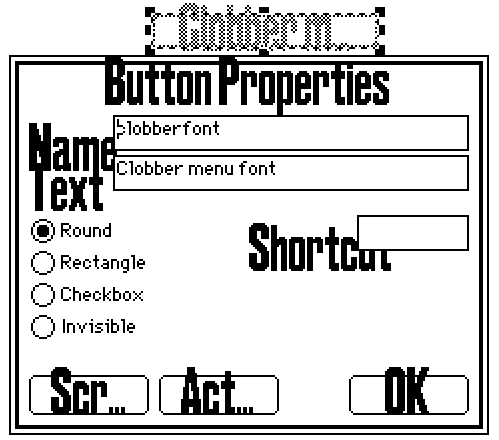
Here’s a more automated way to clobber the menu font with a custom one.
-
Copy this text to the clipboard:
%%WGT0{"w":[{"name":"clobberfont","type":"button","size":[112,16],"pos":[208,64],"script":"on click do\n s:me.font\n t:deck.fonts.menu\n \n t.size:s.size\n t.space:s.space\n each i in range 256\n t[i]:s[i]\n end\nend","font":"body","text":"Clobber menu font"}],"d":{}} -
Open a deck with a font you like
-
Go into Widget-editing mode (Tool → Widgets)
-
Paste the widget (Edit → Paste Widgets)
-
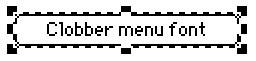
This should give you a button like this:
-
Set the button’s font to be the font that you want to use as the menu font (Widgets → Font…)
-
You now have a button that will clobber the menu font of the deck it’s in, with a font of your choosing
To set the font of a deck:
- Copy your customised button to the clipboard (Edit → Copy Widgets)
- Open the deck whose menu font you want to change
- Go into Widget-editing mode (Tool → Widgets)
- Paste your customised button into the deck (Edit → Paste Widgets)
- Go into Interact mode (Tool → Interact)
- Click the button
- You should see the font in Decker’s menu-bar change
- Now this deck has a custom menu font, you can delete the button and save the deck, and the change will persist
Warning: Unlike patterns and palettes, Decker does not have an easy way to reset a font to its default appearance. If you decide you want the old font back again, that’s going to be trickier.
Also note that Decker’s interface does not adapt well to fonts that are larger than the default. It does its best, but there are limits: