Indie game storeFree gamesFun gamesHorror games
Game developmentAssetsComics
SalesBundles
Jobs
TagsGame Engines

General Decker Question and Answer Thread Sticky

A topic by ahmwma created Aug 06, 2025 Views: 5,348 Replies: 194
Viewing posts 41 to 49 of 49 · Previous page · First page
(+1)

Hello! I need a little help figuring out how to specify specific rows to pull data from.

So basically what I'm trying to do is make a very simple text box that draws from a specific row in the graph, and then pastes the value into the field, then also takes the size data from the row next to it and applies it to the same field. 
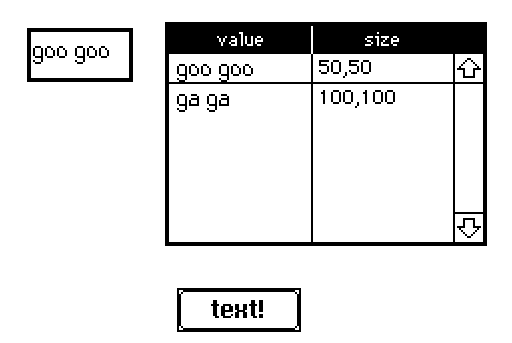
I've figured out how to get the text to paste and how to change the size, but right now the only way I know how to call for rows is through this random command.

on click do  
   field.value: random[grid.value].value 
end

I mostly just need to know how to call on specific rows though since I haven't been able to figure it out. I should be able to figure out the rest from there.
Developer(+1)

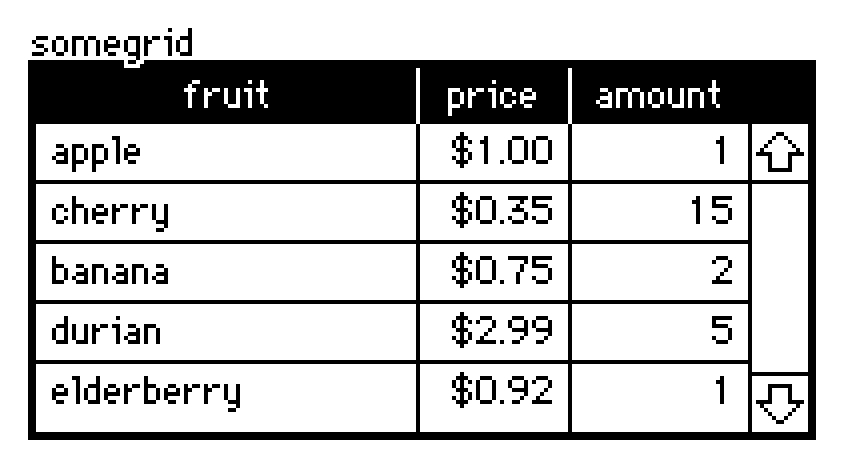
Let's say I have a grid widget like this:


The .value attribute of a grid widget is a table value.

Tables can be indexed by a string (a column name) to retrieve a column as a list, or by a number (a row number) to retrieve a row as a dictionary:

somegrid.value[1]
# {"fruit":"cherry","price":0.35,"amount":15}
somegrid.value.price
# (1,0.35,0.75,2.99,0.92)

Thus, if you want a specific cell, you can index by row and then column, or column and then row, whichever way you find convenient:

somegrid.value[1].price  # 0.35
somegrid.value.price[1]  # 0.35

Any questions?

(+1)

No questions yet, I've got it working now! Thank you for you help!

(+1)

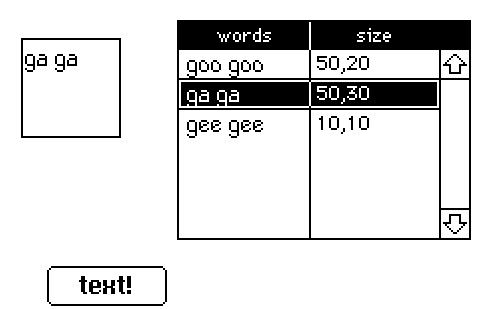
Ok actually I ran into a weird hiccup. I'm able to call on specific cells for text just fine, but when it comes to the size I'm just not able to get it to read properly. When I try to specify a cell under size, it glitches out the size of the field and makes it disappear. (code im trying below just as example to make sure im not messing up something small lol)

on click do    
   n:random[0,1,2]    
   field.value: grid.value.words[n]    
   field.size: grid.value.size[n] 
end

Weirdly, it "works" when I don't specify a cell, but it takes the first numbers of the first two cells in the column rather than the numbers from one cell.

on click do    
n:random[0,1,2]    
field.value: 
grid.value.words[n]    
field.size: grid.value.size 
end

I tried to put the size in a different grid, but I ran into the same issue.

Developer(+2)

I suspect that what's happening is you've placed e.g. the string "50,20" into a cell rather than a pair of numbers.

There are several ways of converting a string of comma-separated numbers into a proper list. For example,

"%i,%i" parse "50,20"
0 + "," split "50,20"
eval["50,20"].value     # (this is opening a walnut with a sledgehammer)

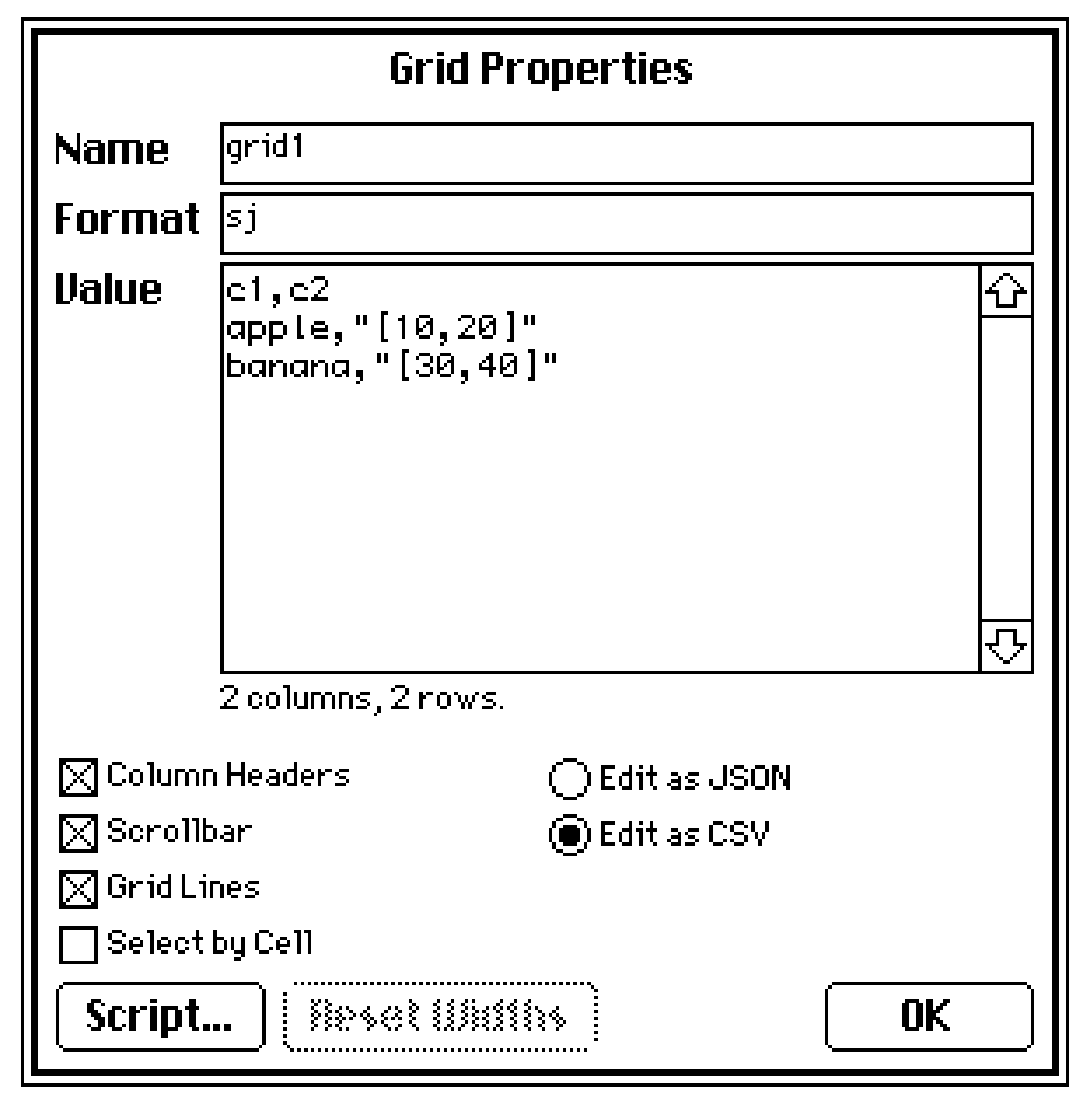
Alternatively, if you want to store structured data within a grid cell, you can specify a column's format as "j" (JSON data) or "J" (LOVE data, a superset of JSON) and then enter your pairs like so in CSV mode:


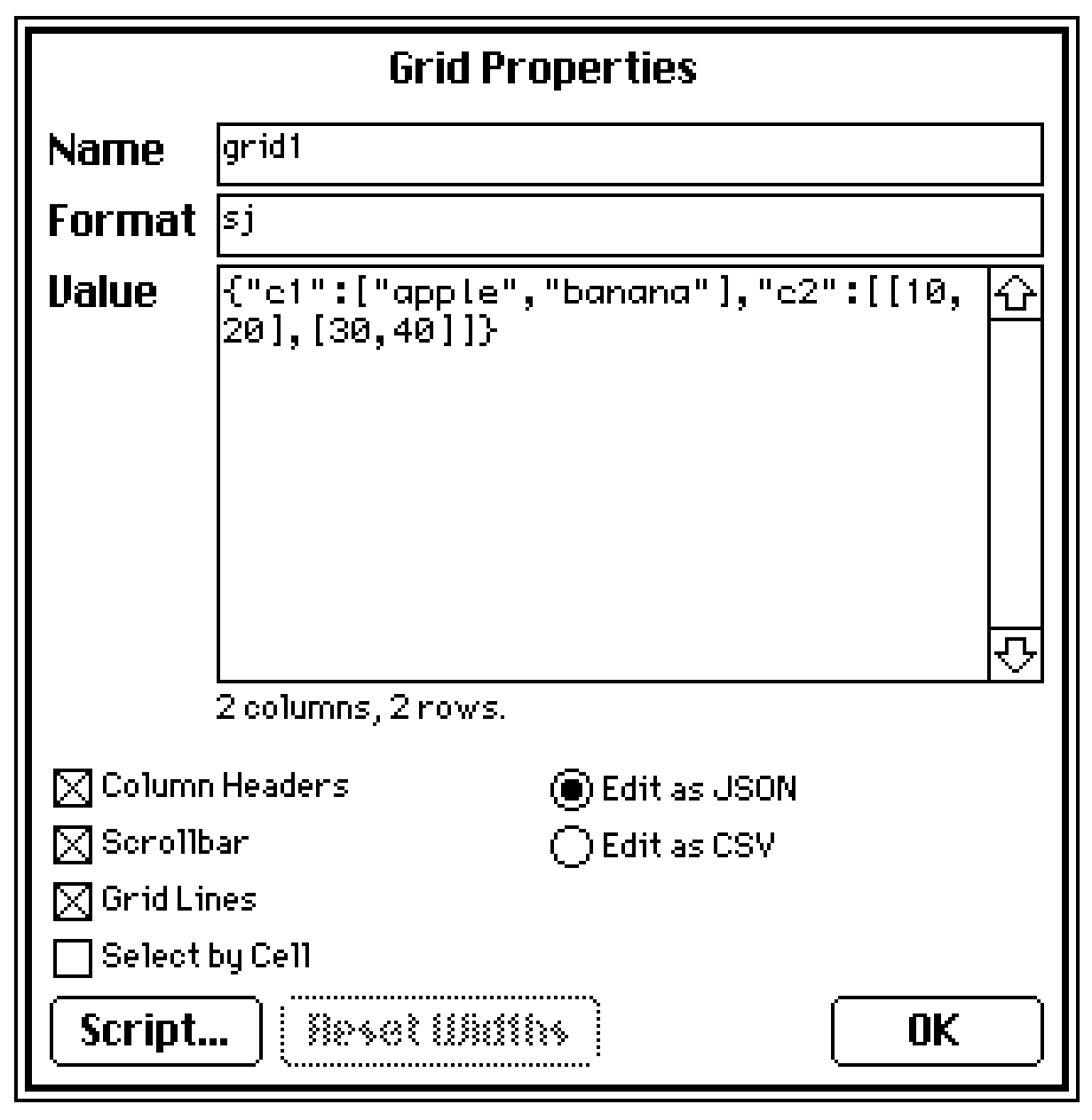
or like so in JSON mode:

(+2)

It works! Thank you!

Hi, I have a question about resolutions. For my current project, I have a height of 360, so that the project will go fullscreen on most screens. But I was wondering if the fullscreen effect on web-decker, that fills the screen no matter the resolution, can also be possible on native decker or is it a feature that's only on the web version?

Developer(+1)

Currently native-decker doesn't include a "stretch-to-fit" fullscreen mode.

(+1)

Thank you for the fast answer! I'll keep that in mind.

(+2)

locked myself out of the deck and the ctrl + U + L + D shortcut in native decker isn't working :') is it over for me

(1 edit) (+1)

Don't worry! Open up your file in a basic text editor (notepad or whatever you've got).

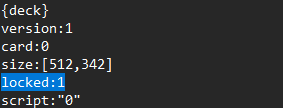
You'll see stuff at the top that looks kinda like this:


Change that line to say locked: 0 and you should be good.

(+2)

thank you for saving my bacon again!

(i'm not sure why but decker doesn't respond to hotkeys in expected ways)

(+1)

No problem! :D

With the unlock deck shortcut (CTRL + U + L + D) sometimes I forget to hold a letter until the end and that's why it doesn't work on the first try for me. 

And if I had to guess about other hotkey difficulties people might have (not assuming in your case, just general advice):

Sometimes people aren't familiar with the "^c" notation in the menus. Where the ^ means "CTRL on Windows and Linux"/"CMD on mac"

Or if someone is using web decker, I believe some of the hotkeys are effectively blocked by web browsers because browsers use those shortcuts too and they take priority.

If you're having trouble/weirdness that don't seem related to any of that stuff then it might be worth making a bug report about it?

(+2)

how do you hide the corners of a deck? i see the scripting syntax for it but i cant figure it out..

(1 edit) (+3)

This kind of thing is easiest to do with the Listener, I think. 

Go to [Decker > Listener] in the menu, type the snippet of code and then use Shift+Enter to run it. 

(Or you can just put the script inside a button and click it in interact mode, if that's easier!)

For anyone finding this post later, this is about the rounded corners you see at the edge of decks published online.

You can use deck.corners:0 to remove the rounded corners from your project (this works by setting them to pattern 0/transparent) or you can use another pattern index number instead of '0' to change the corners to that color or pattern instead!

(+1)

Forgive me if this has been asked before, but how do I change a buttons outline to a color? I found out how to make the inside a color, but not the outline. I've tried everything. If its not a thing, would you mind implementing it? Thanks!

(1 edit) (+1)

It's not currently possible... So, widgets can have one .pattern attribute at a time. In the case of basic buttons we have that one color + black (or whatever else you've changed pattern 1 to be).

But there's still some options to get the result you want.

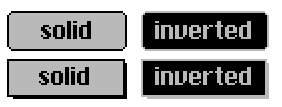
If this happens to be a visual direction you like... it might be good to know that the black lines and the inside color swap locations if you set the button to have inverted visibility:

And then there are the "Make a button look like anything" options. 

The first one is to have the appearance of a button as an image on the surface of the card and place an invisible button on top of it.

Or, if you want your customized button to have a specific click animation... you could paste images of your ideal button inside of the animButton contraption and use that. (It's the second contraption in the linked post)

If you want to copy an image of a standard button, select it and use [Edit > Copy Image] in the menu. This will copy the appearance of the widget into an image on the clipboard that you can paste anywhere else, to edit it or use it for other purposes.

If one of these options sounds good but it's unclear how to do something, please let me know.

(+2)

I apologize if this has been asked before, I looked and couldn't find anything. I also apologize if the answer is obvious, I'm dealing with a lot of brain fog so it's harder for me to figure things out these days. So, I want to have the palette change for a single card only so that a certain image displays correctly. Basically, I want the palette to change when you go to the specific card and revert to whatever it previously was when you leave. How would I go about accomplishing this?

(+1)

Hi,

So basically what you'll need is some code to change the palette when you go to that specific card, and change it back when you leave. This could be done in the button code or in the "on view" of the card. The "all about color" deck does have a bit of example code for doing this on the palette transitions page.

My palettefade module may be handy too, although it's primarily designed for doing fancy fade in/out transitions it does have some helpful utility functions for changing the palette. Hopefully should all be in the documentation but I'll try to go over some examples here.

So if you're using palettefade and you've added the module to your deck, you can get the current palette as a list of 16 integers by running pf.currentpalette[deck] in the Listener. Generally I'll take the output of that and make them like global constants e.g. in the deck-level script I'll have palette1:(16777215,16776960,16737536.... and so on for the various palettes I have.

Then when I want to change to a certain palette I'll use pf.setpalettte[deck palette1] and that'll change the palette. So I can have that in my "change to a new card" button or just in the "on view" so that however you got to the card it'll be at the correct palette.

If you want to get fancy then you could use the blackdip function in palettefade, that does a nice smooth fade to black and then fades up with the new palette, e.g. pf.blackdip[deck card2 30 palette2]. Or you can do something with transitions like in the all about colour deck example.

I hope at least some of this makes sense. Let me know if you're getting stuck though.

(+2)

Hello everyone! I have a question: D :Is there a code here that allows one sound to play immediately after the previous one finishes? Because when I use code like  play[""] , all the sound effects play and stop at the same time, but I want them to play one after another!

Developer(+2)

If you haven't already read it, I recommend checking out All About Sound.

In a simple linear script, like part of a cutscene, playing sounds in sequence is straightforward with sleep["play"]:

play["sound1"]
# do anything else you want while the sound is playing...
# ...
sleep["play"] # wait for all playing sounds (sound1) to finish
play["sound2"]

In more elaborate cases, with sounds playing while a deck remains interactive, you may want to rely upon the loop[] event or keep track of your own timer to trigger subsequent sound effects.

Does this help point you in the right direction?

(+2)

Oh my god, I totally forgot I’d seen it before! Thanks for the reminder!

(+2)

I tried using the sleep[] code, but I found that when I wanted to play these music tracks, the other buttons on my screen became unclickable. I need players to be able to click them while listening to the music, so I tried using random, but it causes random playback from the music list. I'm trying to find a code that can control the sequential playback of music without affecting the screen content, but unfortunately I haven't found it. Maybe I need help again.(PS:Due to network issues, I wasn't sure if that message went through, so I sent it again 😌)

Developer(+1)

If you want background music playing while a deck remains interactive, you will definitely need a more complicated approach than sleep[]; the discussion in this thread has some examples that may do what you need.

(+1)

Got it!

(+2)

Hello all.  I'm new to Decker.  I'm building a deck that has differently themed groups of cards.  I'd like to intercept field hyperlink clicks such that clicking a link from one card to another card within the same group navigates as normal, while clicking a link to a card in a different group plays a transition.  How can I achieve this?  Thanks!

Developer(+1)

Since you're overriding this behavior on many cards, it's easiest to define an overload for the link[] event at the deck level; see Deck -> Properies... -> Script... via the menu. I'll assume for the sake of this example that cards are named with a "group_cardname" convention, so we can use the portion of the name preceding the underscore to determine whether two cards belong to the same group:

on link x do
 on groupname x do
  first "_" split x
 end
 if groupname[deck.card.name]~groupname[x]
  send link[x]
 else
  go[x "BoxIn"]
 end
end

Make sense?

You may have a different method of distinguishing groups, like invisible metadata fields on cards; I'd be happy to clarify how to adapt this approach to your deck, if needed.

(+2)

Thank you.  That was very helpful.  Here's what I ended up using:

on link x do
    target: deck.cards[x]

    if target
        if !(target.widgets.channel.text = card.widgets.channel.text)
            go[x "Wink"]
        else
            go[x]
        end
    else
        send link[x]
    end
end

(+1)

What about go["Back"]?  I want to keep the simplicity of go["Back"], but need to ensure that my transition plays when going back to a different card group.  Thanks again!

Developer (1 edit) (+1)

Hmm. Tricky.

How about something like this?

on link x do
 here:deck.card
 send link[x]
 there:deck.card
 if !(here.widgets.channel.text=there.widgets.channel.text)
  go[here]
  go["Back" "Wink"]
 end
end
(+1)

Sorry for the confusion.  I have links and buttons in the mix.  Your answer solved the link issue.  However, I also have buttons with the Back action.  I need to make sure that if a back button from a channel one card would go back to channel two card, it plays the transition.

Developer

In that case you might want to consider giving the buttons a script that delegates to your link[] logic:

on click do
 link["Back"]
end
(+3)

Hey! I just discovered Decker and I think it's awesome. I have an idea for a game but I'm not sure if Decker's the right software for it. 2 questions:

- is there any way to give players the option to save and load their game (while in locked mode)? I'd like to make a game that takes a while to finish (with lots of stuff to read) so without saving, probably noone would ever reach the end of it. I don't know how to code, though 😇

- that being said; I'm not sure if a long game would be possible to make with Decker? I'd love some kind of point & click / vn hybrid with lots of branching. When testing out Decker I got the impression that this would get too complicated for the card system as you have to manually choose the card you're linking to. Is there any way around this, if you have, say, hundreds and hundreds of cards?

Any help would be much appreciated. I'm already in love with Decker, I'm so psyched to make something in it! <3

(+2)

Alright. So first up, you don't know how to code YET! You may yet learn to code. I think what you want to do is doable, if you are prepared to start dabbling in a bit of code. And as you get more comfortable you can try out more stuff

If you make a button and hit the "Script..." button, you'll see this pop up

on click do
end

In between is where we can put code that we want to run!

In terms of saving, you can save out a copy of the deck using the code app.save[], that's basically the same as hitting the save menu when you're unlocked. So in a button you can do

on click do
 app.save[]
end

With some more advanced coding, there are some other ways of saving out stuff but we'll start simple for now. But if you want a more complicated example, my game The Wayward Mage uses a custom save format that basically saves out the game state in a custom file.

A long game is ABSOLUTELY possible. It sounds like you're looking at basically doing branching purely on cards. If you're finding the "picking the next card to branch to" tricky with having to manually navigate to it, this is another thing that can be easier with code.

If you set up a button to go to a card with a transition, and then open its script up you will see something like this.

on click do
  go["card1" "SlideLeft"]
end

It might be easier, with lots of cards, to basically use this but change the names of the cards manually in the code, like if you know you want to go to a card named "branch2a" you can just write that into the code.

If you're doing visual novel stuff, it could be easier to do things without needing a separate card for each screen. If you use the dialogizer and puppeteer modules that come in the Decker examples folder, they basically let you write and run a whole visual novel script with sprites and a background and text and such. So you're not using a whole card for just one screen of text - you basically just have a card for a background, and some cards to store your character sprites. And then a hidden field somewhere to stash your script. It's again a bit of simple coding, if you look in the dialog.deck and puppeteer.deck files in the Examples folder they'll have documentation.

Finally, if you haven't checked it out definitely take a look at Phinxel's Field Notes, it's a very thorough Decker tutorial that'll teach you some simple coding things among many other Decker tricks, and it doesn't assume any existing coding knowledge. Another thing I've found helpful is pulling apart other people's decks to find out how they did things.

(+3)

Wow, how do I even reply to such an in-depth answer?? Thanks for helping out, friend! 😊 Just so you know, I'd really like try out some coding so that doesn't bother me. I've made stuff in Twine (only Chapbook though, the easiast variant, but I really enjoyed that!). Thanks for the tips, I'll definitely try them out <3 It's especially helpful to know that I can use code to refer to different cards instead of choosing them manually, that's really good to know! This shows I have no idea to what extend the software can be used.

I'm not sure whether the visual novel module would be the right choice but I'll try it out. I did read the phield notes, which were super helpful (and not to forget: darn cute)! 😁 

(By the way, thanks for sharing your game! I'm sure I can learn a lot from it 😋)

Developer(+2)

Just in case you didn't see it already, we have a library available for using Decker in concert with Twine: Twee.

In the simplest cases you can write normal Twine passages using the "Ply" story format, which is like an extremely stripped-down version of Harlowe, export a .twee file and pop it into a "plyPlayer" contraption; no other coding required. With a little scripting there are many ways to make a Ply story interact with a deck or vice versa- change cards, display visuals, play sound effects, etc.

I hope you'll find that Decker is a very flexible digital arts-and-crafts medium that you can use for a wide range of creative projects, tools, toys, and games. Welcome to the community!

(+2)

No, that I hadn't discovered yet, thank you so much! Sounds really interesting. I'll have to dabble around in it a bit to see what works best! At this moment, I think using the card system would be ideal, but I'll need to get to know Decker better first 😁.

The game I envision goes something like this: you have to find the way through a story which is built up by different characters' point of views. The story only progresses after you met certain conditions, like having visited a location of having unlocked a core memory.

When you select a character, you can visit certain places on a map which are not always accessible to other characters. You also have access to their thoughts and memories which you can explore, and make certain choices that will shape what happens after. (I've already made a thorough schematic overview of all the choices, consequences and endings.) 

I like the idea of cards with reading material which lead to several other cards, because this would become some kind of reading puzzle to the player. They'd have to go search deep into the story to find a way to progress, while finding out secrets and lore. But maybe the visual novel module would come in handy here, I'll have to see. Other suggestions are still welcome of course! 😊

(+2)

It's great that you've got it all planned out in advance, it can make stuff a lot easier.

If you've got different characters that you select and you're needing to track progress, there's ways to do that fairly easily. I'll try to explain how you might be able to accomplish this, without having to have like a separate set of cards for every possible path.

Let's say you've got a card that's a certain location, and maybe there's one door that you only want a certain character to be able to enter, and another door that you can only enter if you've unlocked it, or something like that. Like in general there's a certain state of the game that you need to be able to keep track of, to know who you are and what you've done so far.

I've found the easiest way to handle this is basically to have a separate hidden card, that's basically filled with checkboxes (and other widgets) that I can use to keep track of and store all this sort of "state" info. Like I might have one that says what character you are currently, and one for each task you might have already completed,or something.

Then on the location card, you can refer to these checkboxes to decide what happens when you click something. Like either entering the door or popping up a box saying it's locked.

The pages in Phield Notes on Referring to Other Widgets and If-Else Statements are probably the best explanation of how to do this.

(+1)

Making notes ✍🏼 Thank you! That's an interesting approach, though I'll have to check if it can be used for what I was planning on doing. Because each character gets a whole different array of options (thoughts, dialogues etc.) when visiting a location. It's not like there's 1 path that they all follow. For example character A could try to enter a door but character B gets haunted by memories and ignores the door.

(+1)

Yeah, an approach like this would work for exactly that. Like you code the door so it's like "if character A, then enter the room, if character B then pop up a message about being haunted by memories". So you can have the one card with things coded to behave differently depending on which character you are at the time.

(+2)

Alrightie! I'll try it all out, thanks again for helping a noob out <3 This community must be one of the nicest on the internet! (The Twine community as well 😊)

Viewing posts 41 to 49 of 49 · Previous page · First page