Hello!
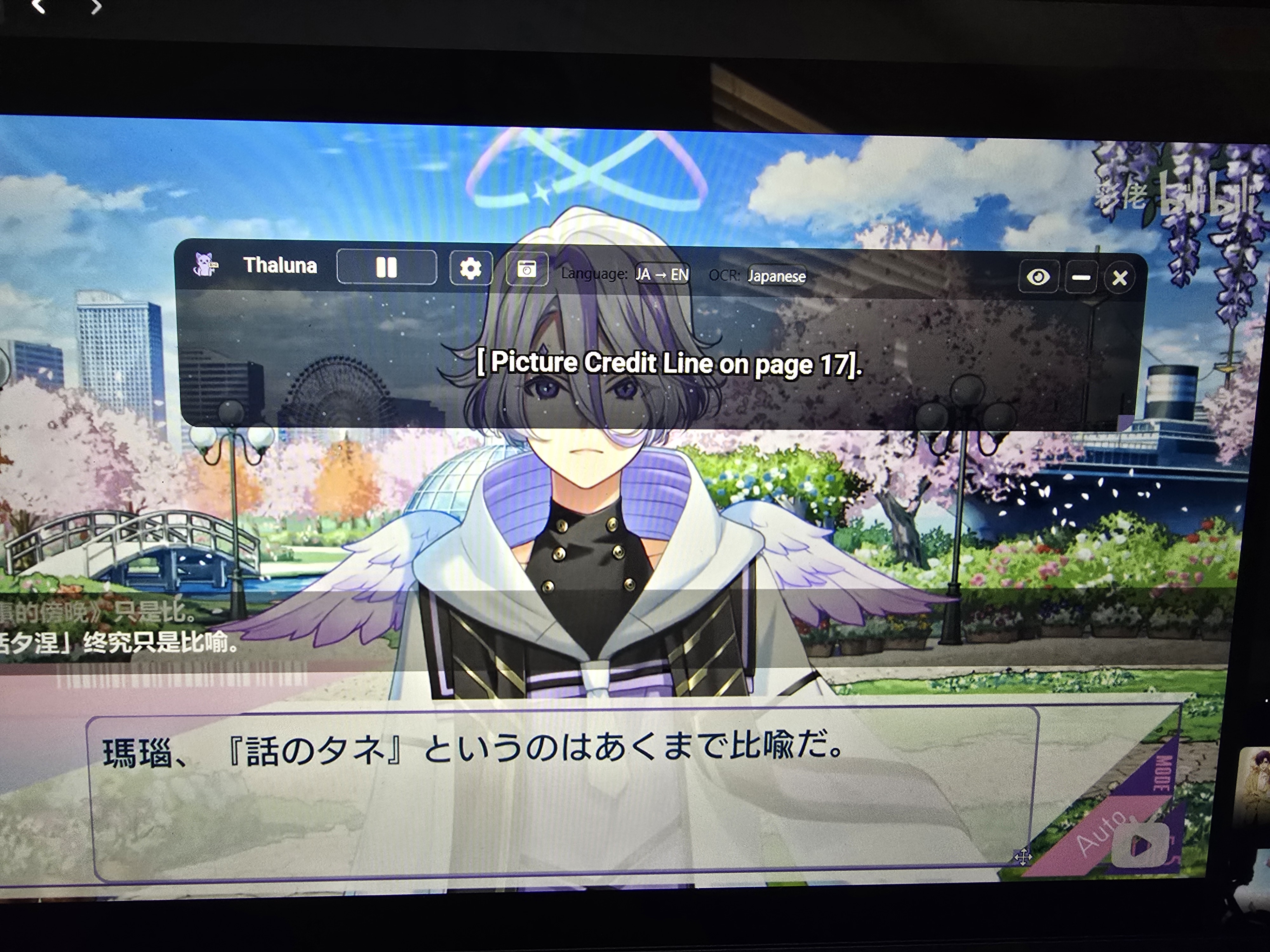
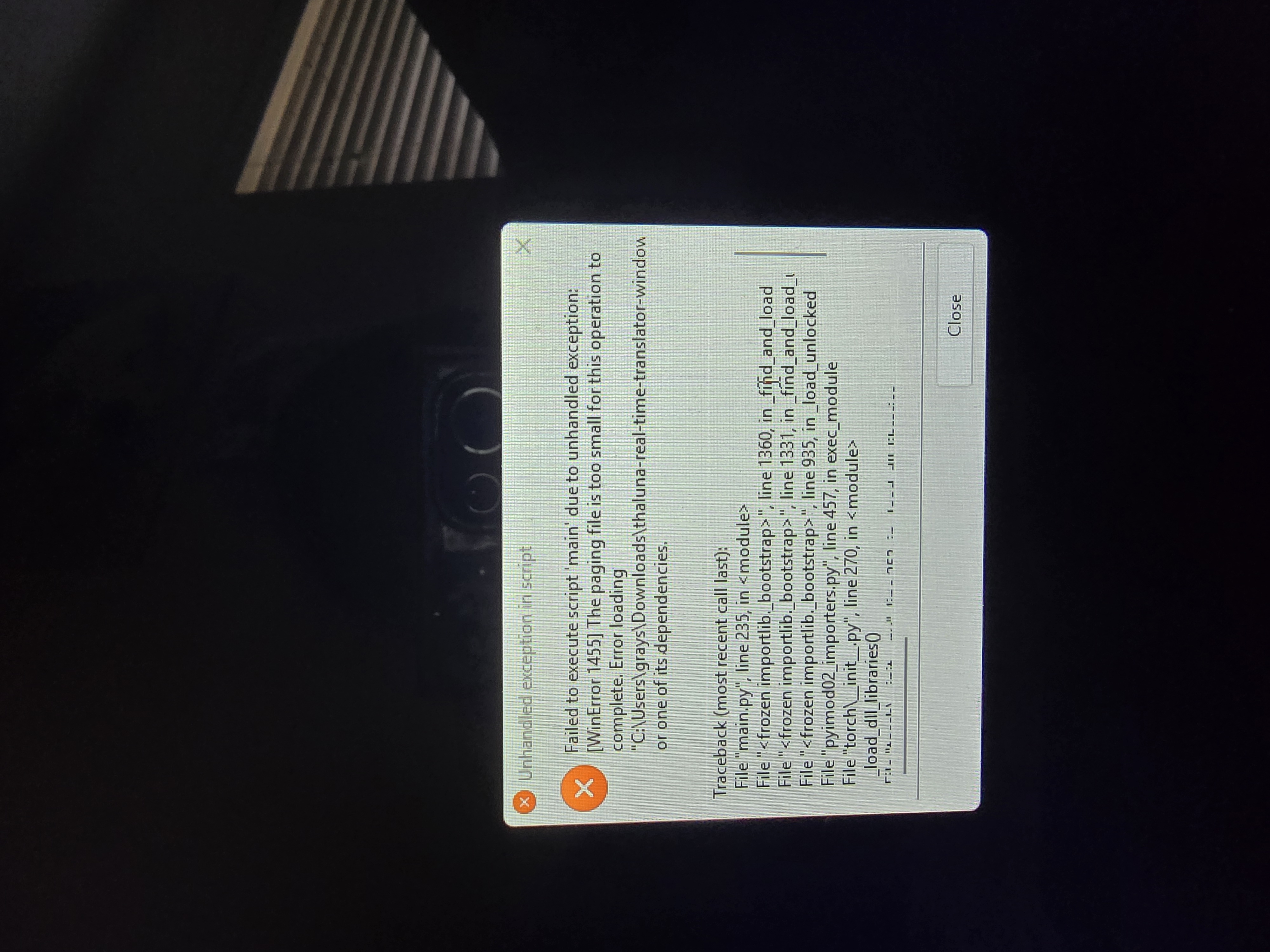
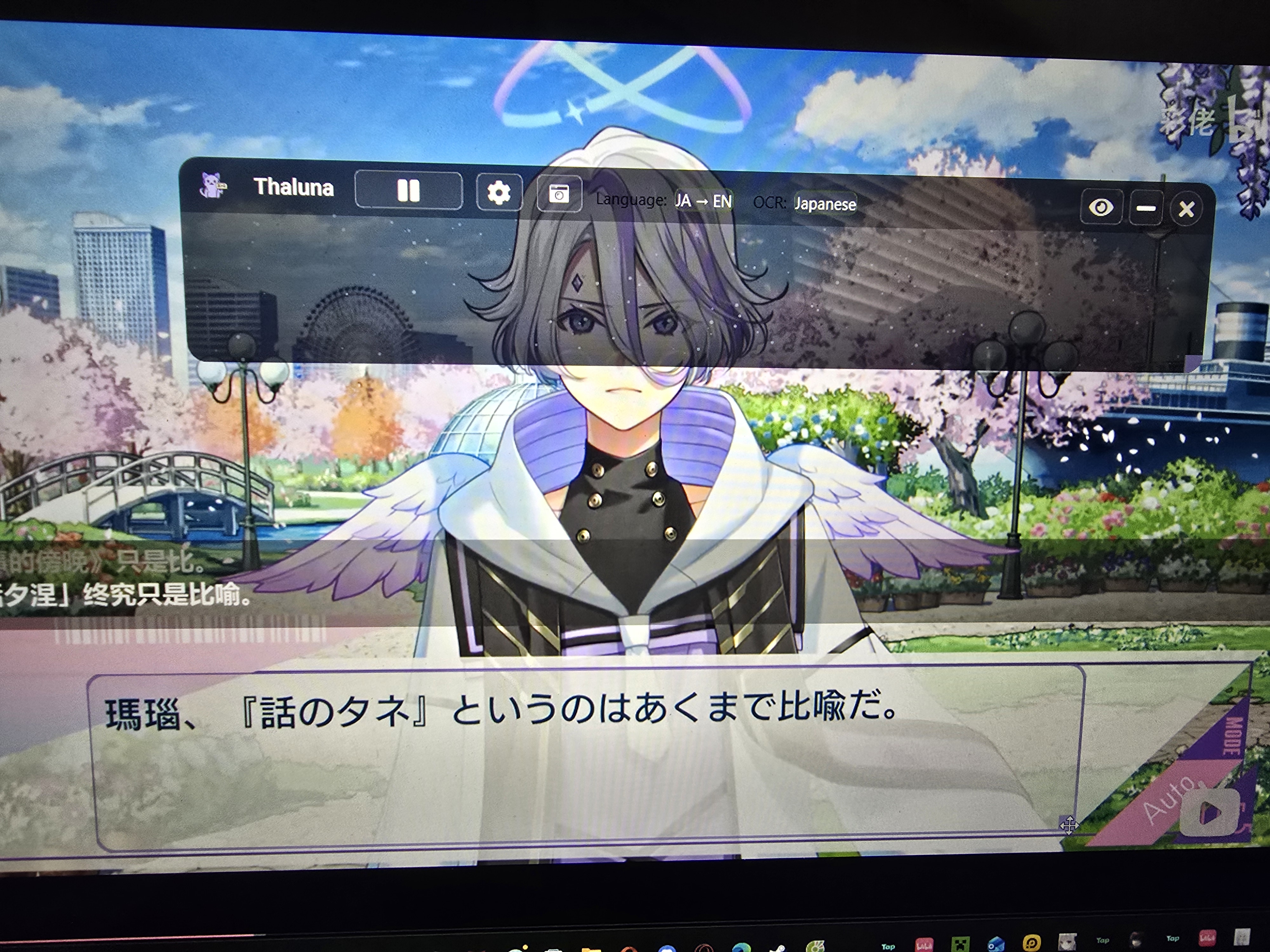 I just brought the program and for some reason it keeps giving me different stuff that doesn't allin with what I want or not translate stuff for me and I am not sure what im doing wrong.

Translate games, anime, and manga in real-time · By
Hello!
It was actually a video and not a game
Thank you so much for answering my question and helping me!
Um the Windowed or Borderless Windowed model, is in the theluna thing?
Also the displaying I'm not sure about the display thing but I did change (I hope) and it still didn't work
I tried CPU before and restarting it but it unfortunately didnt work as well
These are my scaling and ocr settings 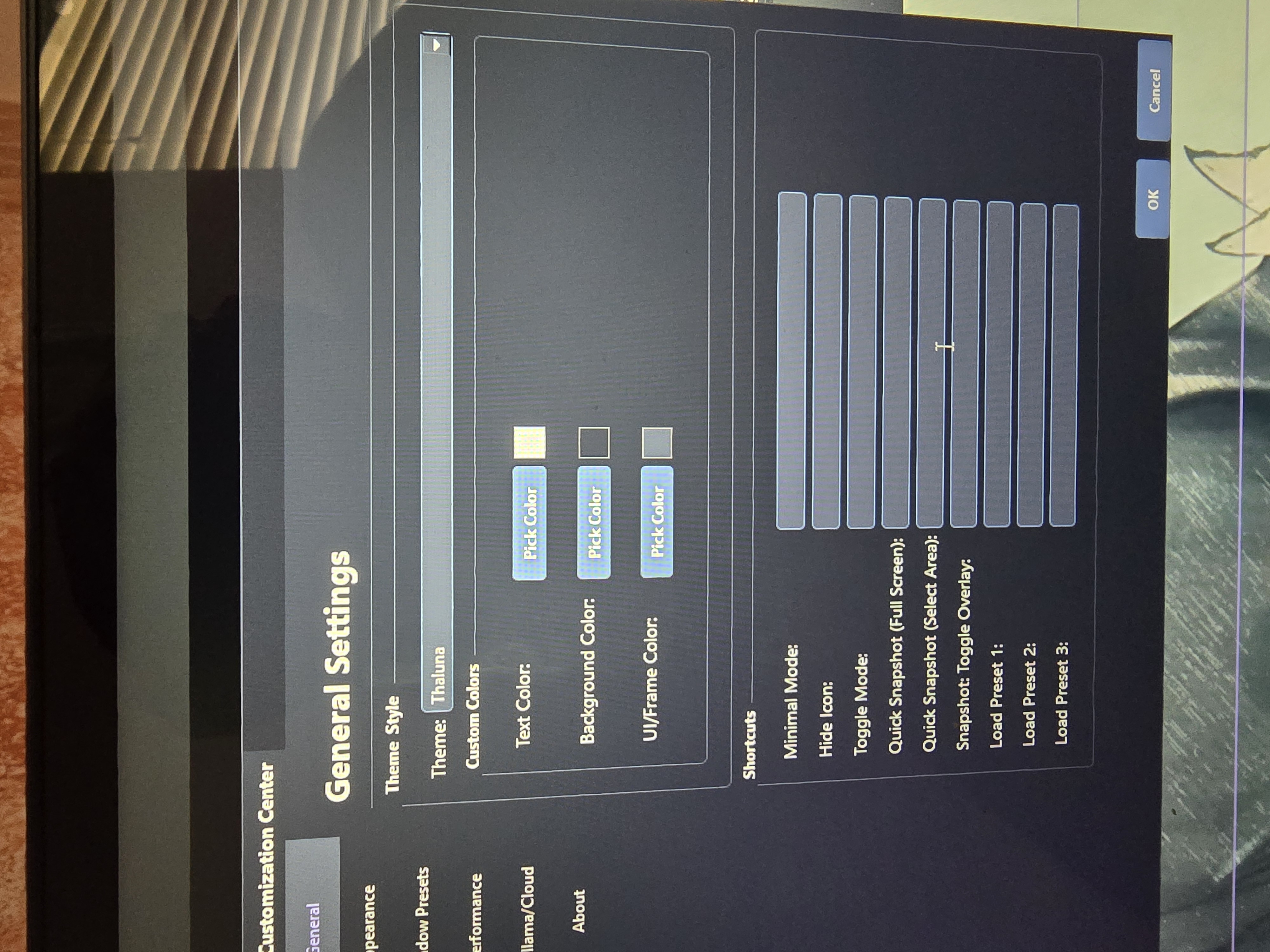
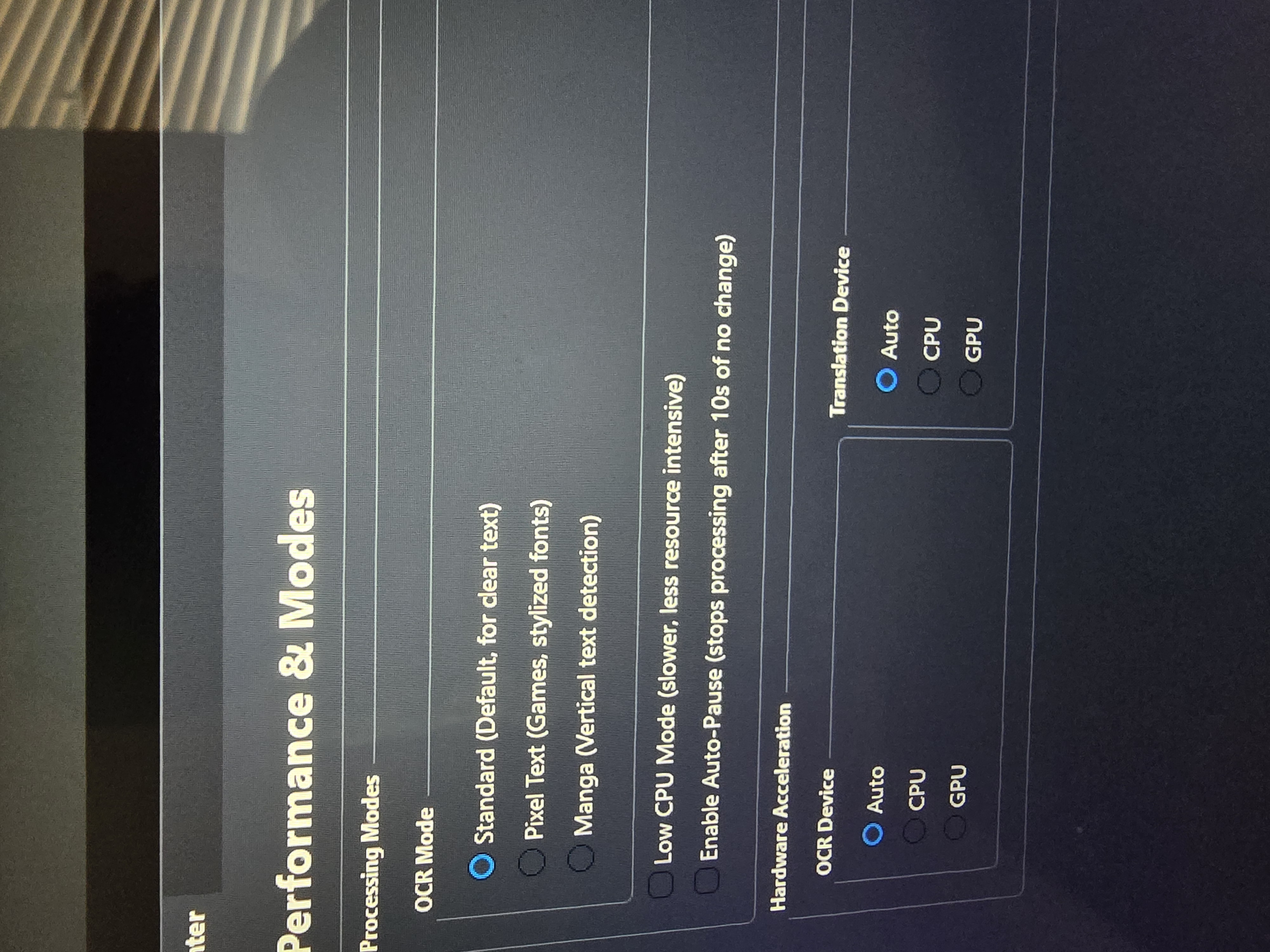
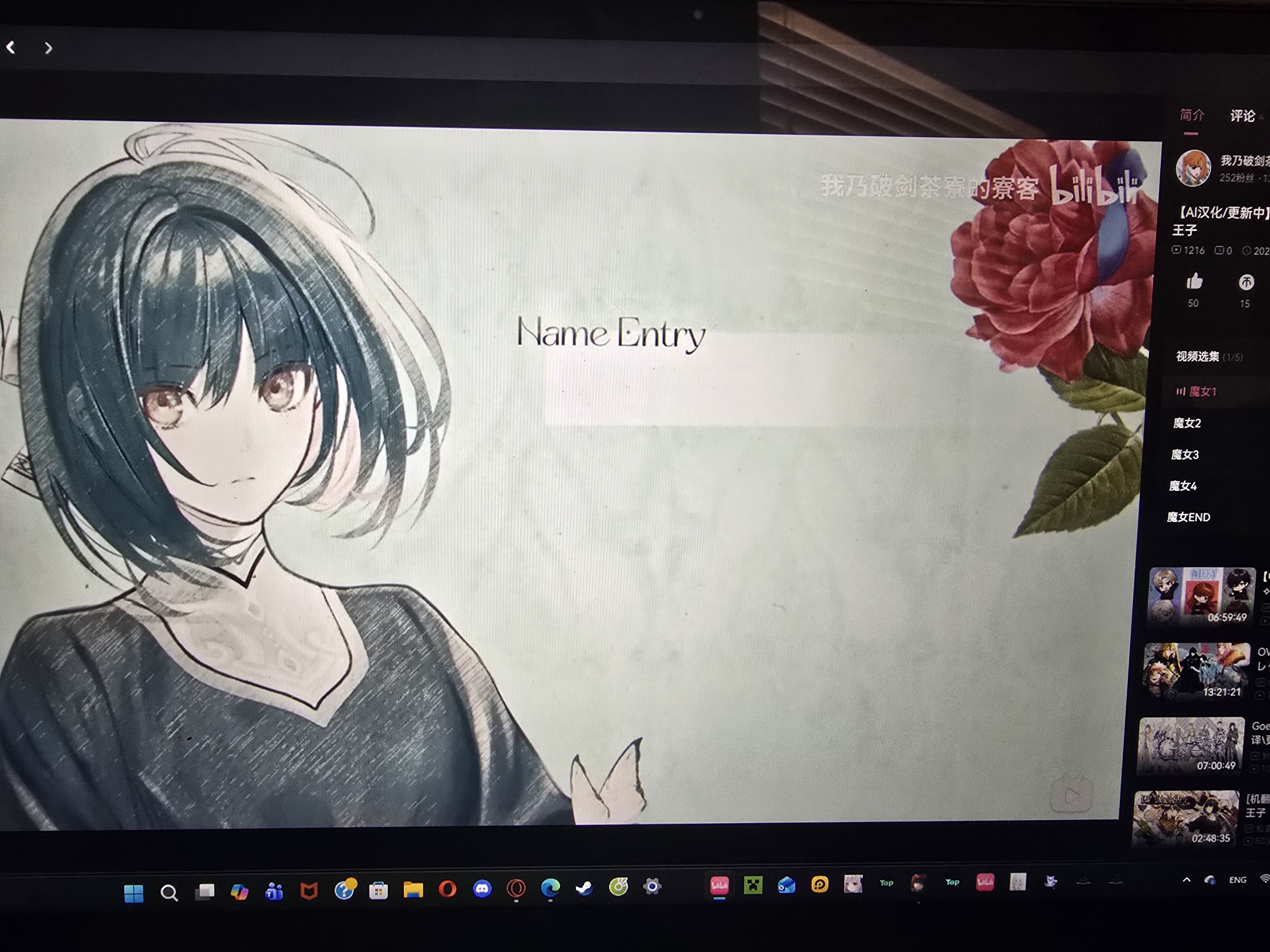
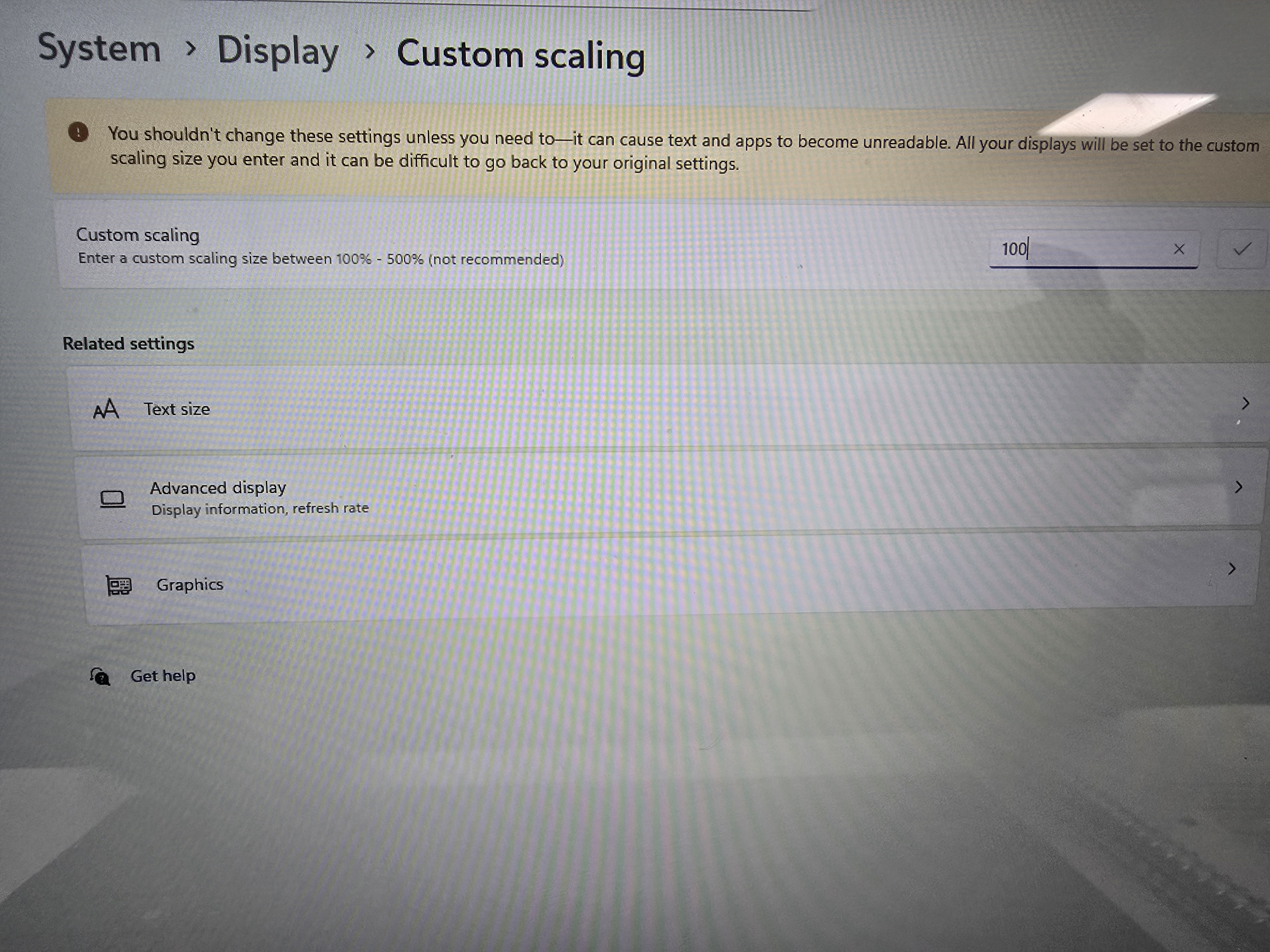
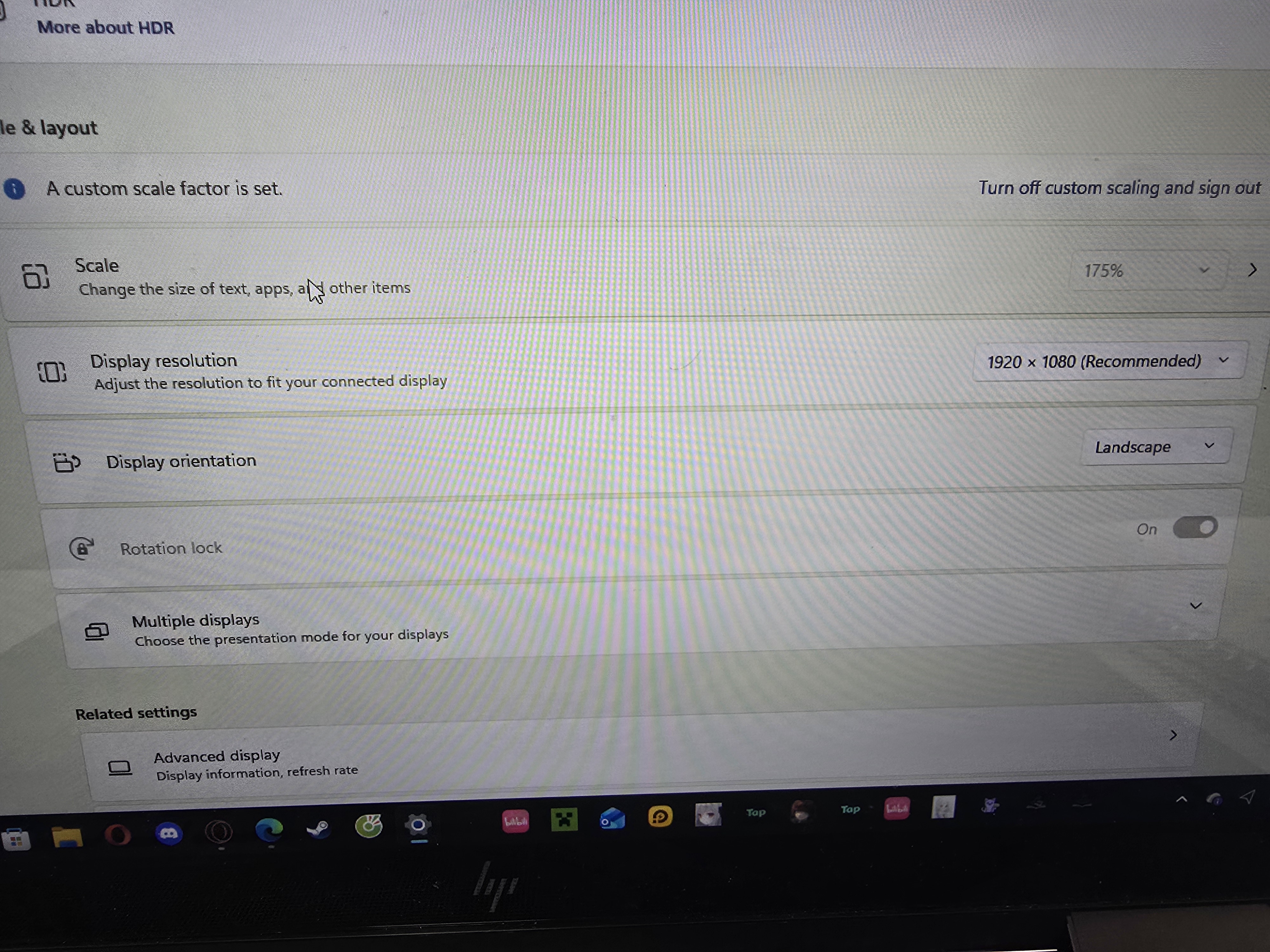
Hi! Thank you again for the screenshots
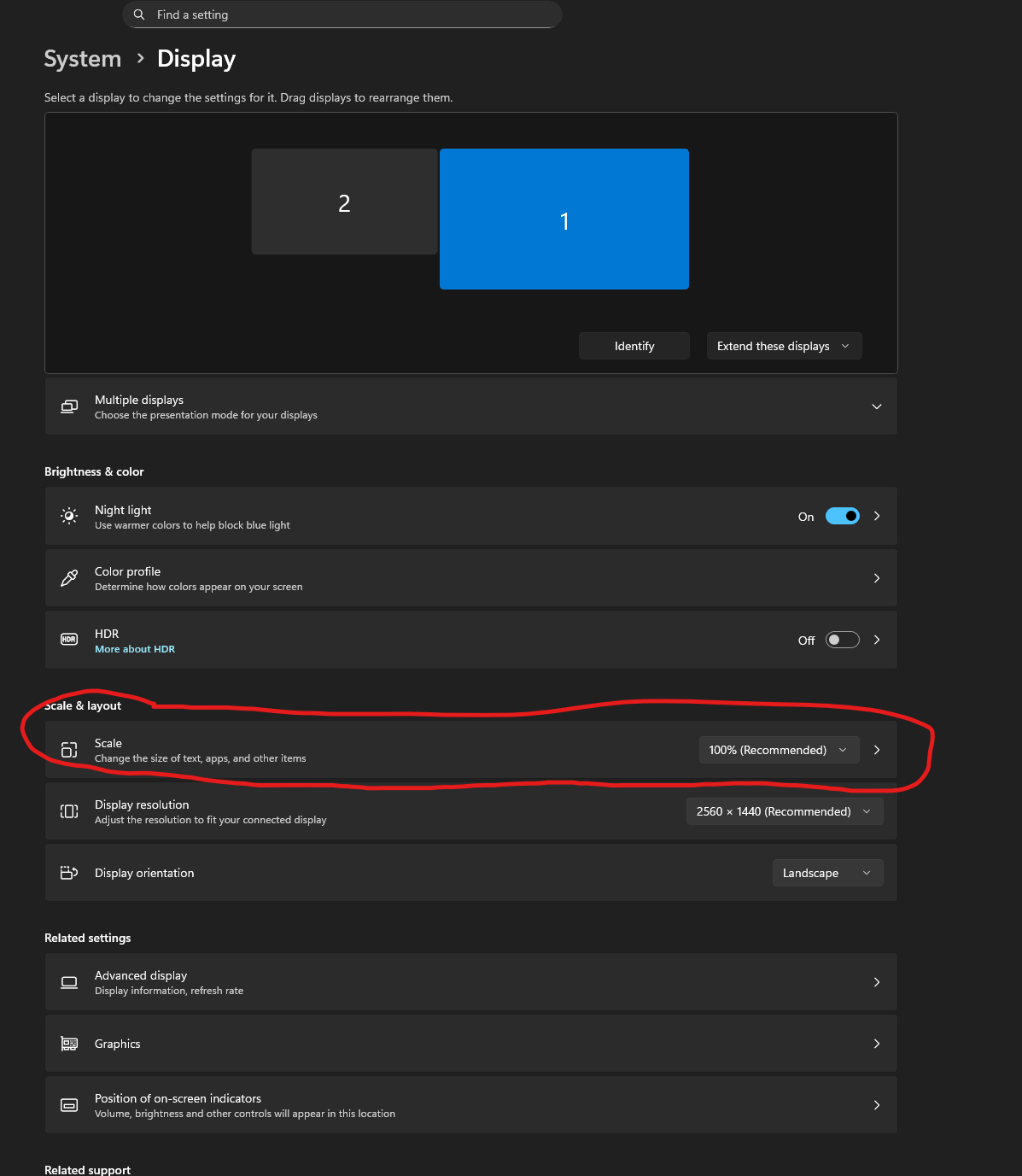
I can see in your screenshot that scaling is still set to 175%. That means Windows is still using 175% internally.
When Custom Scaling is enabled, Windows requires you to sign out or restart before the new value fully applies. Until you do that, it will continue behaving like 175%.
Please try this carefully:
Right now the misalignment is happening because Windows is still running at 175% scaling.
Once it truly switches to 100%, the capture region should align correctly.
About “Windowed / Borderless Windowed”:
This is not a Thaluna setting.
It refers to how the video is displayed.
If possible, keep the video in a normal window instead of exclusive fullscreen mode.
Let me know what happens after the full restart
Hello!
I hope your doing well
When I tried to start the lunatranslator first and then open the thing, the translations were stopped when I wanted to translate a video or the translation looks werid in general
Also
Will there be a way for the text to keep up with visual novels and many other games? That would be really good for me personally
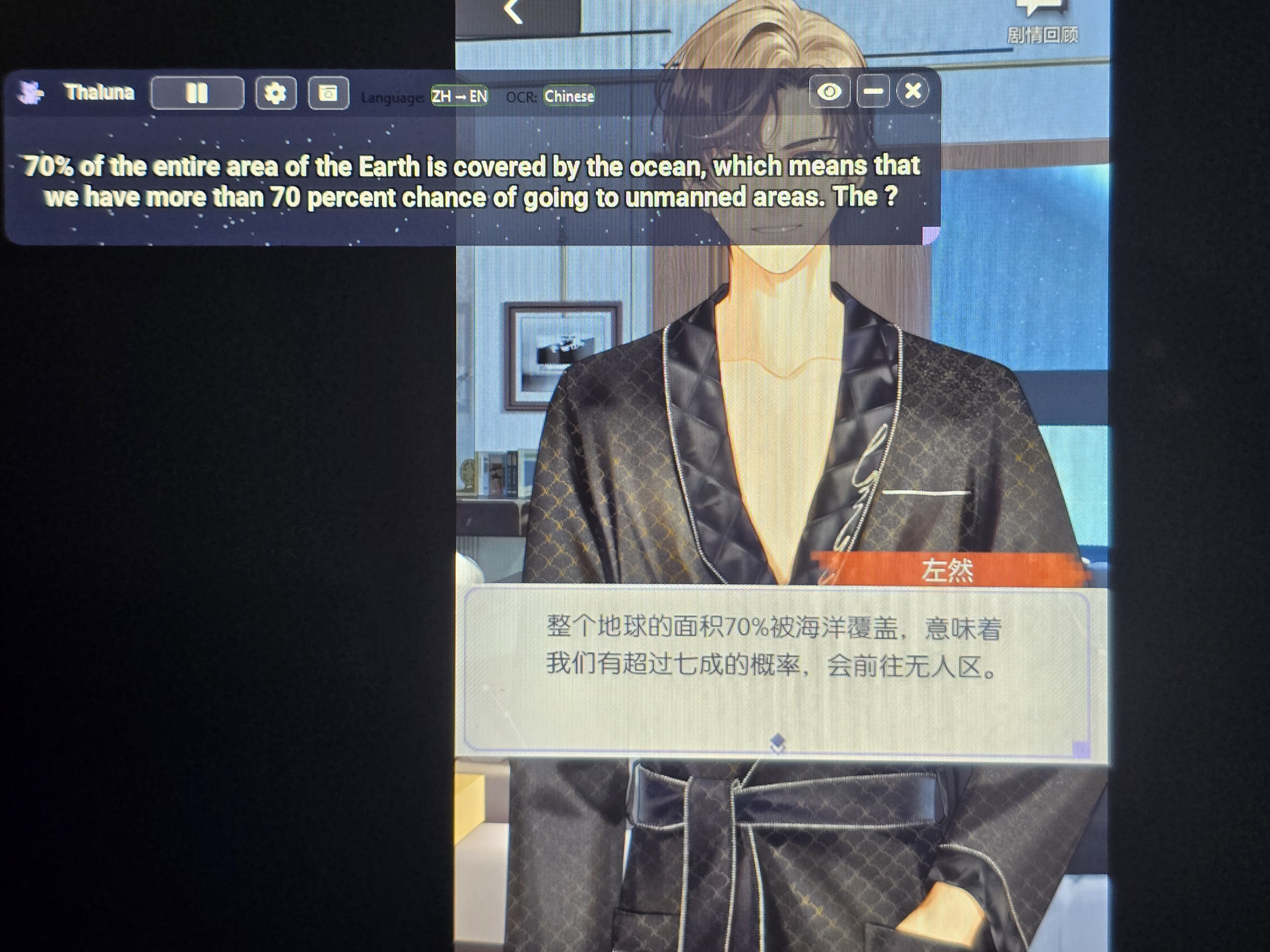
If the translation can’t keep up in visual novels, it’s usually related to performance settings. Thaluna actually runs two separate things at the same time:
• OCR (reading the text from the screen)
• Translation (processing that text)
If both run on CPU on a laptop, it can get overwhelmed.
Here’s what I’d suggest trying:
1. Make sure you’re using the latest version — recent updates improved OCR behavior and device switching quite a bit.
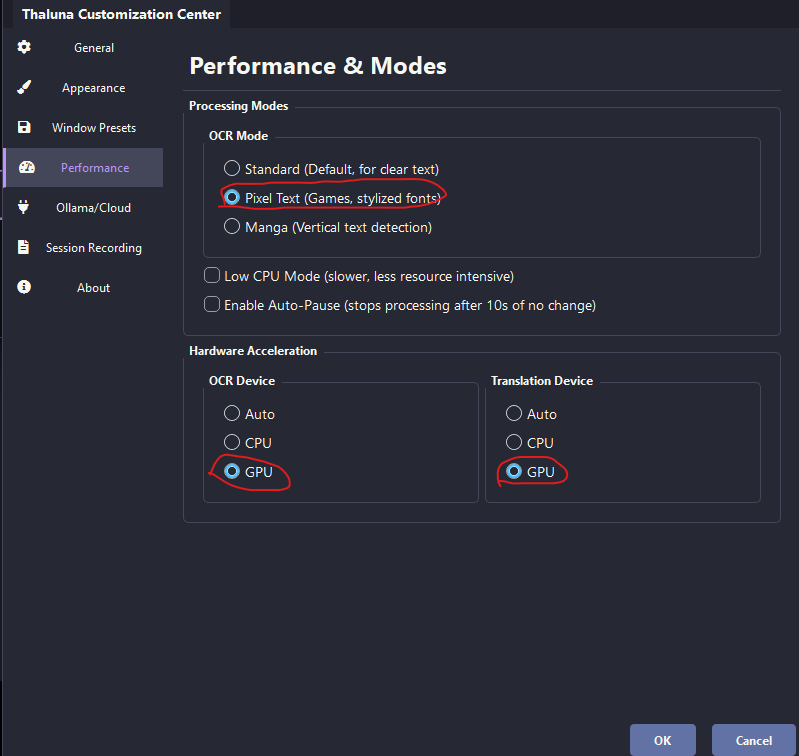
2. Set OCR device to GPU (if your GPU supports it).
You can find this in Settings → Performance.
OCR on CPU can slow things down a lot on weaker systems.
You can also try Pixel Text mode — sometimes it works better with VN fonts.
3. If you're using built-in local translation models, they also use CPU/GPU resources.
On lower-end laptops, running both OCR and translation locally can cause lag.
For smoother performance, a good setup is:
• OCR → GPU
• Translation → OpenRouter (Cloud Mode)
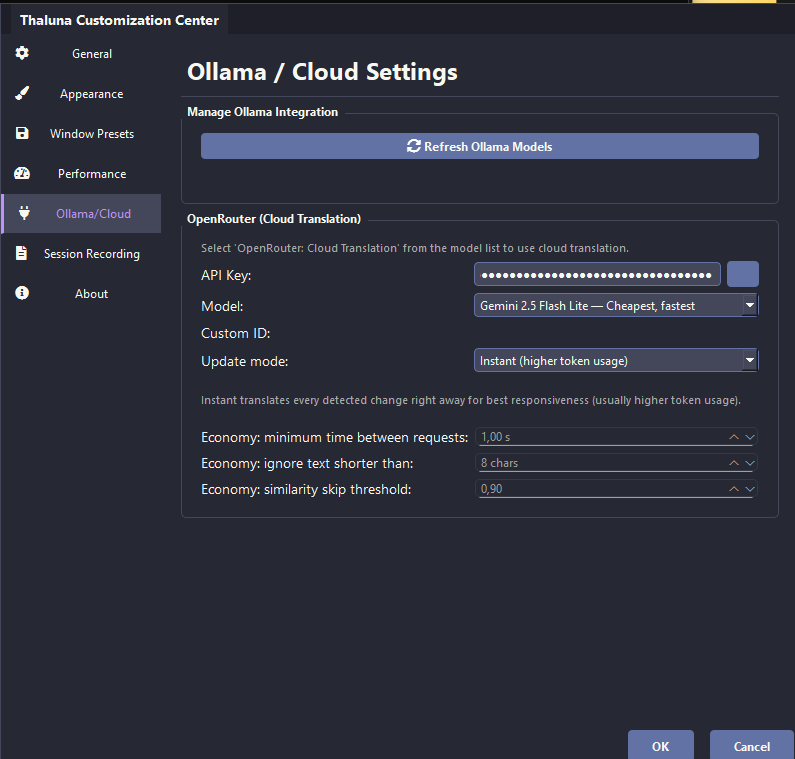
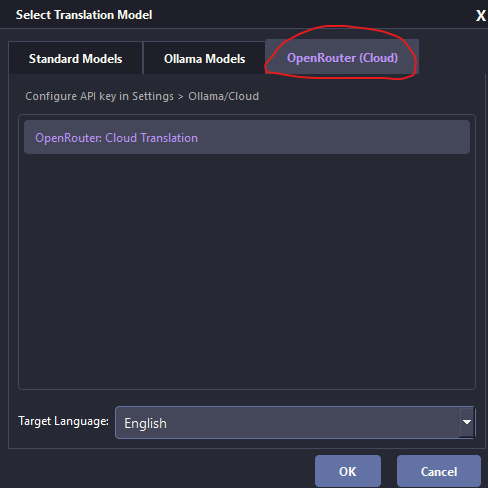
That way your PC only handles OCR, and translation runs externally — which usually makes a noticeable difference on weaker hardware.
There’s a simple OpenRouter guide in the Forum if you want to try it. And don’t worry about cost — Gemini Flash Lite is extremely cheap, so even $5 lasts a long time.
Also make sure the game is running in windowed or borderless mode — exclusive fullscreen can block screen capture updates.
If you’d rather stay fully local, tell me your CPU/GPU/RAM and I can suggest a lighter model that might work better 👍
As for translations stopping or looking weird at first — this can happen if the models are still loading when you start. Give it a few seconds after launching before playing. It's also worth double-checking that the OCR language matches what's on screen. And updating to the latest version should help too — we fixed a bug where settings sometimes didn't apply correctly.
Hi!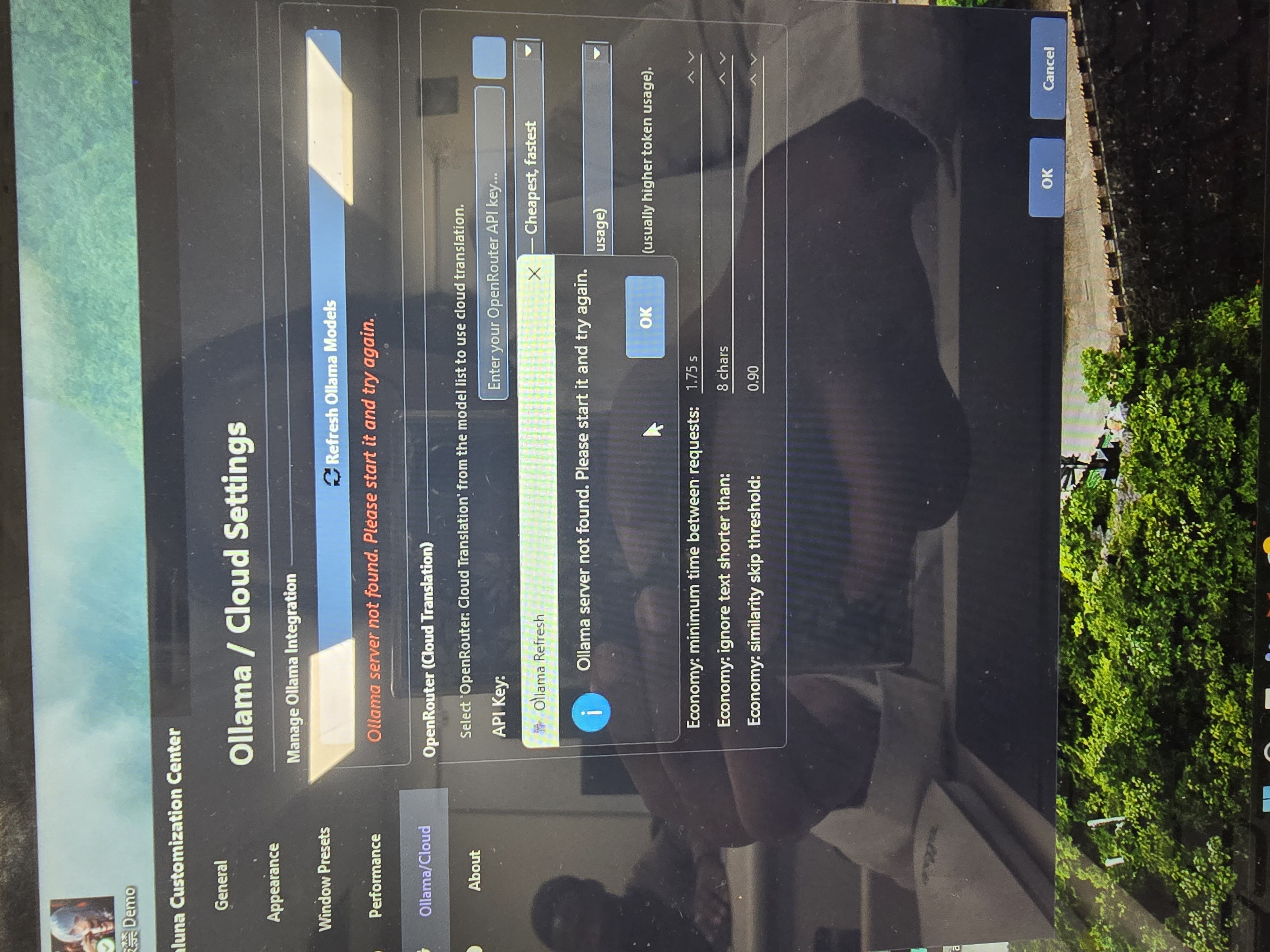
Thank you so much for answering! (Maybe it would be better to make a discord so that I can videos to you instead but that's just me lol)
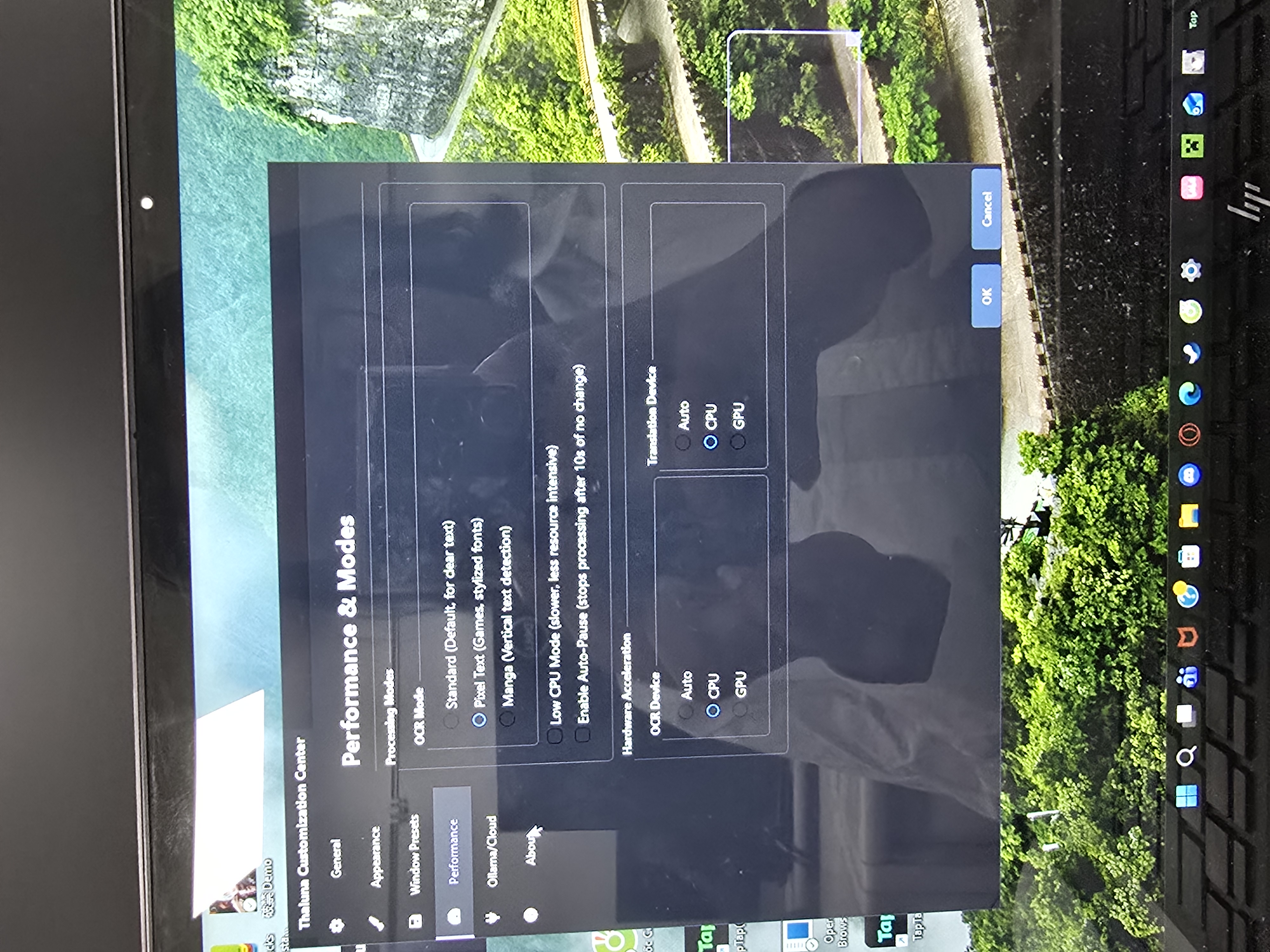
As for my settings, since I'm on pc and tried it, it wouldn't let me select GPU but it says it wouldn't let me in a way
The screenshot I showed above was a vid on bilibili and I'm still kinda unsure how to change the settings when it comes to my screen I'm gonna be honest
As for the Opencloud, ill see but I dont it will solve it 100% though
Hey! Thanks for the screenshots — that helps a lot
The "Ollama server not found" message is completely normal if you're not using Ollama. You can safely ignore it — OpenRouter does not require Ollama at all.
Since your system doesn't allow GPU selection, it most likely means you don't have a CUDA-capable NVIDIA GPU. In that case everything runs on CPU:
- OCR → CPU
- Local translation models → CPU
That's why it can struggle to keep up in visual novels or videos — your CPU is handling both tasks at the same time.
Using OpenRouter will help because your CPU will only handle OCR, while translation runs in the cloud instead.
Here's how to set it up:
1. Go to https://openrouter.ai and create an account.
2. Add a small balance (even $5 lasts a very long time).
3. Generate an API key.
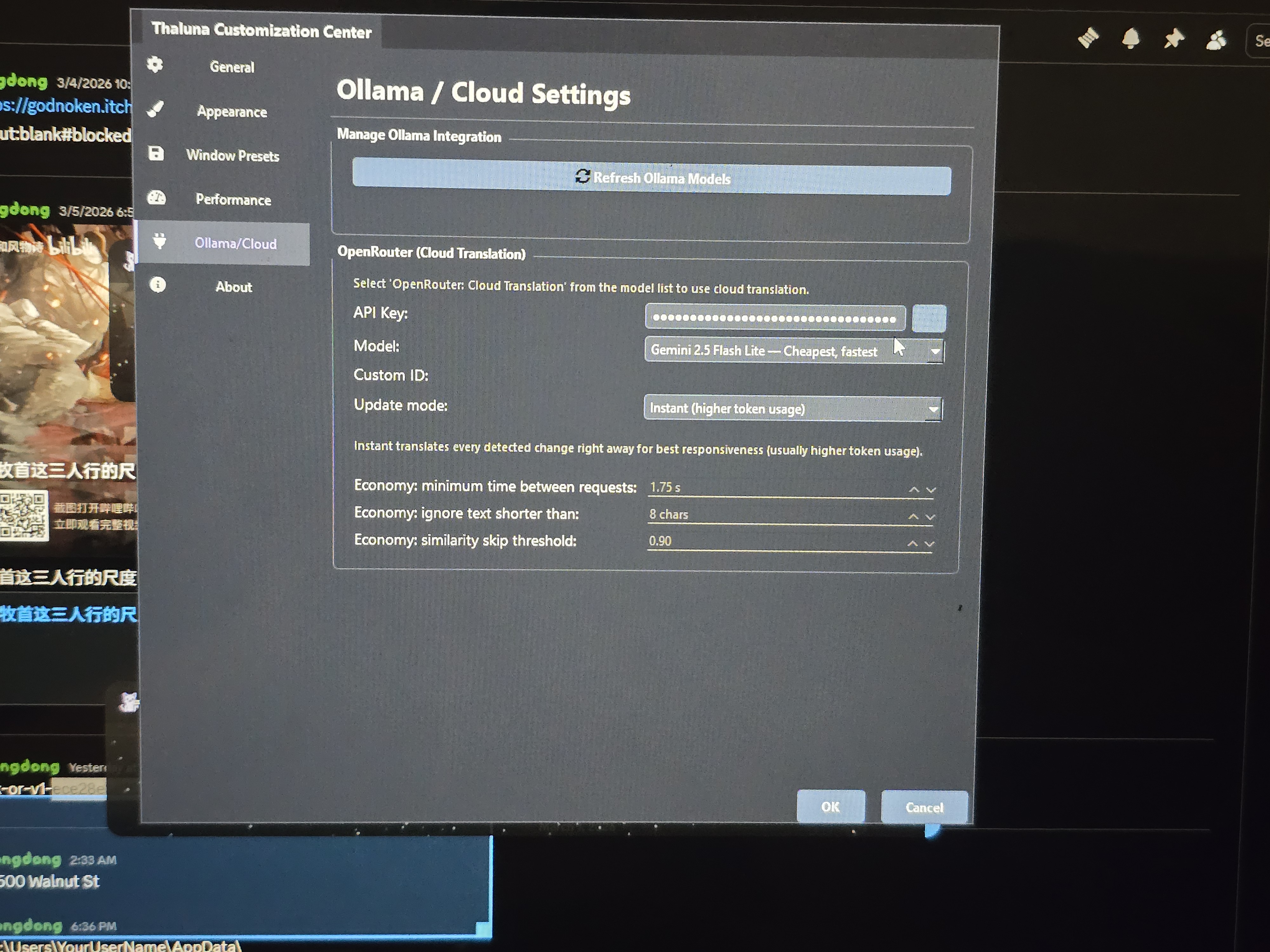
4. In Thaluna → Settings → Ollama/Cloud section, paste your API key in the OpenRouter field.
⚠️ Important: Do NOT share your API key publicly or paste it in chat. Keep it private.
5. Leave the default model (Gemini 2.5 Flash Lite).
6. Go to Languages → select OpenRouter as the translation provider.
7. Choose your target language and click OK.
Also make sure the video or game is not running in true fullscreen mode — if it takes over your whole screen, try switching to Windowed or Borderless Windowed in the display settings.
Try that and let me know how it goes
Hello! Of course its a slow process and again thank you for taking your time with me!
I am not sure if I did it right but I got the API key and copy and paste on the thing but I didnt see the language thing unfortunately so I'm not where it is but I'm wondering if I did do it right though (You can ignore the Ollama server thing again, since I just realized I didn't have to do it again)
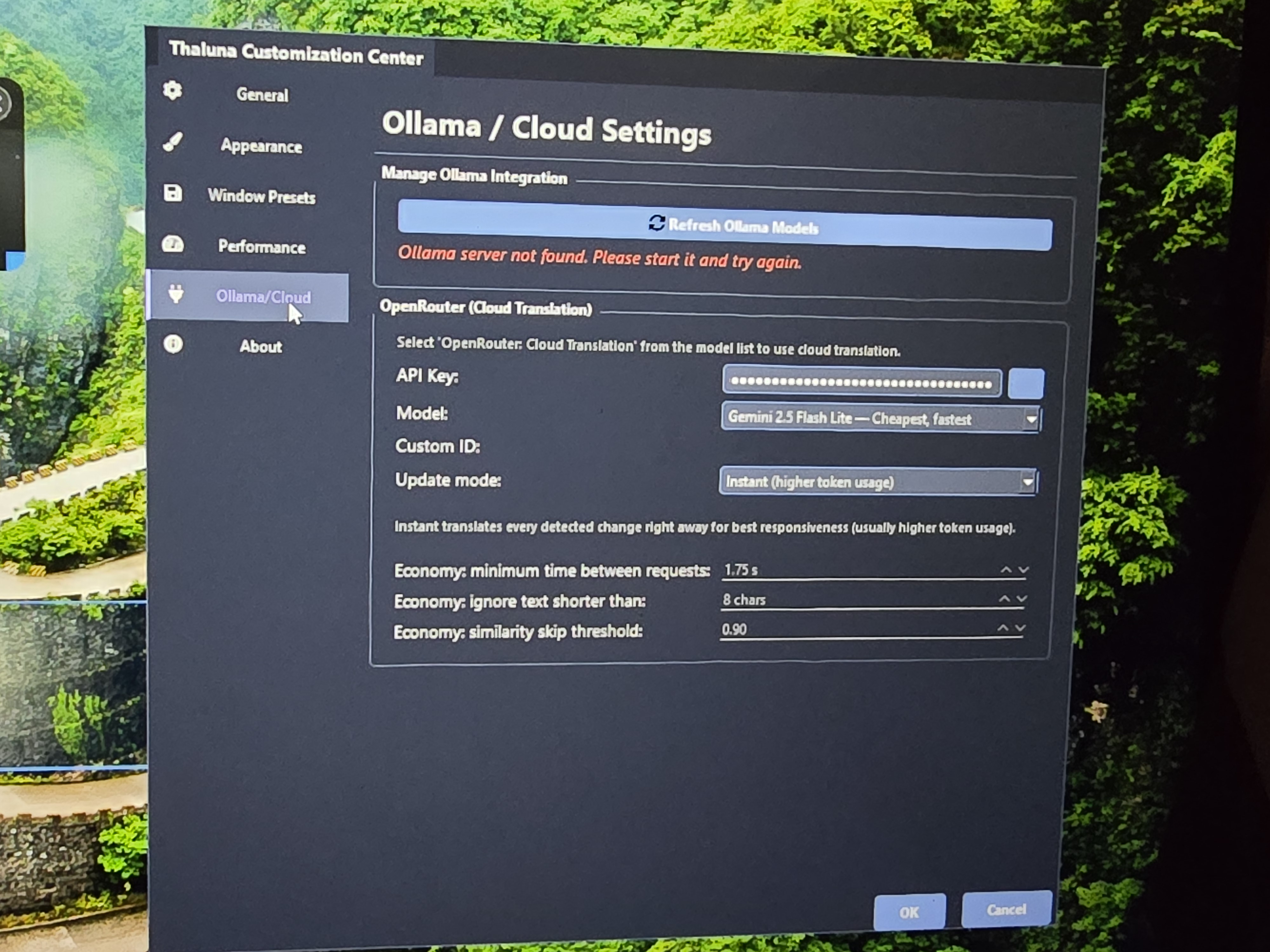
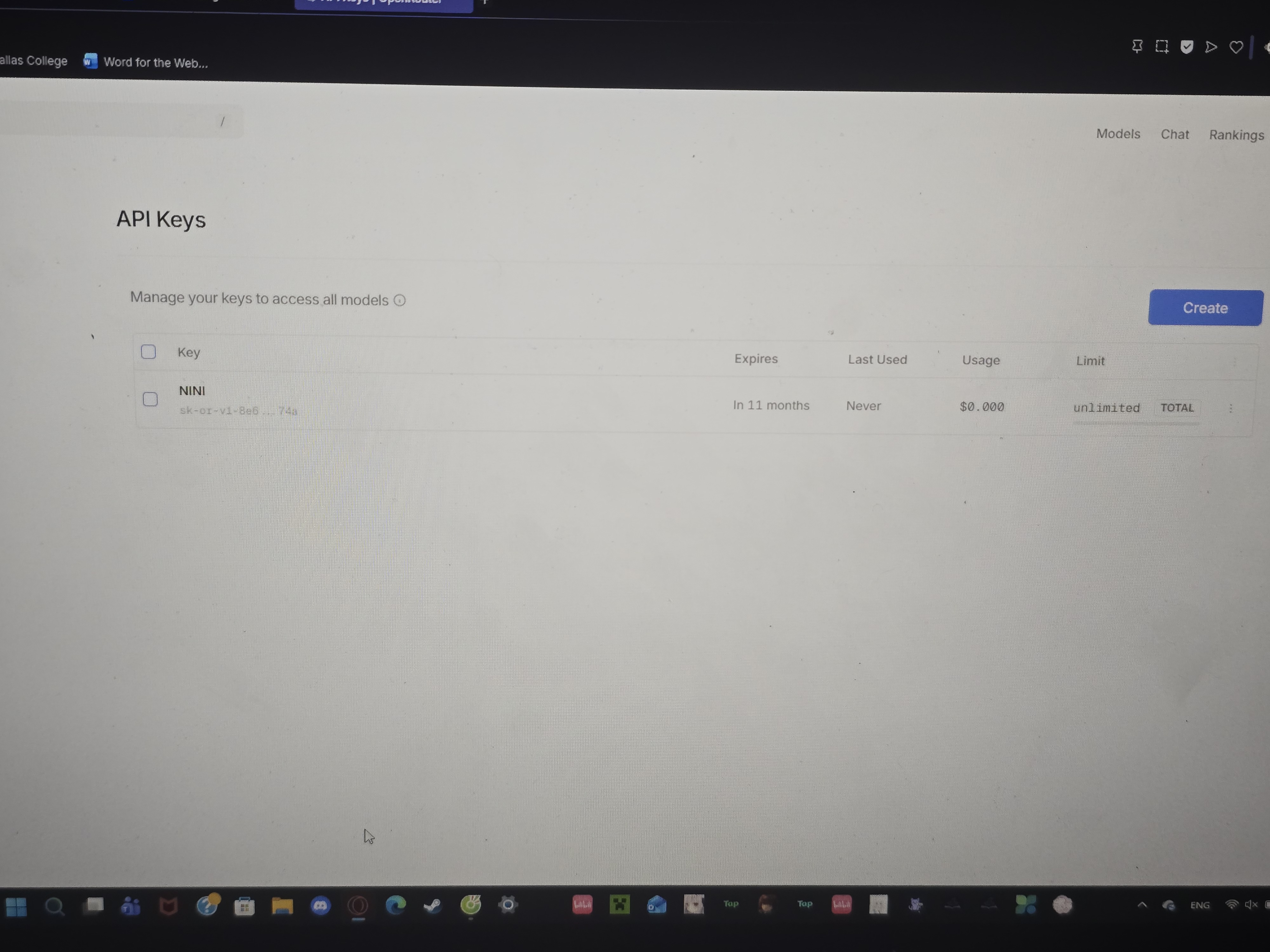
Hey! You're very close — the API key part looks correct 👍
I made a quick visual guide for you (see the screenshots). Just follow these steps:
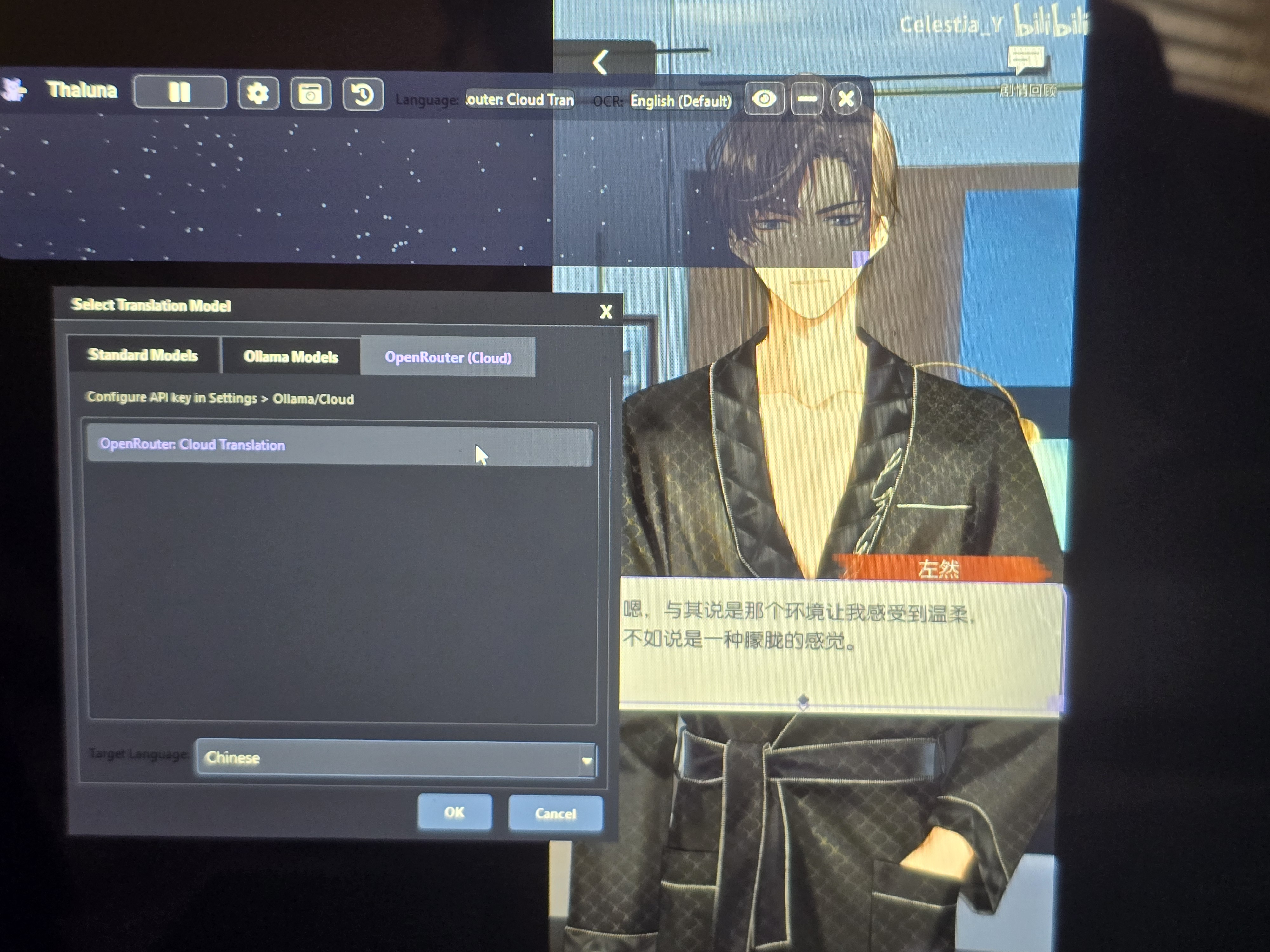
1️⃣ Click the Language button at the top of Thaluna.
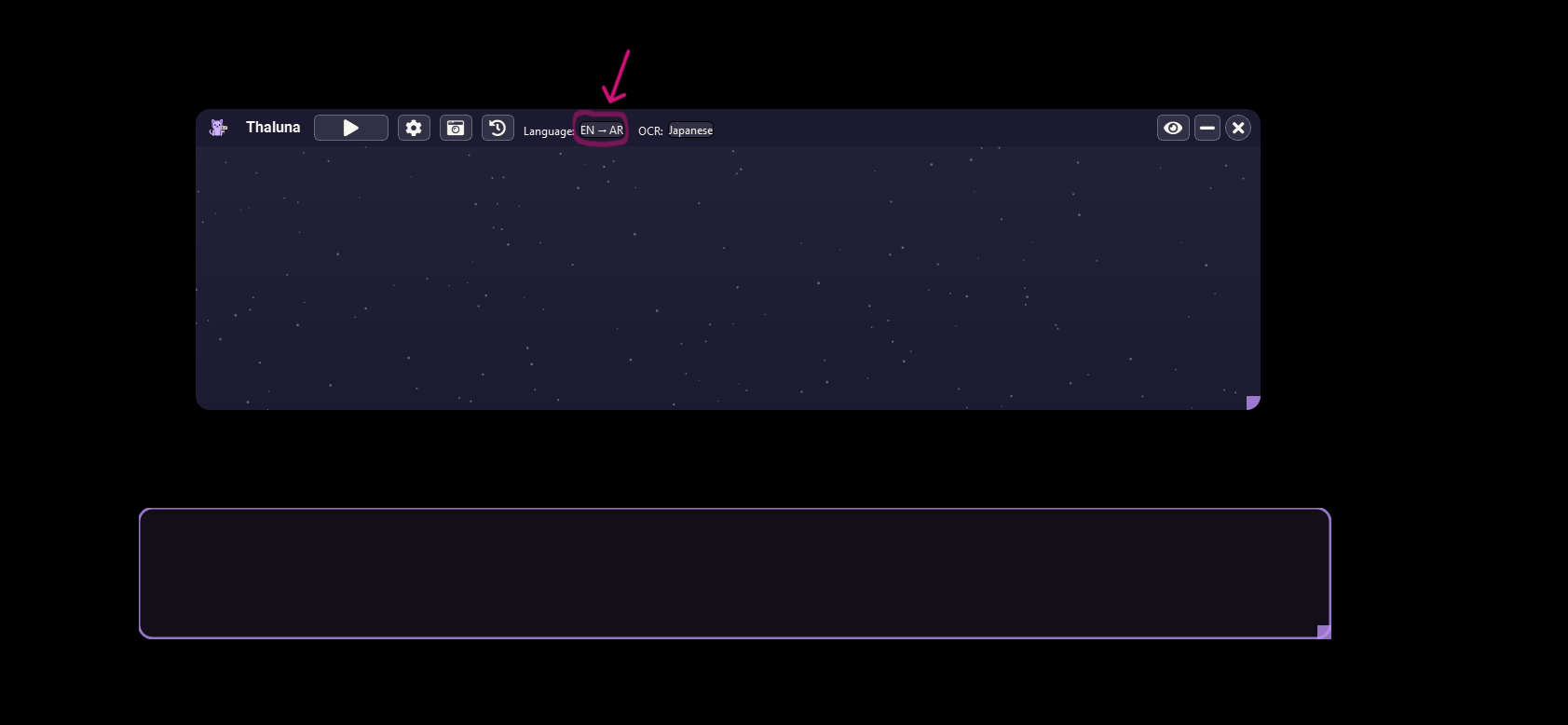
2️⃣ In the window that opens, switch to the OpenRouter (Cloud) tab.
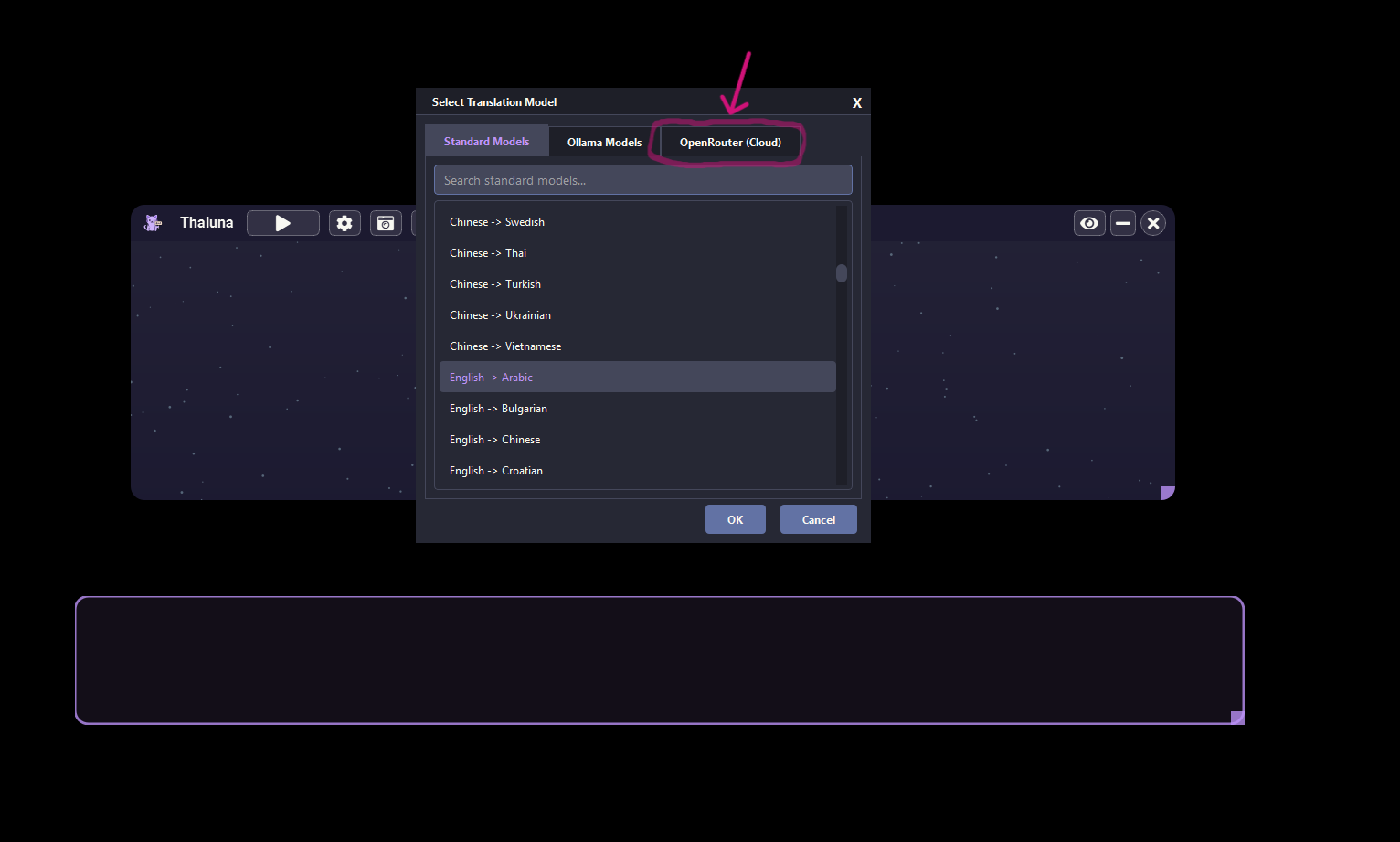
3️⃣ Select OpenRouter: Cloud Translation.
4️⃣ Choose your Target Language (for example English).
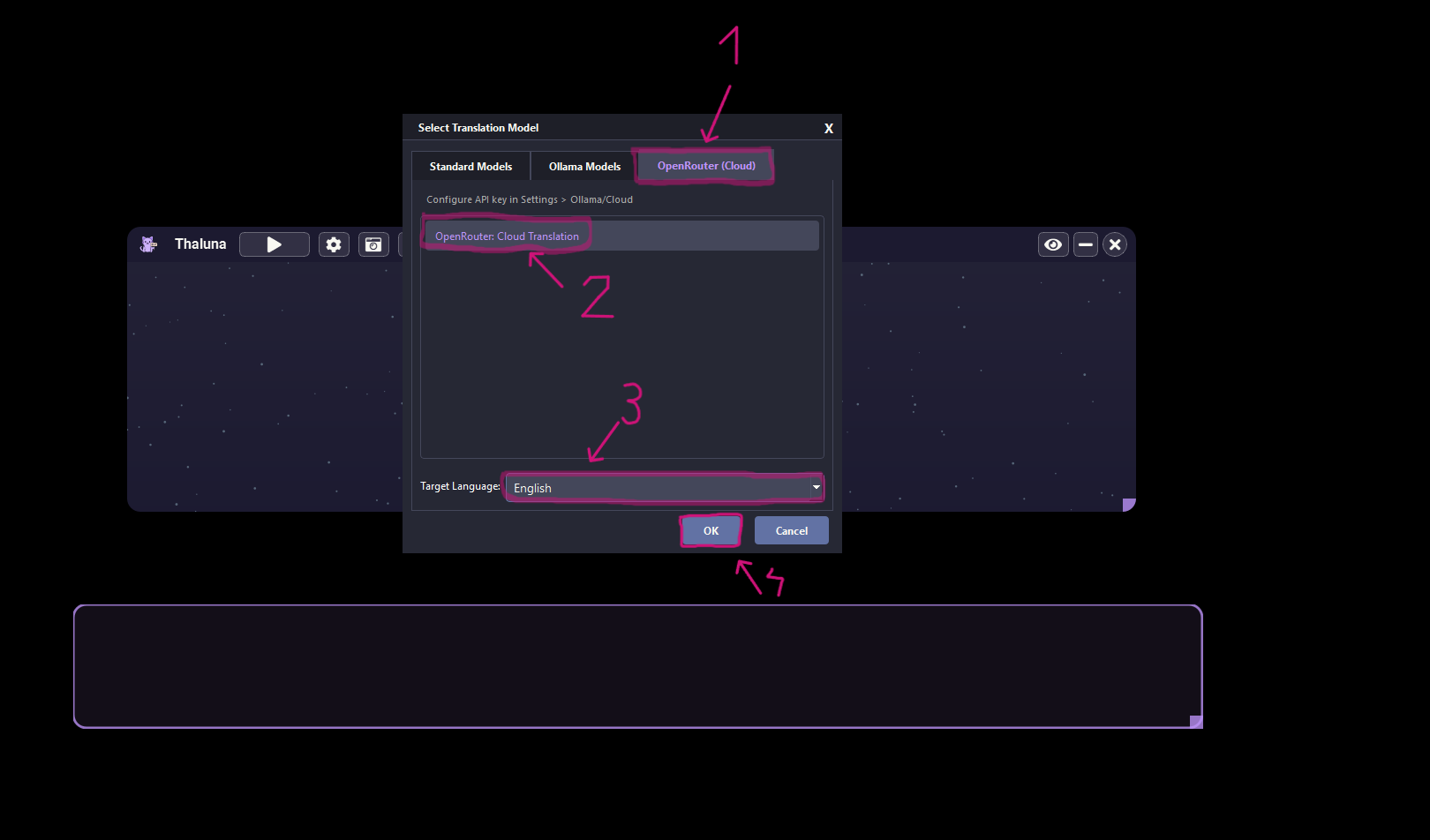
5️⃣ Click OK.
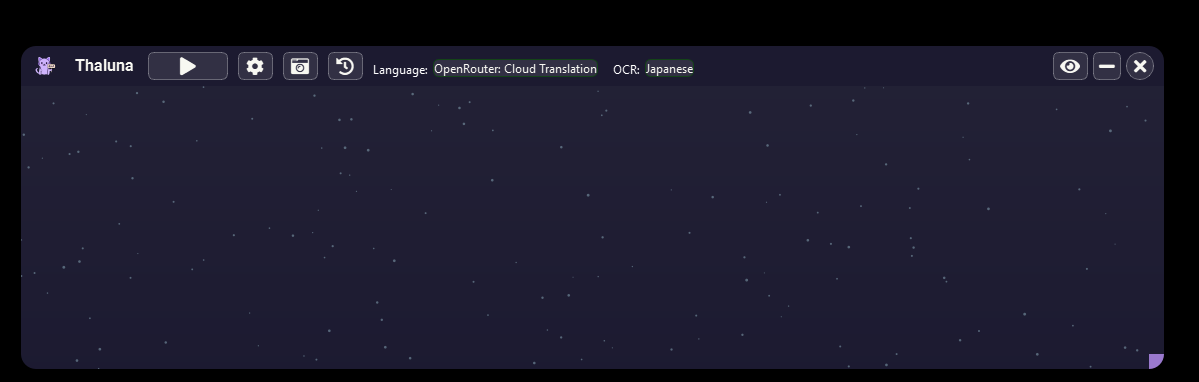
After that Thaluna will start translating using OpenRouter.
One small recommendation:
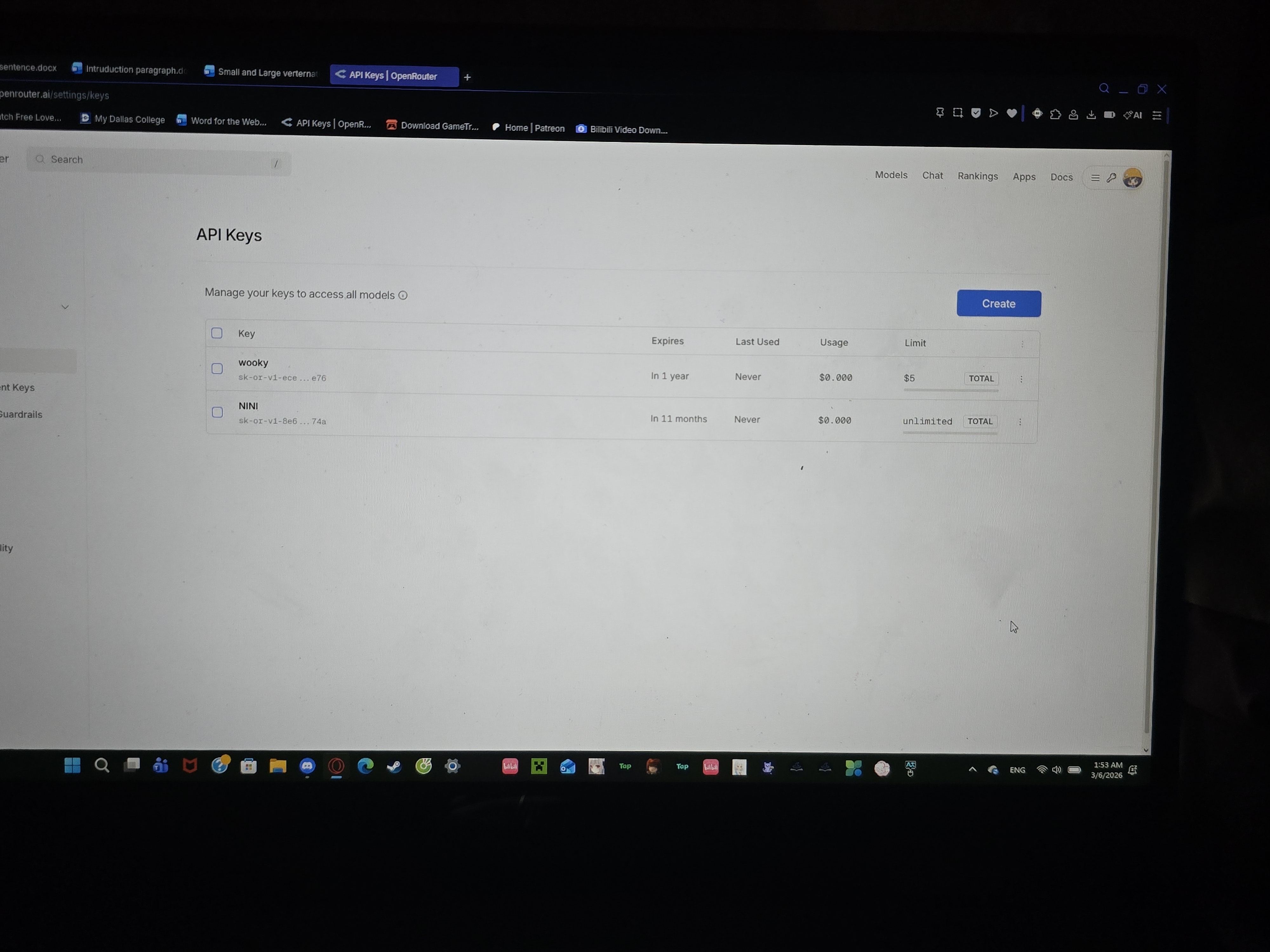
I noticed your API key currently has no spending limit (unlimited).
OpenRouter is prepaid, so it will only use your balance, but it's still a good idea to set a small limit (for example $5) on the key.
This just prevents accidental higher usage if something runs in the background.
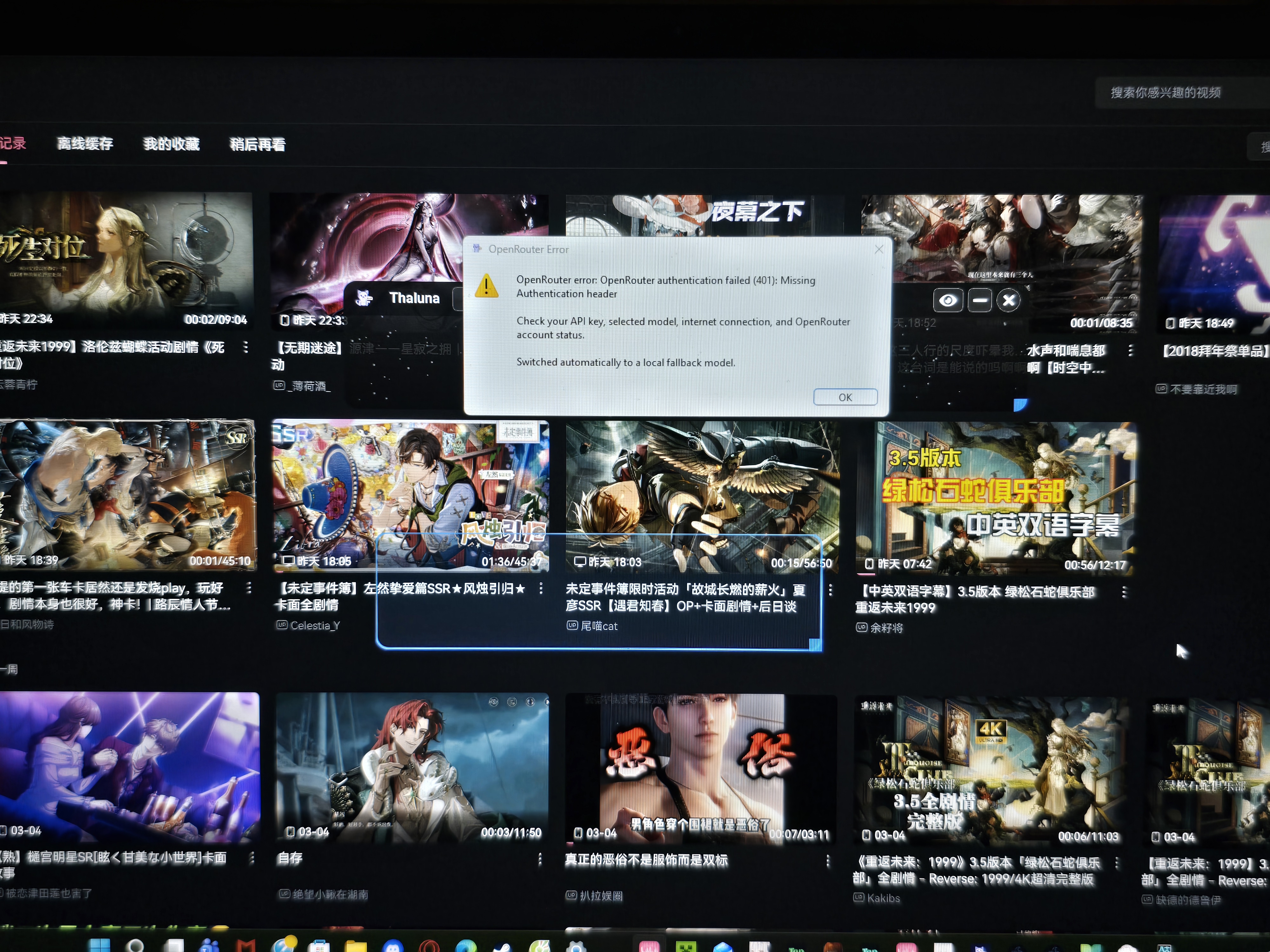
This error means OpenRouter rejected authentication (401: Missing Authentication header).
Usually this happens when the OpenRouter API key is missing or incorrect in the app settings.
Please try the following:
1. Go to Settings → Ollama / Cloud.
2. Paste your OpenRouter API key again (make sure there are no spaces before or after the key).
3. Save the settings and restart Thaluna.
4. If it still doesn't work, generate a new API key on OpenRouter and paste it again.
If you are using a VPN, proxy, or firewall, try disabling it temporarily and test again.
When OpenRouter authentication fails, Thaluna automatically switches to a local fallback translation model.
If you're still unsure whether the API key was saved correctly, you can also check it manually.
Sometimes when copying a key (especially after regenerating it or changing limits), a space or extra character can accidentally be included. That can cause the authentication error.
Thaluna stores the OpenRouter key in the following file:
C:\Users\YourUserName\AppData\Local\Thaluna\secrets\openrouter_api_key.json
The easiest way to open it:
Press Win + R on your keyboard.
Type:
%localappdata%\Thaluna\secrets
Press Enter.
Open the file openrouter_api_key.json with Notepad and check if your API key is there.
You can also paste your key into this file if needed.
⚠️ Make sure Thaluna is completely closed before editing the file, otherwise the change may not save correctly.
This method can help confirm that the correct key is stored without any extra spaces or characters.
Also remember to keep your API key private and never share it publicly.
Hello
Please check the following:
Generate a new API key on OpenRouter.
In Thaluna settings, delete the old key completely and paste the new one.
Make sure you paste the entire API key exactly as OpenRouter gives it, not just part of it.
Click the button next to the API field to reveal the key and verify it looks correct.
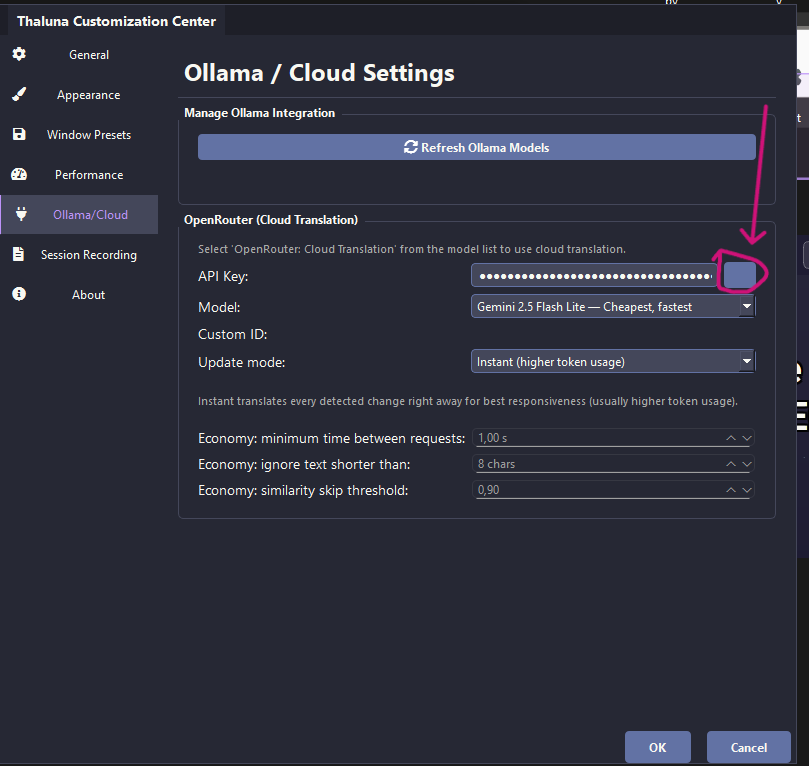
Click Save / OK, then fully restart Thaluna.
If the problem still happens, please check the stored configuration manually:
Press Win + R
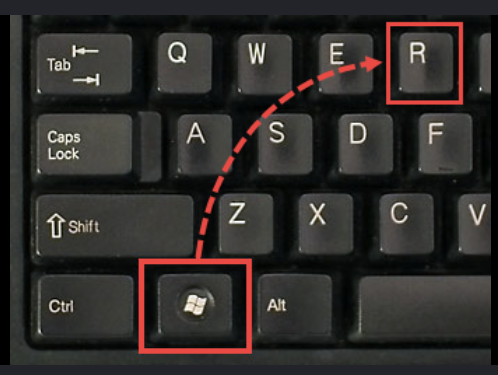
Type:
%localappdata%\Thaluna\secrets
Open openrouter_api_key.json
Verify that the API key stored there matches your current OpenRouter key exactly.
This error usually means one of the following:
the API key is missing, incorrect, or saved incorrectly
the app is still using an old/invalid key
If the steps above still don't fix the issue, please try one quick test:
Temporarily switch to a different internet connection (for example your phone hotspot) and test Thaluna again.
Sometimes a VPN, proxy, firewall, or antivirus web protection can interfere with API authorization requests.
Using a different network for a quick test can help confirm if the issue is network-related.
Hello,
Great to hear that OpenRouter is finally working for you!
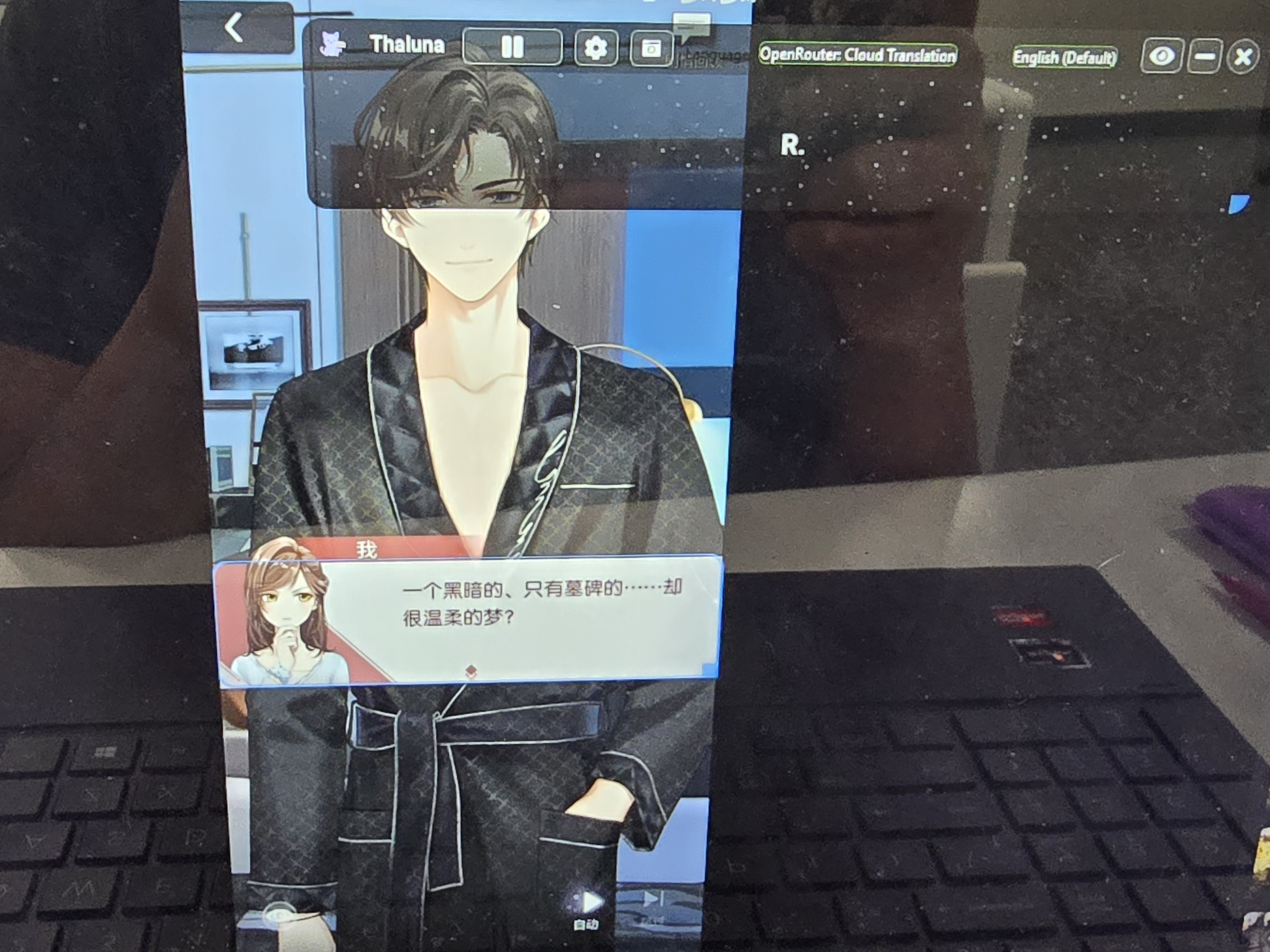
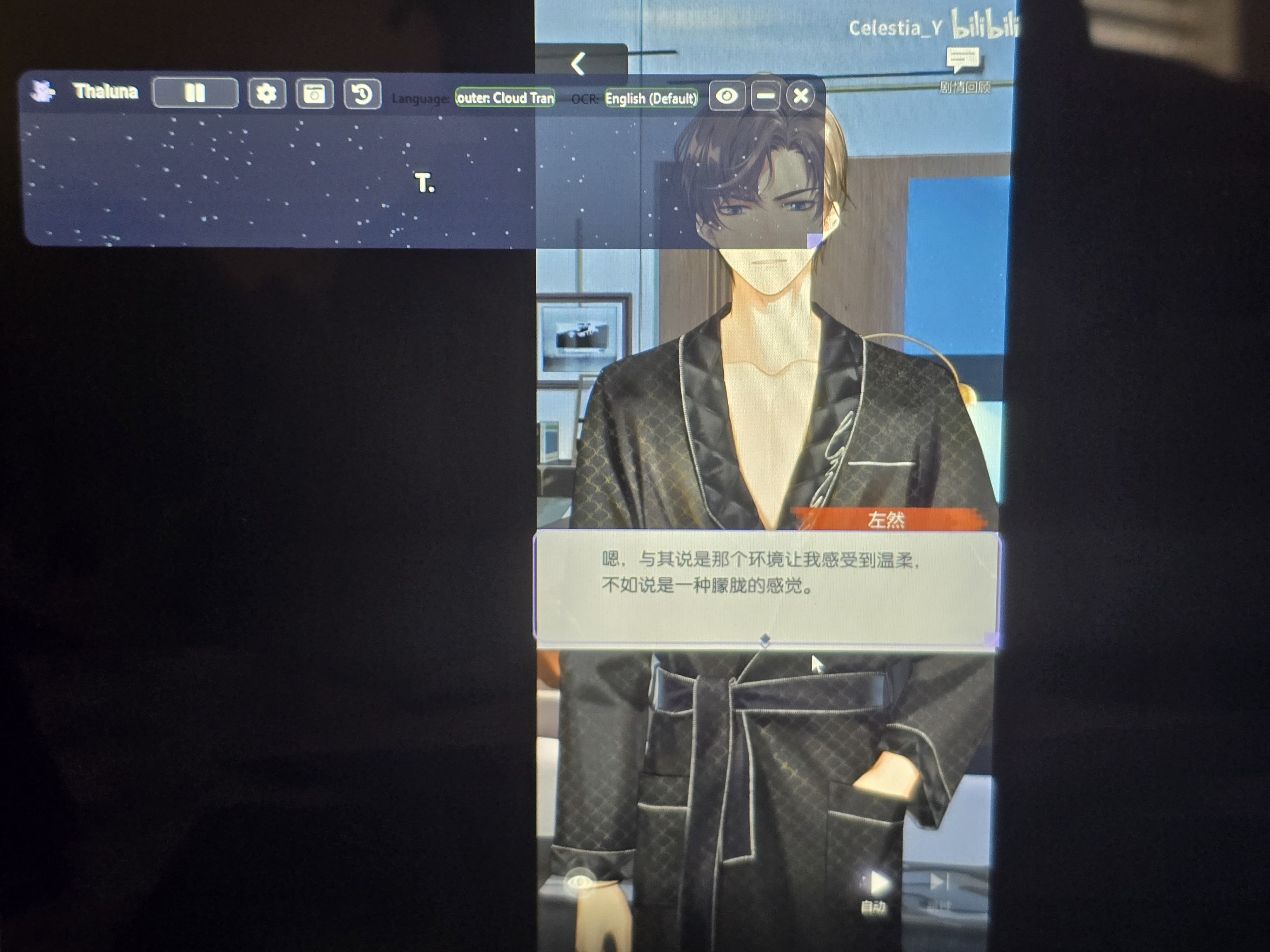
From the screenshot it looks like the issue is related to the OCR language setting
Right now the OCR language is set to English, but the game/movie text you are trying to translate appears to be Chinese or Japanese.
Because of this, the OCR cannot correctly read the characters, so the translator only receives small fragments like "R." instead of the full sentence.
Please try this:
Go to the OCR language setting
Change it from English to the correct language (Chinese or Japanese depending on the game/movie)
Save the settings and try again
Once the OCR language matches the game text, the full sentence should be detected and translated correctly.
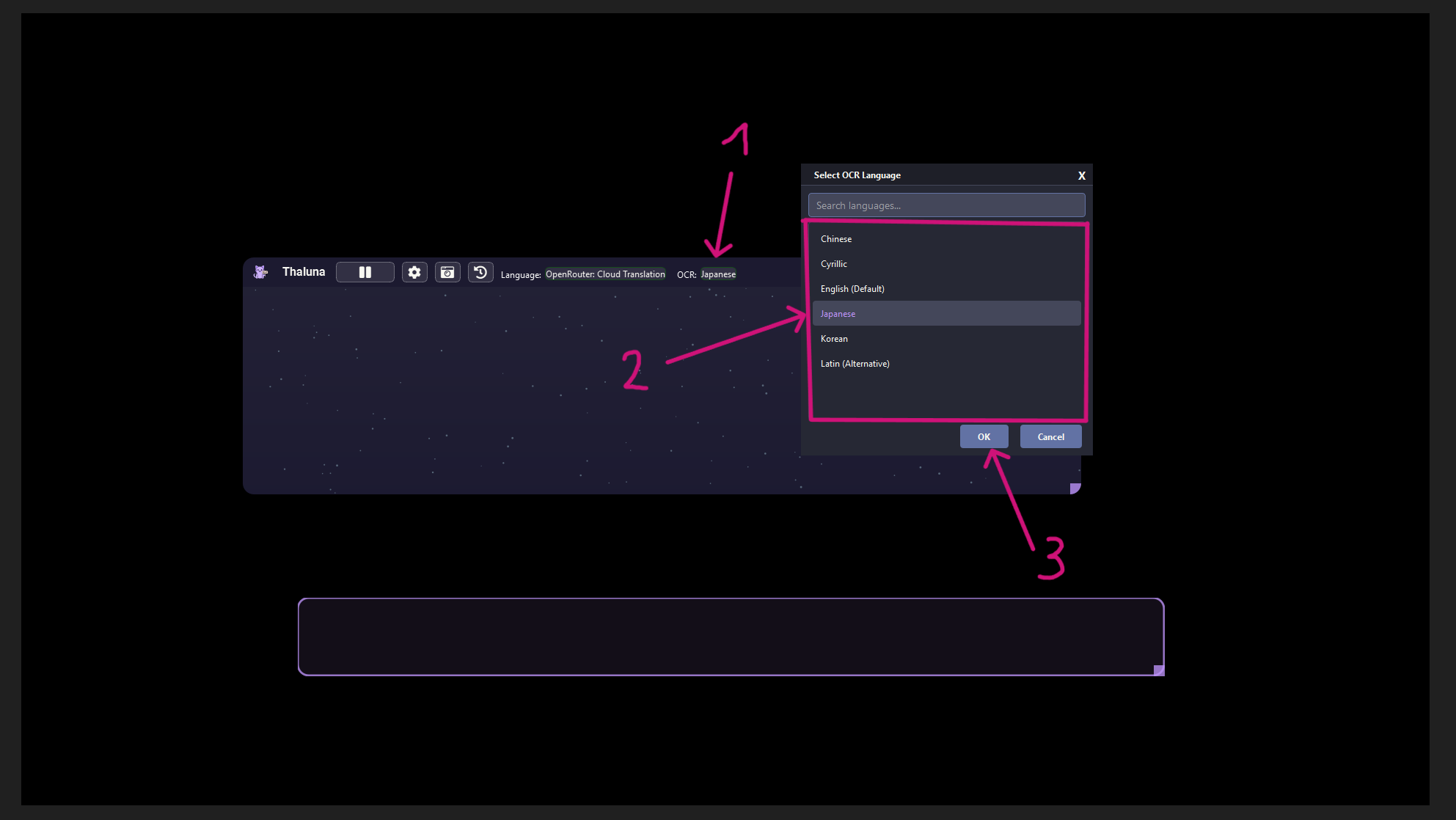
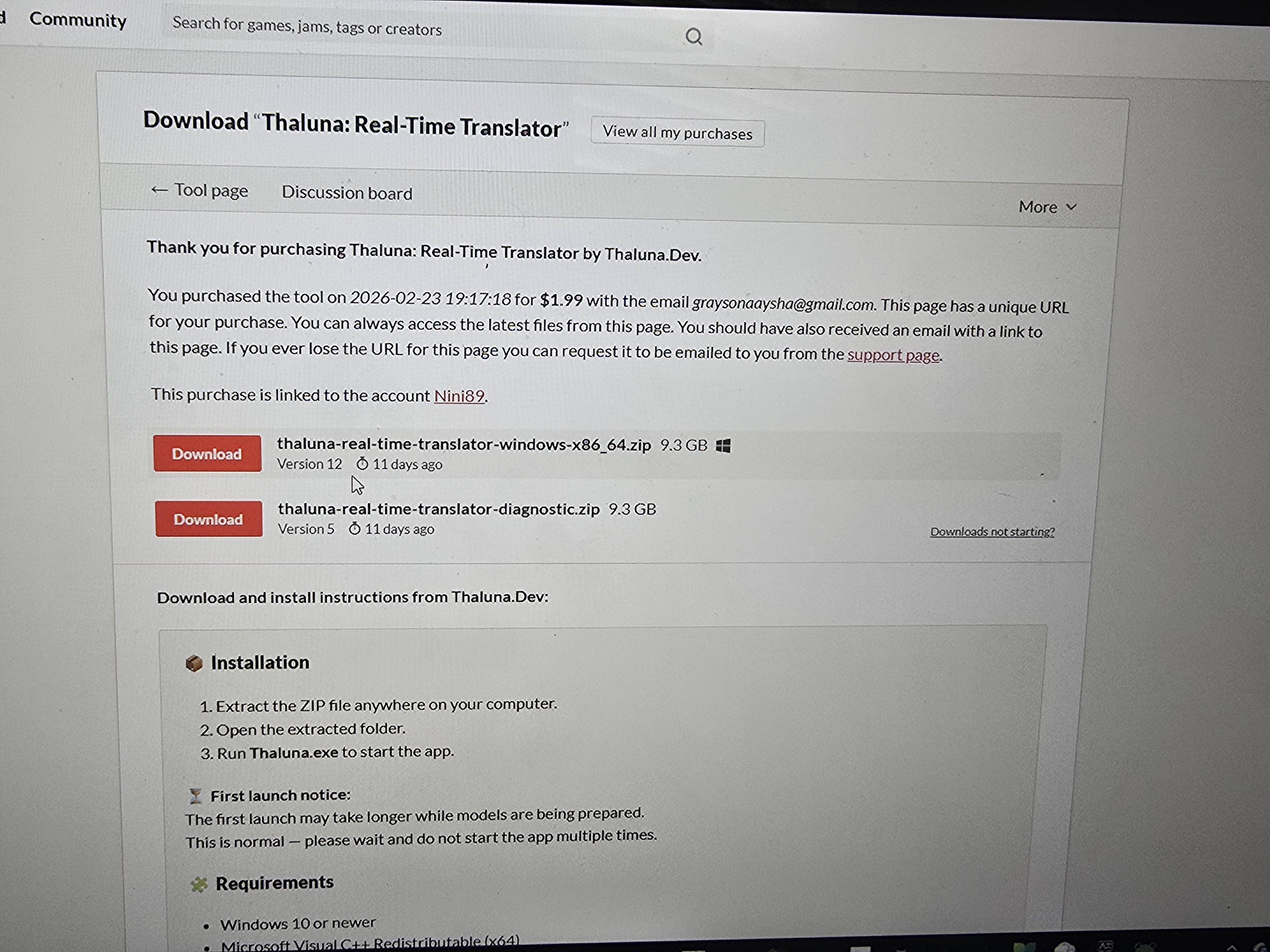
Also, I noticed from the screenshot that you are still using an older version of Thaluna.
A newer version is available which includes fixes and some improvements. If you want, you can update it anytime by downloading the latest version from the Thaluna page.
Please note that some visual settings (like colors) may reset because they are stored in the config file, but your OpenRouter API key should remain saved since it is stored separately.
Hello!
No problem at all, I'm glad it's working for you now.
To update Thaluna, just go to the main download page:
https://thalunadev.itch.io/thaluna-real-time-translator
Then simply download the Windows version again and replace your old Thaluna folder with the new one.
That's all you need to do to update.
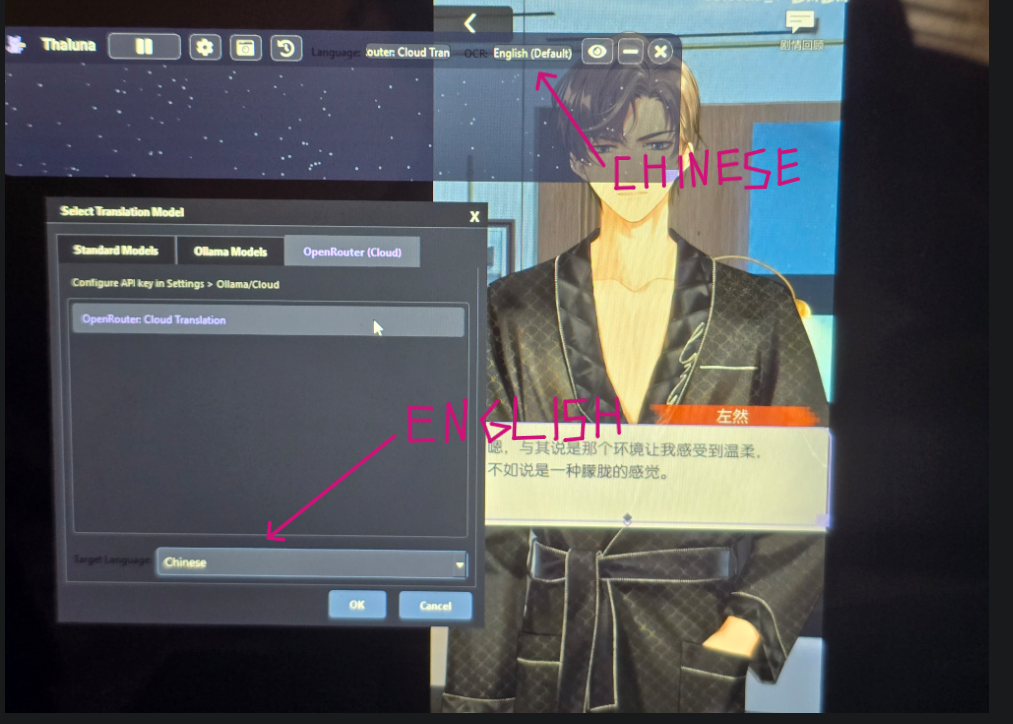
It looks like the language was set in the wrong place.
The Target Language is the language you want the text to be translated into.
The OCR Language is the language the text is originally written in.
In your case the video text is Chinese, so try this:
OCR Language → Chinese
Target Language → English
Right now it looks like Chinese is selected as the target language, which means the translator is trying to translate into Chinese instead of translating the Chinese text to English.
After changing the OCR language, restart the capture and it should work correctly.
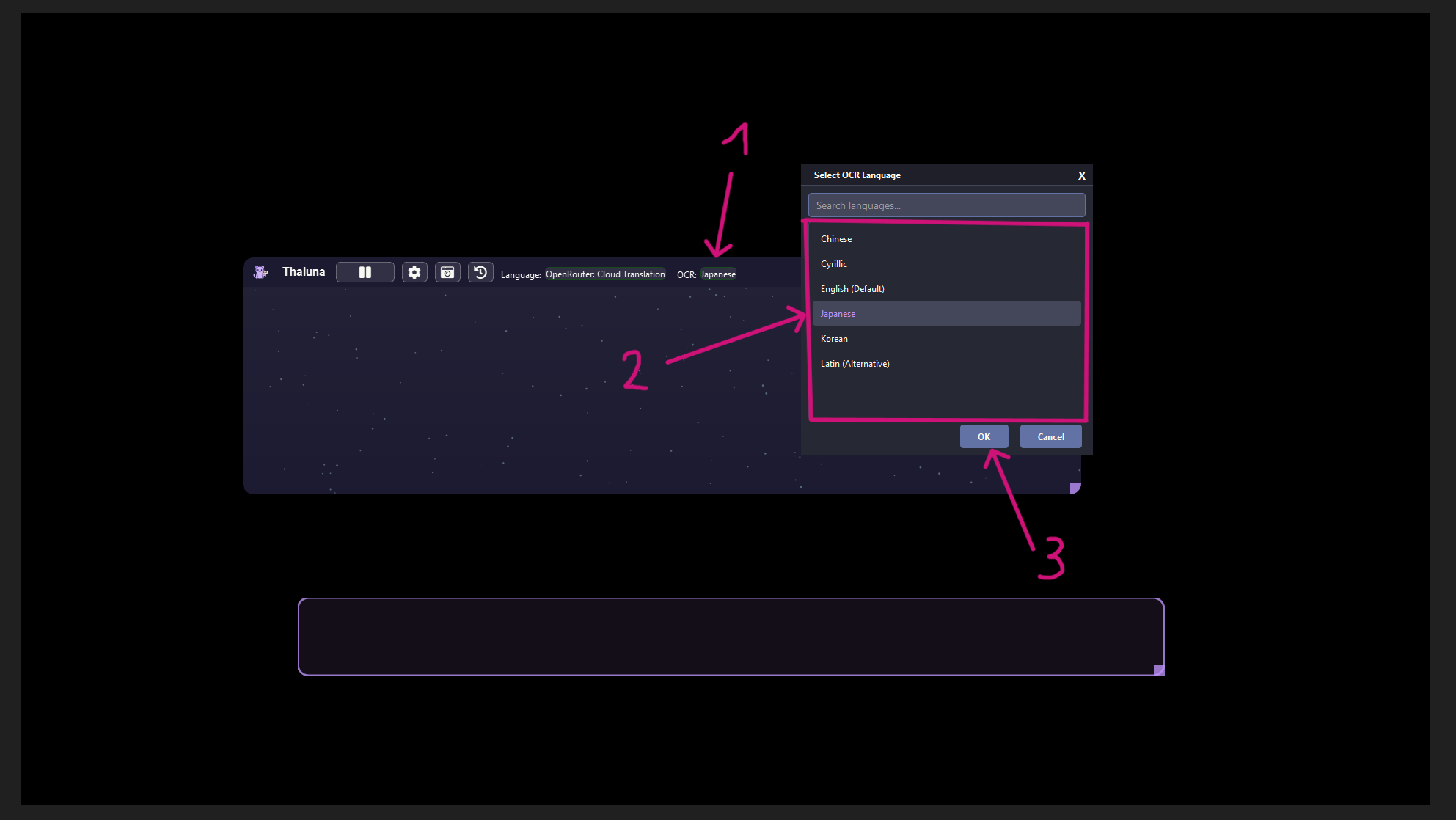
This screenshot shows Japanese as an example, but in your case set it to Chinese.
The rule is the same.