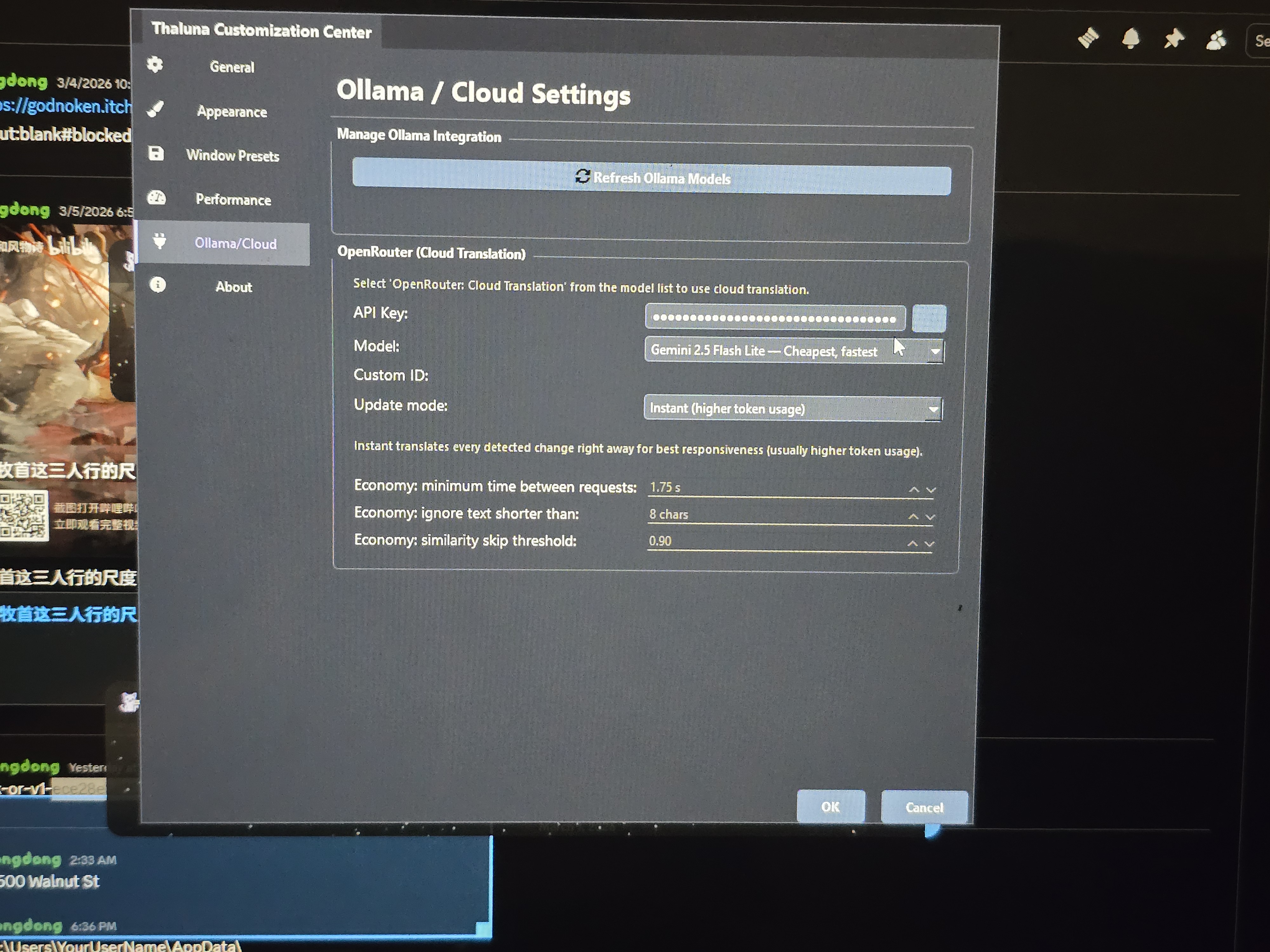
Um I was doing well until I saw this on my screen so I'm confused
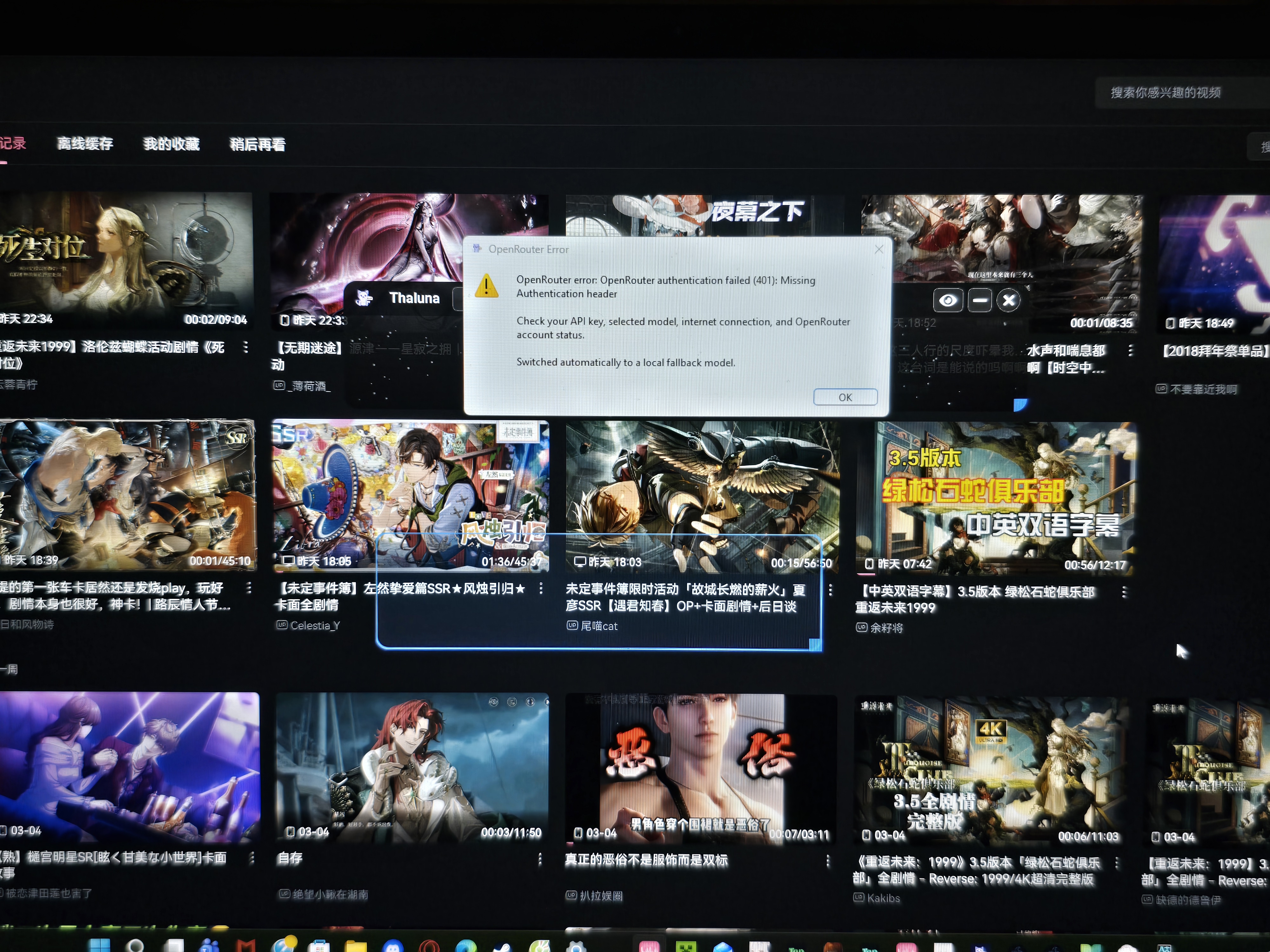
This error means OpenRouter rejected authentication (401: Missing Authentication header).
Usually this happens when the OpenRouter API key is missing or incorrect in the app settings.
Please try the following:
1. Go to Settings → Ollama / Cloud.
2. Paste your OpenRouter API key again (make sure there are no spaces before or after the key).
3. Save the settings and restart Thaluna.
4. If it still doesn't work, generate a new API key on OpenRouter and paste it again.
If you are using a VPN, proxy, or firewall, try disabling it temporarily and test again.
When OpenRouter authentication fails, Thaluna automatically switches to a local fallback translation model.
If you're still unsure whether the API key was saved correctly, you can also check it manually.
Sometimes when copying a key (especially after regenerating it or changing limits), a space or extra character can accidentally be included. That can cause the authentication error.
Thaluna stores the OpenRouter key in the following file:
C:\Users\YourUserName\AppData\Local\Thaluna\secrets\openrouter_api_key.json
The easiest way to open it:
Press Win + R on your keyboard.
Type:
%localappdata%\Thaluna\secrets
Press Enter.
Open the file openrouter_api_key.json with Notepad and check if your API key is there.
You can also paste your key into this file if needed.
⚠️ Make sure Thaluna is completely closed before editing the file, otherwise the change may not save correctly.
This method can help confirm that the correct key is stored without any extra spaces or characters.
Also remember to keep your API key private and never share it publicly.
Hello
Please check the following:
Generate a new API key on OpenRouter.
In Thaluna settings, delete the old key completely and paste the new one.
Make sure you paste the entire API key exactly as OpenRouter gives it, not just part of it.
Click the button next to the API field to reveal the key and verify it looks correct.
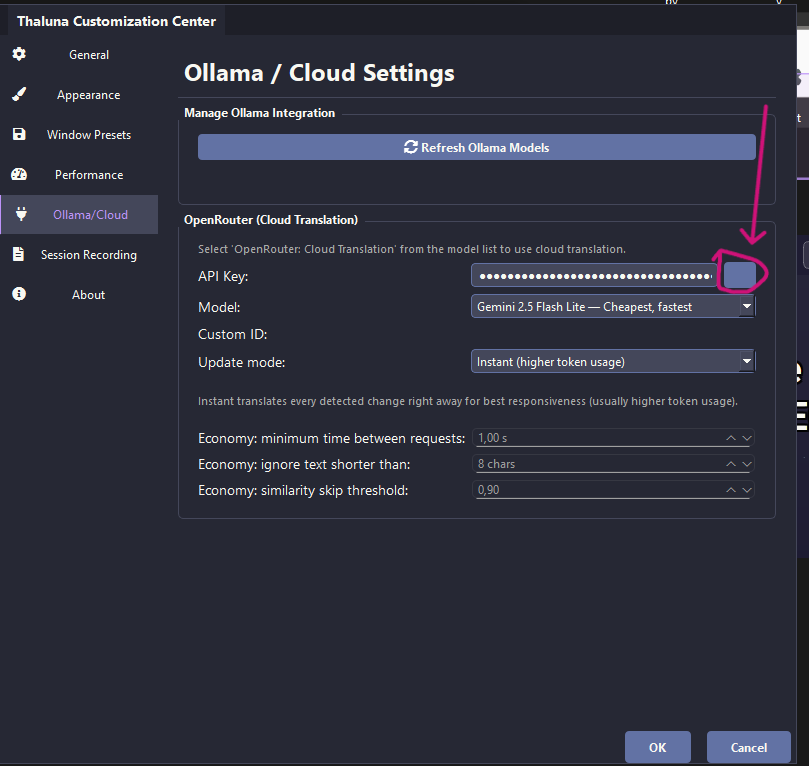
Click Save / OK, then fully restart Thaluna.
If the problem still happens, please check the stored configuration manually:
Press Win + R
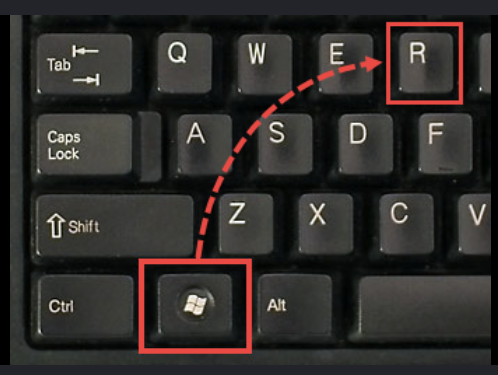
Type:
%localappdata%\Thaluna\secrets
Open openrouter_api_key.json
Verify that the API key stored there matches your current OpenRouter key exactly.
This error usually means one of the following:
the API key is missing, incorrect, or saved incorrectly
the app is still using an old/invalid key
If the steps above still don't fix the issue, please try one quick test:
Temporarily switch to a different internet connection (for example your phone hotspot) and test Thaluna again.
Sometimes a VPN, proxy, firewall, or antivirus web protection can interfere with API authorization requests.
Using a different network for a quick test can help confirm if the issue is network-related.