
Indie game storeFree gamesFun gamesHorror games
Game developmentAssetsComics
SalesBundles
Jobs
TagsGame Engines

PixelForge

Create and edit pixel fonts, and export them to TTF · By Sergi Lazaro

New version 0.91b released! Sticky

A topic by Sergi Lazaro created 9 days ago Views: 146 Replies: 11
Viewing posts 1 to 10
Developer(+2)

The new version is out!

This new version is coded in C# with Godot 4, and it now has all the features of the previous one (and more!).

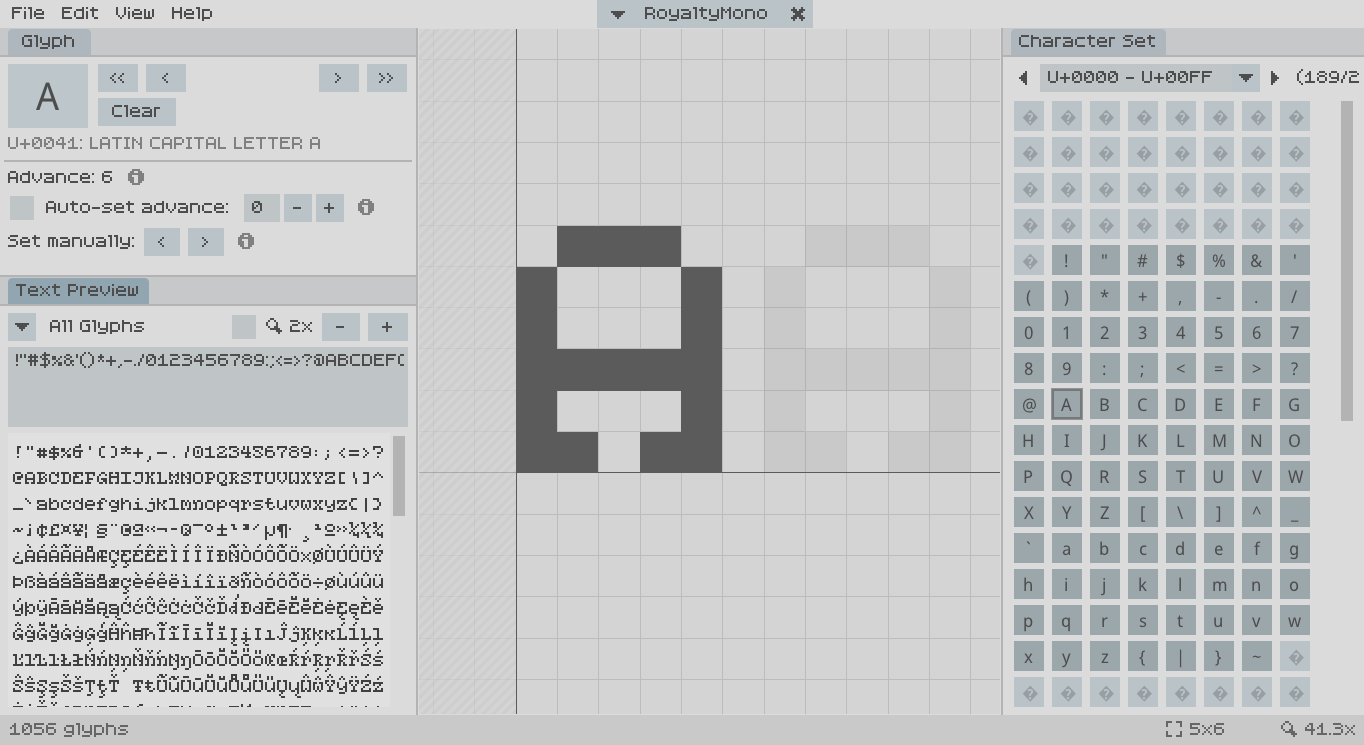
The new version looks and feels basically the same as the old one, even if it has zero code shared with it. You will probably not feel the difference. It has a few new improvements:

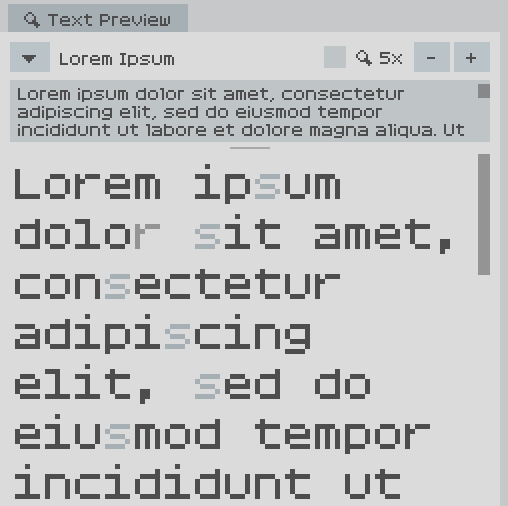
  • In the Text Preview panel, you can now select glyphs by clicking on them inside the text, and the current glyph is highlighted.
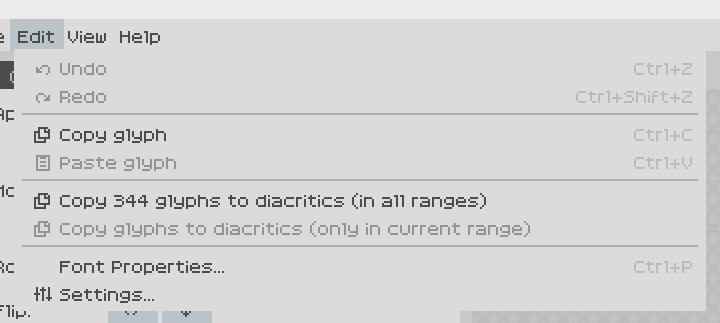
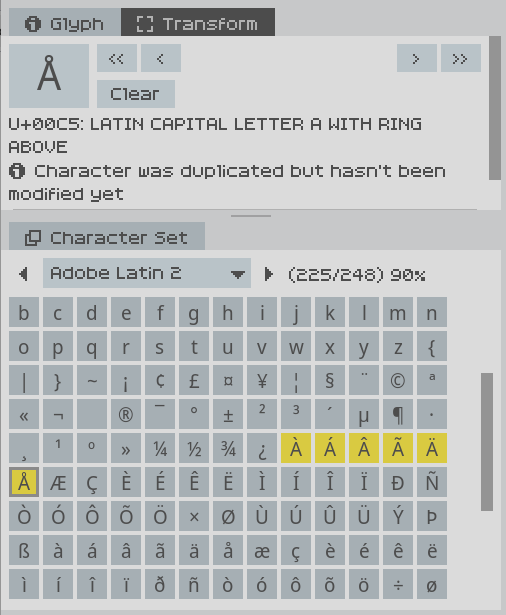
  • Copy and paste: You can copy a glyph and paste it into another glyph. And you can auto-copy glyphs to their diacritics! That is, it will copy your already defined “a” into “à”, “á”, “â”, “ã”, “ä”, “å”, etc, so you can then add the diacritic and make other changes. If you don’t edit a glyph after having pasted into it, it will be shown in yellow as a warning/reminder that you probably want to edit it.
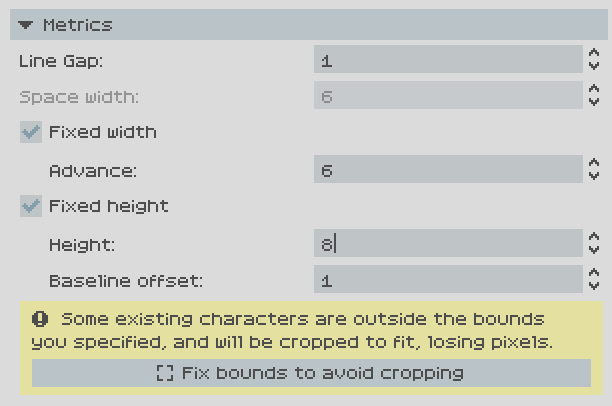
  • Setting limits for width and/or height for the whole font. That way you literally can’t place pixels out of that range, advance will be automatically set to that value (in case of fixed width), etc. Very useful for monospace fonts, and in general if you want to enforce a specific box.
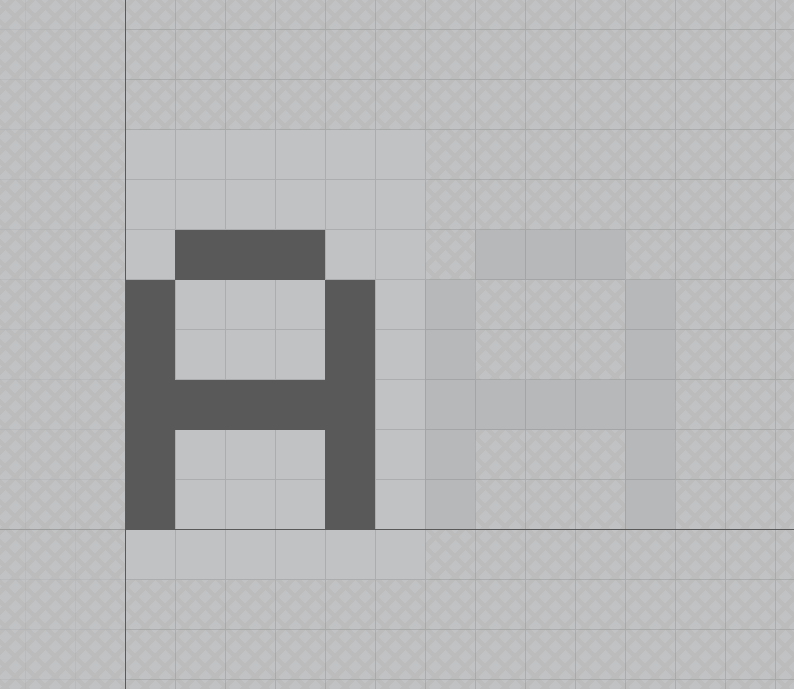
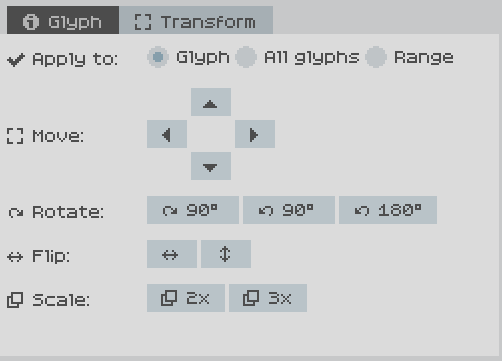
  • New transform panel with tools to modify glyphs: Move, rotate, flip, scale. You can apply those modifiers to the current glyph, to all glyphs in current range, or to all glyphs in all ranges. Very useful particularly when you import a font and want to move up/down to meet a specific baseline, for instance.
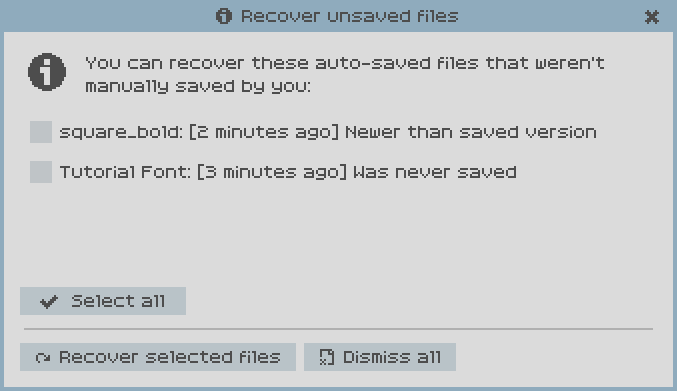
  • Auto-save and recovery: Opened documents are periodically auto-saved to an internal folder. When a crash is detected, it will offer the option to recover the state of unsaved files, so you can save them manually after that.
  • Linux binaries available as well.

If you have the old PixelForge version installed, hopefully you should be notified about this, if not, that means I messed up the update check years ago 😅

As with the old version, remember this is a beta version, so some things might not work properly, so feedback is appreciated!
(+1)

you have NO clue how thankful i am for you adding these features
such perfect timing
thank you so much !!!!

(1 edit)

Thanks for updating! While I’m glad this tool is seeing improvements, and that there are features I was waiting for, I find the new version harder to use than the C++ version (even run through Wine).

  • The file selector on Linux doesn’t work for me; this may be because I don’t have an external one installed, but it doesn’t fall back to the Godot dialog either.
  • Though the panels can be resized, they can’t be freely arranged as in the C++ version. Not only can I not use the arrangement that I’m used to, but the default layout of three panels stacked on each other is cramped on my 1366x678 display, especially with the file dropdown now being on a seperate row.
  • Tabbed panels are a different color than in the previous version, which is disorienting and unintuitive especially as buttons don’t have a hover indicator.
  • The ‘x’ button on the font dropdown doesn’t do anything

That said, if these problems were fixed and the UI was made as good as the previous version, it would be a great update. Some features I’d like to see in the future are:

  • Keyboard shortcuts for transformations (ctrl+x/c/v for cut/copy/paste, ctrl+arrows to move, ctrl+h/v to flip, etc)
  • Custom character sets (maybe a ‘favorite’ button for characters)
  • More preview examples for other languages, maybe a way to add your own
  • Display metrics like the line height or highest/lowest width/height of characters (without fixed metrics)
  • Show the current filename in the dropdown instead of family name (or a toggle)
  • Show baseline, ascender, etc in the glyph preview
Developer

Thanks for your feedback! As you see there are a few rough edges as it’s a beta and I’ve tested it myself but there are always things that slip through.

The file selector on Linux doesn’t work for me; this may be because I don’t have an external one installed, but it doesn’t fall back to the Godot dialog either.

Sorry about that. It’s a bit of a mess, for Windows it should work with native dialogs with no problem. For Linux I have a method where it tries to use zanity or kdialog if they exist, and if they don’t it tries to use a Godot dialog with the “native dialog” option enabled. If Godot can’t use a native one (it sometimes happens) it should use the built-in one (which is very ugly and I should customize the aesthetic more).

If nothing shows up, that’s a big problem for sure. Would you be willing to send a diagnostics file for me to diagnose the problem? If you downloaded it recently it should have a menu option inside “Help”, if not, you can try the latest uploaded version ( https://sergilazaro.itch.io/pixelforge#download ), it has the same display name and version but I added this menu entry to help with diagnosing problems. The thing is, it asks for a folder to generate the diagnostics to, which opens a dialog that you might not see either because of this same problem… If that doesn’t work, manually zipping the folder that (I think) should be at ~/.local/share/godot/app_userdata/PixelForge/ would be equivalent. I think that’s the folder it should be, but I don’t know if Godot uses a different folder for different distros, etc.

Though the panels can be resized, they can’t be freely arranged as in the C++ version. Not only can I not use the arrangement that I’m used to, but the default layout of three panels stacked on each other is cramped on my 1366x678 display, especially with the file dropdown now being on a seperate row.

Out of curiosity, how did you rearrange the panels in the old version? Did you stack the panels on top of each other to save space? I can try to see if I can make the interface more flexible, I’m not sure how difficult it would be, though.

Tabbed panels are a different color than in the previous version, which is disorienting and unintuitive especially as buttons don’t have a hover indicator.

I will try to make them match the previous aesthetic and behavior, thanks for the tip!

The ‘x’ button on the font dropdown doesn’t do anything

Thanks, I missed that bug! It’s going to be fixed for the next release :)

Keyboard shortcuts for transformations (ctrl+x/c/v for cut/copy/paste, ctrl+arrows to move, ctrl+h/v to flip, etc)

Ctrl-C and Ctrl-V should already work, but I will add more shortcuts as you suggest as well.

(4 edits)

If that doesn’t work, manually zipping the folder that (I think) should be at ~/.local/share/godot/app_userdata/PixelForge/ would be equivalent

Is there anywhere you’d reccomend sending the zip file? Anyway, the errors I get whenever I open a file dialog are:

ERROR: Signal 'focus_entered' is already connected to given callable '' in that object.
   at: connect (core/object/object.cpp:1650)
ERROR: Signal 'tree_exited' is already connected to given callable '' in that object.
   at: connect (core/object/object.cpp:1650)
ERROR: Attempt to disconnect a nonexistent connection from 'root:<Window#24628954452>'. Signal: 'focus_entered', callable: ''.
   at: _disconnect (core/object/object.cpp:1733)
ERROR: Attempt to disconnect a nonexistent connection from 'root:<Window#24628954452>'. Signal: 'tree_exited', callable: ''.
   at: _disconnect (core/object/object.cpp:1733)

Ctrl-C and Ctrl-V should already work

Somehow didn’t notice that, thanks.

Out of curiosity, how did you rearrange the panels in the old version?

Developer

Is there anywhere you’d reccomend sending the zip file?

bugreports@pixel-forge.com would be great, thanks! :)

Looking great so far!  One request: Could you have tooltips showing the Unicode number/name that appear when hovering over a character in the Character Set panel?  I feel like that was a feature in the C++ version, since I keep trying to do that without thinking.

Three more small requests:

  • Allow auto-set advance to go down to 0, or even lower.  (The old version allowed this to be set to 0, which is often very handy.  Now it won't go lower than 1.)
  • If you click the buttons to manually increase/decrease the advance, it should turn off auto-set advance for you (like in the old version).  Right now, the manual increase/decrease buttons are simply disabled while auto-set is turned on.
  • Let us pay you for this, even though it's in beta.  You've done an incredible job making free software; let us at least give you a tip for it.

And one larger request:

  • The new UI is much smaller than the old one, which is probably good for most people, but it's a little rough for those of us with older eyes.  If we could change the UI scale, that would be wonderful.

A few bugs:

  • Fonts exported from 0.91b have a different line height than ones from 0.9.  I tried opening the same pxf file in both versions, exporting it as a ttf, and opening it in Photoshop, and the font has to be displayed at a different size.  The resulting font looks the same for each character, but it has a different line height.
  • At least one font generates an invalid ttf file.  To replicate this: 1) Start a new font.  2) Go to the uppercase A character (U+0041).  3) Place a single pixel at 0,0.  4) Export that as a ttf.  The result is a valid font in 0.9, but an invalid font in 0.91b that can't be installed in Windows.
  • The close button on the tab at the top center of the window doesn't work.

I absolutely love the new version, the native linux support and the new features! I haven't tested them all yet, but I will soon, and will report back any problems and ideas.

A minor improvement I can think of is an option to use the system font for the interface instead of the pixelized one, for better readability and accessibility for people with dyslexia, if it's not too much work :)

(6 edits)

Another couple of small suggestions:

-Move the "Clear Glyph" button from the Glyph tab to the "Edit" menu next to the copy and paste Glyph and bind it to the "Delete" key.

-Bind the functions from the Transform tab to keyboard shortcuts - for example move could be Ctrl+Arrow keys, rotate could be R / Ctrl+R etc.

-Include a link to a site like https://unicodeplus.com/U+00E7 when clicking the text with the Unicode and glyph name in the Glyph tab. Maybe also show the unicode and glyph name in the footer? (next to the number of glyphs in the font)

-Add a button "Clear unmodified Glyphs" - useful when you copy glyphs to diacritics, but don't want to edit them all, and have to go through and clear them one-by-one afterwards.

-Copy Glyphs to Diacritics doesn't work for the Latin-3 and Cyrillic ranges.

-Right-click a glyph to preview it as a reference to the left of your current glyph (similar to the ghost preview to the right)

siiiiiick thank you so much!!!!!!