


Steam shortcuts
The app can add your installed games to Steam as non-Steam shortcuts, with cover art, so you can launch them from your Steam library, the overlay, and Steam Big Picture mode.
To manage shortcuts, open Preferences → Advanced → Manage Steam shortcuts..., or right-click an installed game in your library and pick Steam shortcuts....
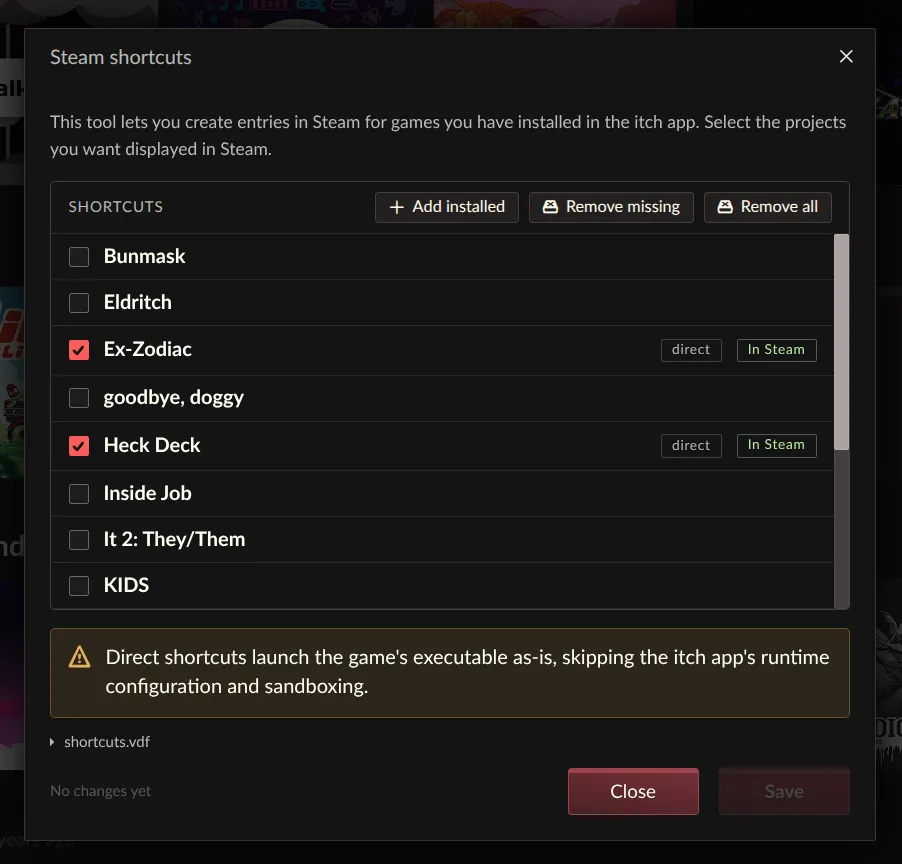
Select the games you want in Steam and press Save. Add installed selects every installed game at once. Shortcuts are grouped under an itch.io collection in your Steam library.
Steam must not be running when you save: Steam rewrites its shortcuts file from memory when it exits, discarding outside edits. The dialog tells you when Steam needs to be closed.
How shortcuts launch
By default, shortcuts launch via itch: the game starts with your itch configuration applied, including the sandbox, prerequisites, and launch settings, without opening the app itself. The Steam overlay and Steam playtime tracking work, and play time is also recorded to the itch.io account that created the shortcut.
Some launches still open the app, since they need it: web games, and games that require you to log in first.
On macOS, shortcuts always launch through the app.
Direct mode
Each selected row has a mode button that switches between via itch and direct. A direct shortcut points Steam straight at the game's executable: Steam runs it as-is, and nothing itch normally provides at launch is there.
- The game is not sandboxed, regardless of your sandbox preferences.
- The itch runtime environment is missing: games that use the itch.io API integration get no API key, so features that rely on the app's logged in session won't work.
- Your launch settings for the game don't apply, and play time isn't recorded to your itch.io account.
Direct shortcuts pin the executable path at save time. When a game update moves its executable, the dialog marks the shortcut Will update; save again to repair it. The mode is offered for games with a native executable for your platform, and on Linux also for Windows games.
Windows games on Linux
On Linux, if you create a direct shortcut for a Windows game it is
automatically configured to run through Steam's Proton compatibility layer.
When you save, the app points the shortcut at the game's .exe and sets its
Steam compatibility tool to proton_experimental.
To use a different Proton version for a game, right-click the shortcut in Steam, open Properties → Compatibility, and pick the tool there.
Caveats
- Downloaded HTML games need a browser to run in, which the app provides. Their shortcuts start the app and open the game in its window, so the Steam overlay and playtime tracking don't apply to them.
- The Steam overlay does not work for sandboxed games: the sandbox blocks the library Steam injects. To use the overlay with a game, turn the sandbox off for that game in its launch settings, or use direct mode.
- Games launched only through Steam do not update themselves. Open the app once in a while to pick up updates.
- Removing a game from the dialog removes its Steam entry and artwork. Uninstalling the app does not remove shortcuts; clear them from the dialog first if you want them gone.