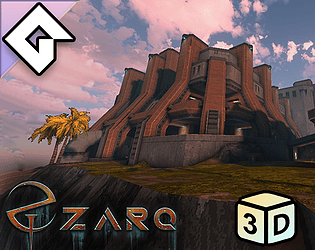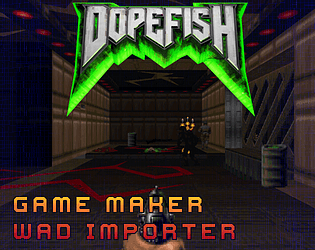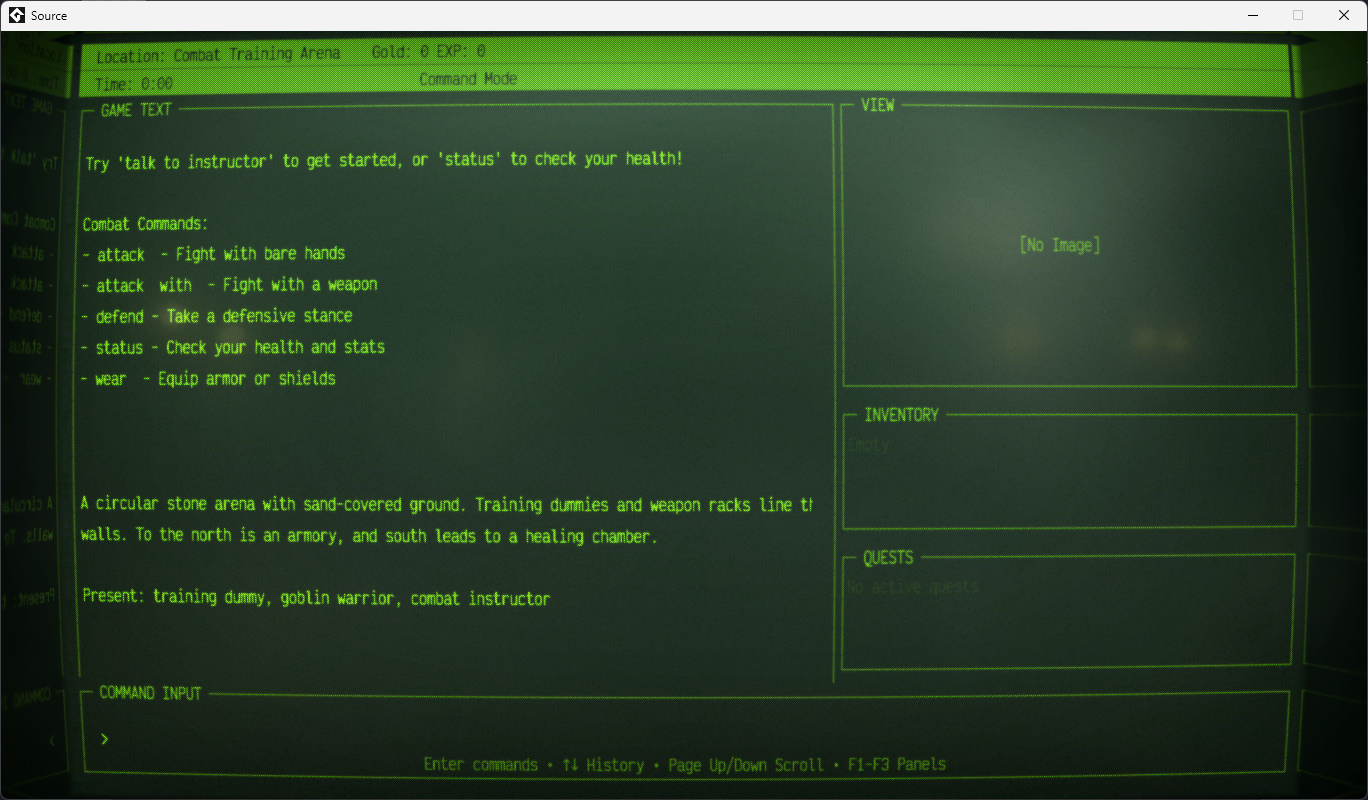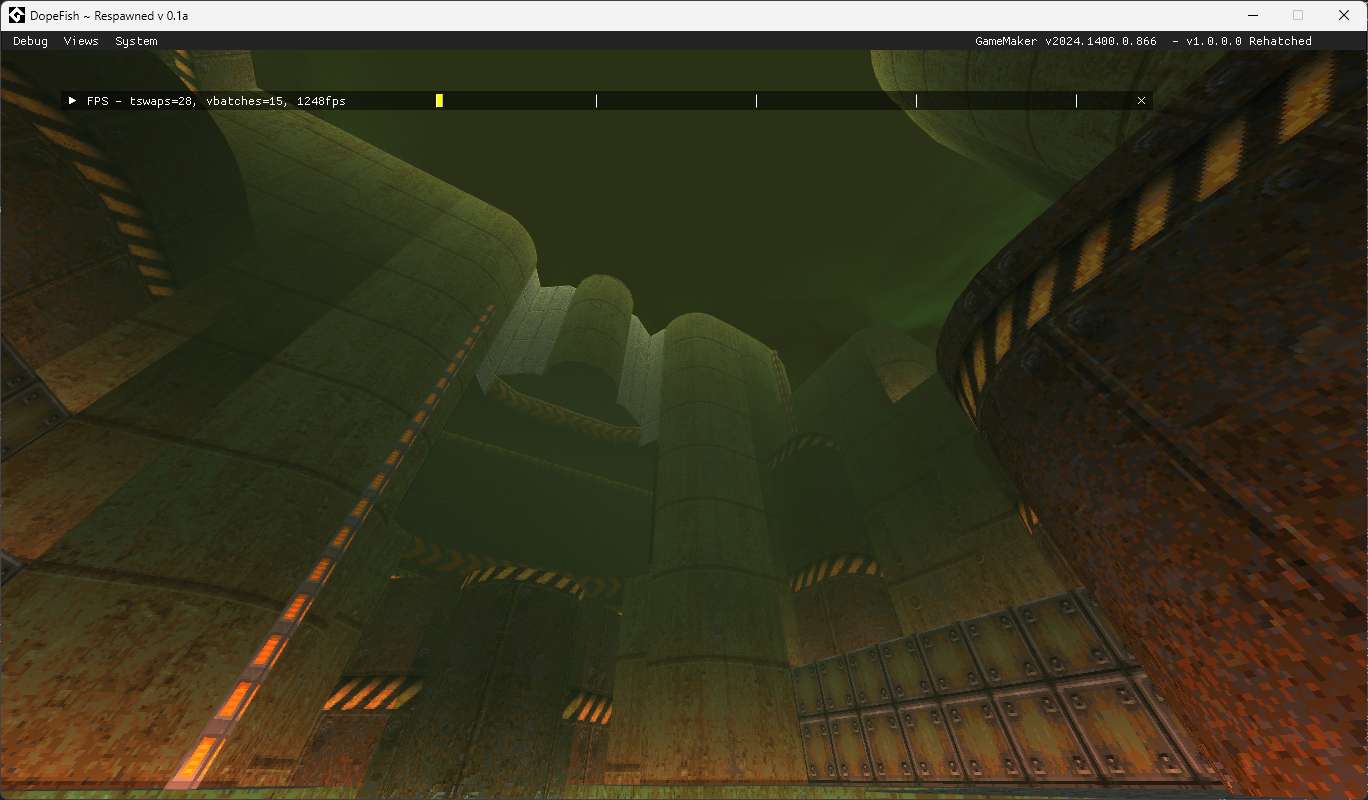
Hey there! I've had to undergo a rewrite of the collision systems, which is pretty buggy, so it's not in a usable state just yet. Once I get the collision kinks ironed out, I think I'll be ready for the first alpha release!
LemonToast Games
Creator of
Recent community posts
Otex UDMF Map in GameMaker

Hey there, I'm CDLegasse, and I make GameMaker do crazy, magical things.
Specialize in: Advanced shader programming & GPU-accelerated systems Complete game engine development & system architecture Physics simulations & particle systems Performance optimization & memory management Custom tools & external scripting integration
Technical Skills: Expert GML/GameMaker Studio development GLSL shader programming & debugging GPU computing & cellular automata Surface operations & memory optimization Cross-platform game development
My availability: Open
Payment Rates & Methods: Negotiable
Status: Open
https://lemontoast-games.itch.io/lemontrail
Hey guys! My family and I have to move in seven days, so to try and save up some extra cash, I've put all of my GameMaker assets on sale, you can get them each 33% off, or the whole bundle for only $9.99!
The bundle includes:
Retro Dither Shader - get a fun retro look in your game by using this shader suite. You can use any dither pattern, and even a Lut to control how your game looks.
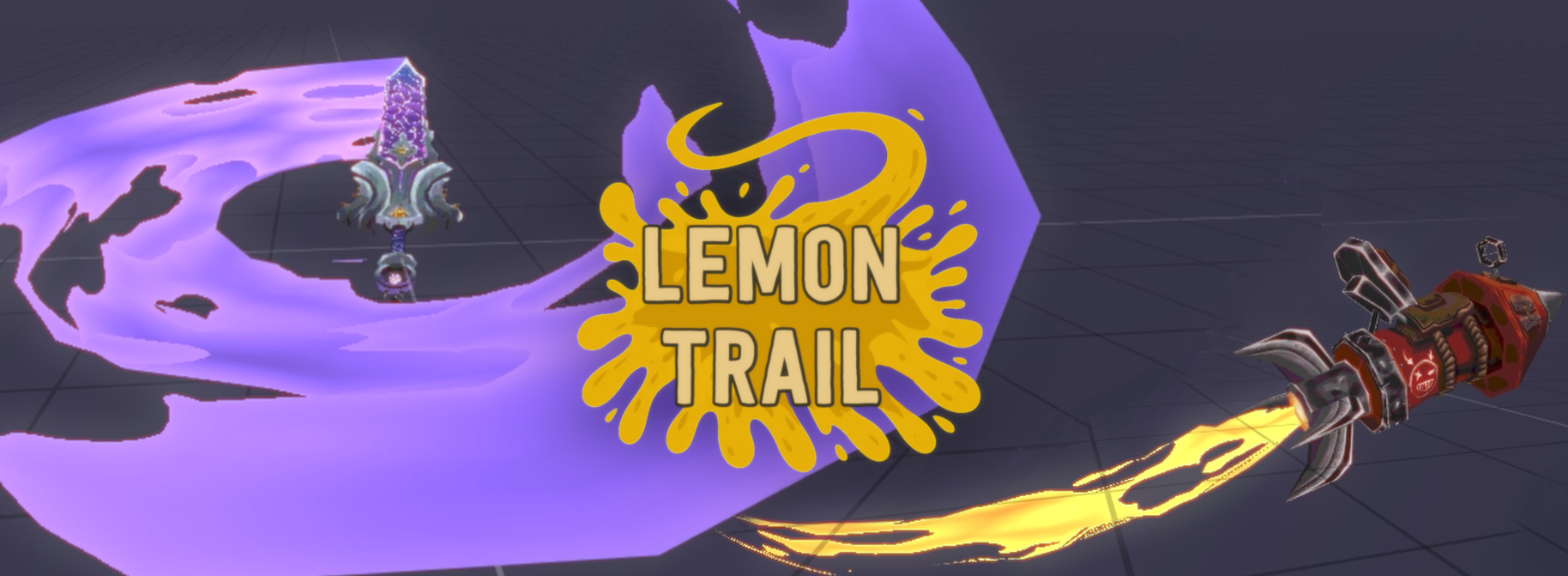
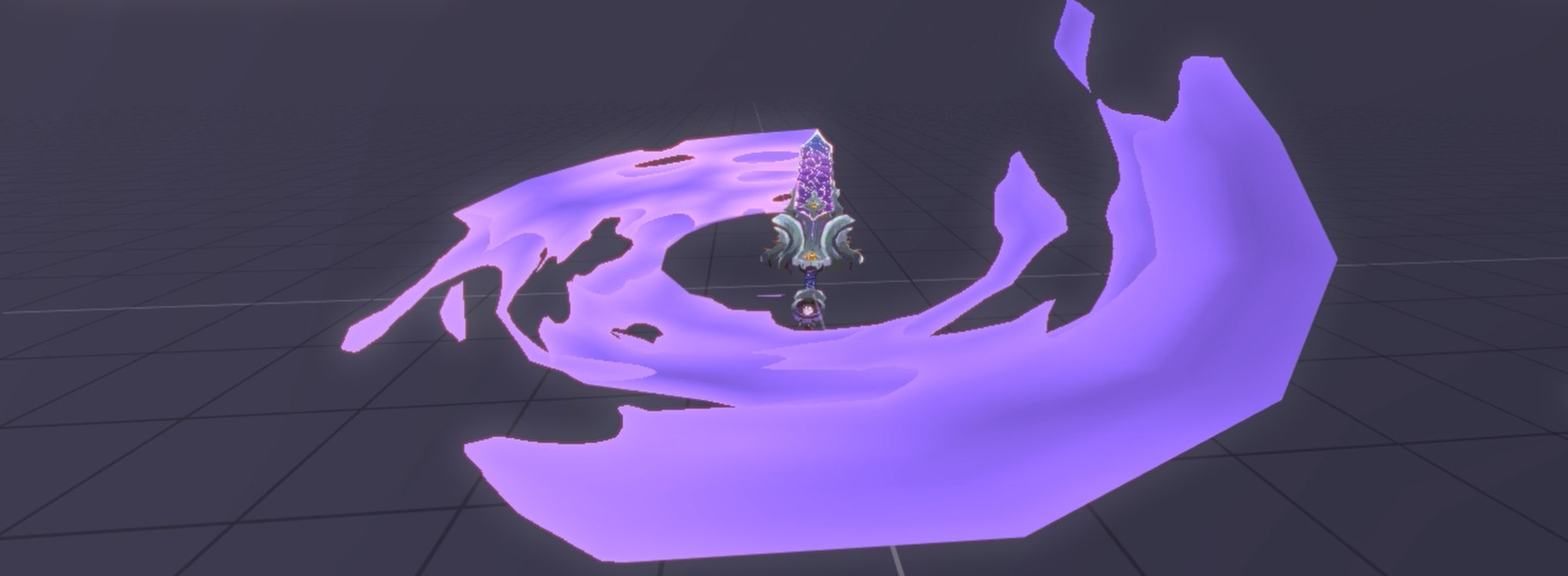
3D Mesh Trails - Pretty straight forward, the beta of my mesh trails system let's you create very satisfying looking mesh trails on thing slike swords, jet engines, flame throwers, etc. If you've been interested in trying this, now is the time! Get the whole bundle for less than the cost of this asset alone.
Also included:
TGA Importer - Let's you import almost any kind of TGA image, giving you finer control over the compression of your assets.
LegacyUI - An easy to use graphical user interface system originally written for Starr Mazer DSP.
https://lemontoast-games.itch.io/lemontrail
>>> DEMO HERE <<<
Hey everyone!
I wanted to share the latest Gamemaker project of mine, originally created for RE:Ashes, the upcoming spiritual successor to Starr Mazer: DSP from my studio LemonToast Games.
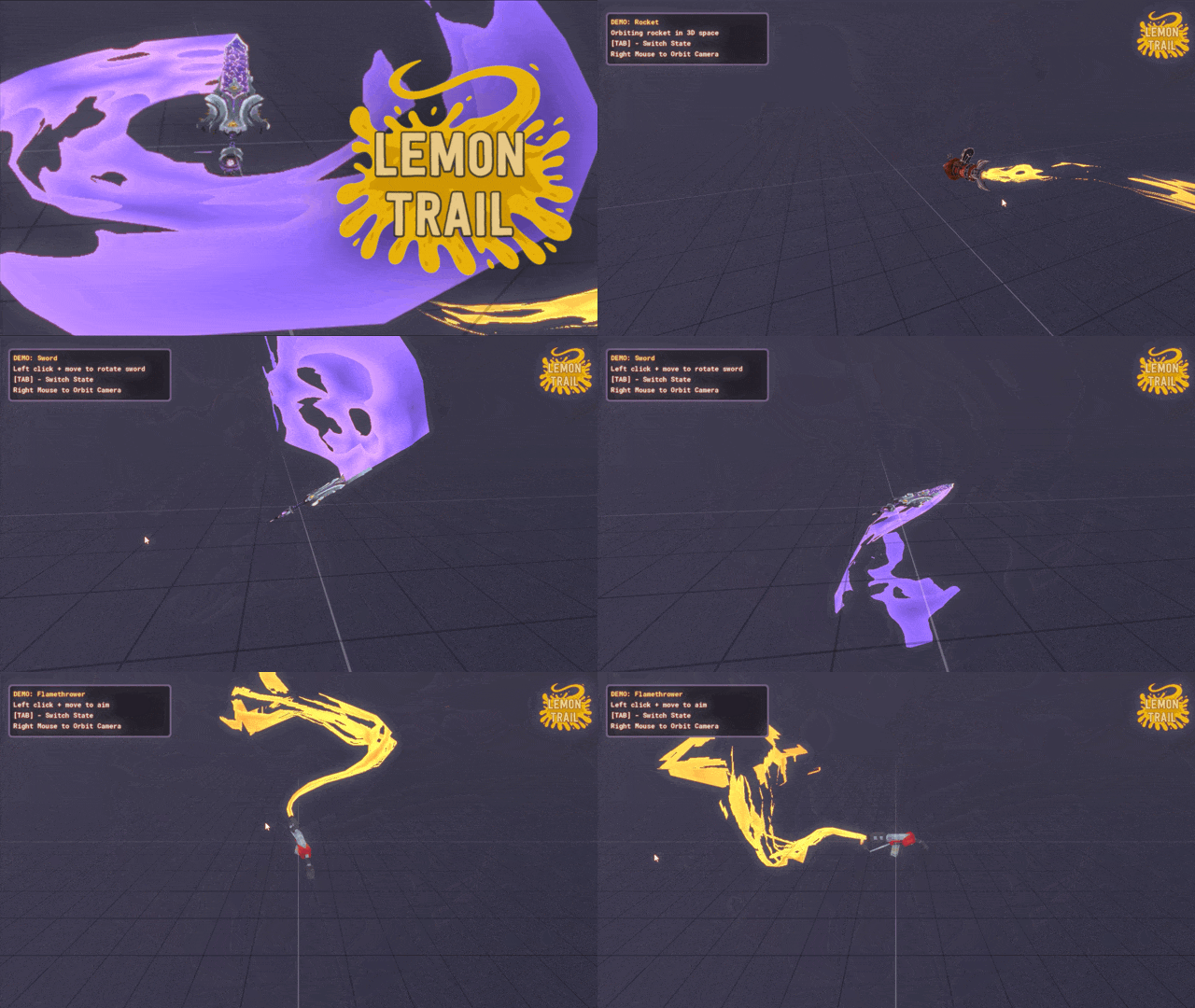
This was originally written with ship thruster and smoke trail effects in mind, but as you can see it's pretty versatile even in it's infancy.
There are two ways to use this, by manually creating radially symmetrical trail streaming shapes with the trail.create_shape function, or the better way, by installing and using the custom Blender Extension written just for this! You can define as many trail shapes as you want per mesh, export them all at once, and draw them with a single line of code, pinned to your mesh as it moves through 3d space. It's pretty radical.
As a beta there are of course some known issues:
- Trails can be pretty heavy to process for the time being, so try to limit the number of them you have on screen. ( I'll be moving the physics processing to the GPU very soon to mitigate most of these issues)
- Trails are constantly streaming, there's no off button, just turn it on and watch it go for ever and ever and ever and you get the idea. This will be addressed before leaving beta.
- I'm probably forgetting something, but hey, that'll be fun for you to discover eh?
For a deeper dive into how this functions, check out the devlogs. I plan to create a video going over everything in the near future, so keep an eye out for that.
Still in development, when I have the time. Currently looking for paying work right now so I haven’t had much time to put into these things lately. That said, logic was always planned to be written by the end user. My only goal is to give them the tools to load and use assets, but what they do with them after that is up to them. You could make a racing game, or a platformer, all in gel, using maps built from perfected tools like trenchbroom or hammer, etc. :P
Introduction
Welcome to the LUI system guide! This comprehensive guide will walk you through harnessing the power of LUI to create immersive and intuitive user interfaces for your games. Whether you're a seasoned developer or new to GameMaker, this tutorial will equip you with the knowledge to craft functional UI elements.
Step 1: Setting Up the LUI System
To begin, let's create a LUI system in the create event of your object. This essential step establishes the groundwork for constructing your UI components seamlessly throughout your game/app. You can have as many LUI systems as you want in your game.
// Create LUI system LUISys = LUI_Create_System();
After creating the LUI system, you need to implement step and draw events to ensure everything just works.
// Step Event: Call LUI_Step for each LUI system // and 'x' and 'y' with the desired coordinates, these are optional arguments LUI_Step(LUISys, x, y);
// Draw Event: Call LUI_Draw for each LUI system // and 'x' and 'y' with the desired coordinates, these are optional arguments, // but can be used to draw the UI at a different position in a non destructive way LUI_Draw(LUISys, x, y);
Step 2: Define UI Elements
With the LUI system in place, let's explore each available LUI element and how to effectively incorporate them into your game's UI:
Empty
Empty elements act as placeholders within the UI hierarchy and are useful for organizing and structuring your UI layout.
var empty = new LUI_Empty(system, x, y, parent_element);
system: The container or parent element for the empty element.x,y: The coordinates to position the empty element.parent_element(optional): The parent element within which this image resides.
LUI_Empties also include the following variables:
- xshift/yshift: can be used to nudge the element in any direction without affecting their placement in the UI system, good for adding a "shake" effect to parts of the UI non destructively
- width/height Typically zero, can be read after creating for organizational means
- xpin/ypin: Set from 0-1 can make a empty's placement in the UI dynamically pinned to a certain portion of the total UI system area. Useful for pinning elements to any of the corners of the UI area, or centering elements, etc. If the UI area changes at all, the placement of the Empty will automatically adjust.
- visible: self explanatory.
Images
Images are an indispensable part of the LUI system framework.
var image = new LUI_Image(system, sprite, subimage, x, y, parent_element);
parent: The container or parent element for the image.sprite: The index of the sprite to display.subimage: The specific frame within the sprite.x,y: The coordinates to position the image.parent_element(optional): The parent element within which this image resides.
LUI_Images also contain the following variables:
- visible: Determines if the image is visible. Default is true.
- xshift, yshift: Shifts the image horizontally and vertically non destructively.
- xpin, ypin: Sets the horizontal and vertical pinning of the image in the UI area.
- xspan, yspan: Spans the image's width and height within the UI area.
- spanPad: Padding around the image when spanning.
- xscale, yscale: Scales the image horizontally and vertically.
- angle: Rotates the image (in degrees).
- color: Sets the color tint of the image.
- alpha: Sets the transparency of the image.
- left, top: Sets the left and top cropping of the image.
- hpercent, vpercent: Sets the horizontal and vertical cropping percentages of the image.
- isButton: Indicates if the image behaves as a button.
- callback: Function to call when the image is interacted with.
- active: Determines if the image is active and can be interacted with. Default is true.
- deactivated: Indicates if the image has been deactivated. Default is false.
Text
Text elements provide crucial textual information to players, such as instructions, dialogue, or game statistics.
var text = new LUI_Text(system, text_string, x, y, font, typewriter, alignment, parent_element);
parent: The container or parent element for the text.text_string: The text to display.x,y: The coordinates to position the text.font: The font style for the text.typewriter(optional): Whether the text is written to the UI one letter at a time, emulating a type writer effectalignment(optional): The alignment of the text (left, center, or right).parent_element(optional): The parent element within which this text resides.
LUI_Text also contains the following variable:s
TabPanel
Tab panels organize content into tabs, allowing players to navigate between different sections of your UI with ease.
var tabs = new LUI_TabPanel(system, background_sprite, tab_sprite, padding, x, y, parent_element); tabs.define(width, height, tab_labels, tab_width, tab_height, tab_spacing, font);
parent: The container or parent element for the tab panel.background_sprite: The sprite index of the panel background.tab_sprite: The sprite index of the tab.padding: The padding around the tabs.x,y: The coordinates to position the tab panel.parent_element(optional): The parent element within which this text resides.
TabPanel also contains the following variables:
Panel
Panels serve as containers for other UI elements, allowing you to group elements together and organize your UI layout effectively.
var panel = new LUI_Panel(system, background_sprite, padding, x, y, resizable, parent_element); panel.define(width, height);
parent: The container or parent element for the panel.background_sprite: The sprite index of the panel background.padding: The padding around the panel.x,y: The coordinates to position the panel.- resizable: whether the panel can be resized or not
parent_element(optional): The parent element within which this text resides.
LUI_Panel also contains the following variables:
Checkbox
Checkboxes enable players to select or deselect an option, providing interactive functionality within your UI.
var checkbox = new LUI_Checkbox(system, checkbox_sprite, states, x, y, parent_element);
parent: The container or parent element for the checkbox.checkbox_sprite: The sprite index of the checkbox.states: An array specifying the subimage indices for the checked and unchecked states.x,y: The coordinates to position the checkbox.parent_element(optional): The parent element within which this text resides.
RadioButton
Radio buttons allow players to select a single option from a group of options, facilitating decision-making within your game.
var radio_group = new LUI_RadioGroup(); var radioButton1 = new LUI_RadioButton(system, radioButton_sprite, states, x, y, parent_element, radio_group); var radioButton2 = new LUI_RadioButton(system, radioButton_sprite, states, x, y, parent_element, radio_group); var radioButton3 etc...
parent: The container or parent element for the radio button.radioButton_sprite: The sprite index of the radio button.states: An array specifying the subimage indices for the checked and unchecked states.x,y: The coordinates to position the radio button.parent_element(optional): The parent element within which this text resides.
radio_group: An instance ofLUI_RadioGroupto manage the radio button group.
Practical Examples
It's important to pay attention to the hierarchical structure of the LUI system. Any element can be a parent of any other element, and as such, their positions will be relative to each other.
Let's take a look at the following example from the included demo:
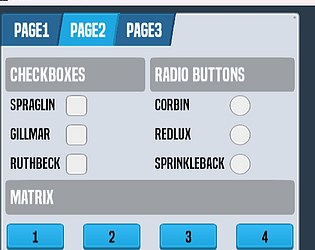
var empty = new LUI_Empty(panel,0,0); empty.xpin = 0.5; yy += tabH/2; var headerback = new LUI_Image(panel,spr_BarTest,0,0,yy-tabH/2,empty); headerback.isButton = true; headerback.xspan = 0.5; headerback.spanPad = 0; headerback.height = tabH; var dat = new LUI_Text(panel,"RADIO BUTTONS",xx,yy,Font1,false,fa_left,empty); dat.valign = fa_middle; yy += tabH-padding;
Above you can see an empty being created inside of a system called "panel." This empty is given an xpin value of 0.5, this means that it will be placed in the middle of the UI area along the x axis, so as the UI area changes, this empty will adjust automatically to always be pinned to the center.
headerback and dat are both parented to empty. This means wherever empty goes, they will follow. The xposition of headerback will be equal to that of empty, but the y value of headerback will be equal to empty plus whatever the value of yy is minus half of the value of tabH.
dat will be placed at the position of empty.x/y PLUS the values of xx/yy. Therefore if xx and yy are both equal to zero then the position of dat would be equal to that of empty.
Still with me? Great! Let's take a short break for now, I'll be back with more updates soon, so keep your eyes peeled!
Make sure that separate texture page is set to on for any dither or lut texture you might use.
Here's a breakdown of the RFX_Init function:
RFX_init(pixel width, dither texture, dither spread, SSAA(?), double wide pixels(?))
- Pixel Width: How wide the pixels are on screen, 1 is unchanged from screen resolution, 2 two pixels wide, etc. Basically the bigger this number, the chunkier the graphics.
- Dither texture should be pretty self explanatory, just use sprite_get_texture(dither_sprite,image_index)
- Dither Spread, this controls how much dithering is visible, I used numbers between 32 and 256. The higher the number, the less dithering there is visible in the final result.
- SSAA is an optional argument that enables or disables full screen antialiasing. It can result in a smoother looking image with a higher number. Be careful not to go too high or you will end up with a blurry looking final result.
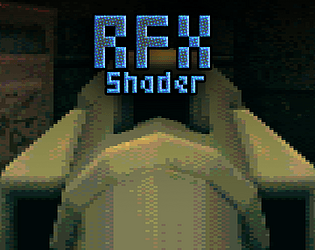
- Double Wide Pixels: This is the effect used in the thumbnail of this asset. It just makes each pixel twice as wide. It's a neat effect in my opinion, but some folks might not prefer it, therefore it is an optional argument.
I've never posted about this here, it's not really new, but it's got a permanent new sale price just in time for your holiday metallic animations.
[Blender] Medle - Antique And Oxidize Metal Shader
This is a stylized shader node for cycles, with presets that model nearly any kind of metal, antiquing, and oxidation. The node comes with presets for materials like copper, iron, aluminum, and more. It ships with a standard material with loads of configurable settings, and a simplified material for those looking to get started quickly. Included are also sample CC0 textures for oxidation, water leaks, metal wear, and imperfections.
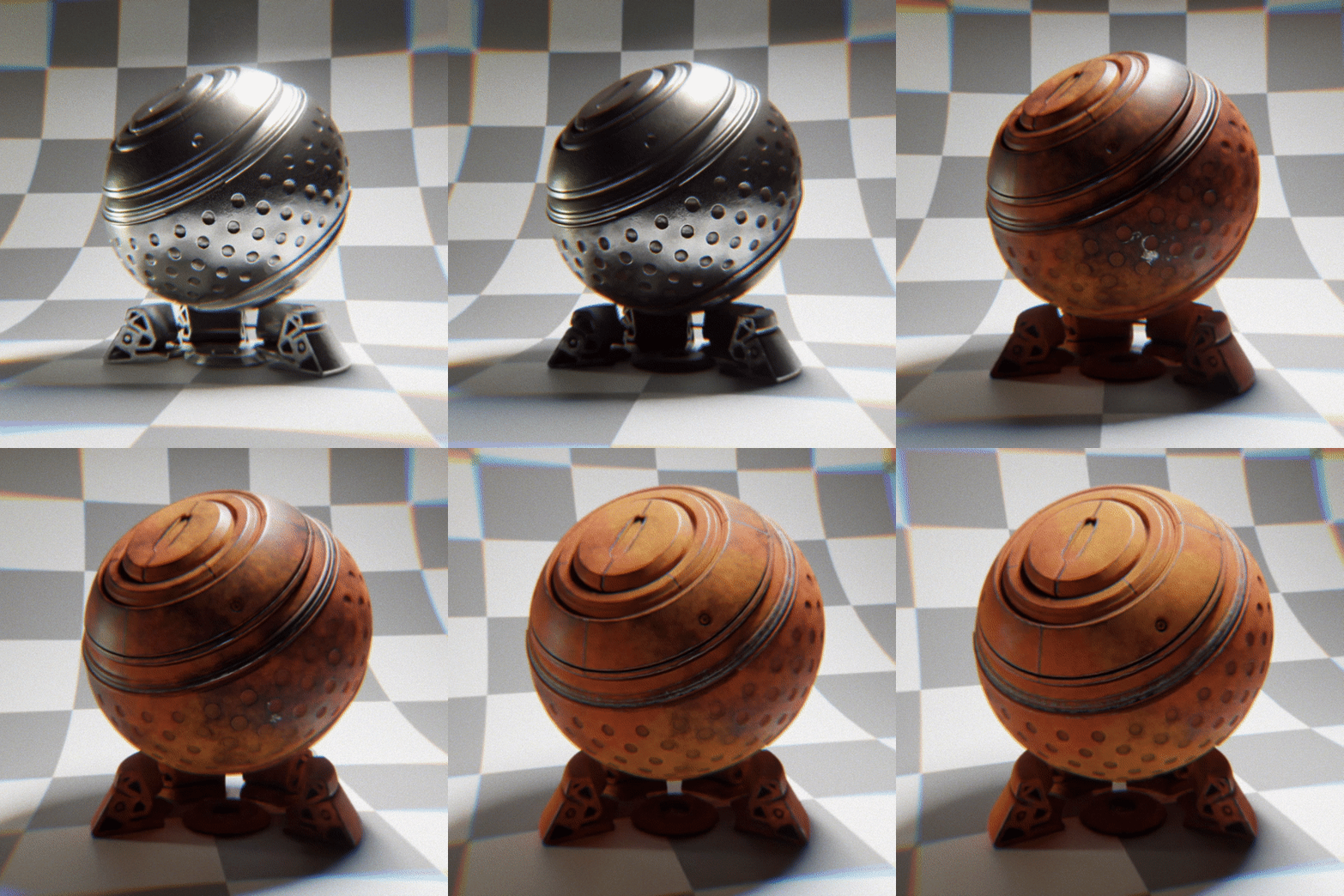
https://cdlegasse.itch.io/blender-medle-shader
If you have any questions feel free to post em here!
https://cdlegasse.itch.io/retro-dither-shader-gamemaker-studio
I have been working on this set of shaders off and on for a while and decided to share the most recent version of them with you. You can find more information on them at the link above.
Here are some screenies to whet your whistles!
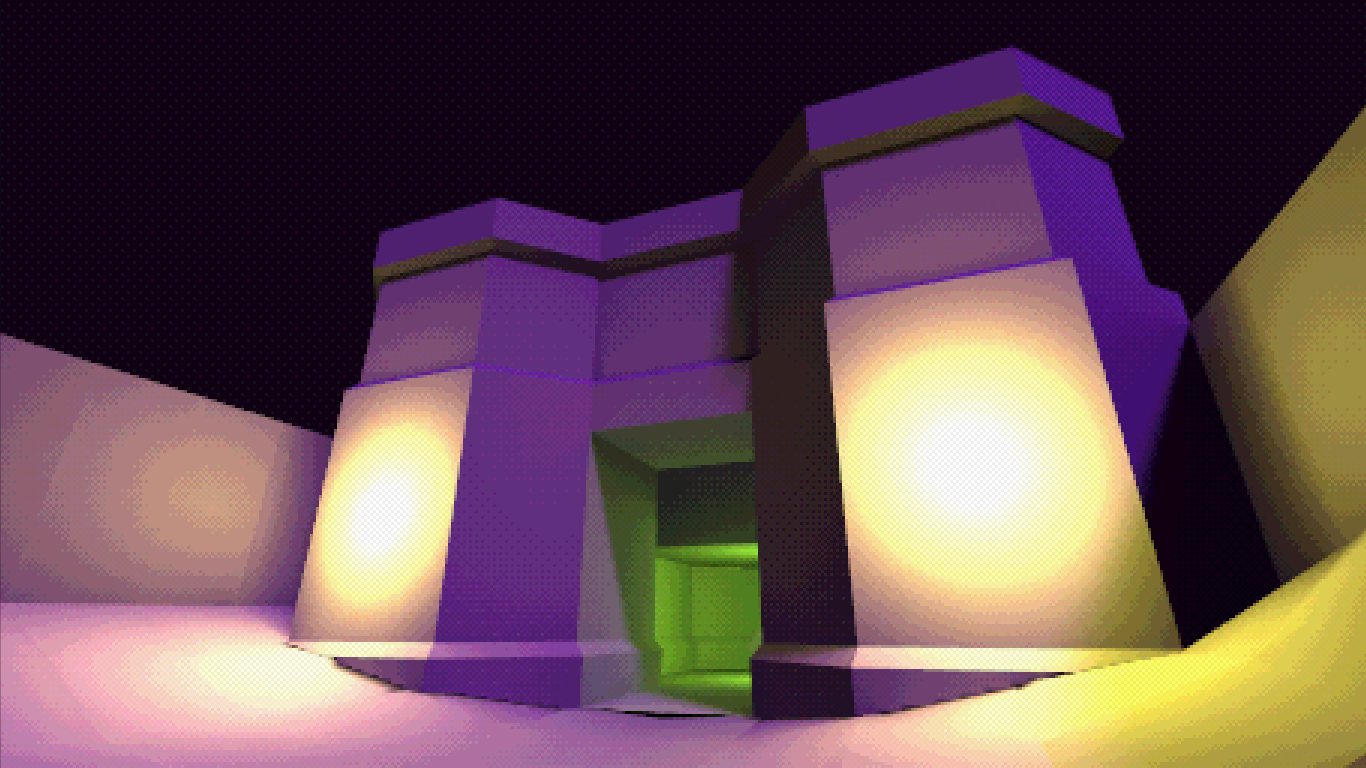
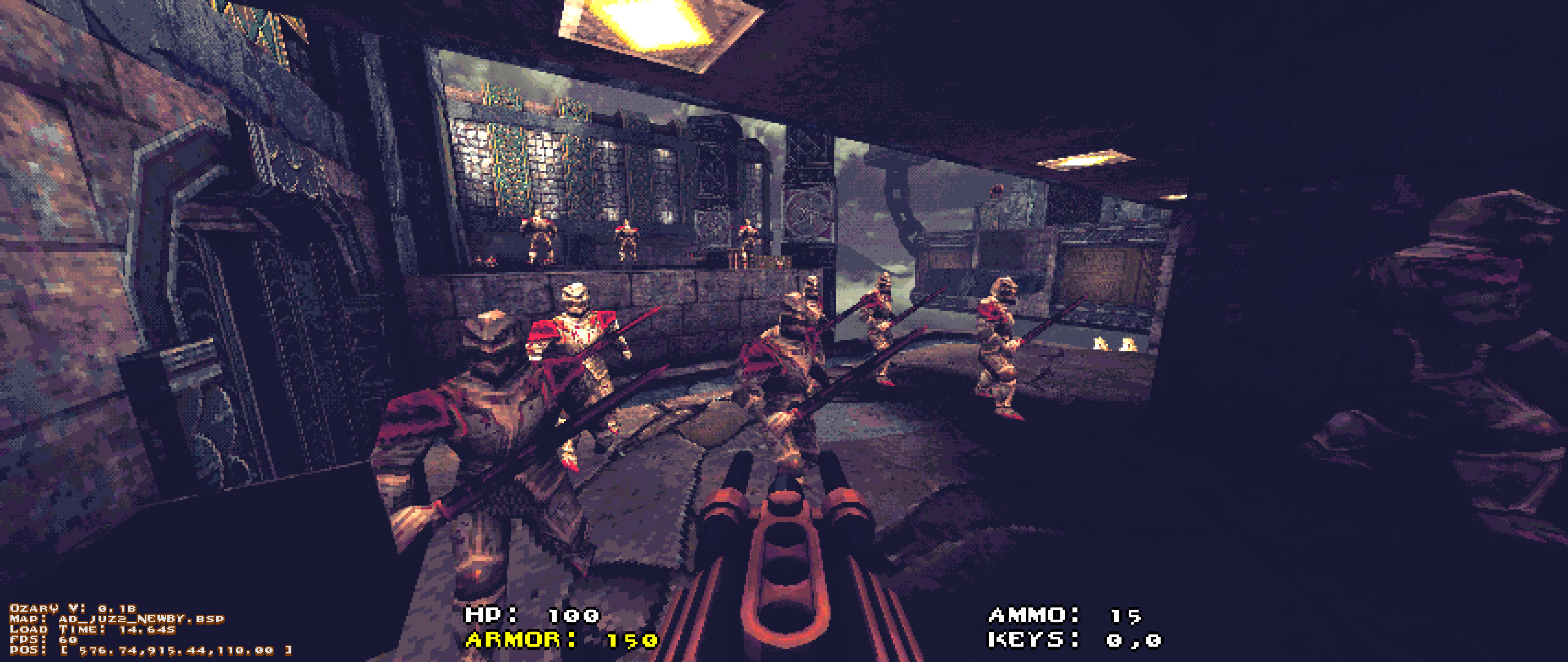
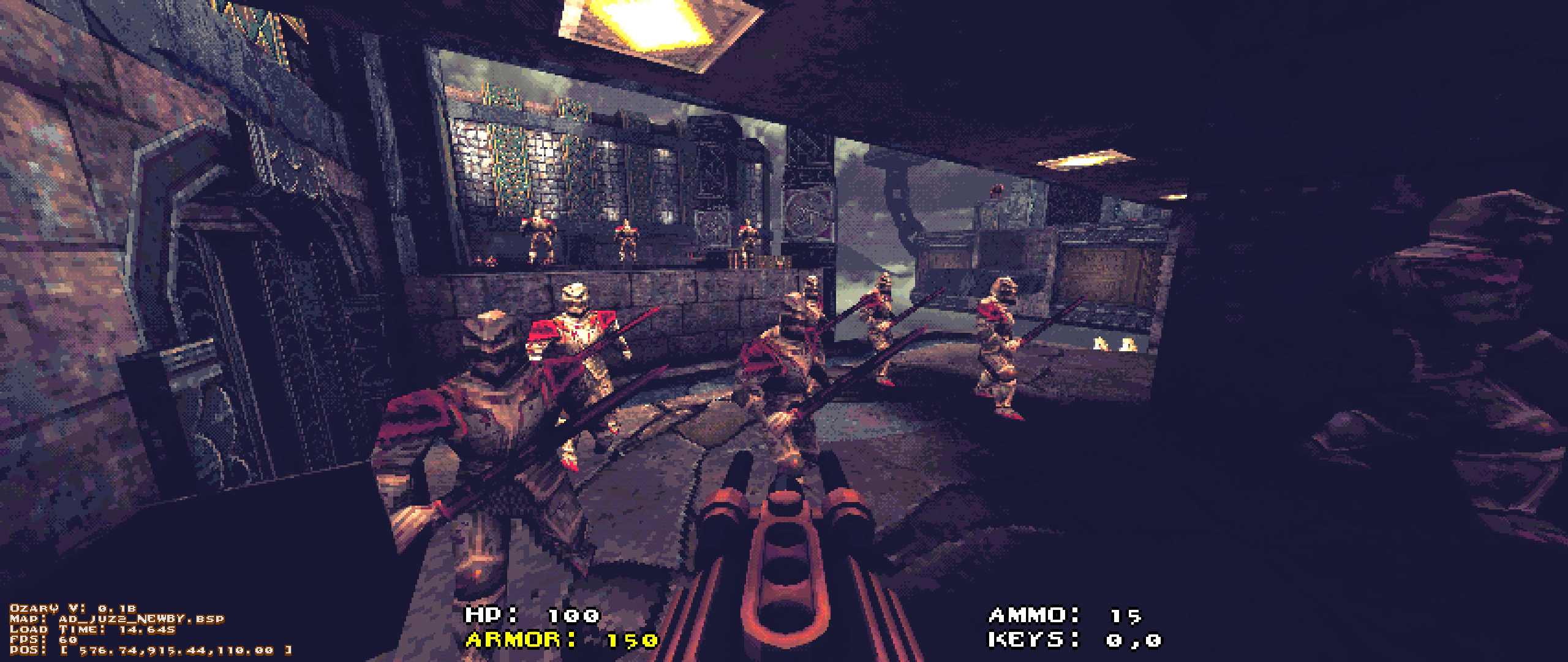
Hey all, I just released my TGA loader asset for Gamemaker to help fund the development of Ozarq, my BSP loader.
It's only a dollar and supports a wide range of TGA formats, including RLE and PackBits compression.
When Ozarq is complete, it will release for free and will come with the TGA loader, so if you want a copy but don't want to pay a buck, you can wait however long it takes me to complete Ozarq lol.


I should reiterate, I am looking for paying work.