
Thank you, I've just DM'd you :)
Issue resolved as of 2.0.5 with the new Data chunk option in the settings menu
Hi,
Thank you, I'm sorry you're having this issue. Please can you tell me the total number of songs you have on your Jellyfin server.
May I also ask, is this issue happening when you first log / open AJ Audio?
Furthermore, when you connected to your server, did you use the server IP or hostname?
Thanks
Alex
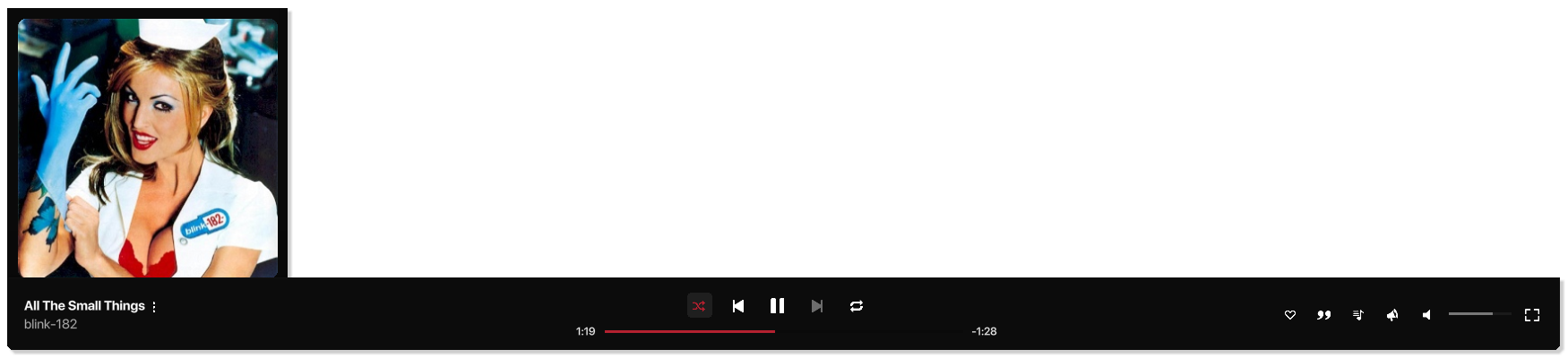
In a playlist or album, you can shuffle songs (play them in a random order) and repeat individual songs.
For shuffling full albums or playlists:
For shuffling the current play queue:
You can set AJ Audio to fade in each song (gradually increase its volume) while the previous song is fading out. This feature, called crossfading, prevents gaps of silence between songs.
You can set AJ Audio to ignore certain songs from your Library and never play them.
To remove a song from your play queue:
You can simply click and drag any number of tracks in the Up Next panel to reorder them. The first track in the list is the next track that will play.
You can create a Smart Playlist that automatically organises songs and other media into playlists based on criteria you specify. Whenever you start AJ Audio, the Smart Playlist is automatically updated.
For example, you could create a Smart Playlist that includes your favourite artist and album, but only if songs within this album are disliked.

Smart Playlists are automatically synchronised to your Jellyfin server.
Smart Playlists can be limited by items, minutes, hours, MB, or GB worth of music, sorted by:
There is an absolute limit of 999 tracks per Smart Playlist.
Sorry, I've just seen the screenshot again,
Can you please try putting this in the Server IP box:
That is assuming you're using the default Jellyfin port (8096)
I believe the issue is to do with the missing "http://" or "https://" at the start of your server address, as well as the missing port at the end
Ah perfect, yes the exclamation mark indicates the track isn't supported - normally the song will play anyway as AJ Audio instructs your Jellyfin server to transcode to a playable format (with some features unavailable such as seeking). However, this mechanism currently isn't implemented for the Automatic Downloads feature. I'll ensure this is configured for version 1.6.
What audio format is most of your music in?
From the top of my head I believe this may be an issue with the buffer size but I will review and confirm
Thanks
Alex
Hi,
Thank you, can you try turning on Automatic Downloads and try streaming a song again?
You can do this by going to your account picture > settings > ensure Automatic Downloads is ticked
This will instead download the track to disk first before playing, which will help me narrow down what the issue might be
Thanks!
Alex
Hi,
I've started working on these feature requests and bug fixes
As for the Radio station, I'll get back to you soon on that - for now, I've added this for you, just perform a refresh and you should see Radio Paradise at the end of "For You"
I'll update you shortly, thanks!
Hi, hope you're well,
Version 1.3 is out as of a moment ago, this includes a significant source-code re-write for improved loading speeds. There's a lot of changes so I recommend looking at the changelog
There's a "Export Log" option in the Settings, may I please ask you to export this and paste it into your next reply. This log contains information such as JSON parse speeds, startup time, processing time and more. Any personal user/server data is omitted from this log. I'm confident you'll notice a significant improvement in performance but there's always room for improvements!
I look forward to your reply
Thank you
By default, AJ Audio streams your audio natively from your Jellyfin Server on the fly. This is called "Direct Streaming" mode, which can be changed in the settings. Alternatively, you can choose the "Download & Play" mode, which stores a copy of the song on your local disk. This cached track is then deleted automatically by default.
Here is what the login window looks like. The server IP should be written as (http://SERVER_IP:PORT or https://SERVER_IP:PORT)

By default, the Jellyfin port is 8096. If the app detects the port is missing, it will warn and amend it for you if you choose to. Some Jellyfin setups do not explicitly require a port. The app will auto-insert "http://" at the start of your address if no protocol was input by yourself. From v2.0.4+, you can also use host names instead of IP addresses.
Select the Create button in your Library

Give your station a new name and the URL to stream from and you're good to go. You can customise the tile colour and even upload a logo.
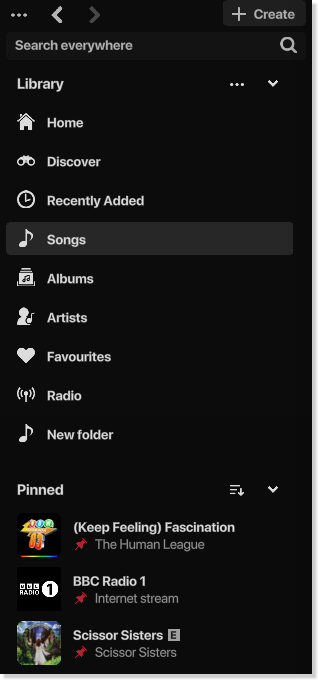
Simply right-click on a free space in your Library pane to bring up the context menu, where you can add or remove page links.

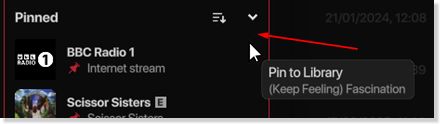
You can also pin songs, artists, albums, and internet streams to your Library by dragging the relevant item, or right-clicking and selecting "Pin to Library"
Only mere mb more than the download itself (which sits at 20mb). AJ Audio is streamlined to only save necessary data.
Data including Track data, Artists, Album, and Playlist data are requested from your Jellyfin Server and are then processed. These details are then stored to your local disk for a quicker load time in future. (this is called the Database. You can see more about this in the Settings)

AJ Audio officially supports up to 1,000,000 tracks.
AJ Audio is capable of playing the following formats: mp3, .flac, .wma, .wav, .ogg, .aiff.
For other files, AJ Audio will instruct your Jellyfin server to convert the file to a playable format, which is then downloaded to disk and recycled once the track has finished to increase compatibility. It does indeed work with .m4a files, however results may vary.
Below is an illustration of the track scrubber. The next track in your queue is loaded as your current track ends.

The next track in your play queue is loaded as your current track ends (around 30 seconds beforehand). If the queue is interrupted and you choose to play another track next instead, AJ audio will load your new track instead. The new track will then slowly fade in to 100% volume 5-10 seconds before the current track ends (depending on your setting).
Here are the context menu options for right clicking a track:

Options may vary on the current page, album/artist availability, etc.
I'm listening to Better Off Alone by Alice Deejay as I write this, and it's currently sat at 0.3% cpu usage. I've seen the Windows 11 Music Player use more than that when it decides to index a network share at every possible hour. This app is specifically designed to lower its resource use when minimized, not focused, or when the mouse is not in the Window.

This Task Manager screenshot demonstrates the low resource usage of AJ Audio. In this scenario, all apps are in the background, playing the same song (Spotify being a lower quality version (mp3 320) of the same song (flac)).
Yes, you can change this in the settings page, allowing you to play music through your non-default Windows device.

Shortcuts for each track can be created so that you can search for them in the Start Menu. A meager 0.1kb .gmAudio file is created in your UserProfile\AJ Audio folder with the song title. You will need to associate this file with the AJ Audio 'player.exe' manually on Windows. By default, this option is disabled
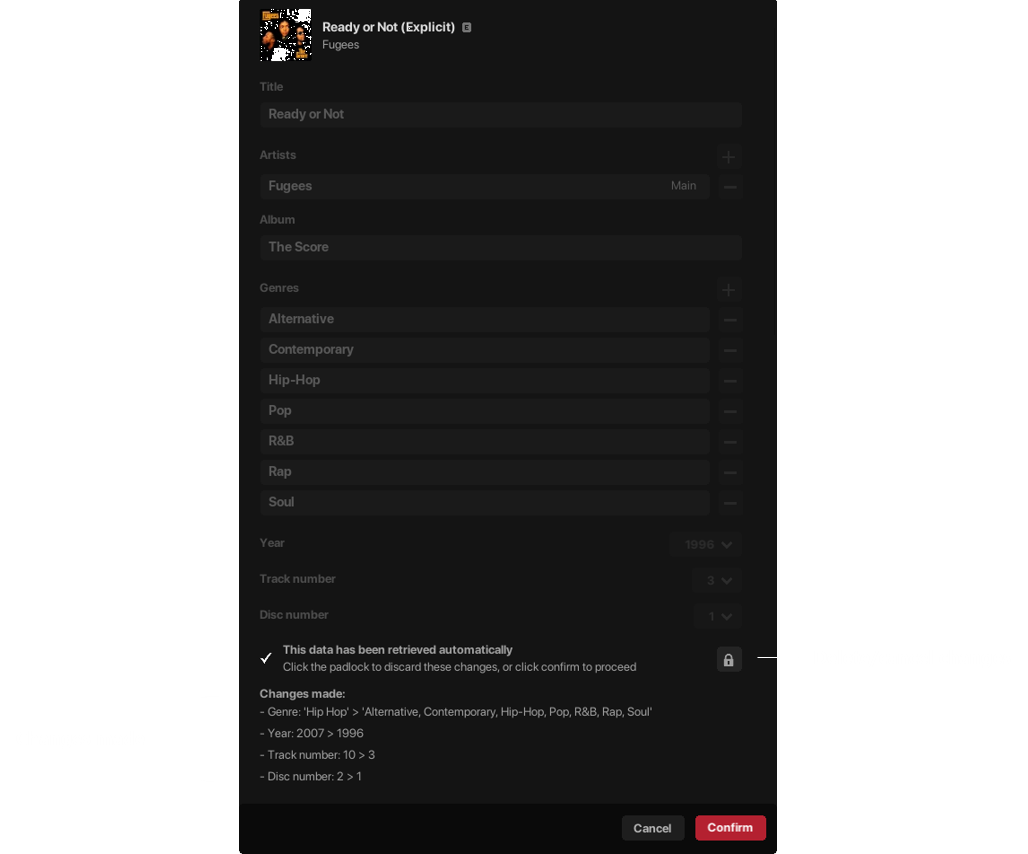
Items are marked as explicit if their metadata contains "ITUNESADVISORY" in the Tags. There is an option to automatically scan all songs in you library.

Song lyrics are scoured for profanity in order to determine explicit ratings. A song must contain lyrics for this to work as expected. Offending tracks & their corresponding album will be updated on your Jellyfin server to include the "ITUNESADVISORY" tag. This option is disabled by default
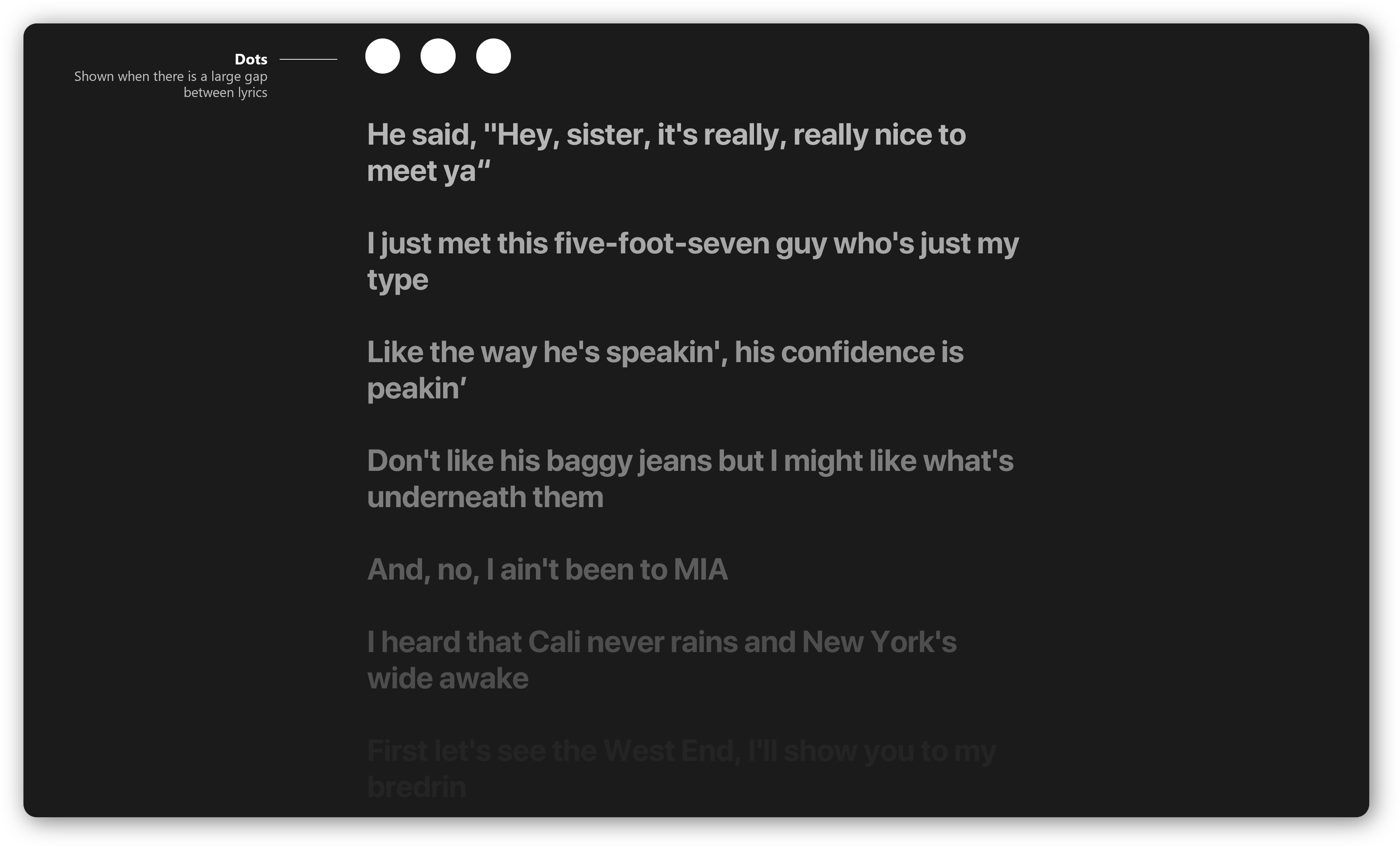
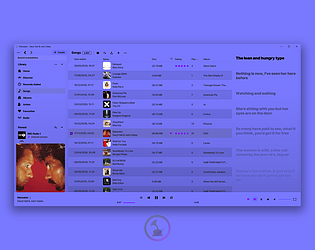
All time synced lyrics are fetched through LRCLIB.net and are matched via the Song Title, Artist, and Duration.
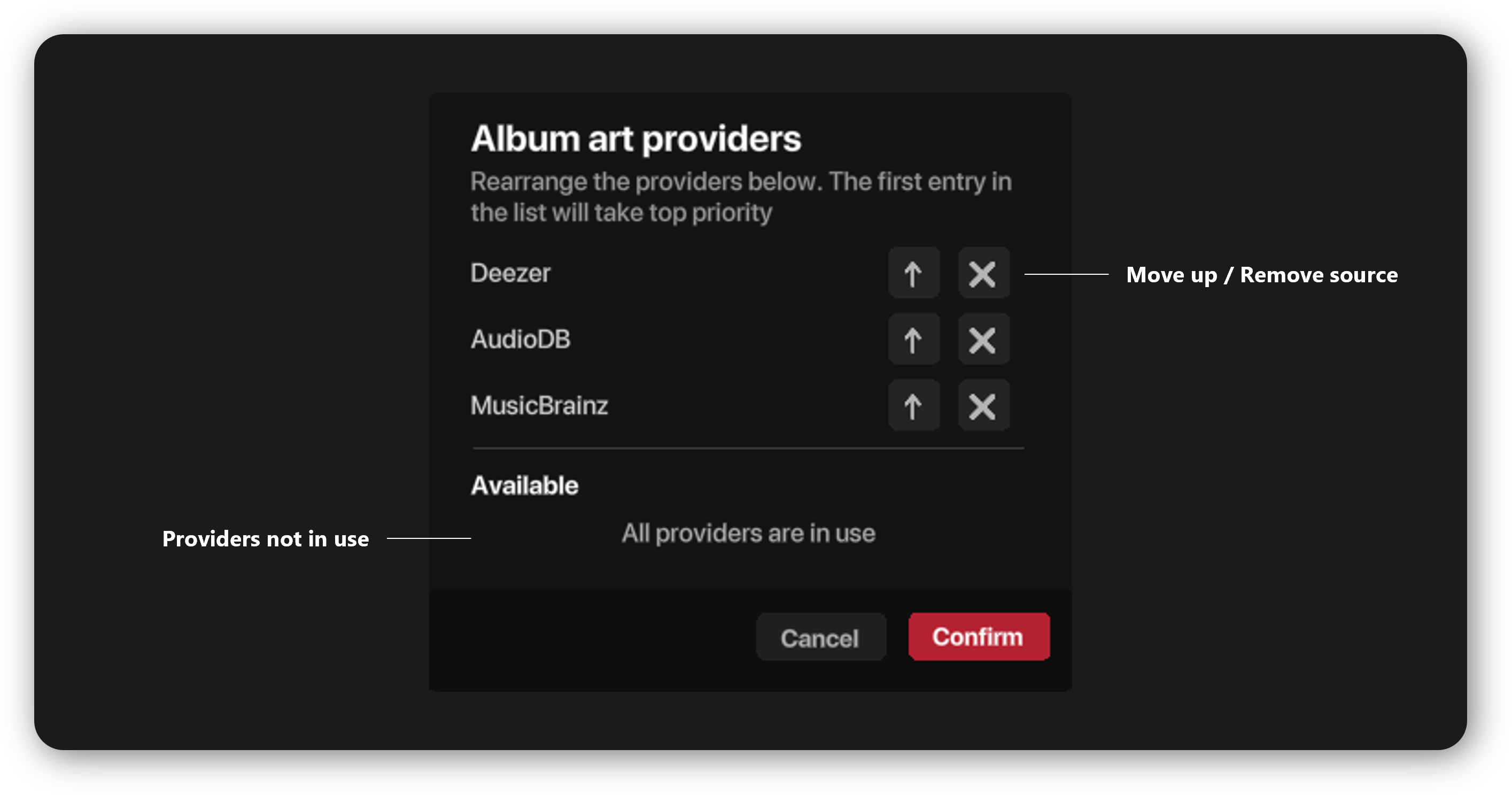
MusicBrainz provides the Album Art when you choose the "Find Album Art" through the context menu by right clicking on a track. If this option is greyed out, that means Jellyfin hasn't assigned your album with a Musicbrainz ID. This is resolved through changing the metadata on the file through the Jellyfin browser.
Yes. You can import .jpg/.jpeg, .png, and .bmp files manually. This is especially handy if the above option is greyed out
Here is an illustration of how imports work

* If "Organise Imports" is enabled, imports will be structured as: Import Directory/Artist/Album/XX - Title.mp3
* If "Organise Imports" is disabled, imports will be structured as: Import Directory/XX - Title.mp3
There is a setting to omit the track number from the filename.
You should point this Import Path to a matching folder in your Jellyfin library via a Windows UNC path. Once songs are successfully imported, your media library will be automatically scanned.
Yes.
Click the Options button > Log out.

A Windows 10 or newer PC with speakers, and a Jellyfin server. This software was developed on Jellyfin v10.10.7. For the integrated coloured Windows border, you will need Windows 11 Build 22000+
Jellyfin works best with your songs structured like this:
MUSIC FOLDER > ARTIST > ALBUM > SONG.MP3
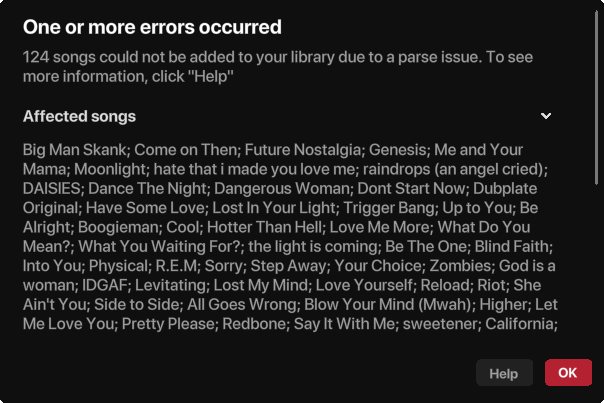
If you experience a window popup that appears after a database build, it's likely that some of your tracks aren't structured like the above
This means the track has previously failed to play, and will be avoided from playback in the future. The likeliness of this happening is slim - it can occur when your Jellyfin server fails to transcode an incompatible song for playback. Your Jellyfin logs will give you an idea of what's happened in this scenario.

In the Settings page, you can clear the invalid tracks list which will make tracks accessible again.
If you are struggling to play songs whose formats are supported by AJ Audio, you can try changing your Streaming Mode in the settings page from "Direct Streaming" to "Download & Play". This will instruct the app to use the same method for playing audio as it does for unsupported tracks.
AJ Audio will chunk the data requests from your server to avoid overloading. By default, a maximum of 1000 entries are requested at once. You can change this value in the Settings page, titled "Chunk data amount"
If you are receiving timeout errors, or if your server is simply not responding to a data request when rebuilding your Database, try decreasing this value before rebuilding your database again to resolve this. This is useful for those running Jellyfin on a Raspberry Pi for example.
Please post a topic or contact me directly. I will normally be with you on the same day.
Email: aj-studio@mail.com
Discord: @alexcjw