


Using the Metadata Editor
This is a handy tool which can be used to edit the data for songs and albums, for both your Jellyfin items and local tracks.
Editing a song
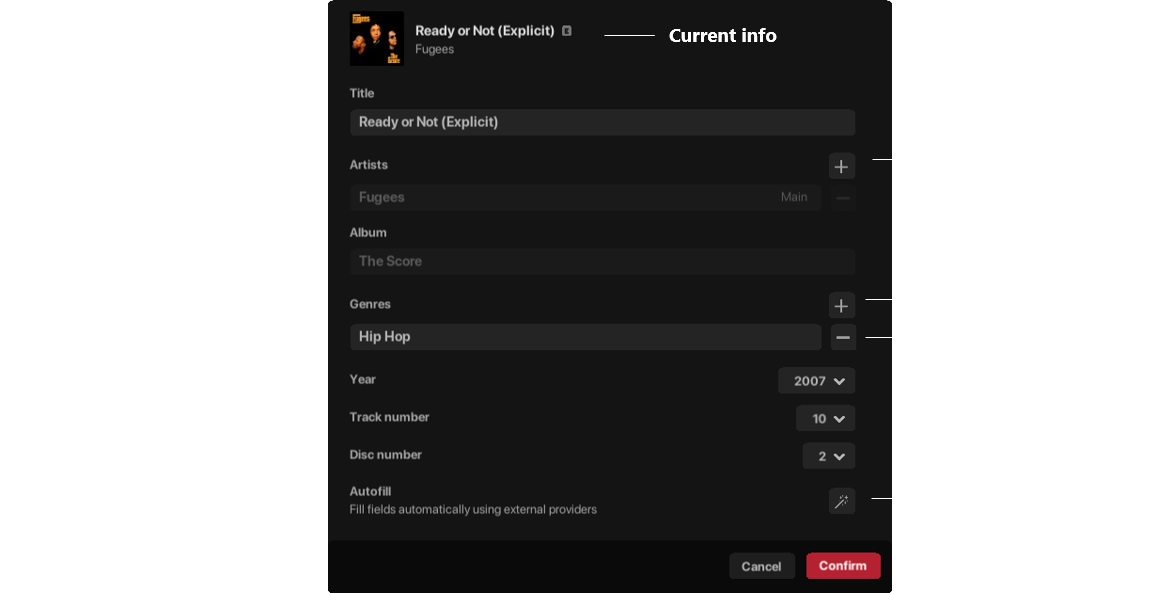
Here's what the metadata editor looks like when editing the song "Ready or Not" by the Fugees (song):
For Jellyfin tracks:
- The artist/album cannot be changed from the track. You can edit the album name by opening the metadata editor for that album
For local tracks:
- Changing the artist or album is permitted. When you do, the song will be placed in its new album under its new artist (if applicable)
Editing an album
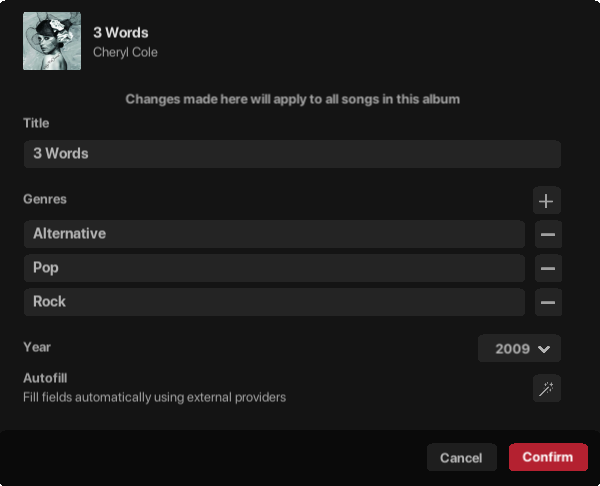
Here's what the metadata editor looks like when editing the album "3 Words" by Cheryl Cole:
For Jellyfin tracks:
- Changes you make to the genres will apply to the album only, and will not affect the songs within. If you change the album title, then this will apply to all songs within.
For local tracks:
- Changes you make to the genres will apply to all songs within the album. As you can see by the screenshot (this album is on the local computer), there is a banner at the top which informs you of this. If you change the title, then all songs within this album will be updated
When using auto-fill, the genre data retrieved for albums will consist of combined genres of every track from the official album
Using Auto-fill
When you click the auto-fill button, AJ Audio will pull the album information from external resources. It will then collect and apply all missing or incorrect metadata for you. The app will determine the main track you are editing from this album by matching the title. Sometimes, this is not always possible, and if so you will be given a list of all songs in the official album to choose from:
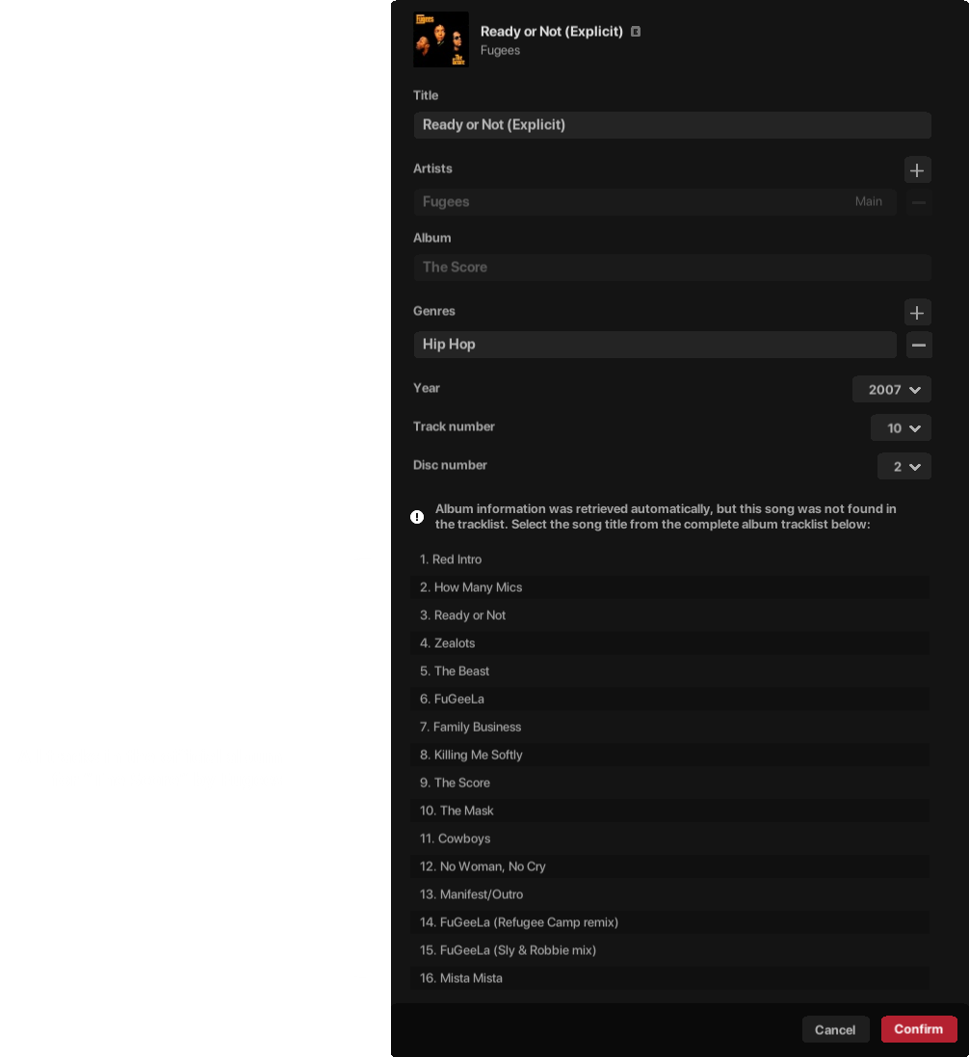
Once you select a track, the metadata will be fetched and applied as normal
Reviewing the changes
Once the auto-fill is successful, you will be given a list of changes which will be made once you click "Confirm"
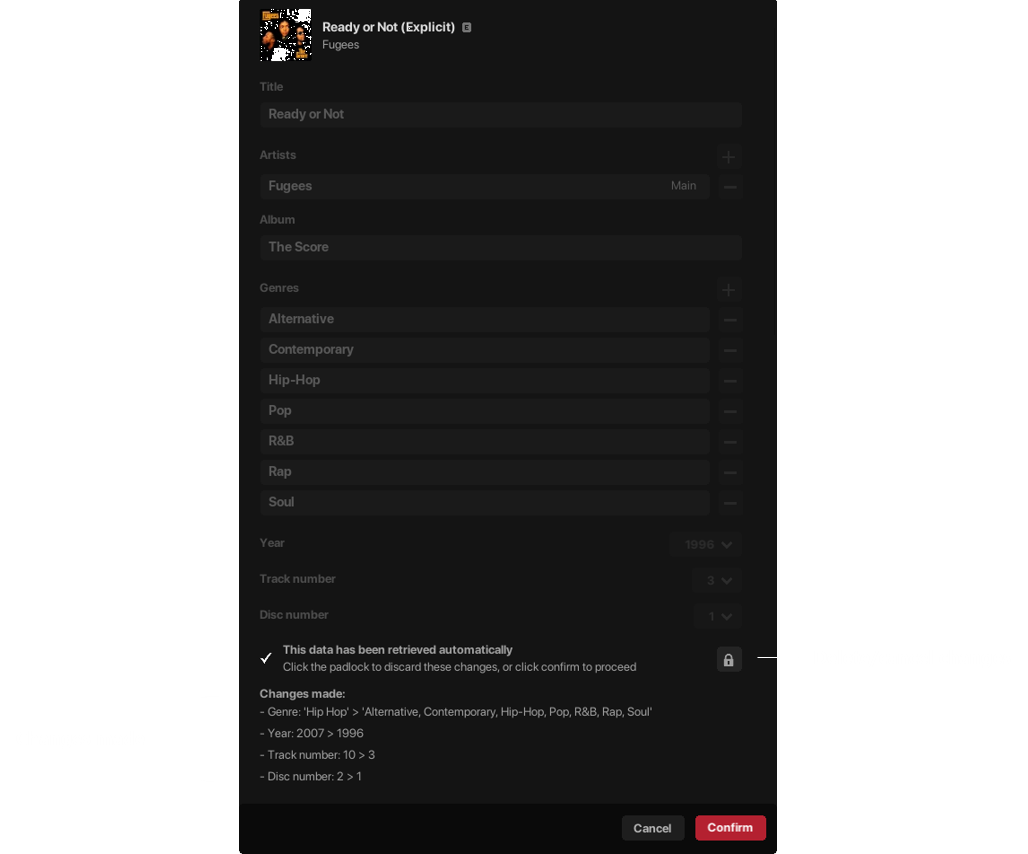
You can also click cancel, which will discard the fetched data, just like the padlock button does.
Notes
Genres fetched via external resources can be consolidated to only include main genres. This is an option you can find under the "Misc" section in the settings page (off by default). When this is on, certain genres will be omitted in favour of the closest match. (For example, "britpop" would be "pop"). These "main genres" are identical to those you can select when creating a custom radio stream.
For local files, editing the metadata will directly write the changes to the ID3 tags of the file