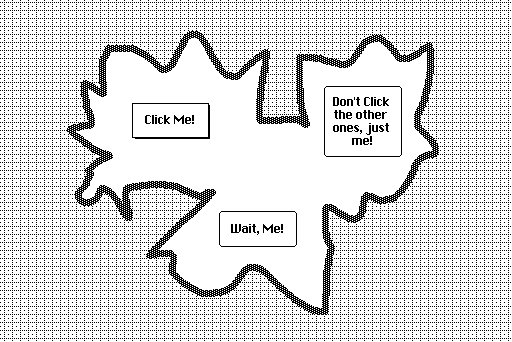
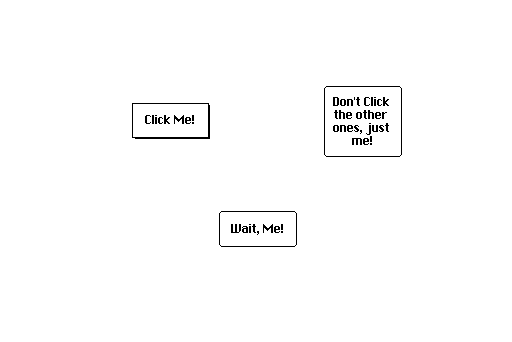
As Flocon noted, Decker uses paletted color and doesn't have any notion of partial transparency, so there are some limits to what we can do here, but I can see ways to achieve something like the effect you describe. If you haven't already, I recommend reading through All About Color for some relevant background information.
Let's assume for simplicity that you're using Decker's default color palette, the "map" and "route" cards are fully in black-and-white (patterns 0 and 1), and everything you want to fade in is part of the card backgrounds (no text in fields, etc).
If we created a new card to tinker with, we could use a script in The Listener to composite the card backgrounds together, assigning a different color to the pixels of "map":
card.image.paste[map.image.copy[].map[1 dict 36]]
card.image.paste[route.image.copy[] 0,0 1]
(Be careful to save before doing this sort of thing in the Listener; it's a very powerful tool, but you can't "undo" changes performed this way!)
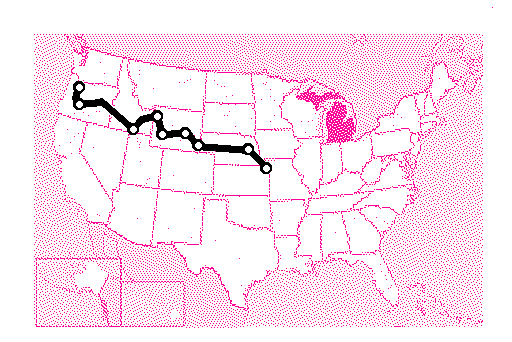
We could then manipulate the color Decker uses to display the "map" (I picked 36 here arbitrarily) to fade it in or out on the fly. Here I have a slider with a range of 0-255 wired up to let me change it manually:
on change do
 patterns[36]:"%06h" parse 6 take "%02h" format me.value
end
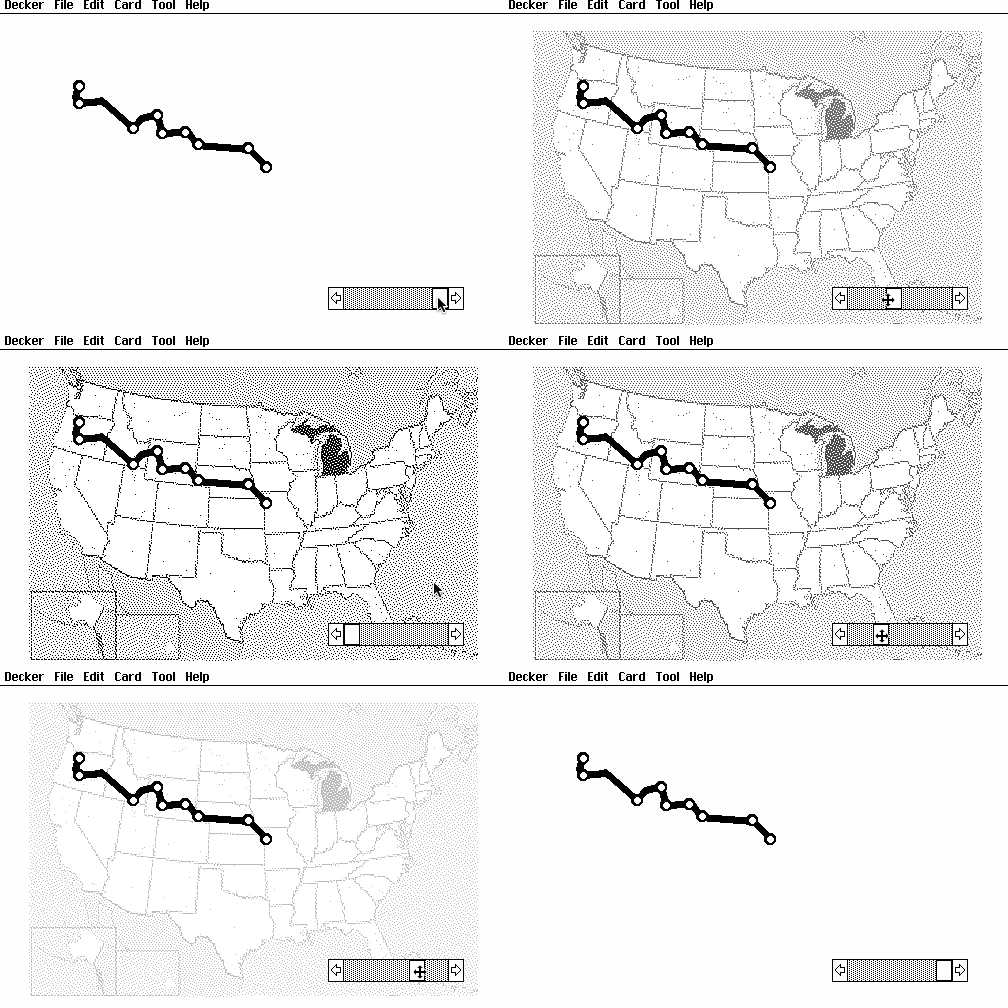
The way I'm computing the "packed RGB" grayscale value here is by turning the 0-255 value of the slider into a 2-digit hex code, replicating it 3 times, and then parsing the result as a 6-digit hex number, which may be a little confusing. All About Color has some functions in the "col" module to make computing packed colors a bit easier.
How's that for a starting point?