I've poked around a little bit and I suspect you got a version of Font Importer from this font pack that coral nulla imported. (Just connecting the dots for the curious)
This is a long post for a relatively short process, I promise.
Preparing your image of your font:
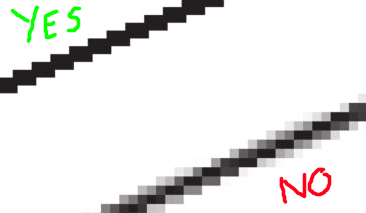
• To import from an existing image of a font you'll need your image to be plain black pixels on white.
An anti-aliased version of the font (where there's gray or semi-transparent pixels to soften edges and corners) just won't import well -- there will most likely be strange or missing pixels as Decker will have to decide how to interpret those grays into black and white.
• The image of your font should also ideally be able to fit on a card.
Without modifying the font editor deck to be bigger I'd say the easiest maximum width to import directly onto the Sheet card would be 370 pixels wide. Up to 500 pixels wide is okay if you're importing on a second empty card and then copying them over to the Sheet editor after importing them.
If the current image you have is bigger than that maybe you can take a slightly narrower sample of your font (not by resizing the glyphs, just by arranging it into more rows and fewer columns). Or alternatively maybe you could cut your source image into several smaller images which all fit on a card and then copy and drag them into the correct position inside Decker.
•The last thing we're going to need as preparations are the measurements of the size of a glyph inside the font.
We need the absolute maximum dimensions that any glyph will ever need for the width and height. This might include accents above letters, descenders below letters for lower case characters or the full width of the dark rectangle of a blackout version of a letter. (Or not including those things, if your font doesn't need them)
You can measure this in another program using your source image, or measure it inside of Decker once you've imported an image. If your font doesn't use accented characters or have separate glyphs for lower case then just pick a size that works for the characters you do need.
Slightly larger than needed is easier to work with than slightly too small.
----
On measuring in Decker:
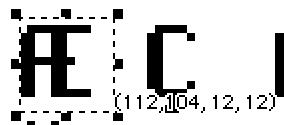
This an example of measuring a glyph of the Menu font in Decker. I'm getting the information about my selection box using [View > Show Cursor Info] . The first pair of numbers is the location of the top left corner of the selection on the card (not important for what we're doing) and the second pair of numbers is the size of the selection box. So I might set this font to be at least 12x12 if I was editing it. That's probably a little too wide but it's an okay place to start and gives me a little extra white space to work with. (Actually it seems like this font is 13x16! Huh! Good to know! Definitely give yourself a little extra space.) Your font will probably be a little bigger than this.
Again... a pixel or two bigger than the ideal size is easier to work with than making it too small.
The last thing is a bit of a tangent but I wonder if it would be easiest to start by importing the non-blacked out font first, and then you'd have the option of creating a blacked out version easily inside decker rather than going through the import process again. It's up to you though, and I'll come back to the idea of making your own version of the blacked out font at the end of this post.
----
Okay, let's go into examples/fonts.deck, and click the Font Editor button.
The first step would be to make a New Font and name it something recognizable.
If you already have your glyph measurements you can enter them now on the main Font Editor card and click the 'Set Grid Overlay to Font Dimensions' button.
If you need to measure it after importing a image of your font then you can come back and do this once you have it.
Clicking on "Sheet" shows us an example of glyphs in a grid, probably using Decker's Menu font by default (unless you've previously erased or replaced it).
If we go into Widget mode on this card we'll also see there is a widget (it's an empty button) surrounding the area of the card with the font in it. This empty button widget is the guide Decker uses to define the area of the workspace, so it can identify where your glyphs are and turn them into a font. You can see how the letters fit inside the grid overlay and the grid overlay matches the size of the working area here:
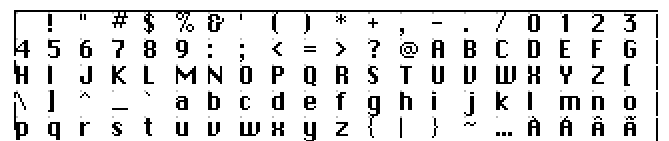
We're going to use the Grid Overlay to make it easy to fit the characters of your font into this work space. The order of glyphs will matter, but we'll make a guide for that soon too. And you don't need to do anything about accented characters if you don't have any of them in your project.
I'd recommend turning on the Toolbars because we'll be adjusting things in Drawing Mode at first and it makes all of the relevant tools more available. You can do this with [Decker > Toolbars].
We'll mostly need the selection tools, but also the top two buttons (pointing hand and button) will switch us into interact and widget modes when we need to go to them. I just find it really easy to use that while working, so I always recommend it.
----
When importing your font image:
Drag an image from your file system onto your open Decker window or use [ File > Import Image... ] in the menu.
While it's still in the first selection box after being imported -- if it seems smaller than it should be -- you can use [Edit > Resize to Original ] to make sure it's at the original full size.
We're going to want to import your font image into the empty space at bottom of the Sheet editor, or make a new card if you need more space to work with it before arranging it on the Sheet.
If you haven't measured the maximum size of a single glyph yet, do that now. Plug those measurements into the UI on the main Font Editor page and click the 'Set Grid Overlay to Font Dimensions' button. We're about to use the Grid Overlay.
----
Setting up the working area:
Go into the [ View ] menu and select [ Show Grid Overlay ] to make the dot grid appear.
We'll set up the working area widget with [ View > Snap to Grid ].
Go in to Widget mode and select the workspace-marking empty button widget and move it a little so the top left corner is lined up on a grid dot. Because of Snap to Grid the widget will position itself that way whenever you move it, but you do need to move it once to force it to snap into alignment.
Resize the widget, giving yourself a comfortably big workspace without bumping into the other UI elements or going off the side of the card. Again, this widget will snap its dimensions to the grid because 'Snap to Grid' is active.
Count how many columns this is and we'll use that number make an easy guide for glyph placement.
This is the character list for the DeckRoman character set in order.
!"#$%&'()*+,-./0123456789:;<=> @ABCDEFGHIJKLMNOPQRSTUVWXYZ[\]^_`abcdefghijklmnopqrstuvwxyz{|}~…ÀÁÂÃÄÅÆÇÈÉÊËÌÍÎÏÐÑÒÓÔÕÖØÙÚÛÜÝÞßàáâãäåæçèéêëìíîïðñòóôõöøùúûüýþÿĀāĂ㥹ĆćĒēĘęĪīıŁłŃńŌōŐőŒœŚśŠšŪūŰűŸŹźŻżŽžȘșȚțẞ¡¿«»€°
Keep in mind that the first glyph in the first row is an empty space!
If your working area has 15 columns, then you can copy that list of characters and split it into 15 character long strings to give you a guide for positioning your glyphs.
 !"#$%&'()*+,-.
/0123456789:;<=
>?@ABCDEFGHIJKL
MNOPQRSTUVWXYZ[
\]^_`abcdefghij
klmnopqrstuvwxy
z{|}~…
The original font that was there on the card won't be set to your grid size. It's still an accurate guide for the order, but not the for exact placement in the grid overlay.
----
Okay! Whew!
• We have a nice big area that fits a grid overlay that can contain our glyphs!
• We have the images of our glyphs!
•We have a guide for their positions!
Everything gets so much easier from here.
Time to move the glyphs into the grid overlay.
Some optional adjustments you might want to make while moving things around:
You may want to turn [View > Snap to Grid] off now, so you can choose the size of your selection boxes while you're moving things. (Or you can use ctrl + p to toggle this on and off, if needed)
You may want to turn [Style > Transparency] ON so that the background white of the card will be treated as a clear transparent white while you're moving things around. (Or use Ctrl + T to toggle this on and off, if needed)
And remember that you can 'nudge' selections by a single pixel at a time with your arrow keys.
----
Set up is done! Time to arrange some letters.
Just use the selection box tool (or selection lasso, if you prefer) to move your glyphs into the right locations, according to your guide. You'll be working in Drawing mode until you're done with this process.
If they're not lined up perfectly inside their section of the grid overlay don't stress out too much. It's very easy to adjust that later in the Glyph editor. Getting the glyphs in the right grid overlay spots is the most important thing right now.
Got them all in place? Switch to Interact mode and click the "Apply" button on the right side of the Sheet card.
Congrats, you have a font! I'd recommend saving your progress now, if you haven't!
(By saving the deck from the menu, like normal)
You can take a peek at the font as it currently exists in the field on the bottom right of this card. Some letters may be too high or low or otherwise weirdly spaced. You can adjust their placement here on the sheet and "Apply" it again OR you can adjust them in the Glyph editor. Either way is fine.
----
Glyph Editing:
Everything in the Glyph tab is used in Interact Mode.
You can move to specific letters with the "Go to Char..." button, or by scrolling with the 'characters' slider that's just below it on the UI.
Usually Glyphs start along the left side of the glyph editor box. but you may prefer more space because of the blackout version of this font. You can adjust the whole glyph's position within the area with the buttons on the sides.
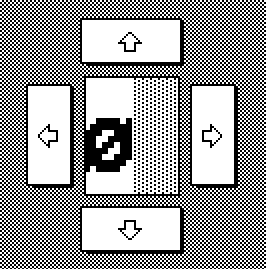
And you can narrow the area of letters that take up less space with the 'width' option in the top left of this card.
(Like "I" vs "W", if you don't intend for your font to be monospace -- I'm not sure if you do or not.)
If you narrow a letter too much and snip off a pixel of it, you might need to draw it back on after re-widening it. You can click squares in the glyph preview (still in Interact Mode) to edit the pixels of your glyphs if you need to.
----
Okay, yay. That's one font possibly done.
So let's talk about a way to make the blackout version without going through that process again... while also making it match pixel-perfectly with the first one.
On the main 'Font' tab of the font editor, "Clone" your existing font and give the clone a new but related name.
Go to the Sheet Editor and click 'Load' -- this will pull the currently existing versions of your glyphs into the grid overlay in the correct locations for you.
In drawing mode, create selection boxes and use [ Edit > Invert ] (or ctrl + i on your keyboard) to create the blackout effect where you want it on your letters. Possibly just replicating their locations on your original font.
Click 'Apply' to apply these changes to your second font.
And now you have two fonts. Neato.
Save the deck again.
Go back to your actual project, drag and drop fonts.deck onto your open Decker project and transfer your two new fonts into it.
And then... hopefully enjoy your fonts? If you're confused about anything here I'm happy to try explaining it again.