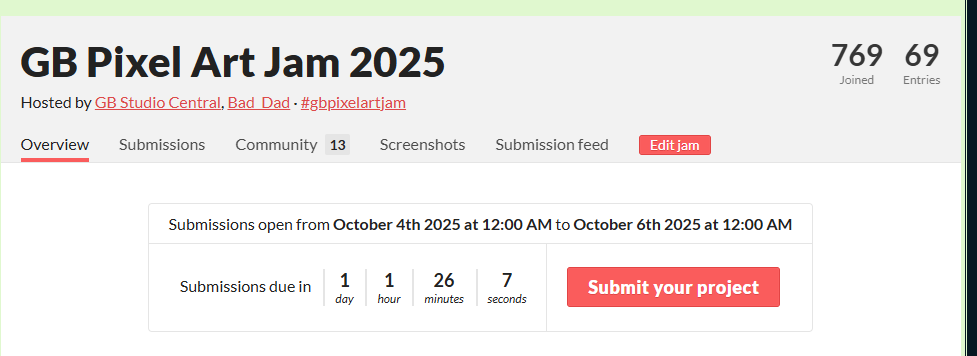
We've gotten a lot of questions in the Forum about people asking how they know if their submission went through correctly. Given we have a lot of first time Jammers, that's to be expected. Make sure you follow the checklist at the bottom of the Jam page:
Submission Checklist
- create a new project on your itch dashboard
- upload (x1) 160px by 144px image as .png file for download
- upload (x1) upscaled cover image. Feel free to add the Pixel Art Jam 2025 cover to your upscaled image (see above in resources)
- add a screen shot to your project (the pixel art, upscaled, without the Pixel Art Jam 2025 cover)
- feel free to write about your image on your project page
We recommend describing your itch project page as an asset/tool.
When you increase the size of your image, in the app you use, make sure you choose “no interpolation” or “nearest neighbour” for crisp big pixel goodness.
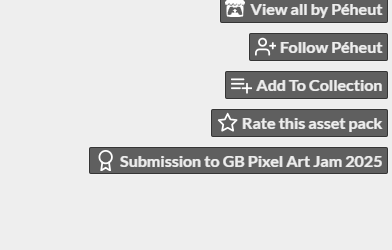
If you joined the Jam, the button next to the timer should be "Submit Your Project" that brings up a list of your projects and some other questions. You'll know you've submitted correctly when the your project page has a little note on the top right that looks like this (thanks Steve for the pic):
We will go through all the submissions after the Jam to make sure your submission is correct and will notify if there are issues. Submissions with errors will be given a window to resolve those issues, just make sure you click that submit button before the deadline!