






On Sale: GamesAssetsToolsTabletopComics
Indie game storeFree gamesFun gamesHorror games
Game developmentAssetsComics
SalesBundles
Jobs
TagsGame Engines

mxpuffin

14
Posts
8
Topics
24
Followers
A member registered Nov 13, 2016 · View creator page →

Creator of

Recent community posts

(5 edits)

This documentation serves to demonstrate how to use SAMMI - Discord Webhook Helper

Setup

To get started, the included deck comes with 2 big buttons, Add Webhook and Remove Webhook. You will need to use these buttons to save webhooks for use in other commnads.

image

Once you've added atleast 1 webhook, you can start making buttons to send messages to these webhooks. There are 2 example decks that show some basic use cases for creating stylised embeds.

Discord WH: Add Webhook

Saves a webhook under a readable name for use in other commands that can send data to webhooks.

image

Field Description
Webhook Name The name you would like to save your webhook Url under
Webhook Url The URL you want to be associated with the name of the webhook


Discord WH: Remove Webhook

Removes a saved webhook from the command list. You will need to go around to other commands that used this webhook and change it, as it will no longer work.

image

Field Description
Webhook Name The saved webhook you would like to delete


SAMMI Commands

Discord WH: Send Message

image

Field Description
Webhook Name The name of the Webhook you'd like the send a message via
Message The message you would like to have sent to discord


Discord WH: Builder

In order to prevent having 15~ odd extension commands, all the builder commands are consolidated into command options. While it makes it a little annoying when trying to find commands, it saves having to bloat, the already bloated extension commands.

image

Field Description
Option Allows you to select a new command in its place.
Discord WH: Message Builder
Discord WH: Embed Builder


Discord WH: Message Builder

Creates a builder object which you use to build a discord message.

image

Field Description
(Optional)
Profile Name
Changes the profile name of the webhook posting the content
(Optional)
Icon Url
Changes the profile picture of the webhook posting the content
Save Variable As The variable name the builder should get returned as (waiting not required)


Discord WH: Message Content

Sets the message content of the discord message.

image

Field Description
Builder Name The name of the builder object (use Message Builder to get a builder)
Text Content The text content of the webhook message. 2000 characters max.


Discord WH: Add File

Adds up to 10 files to your discord message.

image

Field Description
Builder Name The name of the builder object (use Message Builder to get a builder)
File Path The path on your computer where the file could be located.


Discord WH: Add Embed

Adds an embed object to your message builder. You can add multiple embeds but I'm not sure what the limit is.

image

Field Description
Builder Name The name of the builder you want to add an embed to.
Embed Name The name of the embed builder you want to add to your message builder.


Discord WH: Obs Take Screenshot

Takes a screenshot in Obs and adds it to your builder Object. You can optionally save the attachment url to use in an embed.

image

Field Description
Builder Name The name of the builder you want to add an embed to.
Source The name of the source/scene you want to take a screenshot of.
Save Attachment As The variable you wish to save the returned URL as. This can be used in an embed image url like /$variableName$/


Discord WH: Embed Builder

Creates an embed builder object which you use to build embedded messages for use in a message builder.

image

Field Description
Title The title of the embedded message
Color (hex) Color in hex. The # gets removed, so you dont need to worry about cleaning it up
Save Variable As The variable name the embed builder should get returned as (waiting not required)


Discord WH: Embed Content

Sets the content of the embed

image

Field Description
Embed Builder The name of the embed builder you want to set the content of
Embed Message The message you want to set in the Embed


Discord WH: Embed Author

Sets the Author of an embed (different from the bot profile name/picture)

image

Field Description
Embed Builder The name of the embed builder you want to set the content of
(optional)
Author Name
The name of the Author
(optional)
Author Icon Url
The Icon url of the Author
(optional)
Author Url
The redirect url of the Author


Discord WH: Add Field

Adds a new field (title/paragraph) to your Embed. You can add multiple fields to your Embed, but I'm not sure what the limit is. Field Title and Message are mandatory if you add them.

image

Field Description
Embed Builder The name of the embed builder you want to set the content of
Field Name The title of the Field
Field Message The message content of the field


Discord WH: Add Image

Sets an image on your Embed. This only supports image media. You can use external links, or uploaded media from Discord WH: Add File, you just need to reference the name and extension of the file. (Only one image is supported on an embed)

image

Field Description
Embed Builder The name of the embed builder you want to set the content of
Image Url The Url of an image you wish to use. If you uploaded files earlier, you can also use these by typing attachment://<file_name>
If I uploaded a file called Hello.png I would use attachment://Hello.png
This can also be used for an Obs screenshot, you just need to reference the returned url variable like so /$variable$/, depending on what you called it.
(optional)
Thumbnail Url
The thumbnail of the image


Discord WH: Add Footer

Sets the footer content

image

Field Description
Embed Builder The name of the embed builder you want to set the footer content of
Footer Text Short text of what you want displayed in the footer
Footer Icon Url Small icon you want displayed next to your footer
Include Timestamp Shows a timestamp next to your footer
(2 edits)

Creating a Custom Action

In this new version, creating a custom action is much more streamlined and far easier to do. To start off, you need to create a new Action in streamer bot. This can be achieved by Right Clicking anywhere in the Actions panel and clicking Add, from there you can Give it a name and customise it to your liking. This no longer needs to be queued in the PiShock Queue

  1. Click on the newly Created Action and then navigate to the Sub-Actions panel and Right Click
    • [Core > Arguments > Set Argument] (refer to Custom Arguments)
    • Add an intensity as the argument
  2. Right Click the Sub-Actions panel again and Right Click
    • [Core > Actions > Run Action]
    • Make sure "Run Action Immediately" is OFF
  3. Navigate to the Triggers panel and add a trigger of your choice (or trigger it externally with another program)

Custom Arguments

If a [REQUIRED] argument is missing from a request, it will not work, make sure you set the required. Everything else falls back on your the Config you set

Name Value Description
intensity 1-100 [REQUIRED] Sets the intensity for the current operation
duration 1-15 Sets the duration for the current operation
op 0-2 Sets the operation (0 = Shock, 1 = Vibrate, 2 = Beep)
mode 0-3 Sets the multi-shock mode (0 = None, 1 = Round Robin, 2 = Random, 3 = All)
shocker 0-n n being your total number of shockers, used to determine which shocker is used if no mode is set
log string Used to set your log name on the PiShock website.

Operations

Name Description
PiShock Operate Will trigger an operation based on supplied arguments or default to whatever you set in your config
PiShock OperateShock Will trigger a shock operation and use any additional supplied arguments
PiShock OperateVibrate Will trigger a vibrate operation and use any additional supplied arguments
PiShock OperateBeep Will trigger a beep operation and use any additional supplied arguments (Does not need intensity)

Config Settings

Name Value Description
Max Intensity 1-100 When a request comes in, if the value is over this value, it will be set to this value
Max Duration 1-15 When a request comes in, if the value is over this value, it will be set to this value
Default Operation Select Box If a request comes in without an op argument, it will default to this options
Default Shocker 0-n n = max number of shockers, if a request comes in and no mode is set, it will use this shocker as the default option.
Multi Shock Mode Select Box Sets the default mode for shock requests, None = default shocker, RoundRobin, Random, All
Operate Message string (blank = disabled) This message will be sent to your Twitch Chat when a request is sent. You can use {intensity} {duration} and {op}
PiShock Log string The log which shows up on the PiShock Control Page
Post Delay 0-60 (0 = disbaled) How long the plugin waits between shocks, if you just got shocked, the plugin will wait X seconds before shocking you again
Send Chat Messages checkbox All potential error messages will be logged in your Twitch chat to make it easier to diagnose issues
Bypass Queue checkbox Will bypass the queue system I have in place, everytime a shock request is sent, it waits until the last one is finished before doing the next one. This completely bypasses that behaviour. This could result in some unexpected behaviour but it should be fine for the most part.

SAMMI should now say there is an update (I was waiting on a merge from the dev team for the update notification to go out)

Would you be able to message me on discord @mxpuffin so I can help you further with the sharecode situation?

Hmm if you post in the SAMMI discord I can look at giving you further support, it should be possible to fade audio sources in OBS using SAMMI alone without needing to turn down the actual audio device on windows (if not myself, someone would definitely have an answer)

Otherwise I can look at adding a fader option to stop audio but it’s definitely not a priority at the moment.

With that being said though, SAMMI should be trying to automatically close the Websocket Server when you close SAMMI, if it’s not closing the server properly I may need to look into another method to force the application to shutdown.

(2 edits)

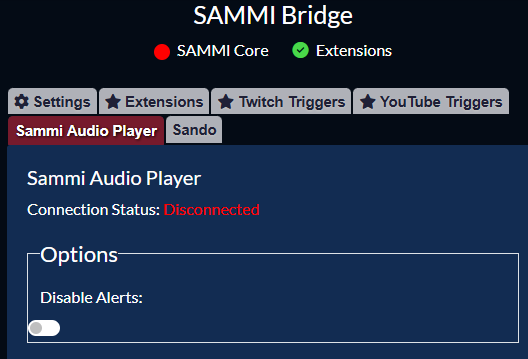
If youre on the latest version you should be able to go into settings (in the bridge) and turn off the alerts/notifcations which will stop the ‘Connecting/Failed to connect’ spam. image.png

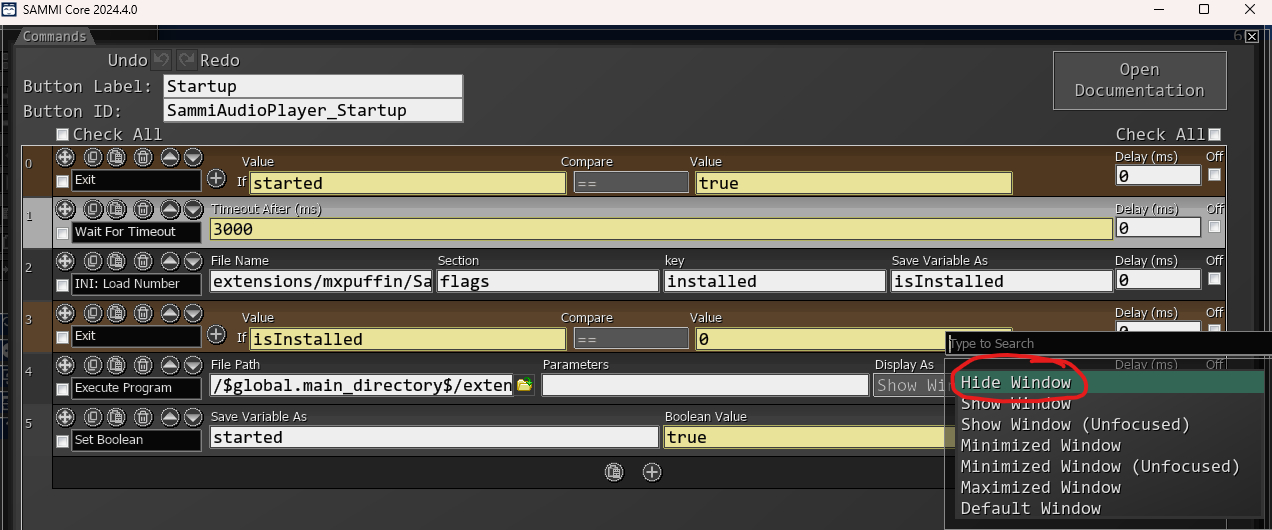
If the CMD opens I probably accidentally left it set to ‘Show Window’ in SAMMI and you can go into ‘Sammi Audio Player’ deck and then the ‘Startup’ button and on line 4 change the ‘Display As’ to ‘Hide Window’. If its on by default, ill probably release a patch soon to fix that. image.png

And volume is on a per sound basis, there is no global volume, I could maybe look at adding a setting to control each audio device volume globably but as it stands already the command you use in SAMMI already has alot of sections and adding more will make it get cramped – but to answer you question, for the default device, you would probably just have to change the volume in your windows audio mixer.

(9 edits)

This topic contains useful information about using SAMMI [RPG] Levelling System.

Documentation


This extension requires you to have your SAMMI bridge open. This will not work if you're not conencted to your sammi bridge.

As these are extension commands, any command that returns a value requires you to wait until variable exists. (all the purple commands)


Setup

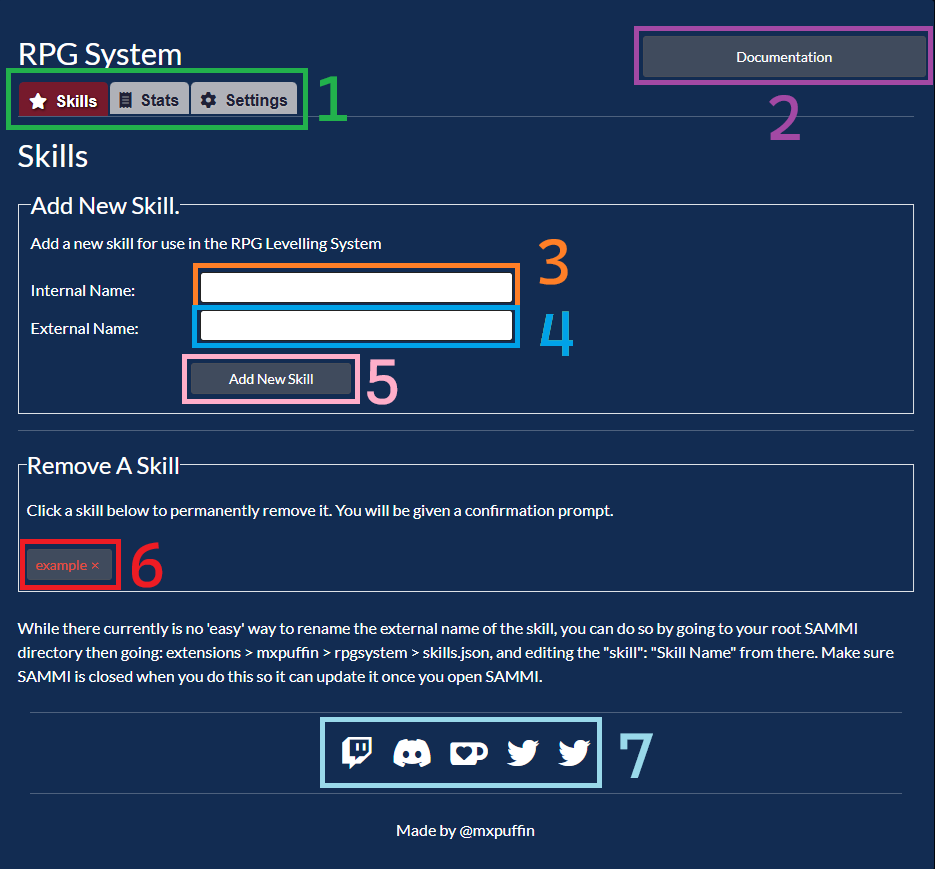
Once you've installed the extension by clicking on the "SAMMI Bridge" button then "Install an Extension", your SAMMI bridge should get a new tab under the name of RPG System. If you click on this tab, you will be greeted by the following user interface.

There are two main sections in this tab. "Add New Skill" and "Remove A Skill" if SAMMI isn't connected to the Bridge, these buttons wont function.

1 - Navigation Pills You can use these buttons to navigate pages for this extension. Each page contains relevant settings/tools for the extension. You use the Skills tab to add/remove new skills. You use the Stats tab (Requires free Addon) to add new stats. You use the settings tab to change global settings that affect how the extension behaves.
2 - Documentation Clicking this button will open an itchio page taking you to this documentation. I've tried my best to include all details relavant to using this extension.
3 - Internal Name The internal name is used to save skill names internally. Skills are saved in snake case and have "_level" appended to them. So if you enter "Combat", it will be converted into "combat_level". This name does not support numbers or symbols.
4 - External Name The external name is used in chat messages and externally displaying the skill name. This field is more lax when it comes to what you can add. If you enter "Combat" then when someone levels up, a chat message like this will be sent "[UserName] just reached Level [X] Combat Level"
5 - Add New Skill Clicking this button will attempt to add a new skill based on the names you typed in the internal and external names. If you leave any of the above fields empty or try and add a skill that already exists, SAMMI will throw an Error alerting you that it could not be added.
6 - [Skill Name] X For every skill you've added, it will display under this section. Clicking on the button that gets added will prompt you to delete the skill permanently from SAMMI. You will be prompted with an input box asking you to type "DELETE [skill_name]"
7 - Links Nav Links to all my socials where you can contact me if you have any issues. (first twitter is bluesky)


Chat Commands

Fields inside <> are required. Fields inside () are optional.

Command Alias Usage Description
!optin !optin Adds the user to the Exp system, this is an active action as it prevents hundreds of account that show up once from being stored in a CSV. (You can disable optin but it may cause issues as I never designed this extension to be used without opting in)
!optout !optout > !accept Prompts the user that opting out will permanently delete their level data and makes them type "!accept" before going ahead and deleting everything.
!leaderboard !lb !leaderboard <skill> (username/page) Sends a chat message displaying the leaderboard for the particular skill that was input. User can optionally provide the username of someone else or the page of the leaderboard they want to view.
!level !lvl !level <skill> (username) Sends a chat message displaying the users level and current exp for the skill provided. Optionally, the user can provide a user to view the request users level/exp.
!ignore !ignore Silently adds a user to an ignore list so warnings about not gaining Exp will not show up for them.
!setignore !setignore <target> [MOD] Adds a targeted user to the ignore list so warnings about that user will not be sent to chat. Useful for mods/the streamer to ignore bot accounts.

These commands are only usable if you have the Stats addon enabled.

Command Alias Usage Description
!stats !stats <stat> (username) Sends a generic chat message showing a users stat for the provided stat. This command isn't the best and you're encouraged to go out and make your own stats command to better represent the data being requested.
!statsleaderboard !statslb !statsleaderboard <stat> (username/page) Sends a chat message displaying the leaderboard for the particular stat that was input. User can optionally provide the username of someone else o r the page of the leaderboard they want to view.


Sammi Lvl Commands

[RPG] Lvl: Add Exp

This command is used to add Exp to users skills. If SAMMI tries to add exp to a user who has not opted in, a chat message warning will be displayed once per 2 minutes globally and once per hour per user.

Field Description
User ID User Id of the user you want to add exp to.
Skill The skill you want to add EXP to for that user. (The skill drop down selection automatically gets populated with skills you add).
Exp to Add The amount of Exp you want to add to the user for the selected skill.
Lvl up Msg If the user levels up, should SAMMI play a sound and send a message to chat.
Exp Multiplier Should the "Exp to Add" get multiplied by the users sub multiplier?

[RPG] Lvl: Get Level

This command is used to get the level of a users skill. Useful for giving users 'advantages' when it comes to calculations. Returns -1 if the user has not opted into the levelling system.

Field Description
User ID User Id of the user you want to grab the level of.
Skill The skill you want to grab the level of for that user. (The skill drop down selection automatically gets populated with skills you add).
Return Object? If SAMMI should return an object instead of just the level as a number. The object contains the users Level, exp and row in the CSV.
Output Variable The variable that gets returned with the user level.

[RPG] Lvl: Get Alias

This command returns a users 'alias' by default, this is a users Twitch Display Name, but you can set it up to let users change their alias. Returns undefined if a user has not opted into the levelling system.

Field Description
User ID User Id of the user you want to grab the alias of.
Output Variable The variable that gets returned with the users alias.

[RPG] Lvl: Get Sub Multi

This command returns a users sub multiplier or sub tier. This works for anyone and it caches the result so it doesn't need to constantly make API calls to get someones sub tier.

If someones sub falls off during stream, there's no way of updating it. It will update it if someone subscribes during the stream though.

Field Description
User ID User Id of the user you want to grab the alias of.
Return as sub tier If true, will return "0", "1000", "2000", "3000" instead of the sub multiplier.
Output Variable The variable that gets returned with the sub multiplier.

[RPG] Lvl: Deny

This command will send a chat message telling the user they must opt-in to the levelling system before they can earn exp.

Field Description
User ID User Id of the user you want to send a deny message to.

Sammi Util Commands

[RPG] Util: Format Number

This command takes a number (as a string or number) and returns a formatted number thats more readable. If you input "1000000" it will return "1,000,000" (as a string)

This is useful for sending numbers to chat and is used to display how much exp someone has. You can use this command for whatever you would like.

Field Description
Number The number (as a string or number) that you want to format.
Output Variable The variable that gets returned with the formatted number.

[RPG] Util: Set Cooldown

This command takes a User ID (or anything) and lets you add a cooldown to it.

To avoid storing lots of redundant data, when SAMMI opens, it will go through and remove any cooldowns that have expired.

Field Description
User ID The User ID you want to add a cooldown to. You can also use something like 'global' if you want to put a global cooldown on a button.
Group If left empty, uses the button id, otherwise this is the 'group' the cooldown is applied to.
Duration The amount of time in time units the cooldown should last.
Time Unit The time unit that should be used for applying cooldowns. Seconds, Minutes, Hours and Days.

[RPG] Util: Get Cooldown

This command takes a User ID (or anything) and lets you get the cooldown of them.

This command by default, will return true if a user still has a cooldown. Alternatively you can return the amount of seconds left to output in chat.

Field Description
User ID The User ID you want to get the cooldown of. You can also use something like 'global' if you want to get a global cooldown on a button.
Group If left empty, uses the button id, otherwise you can specify the cooldown 'group'
Output The variable that gets returned with True or False if someone still has a cooldown.
Output Seconds Left If ticked, will return time in seconds left, otherwise returns true or false.

[RPG] Util: Log

This command is really more of an internal troubleshooting tool I developed, but you can use it too if you wanna log stuff.

Field Description
Severity The Severity rating of the log. INFO, WARN, ERROR and FATAL.
Section Mainly just used to group stuff
Message The message that will be logged.

[RPG] Util: Explode Object

This command was added to make my life easier but figured you might get some use out of it too. It basically just takes an object variable and unpacks it into the root of the button.

Field Description
Object Name Enter the name of the Object. If you trigger pull data and set the variable name to "data" then put "data" in this field.
Finished Variable When the function finishes, it will set a variable of this name to true, so you can wait until variable exists.


[RPG] Stat Commands

These commands require the stats addon which is included for free with the purchase of the RPG System. I figured not everyone would use these, so I made it an addon so its optional.

[RPG] Stat: Add To Stat

Add this command to buttons where you want to modify a users stat, they sent a new chat message? Add this to a button with chat message as a trigger with + 1 as the value to keep track of chat messages sent by a user.

Field Description
User Id User Id of the user you want to modify the stat of
Stat The stat you want to modify for the user. Stats are dynamically populated when you add more stats in the bridge.
Operation (+ - =) The math operation you want to do to the users stat. + Adds, - Removes, = Sets it equal to.
Value The value you want to modify the users stat with. Operation + with value 10, will add +10 to the users stat.

[RPG] Stat: Get Stat

This command is useful if you want to add a command that lets a user pull their stat value in a nicely formatted message. By default the !stats <stat> exists but it isnt formatted nicely. Returns -1 if the user has not participated in the Levelling system.

Field Description
User Id The user id of the user you wish to retrieve the stat information of.
Stat The stat you would like to retrieve for the user. Stats are dynamically populated when you add stats in the bridge.
Output Variable The variable you need to wait for that contains the stat value from the user requesting. Will return -1 if the user has not opted in.
(3 edits)

Changelog

A place to document all notable changes to this project.

[1.1.0] - 11/11/2024

  • Added new command “Update Alias”
  • Fixed typo in Level up button so sounds should play on level up again.

[1.0.0] - 10/11/2024

Initial release

(5 edits)

Documentation


Here you will find information on using Sammi Audio Player with some examples

As it currently stands, this extension only supports playing mp3/wav files. I plan on adding support for more audio types in the future.

Any field with an asterisk (*) is required.


Sammi Commands

SAP: Play Sound

Field Description
Sound Path * Plays the sound you selected (mp3/wav only)
Volume * Allows you to control the volume of the sound you're playing float (0-1)
Playback Device * Allows you to speicify which audio device sounds should play through. Default is your systems default audio device. (Useful for preventing sounds from saving to your vods)
Sound Id (optional) Used to stop sounds from playing (can be the same across multiple audios)
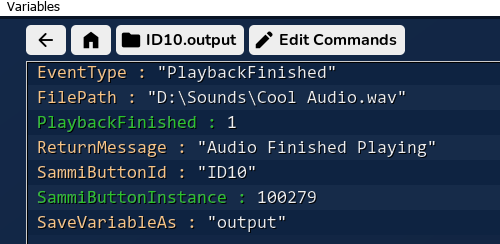
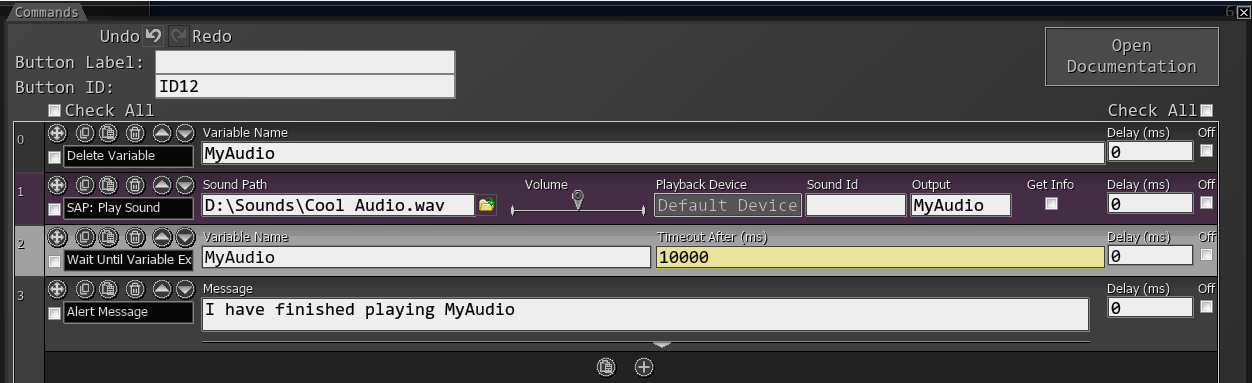
Output (optional)¹ Output is returned when the sound finishes playing. This is useful for when you want to wait for an audio to finish playing before moving on by using Wait until variable exists (See ¹ below for more info)
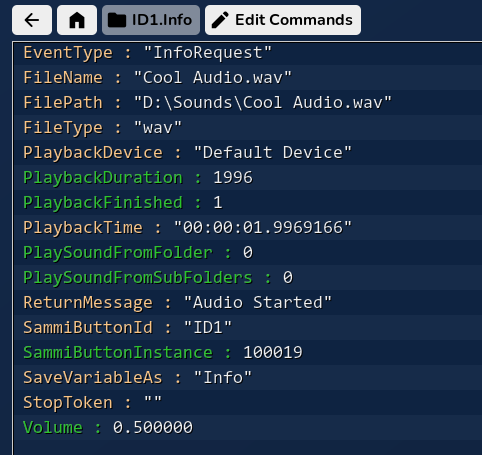
Get Info (optional) (requires output)² Returns the output as soon as the audio request is recieved which contains useful audio information if you would like to use it. (See ² below for more info)

SAP: Play Sound From Folder

Field Description
Folder Path * Plays a random sound from the specified folder (mp3/wav only)
Volume * Allows you to control the volume of the sound you're playing float (0-1)
Playback Device * Allows you to speicify which audio device sounds should play through. Default is your systems default audio device. (Useful for preventing sounds from saving to your vods)
Sound Id (optional) Used to stop sounds from playing (can be the same across multiple audios)
Output (optional)¹ Output is returned when the sound finishes playing. This is useful for when you want to wait for an audio to finish playing before moving on by using Wait until variable exists (See ¹ below for more info)
Sub Folders Allows audio to be played from the subfolders of a directory you specified.
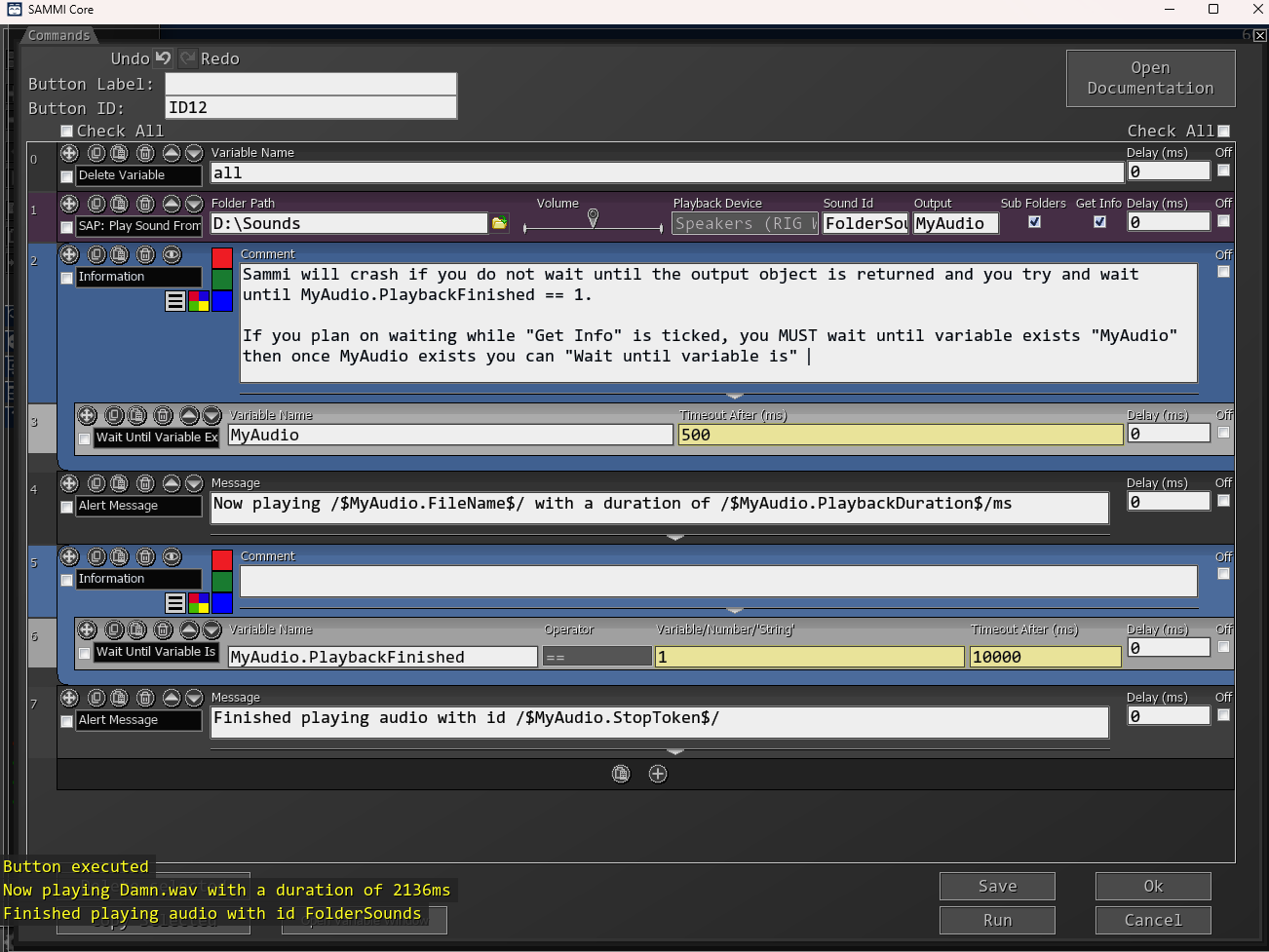
Get Info (optional) (requires output)² Returns the output as soon as the audio request is recieved which contains useful audio information if you would like to use it. (See ² below for more info)

SAP: Stop Sound

Field Description
Sound Id Requires a sound id relating to a sound you’ve requested to play. (Default is “all” which will stop all the sounds currently playing.)


Additional Info

1

2


Examples

Wait for Play Sound before continuing


Wait for Play Sound From Folder before continuing (and get info)

If you are using 'GetInfo', you must wait until the output variable exists before trying to check if the value of "PlaybackFinished" has changed otherwise SAMMI will crash. I tried to develop around this but couldn't find a solution that I was happy with.


(3 edits)

Changelog

A place to document all notable changes to this project.

[1.4.1] - 06/02/2024

Added

  • Added the ability to specify multishock mode per action, uses config for fallback
  • Added some information about what arguments you can use inside of actions

Fixes

  • PiShock_Start/End should no longer get delayed per shocker added
  • Shockers should go off around the same time

Removed

  • Debug Mode

[1.4.0] - 05/31/2024 [Major Update]

Added

  • Added the ability to use multiple shockers at once ** Round robin mode | cycles through all your shockers in order ** Random Mode | uses a random shocker ** All | unleash all the shockers at once

Fixes

  • Set the debug mode to false by default

Known Issues

  • The PiShock_Start/PiShock_End commands get delayed by the amount of shockers you use, so if you use 4 shockers, it’ll take 3-4~ seconds to trigger the start functionality
  • *there maybe a short delay between shocker going off

[1.3.0] - 01/13/2024

Added

  • Added a config option to change the debug/feedback message in chat

Fixes

  • Fixed an issue that caused code to break out if the http error code wasn’t a success. (Instead of telling you there was an error, it would silently crash)

[1.2.0] - 12/16/2023

Added

  • Created a toggable count that increments every time you get shocked via streamer.bot saved under the global variable of “shock_counter”
  • Added “debugMode” to the config so you can safely test actions you create (it just emulates what happens instead of actually sending a http request)

Change

  • Refactored code a little bit for optimisation purposes

[1.0.0] - 12/14/2023

Initial release

(1 edit)

[1.0.0] - 06/14/2024

Initial release

(7 edits)

Changelog

A place to document all notable changes to this project.

 [1.1.1] - 08/07/2024

Fixes

  • Added a safety net to detect and attempt to close SammiAudioPlayer when updating so files can get overwritten properly

[1.1.0] - 08/07/2024

Added

  • Added the ability to play sounds from sub folders
  • Added "Get Info" which returns information on the audio file when it starts playing (requires output to be set to something)¹

Changes

  • Optimized retrieving sounds from folders (it should now be faster to search folder/s if you have a lot of files in them) 
  • Cleaned up responses

Notes

  • ¹You can use wait until variable is (var.PlaybackFinished == 1) to wait until the sound has finished playing

[1.0.0] - 08/04/2024

Initial release