

Hey Loart! Thanks for reaching out.
These packs are resolution-independent, meaning they're designed to scale to multiple resolutions without losing quality. Here's a quick guide depending on your engine:
🟦 Unity
• Import the sprites and set the Pixels Per Unit (PPU) value to match your project's base resolution.
• Use the Sprite Editor to slice if needed.
• Set Filter Mode to "Point (no filter)" for pixel art to keep sharp edges.
• For multiple resolutions, use Sprite Atlas and let Unity handle the scaling.
🟥 Godot
• Import textures and set Filter to "Nearest" to preserve pixel crispness.
• In Project Settings → Display → Window, set your base resolution and enable stretch mode ("canvas_items" recommended).
• Scale up using integer scaling (2x, 3x, 4x) to avoid blurry results.
🟧 RPG Maker / GMS2 / Other engines
• Always scale using integer multipliers (2x, 3x, 4x) — never odd percentages like 1.5x or 2.3x, as this causes blurriness.
• Keep your base canvas resolution consistent with the tile/sprite size from the pack.
⚠️ General tips to avoid quality loss:
• Avoid bilinear or bicubic interpolation; always use "Nearest Neighbor" when resizing.
• If exporting, save as PNG (lossless), never JPEG.
If you let me know which engine you're using and your target resolution, I can give you more specific guidance. Happy to help!
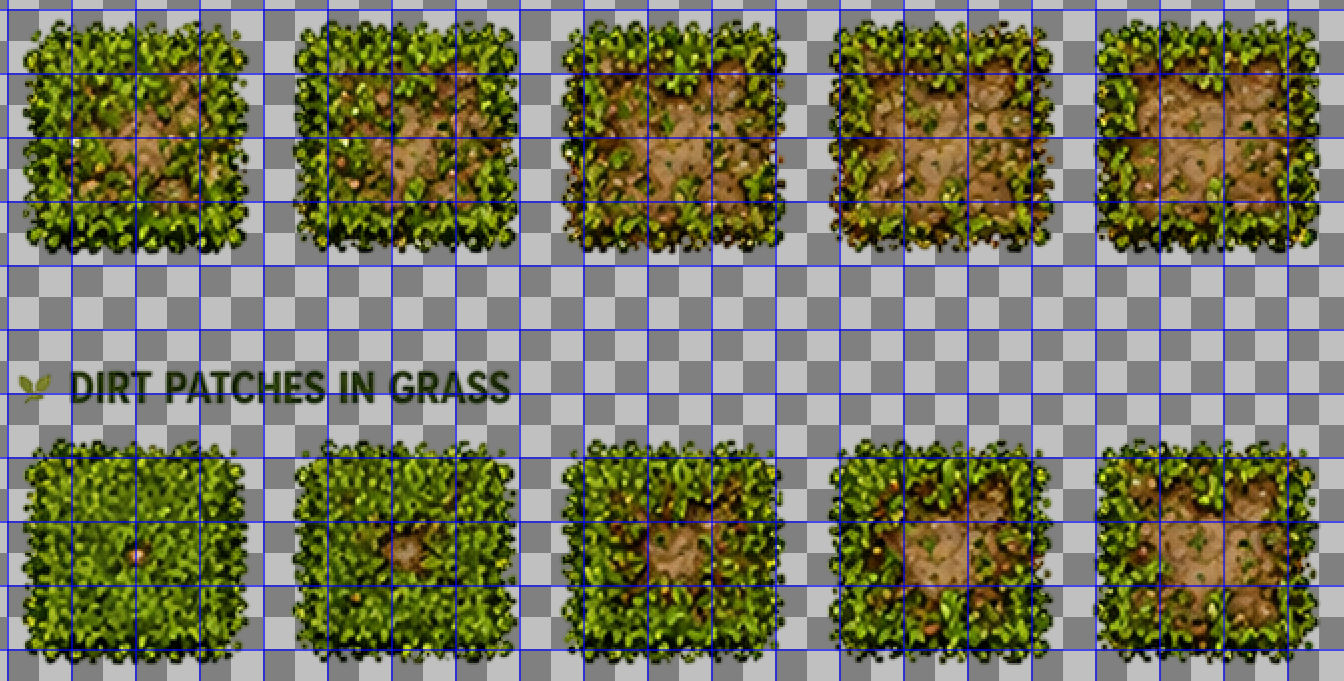 So I imported it into to Aseprite, and was converting the sheet size. But the issue I'm running into it seems is because of the spacing between the sprites isn't the same they're becoming misaligned in Aseprite. I believe this one is from a different back but I've tried a few of them. You can't grid it properly since it drifts without manually making adjustments, taking the text out, etc.