Indie game storeFree gamesFun gamesHorror games
Game developmentAssetsComics
SalesBundles
Jobs
TagsGame Engines

Hello! May I ask where the problem occurred? I can help you solve it.In the root directory of the tool, there is a help folder which contains the manual for using the tool.
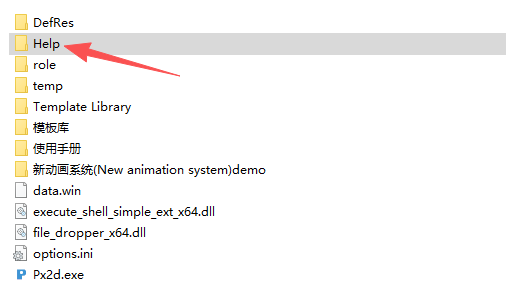

You can take a look at this user manual first.If you have finished reading the user manual but still can't operate the tool. Please contact me immediately. I can send you the video tutorial.
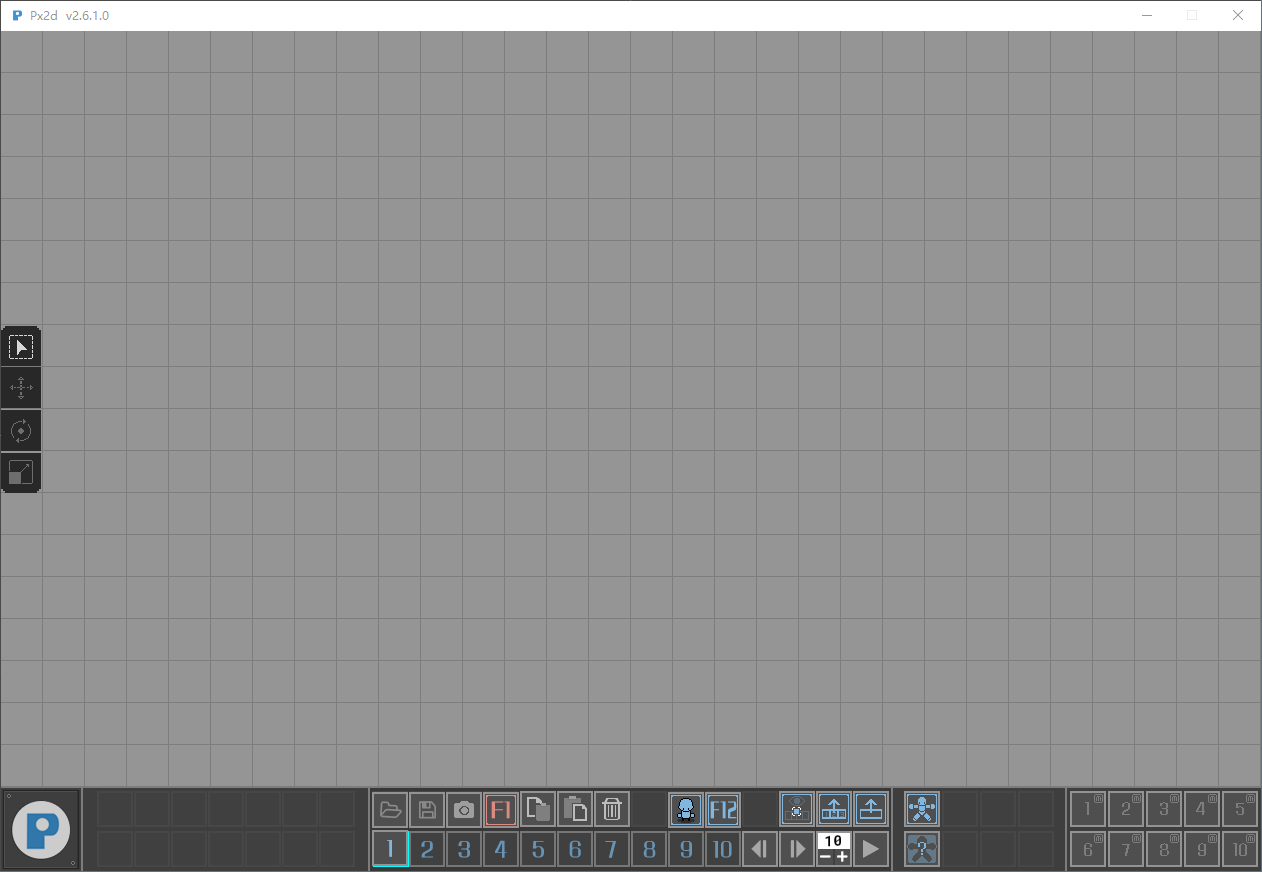
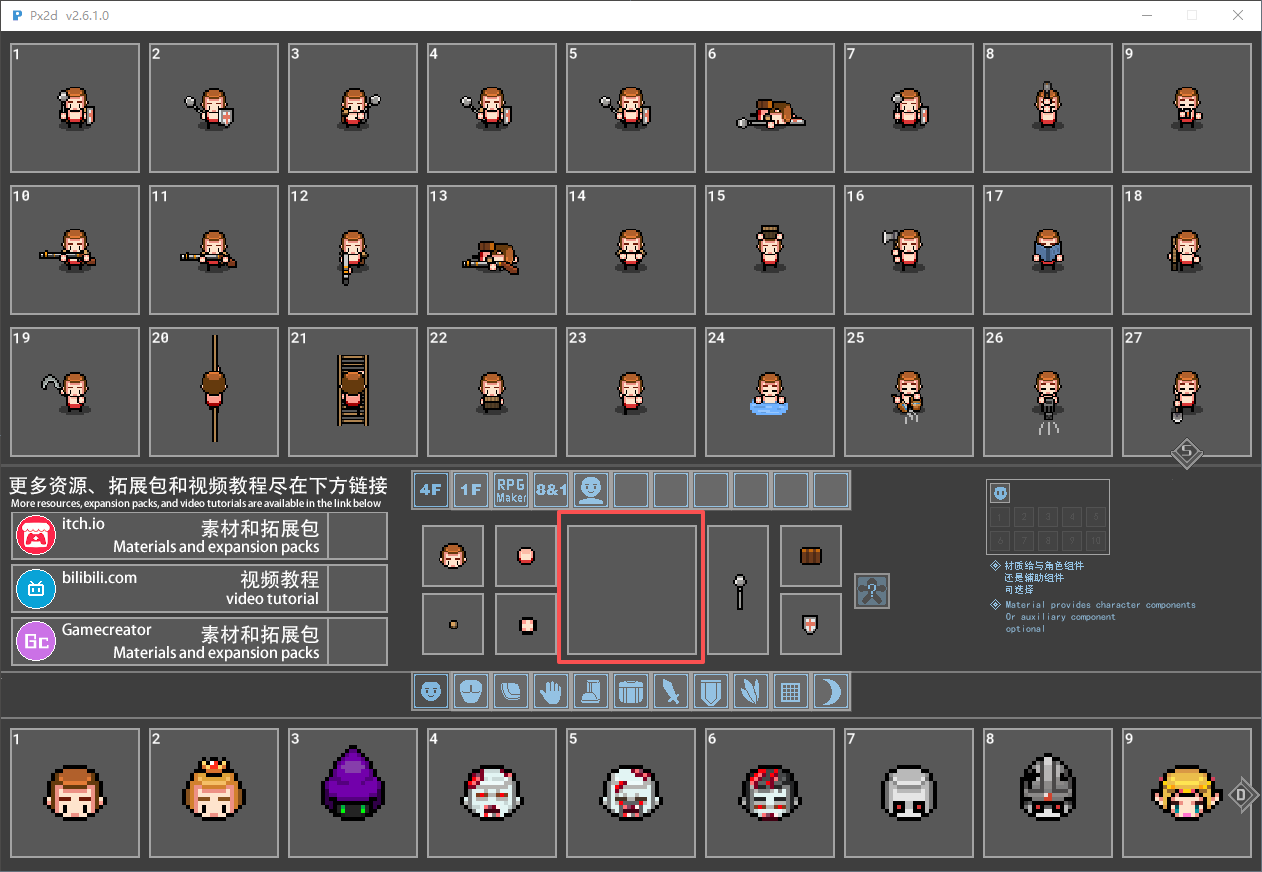
where i dont find?? on V6 and other where is the manual? i dont have any HELP folder

Px2d Channel

https://discord.gg/m8b3djJw

Friend, I have also created the "px2d" channel for you. If you have any questions, let's communicate here. Don't worry. I will do my best to help you solve the problem.

i dont use discord.

thanks for answers.

I don't think it's a problem with how it's used. look at the video : 


1/ The visualization of the character in the center is no longer there.

2/ I've asked this question many times; in the video, I put a random character, and if I change the animation, the character reverts to the default one and I lose the character!

Tell me if you understand what I'm saying because your answer is completely irrelevant.

where i dont find?? on V6 and other where is the manual? i dont have any HELP folder

It's incomprehensible!!... I'm going to do something simple: I have 27 animations, but if I click on one, it deletes the character and puts the default one back in. Why?? I create a character, how do I change the animations?? I press 1, I have my character at the bottom and a list of animations at the top. If I click on an animation, it puts the default character back in.

The character preview doesn't even work anymore in your version 6.1. And I have absolutely no idea how to change a character's animation despite your 70-page manual. I have 27 animations at the top and my character below, and I have no idea how to apply an animation to the character. It should be super simple, but no, it's a mess and incomprehensible.


My friend was very happy to see your reply. I thought you were so angry that you wouldn't come to my station anymore. Now I apologize for keeping you waiting. I have prepared a detailed video tutorial for you. I hope these videos will be helpful to you.

P1 first met Px2d

This recording was made at an earlier time and is slightly different from the current page. It enables you to get a general understanding of the tool first.

P2 creates a character

The second section is about creating characters, and this is extremely important. This will be used for changing the skins of subsequent actions.

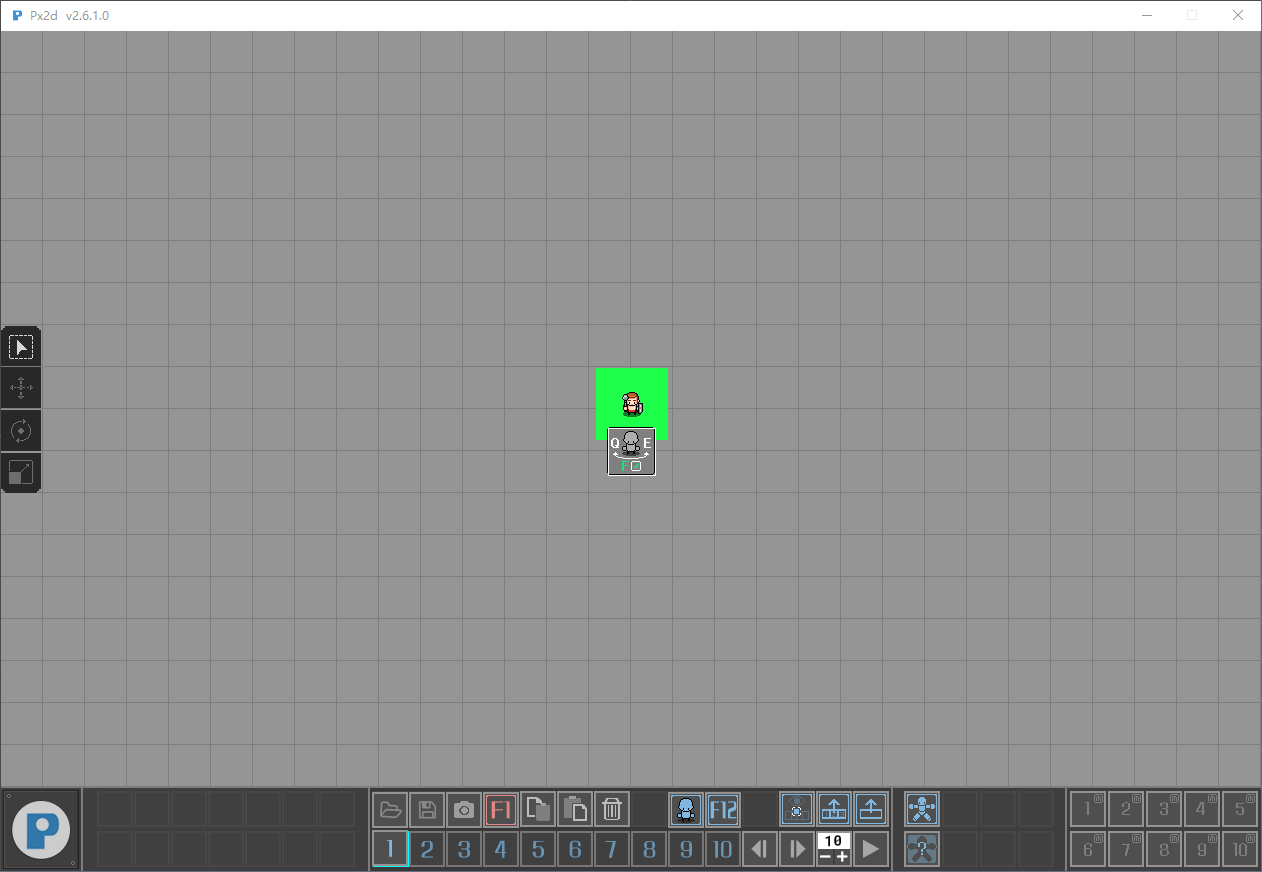
Create a character generator, select the character generator, press the Q and E keys, and you can change the perspective of the generated character. Then pressing the F key will generate the character.

After generating the character, select the character generator and press the backspace key to delete it.

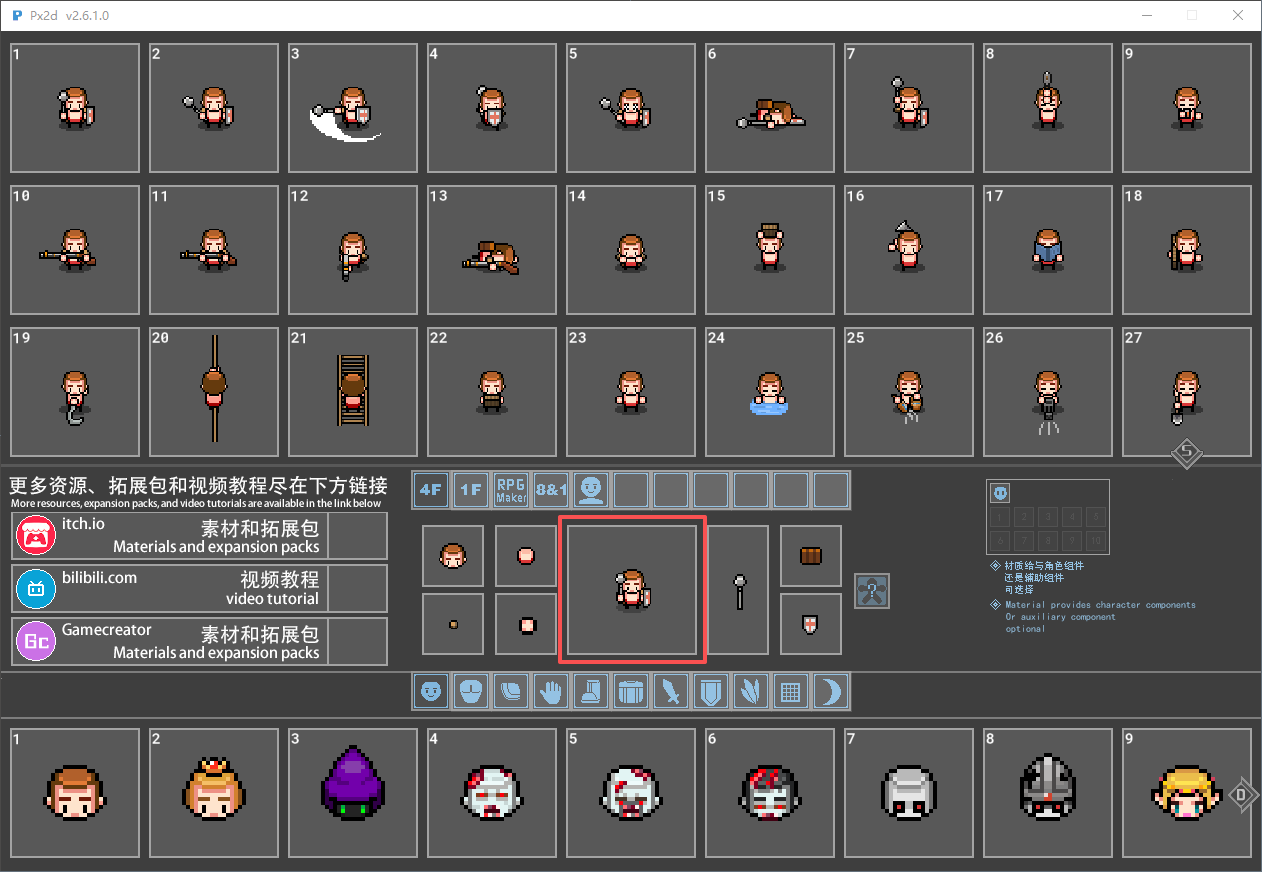
The character previews in the resource library are real-time, and this is a feature introduced in the 2.6.1 update. So, before creating a character, the preview area is naturally blank. No role.


After creating the character, the preview will be updated.


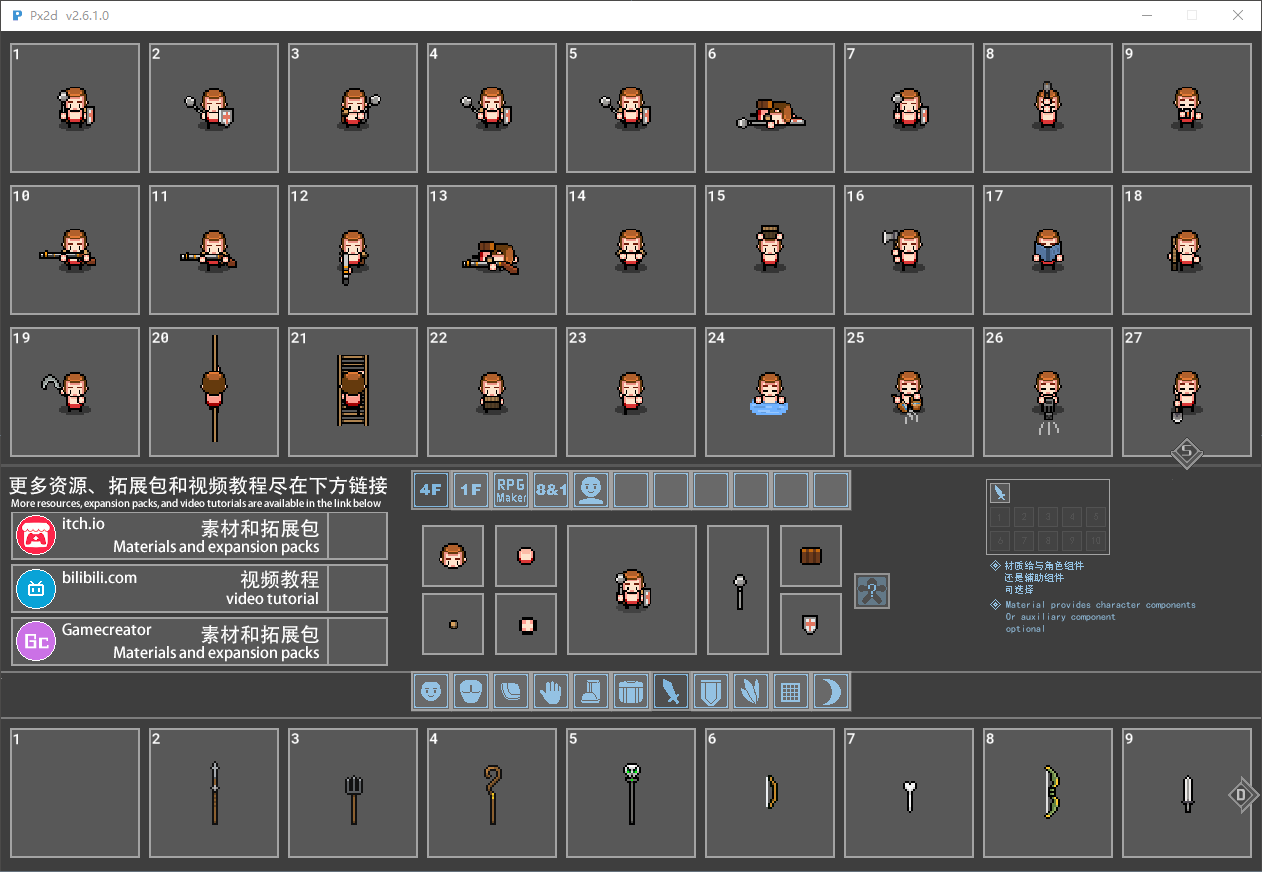
In the Resource Manager, the A and D keys are the shortcut keys for quickly navigating through the materials on the left and right pages. The W and S keys are the shortcut keys for the up and down page navigation functions.

When choosing the following materials, select them by clicking the left mouse button.


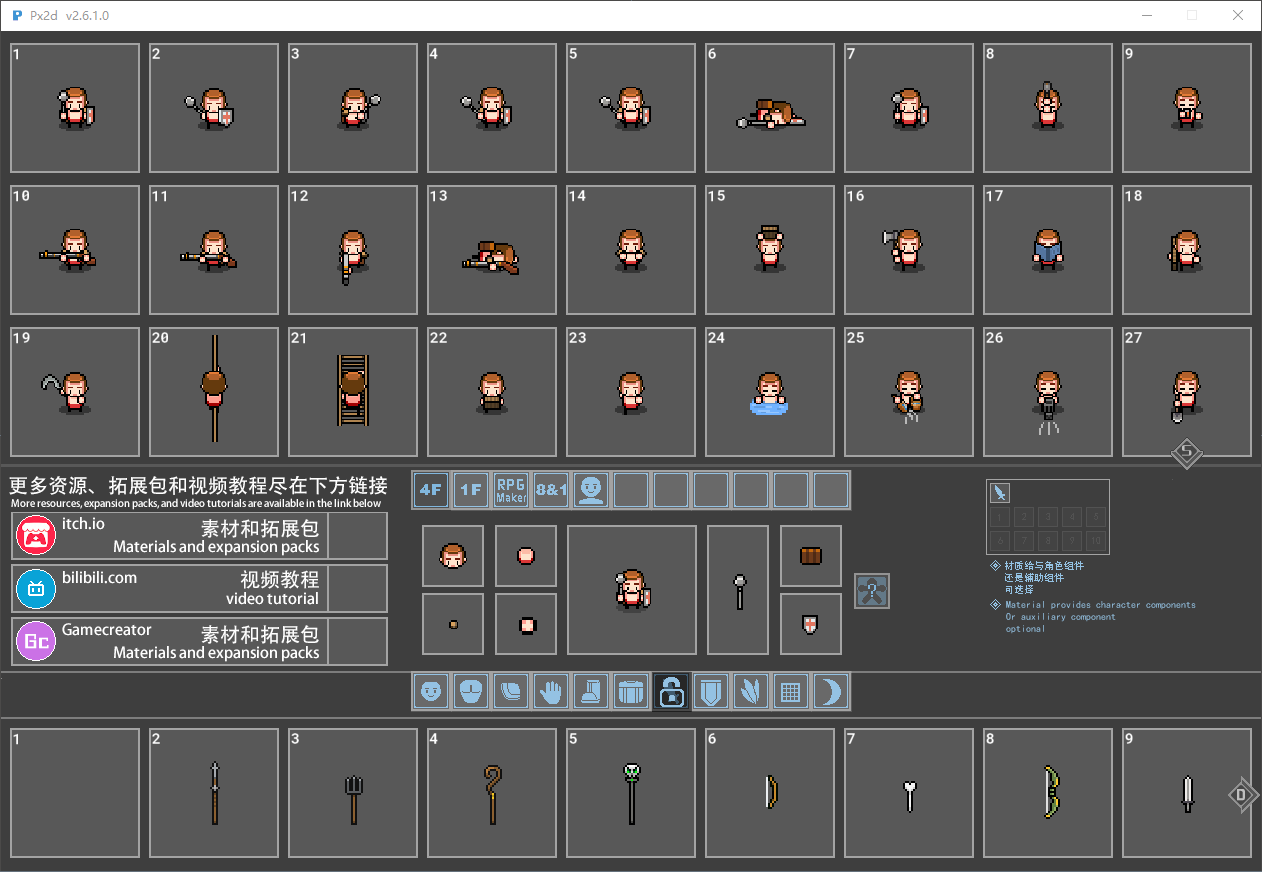
Select the type of the material, and you can lock it by pressing the middle mouse button. Once locked, during the loading process, the items in the character's hand will remain unchanged. This is particularly applicable when you perform life-related actions and trigger special effects. Because in the life-action scenes, the props held by the characters are all made of weapon components. For example, actions like watering plants, felling trees, and fishing - the tools held by the characters - are all made using weapon components.***This is of great significance.***

P3 loading action

P4 Export Animation

Version 2.6.1's shadows no longer need to be handled. The export is in a normal semi-transparent state.


P6 Custom Resources

In version 2.6.1, there is no need to make any changes to the configuration file. The tool will automatically load the resources now.


P7 Custom Action

P8 replaces DLC


Replace attack effect


In the early versions, you could see the entire character in a preview while you changed the character's parts. Then there was a list of animations you could apply to the character you were viewing... Now there's no preview, and you have to open a window and load a file to apply an animation? It's getting less and less practical, isn't it?

i dont see what you doing, you click on open file to apply an animation to a created character?

thanks for answers.

Yes, I'm annoyed because I paid over 50 dollars for something that doesn't work. Sorry for bad language sometimes.

P3 loading action

the video show a very old version of your software... in the video you show animation and in the 6 version there is 4F, 1F etc option

are you moking me?