

What happened to the tutorial videos that were on the YouTube channel? Why were they taken down?

CAM software developed by artists for artists to create unique and original works on a 3-axis CNC router or mill. · By
Thanks Charlie. I'm new to this and trying to make my first project, which is to carve a monogram with a name into a charcuterie board. The big letter looks right, but I can't figure out how to v carve the name in the banner that runs through the monogram. I want it to carve the letters into the board and it keeps carving around the letters. What am I doing wrong? Also, I added an SVG file for the monogram letter and then resized it to fit in the middle of the canvas, but now it wants to cut around it. How do I get rid of that? (see pic)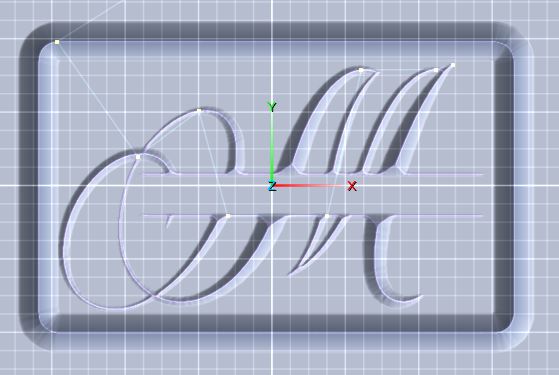
Hi Charlie,
I think the problem came up because I imported the monogram letter (an SVG file) as a new layer and it made it the same size as the canvas. So, I resized it to the size I wanted and now it thinks I want to cut that out of my canvas? I just want to get rid of the cutout path. I tried what you suggested, but it didn't get rid of it. Do I have to open a new project and start over to get it to go away?
Here is the screenshot you asked for:
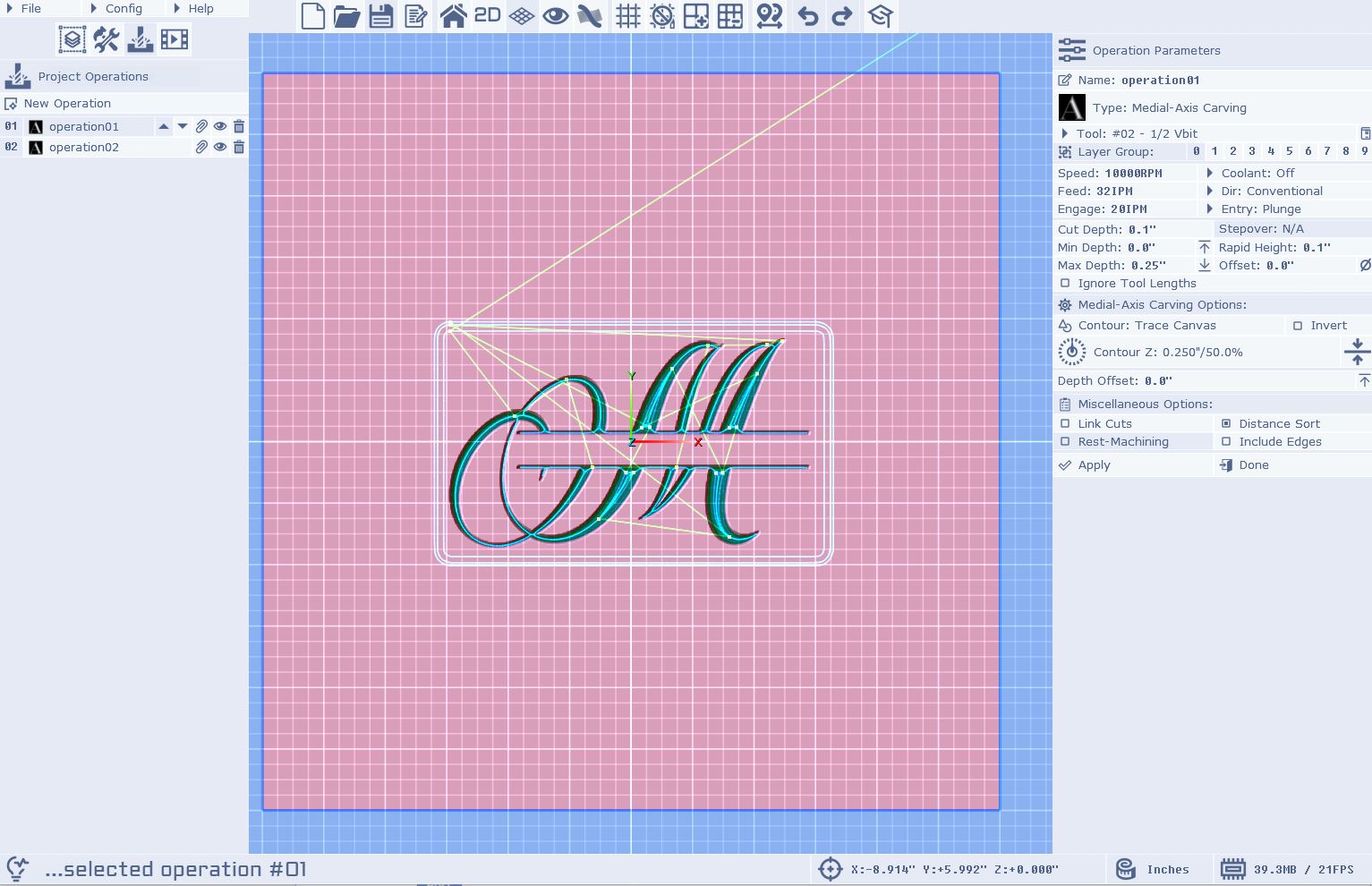
Hi dkmarquez,
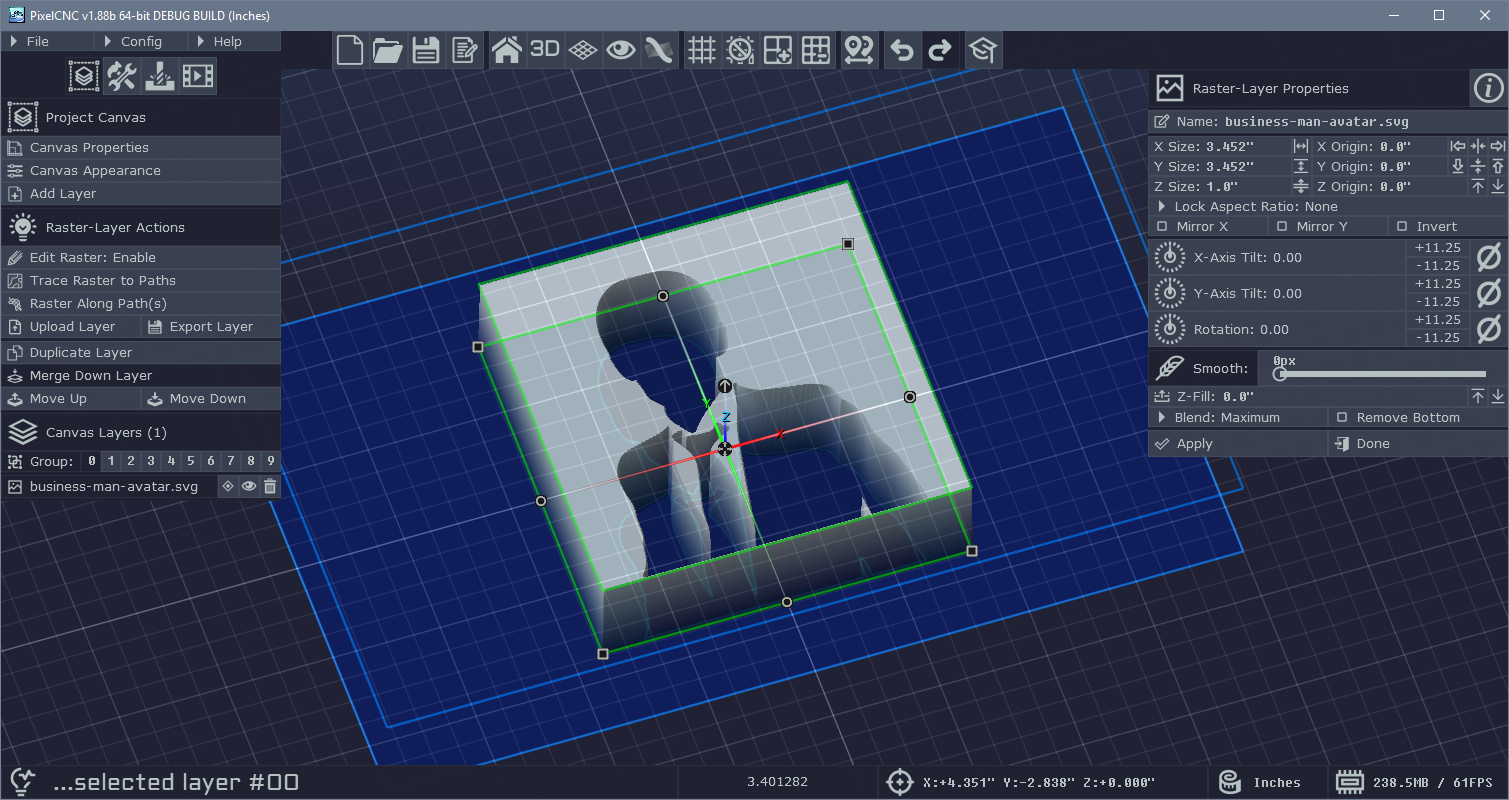
If it was a raster-layer that was created from an SVG then you should only need to change the layer's Z-fill to match the top of the canvas. I am still unsure as to why there is a border contour occurring - if you can't see any kind of seam/edge around the design then it shouldn't be contouring one. If you could send your project file to support@deftware.org or attach it to a reply I will be able to get to the bottom of where that phantom contour is coming from. Generally, loading an image and downsizing it should only create a contour if the image forms an island in the middle of the canvas and there's no Z-fill on the canvas or the layer to fill in the area around it.
Here's a simple example where I've loaded an SVG as a raster-layer and then scaled it down before generating a toolpath. By raising the layer's Z-fill to the top of the canvas we prevent a contour from being generated around the edges of the raster-layer:
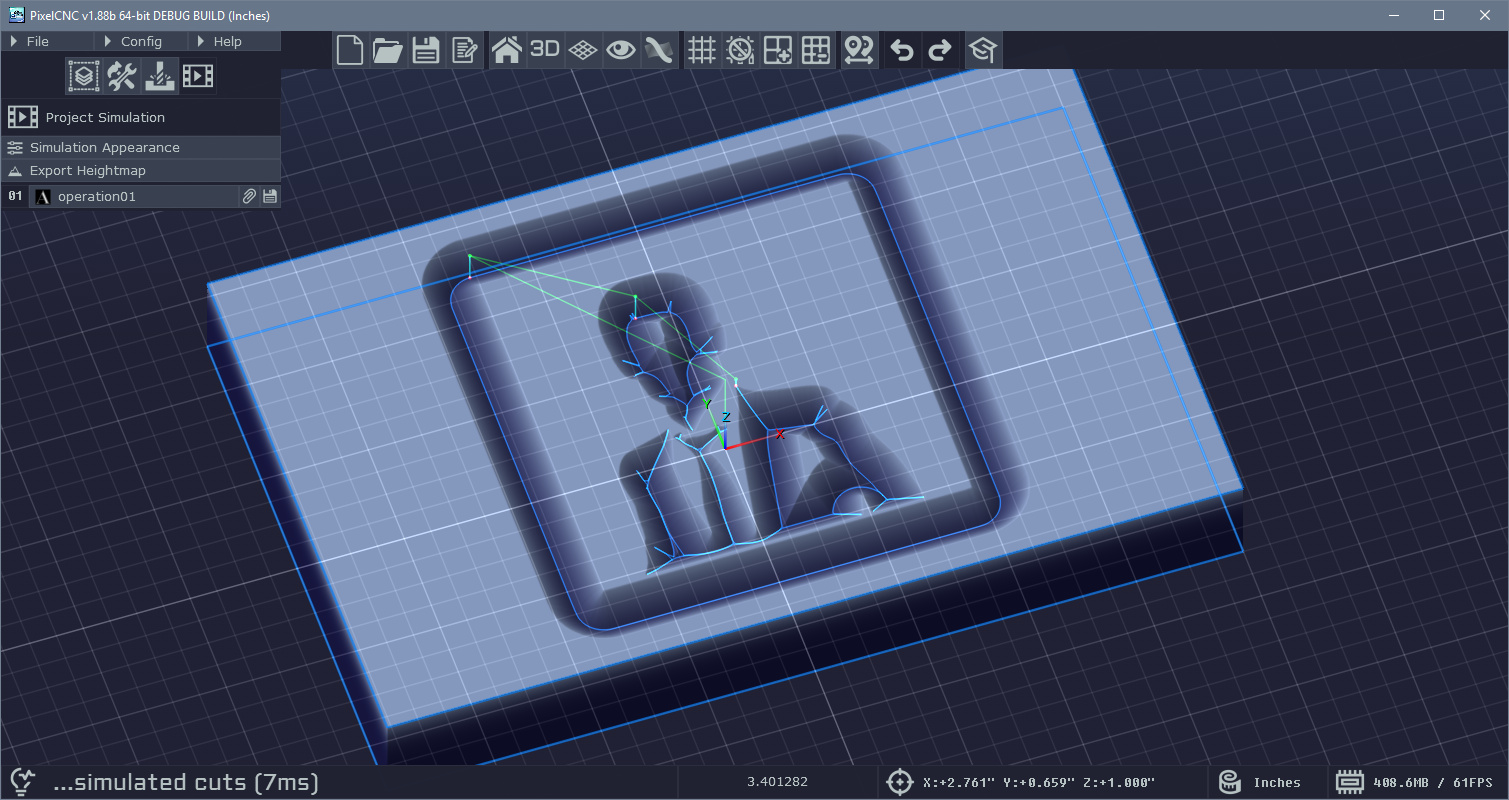
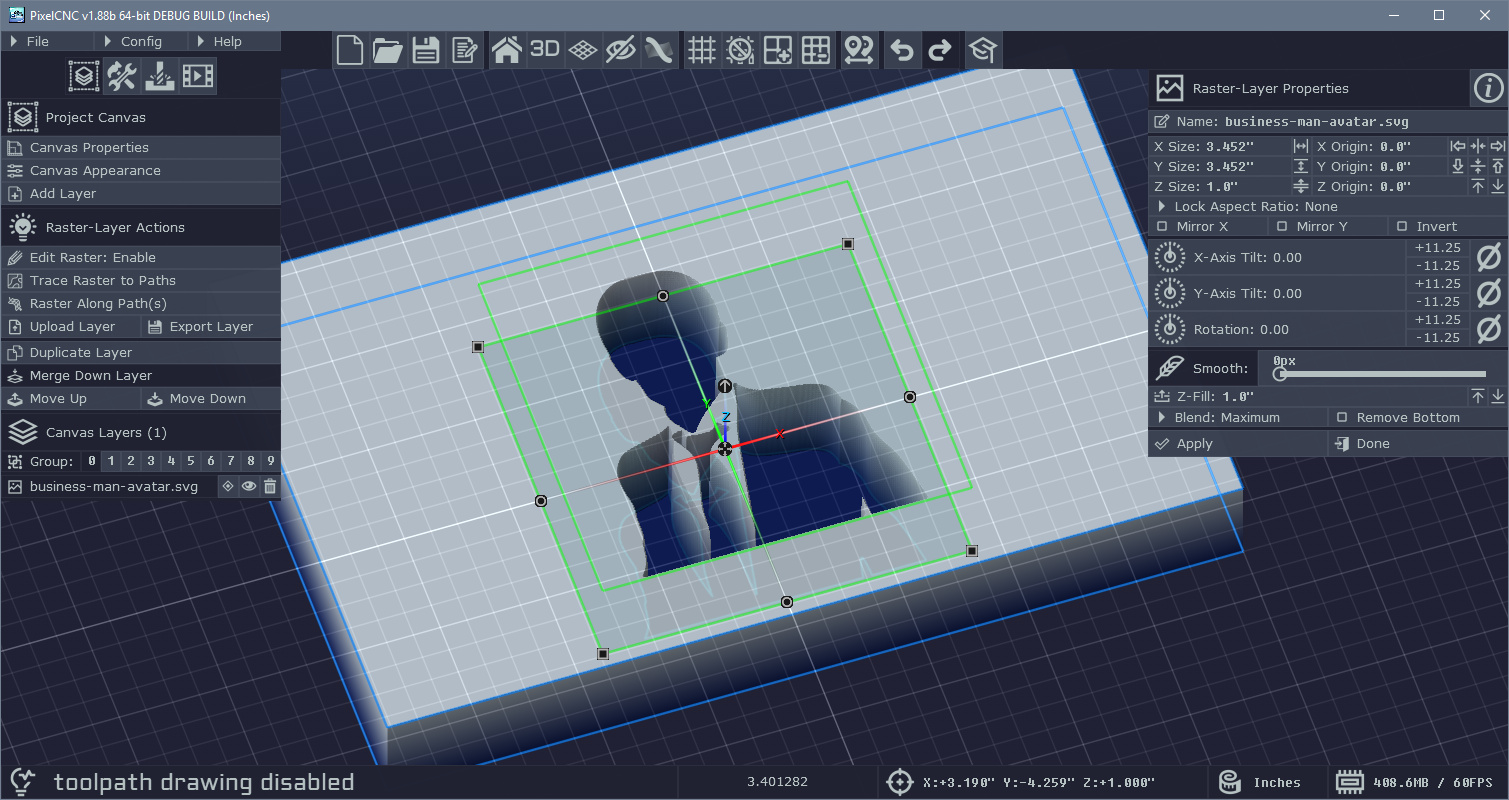
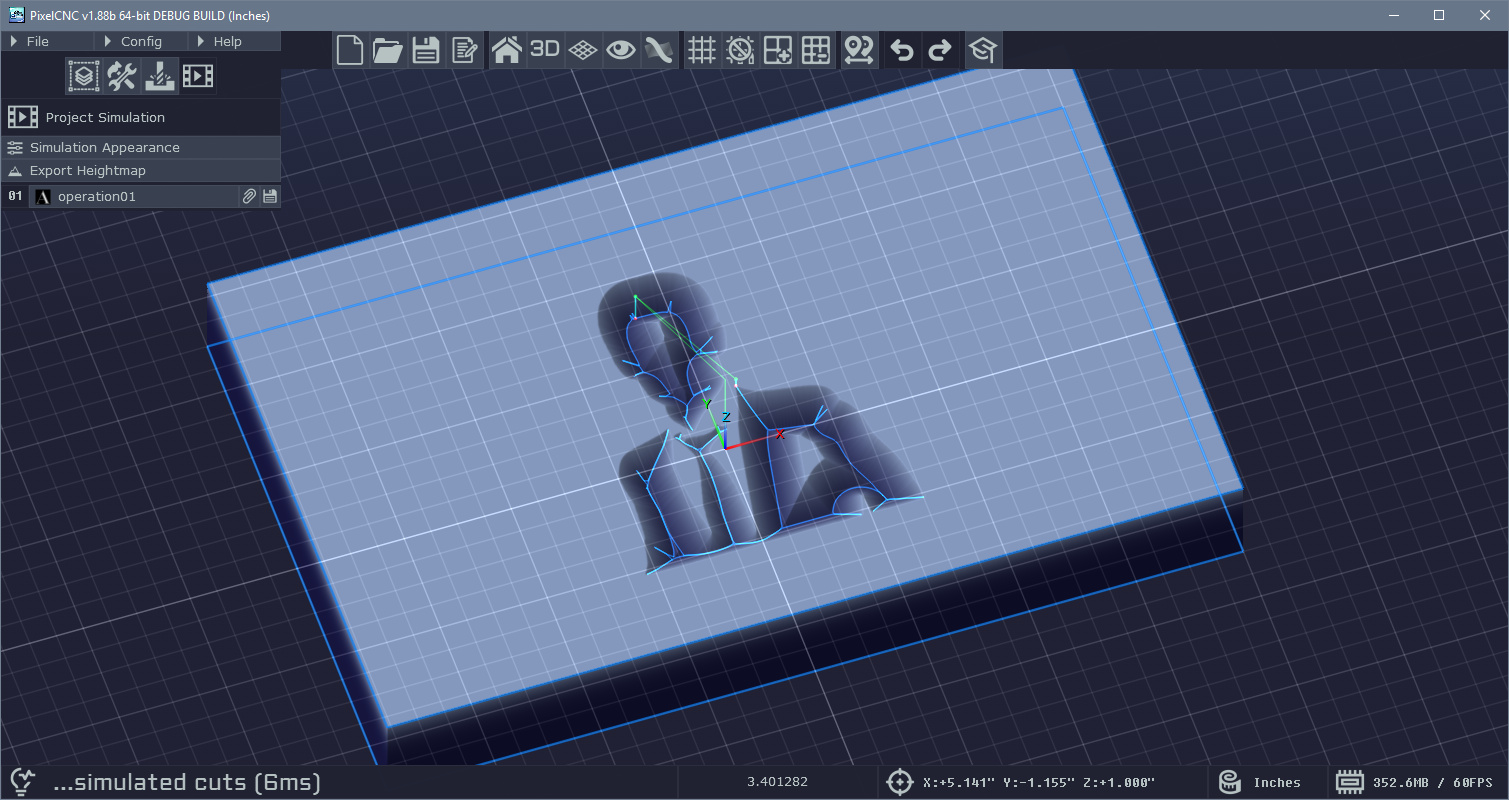
It should be fixable with a single change but from the screenshot it's not apparent whether there's a Z-fill around the layer or not.
Cheers! :]
- Charlie