On Sale: GamesAssetsToolsTabletopComics
Indie game storeFree gamesFun gamesHorror games
Game developmentAssetsComics
SalesBundles
Jobs
TagsGame Engines

Some quick tips for Decker beginners Sticky

A topic by treegravy created May 07, 2025 Views: 889 Replies: 5
Viewing posts 1 to 4
HostSubmitted(+9)

(youtuber voice) Hey guys. Tree Gravy Dot Itch Dot Eye Oh here. And today we’re gonna be talking about the Top 5 Things I Wish I Knew As A DECKER Noob:

  1. When you have any drawing tools selected, you can press M on your keyboard to hide the menu bar at the top, so that you can actually see the whole canvas. You’re welcome.

  2. You can remove the menu bar at the top of your deck when you finish it by going to File => Properties and then selecting Protect.

  3. Make sure you lock any widgets you don’t want the viewer to be able to interact with! Select a widget (or multiple) and then go to Widgets => Locked. Locked widgets will have a little lock icon in the top right corner when selected. There’s no risk of people being able to permanently alter your game or something like that, it can just be confusing and/or immersion-breaking to accidentally double-click on something like a text field and then be prompted to edit it.

  4. You can change the color palette by dragging and dropping a .hex file on top of the program window. Lospec is a great place to search for color palettes. Decker uses 16 colors in its palettes at a time. There are ways to bend the limitations a little bit, such as using different palettes per card. However, if you’re new to using Decker, I highly recommend just keeping it simple and committing to just one palette all the way through. Remember that the black-and-white screen tones can be used interchangably with colors as well.

4.5. You can create your own palettes by creating a new file on your computer and giving it the .hex extension (rather than .txt for example), then opening it in a text editor. Type in your 6-digit color hex codes (hex codes being e.g. #ffffff) without the # sign, creating a new line for each individual color. The darkest color of the palette will be interpreted as its “black”, and the lightest color will be interpreted as its “white”; you will see the colors of the entire program shift based on this when using different palettes.

4.5.5. If you try to use your custom palette in Decker and the window just goes solid black, then click and drag a working color palette onto the window, check to see where you made any mistakes in your file, then try again. You don’t need to “refresh” the color palette in between like this EVERY time you import a palette that turns out to be broken, only if its so broken that Decker is unable to interpret it and thusly just interprets every color as being #000000/black…because, well, in that case, you can’t see anything…

  1. Decker has a good amount of extra resources available for you to use by default. I highly recommend looking through the decks in the Examples folder and checking it all out. There are a lot of them, but not all of them may end up being relevant to you. I still think it’s worth eventually getting to reading (or at the very least skimming) through all of them at some point or another just to see what’s inside. You might end up being pleasantly surprised by what you find in an Examples deck that you had initially written off as useless to you.

Thabjs for watchinfg. Make suere you smash thaf liek button and

(Also, if anyone else has any tips of their own to add on to this, feel free!)

Submitted (1 edit) (+5)

Yay! This is a really good thread idea.

My absolute favorite beginner tip is the bring out the TOOLBARS.

Decker > Toolbars in the menu. 

It has all your drawing tools, colors, and the ability to swap between Widget mode and Interact mode with a single click.


Also, y'know how you can navigate cards with the arrow keys? That's the navigate[] event, and it can be modified so that your players can no longer sequence break or poke around where they shouldn't. (Sorry players.)

My personal favorite recommendation for people who aren't sure what to do with that is to borrow the Deck-level script from Internet Janitor's Dex Vex:

on navigate x do
 if !deck.locked send navigate[x] end
end

This deactivates the arrow key navigation if the deck is Locked/Protected -- which people often choose to do when publishing to remove the top Menu Bar from the final project, as mentioned above by treegravy.

But this version of navigate[] still lets you (the person making the deck) use arrow keys while you're working on your Unlocked project.

Put this in the script section that you find in the menu at File > Properties > Script... if you want to try it. 
(If you don't like it, just delete this part of the script later -- Decker will return to the default navigation)

---

Some Visual Novel considerations:

It's super possible and very cool to make Visual Novels in Decker without any kind of scripting.

Put text and images on a card. Use buttons that lead to other cards to move forward through the story or make choices.

It's just the basic widgets and your story however you want to tell it.

A recently published deck in this style is Ed Naarel's take me to the lakes where all the poets go to die --  please check the content warnings on any of the links in my post before playing, lol -- which has plenty of flourish and  storytelling using this kind of button navigation between cards.

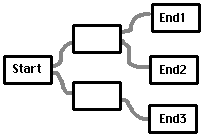
A way to think about this kind of Deck is that it's sort of like laying out physical notecards and connecting the paths between them with string. (But the string is buttons....)

Whether it's Linear:

Or Branching:


It's just cards connected together and it works great for lots of projects.

---

On the other hand, for something a bit more similar to a standard visual novel engine there are the officially supported modules: Dialogizer and Puppeter. (Both can be found in your examples folder)

The Dialogizer module creates dialog boxes, and can read a (narrative) script written in a text field so you don't need to (code) script very much at all, except for set-up.

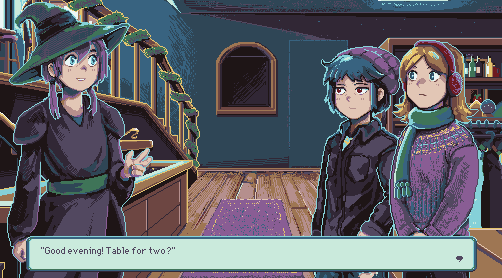
The Puppeteer module can display images of characters and can move them around for a traditional visual novel sprite experience. It's very easy to change expressions or have a bunch of characters in one scene. And it was built to work well with Dialogizer to do exactly this:


In this case, the way the Deck is set up is a bit more like a stage play where you might not have as many cards (backgrounds) but you can have much longer scenes play out on each one. 

And you will probably need to have some "behind the scenes" cards, where your character sprites are stored. (I like the metaphor of these being the Character's Dressing Rooms, Prop storage and so on).

There's a bit more set-up involved with this kind of Deck than when making a no-script project. But it's really not too hard to get started with these modules as a newer user. I know of several people who used these in their first projects.

(And I'm sure a longer thing can be written up about how to do it, if people want to use it but are having trouble).

---

If none of this feels right.... you can definitely make your own concept and ideas for how you want your story to be presented or for how the player should interact. Decker is very flexible, and a lot of us love to help people figure out how to make those ideas real inside the program.

Some further examples of different storytelling:

Air Gong's Daisy Chain comes to mind -- it uses a wide variety of widgets and a more multimedia-type experience to tell the story. 

Or alternatively there are narrative explore-a-computer games like trainspotter's EyeOS or Gray-LoFi's  Old Web Cobwebs that might be inspiring for other ways to tell stories -- or parts of them -- in Decker, even if they're less traditionally Visual Novel-y.

---

Some specific example folder decks that are broadly helpful, or have useful resources:

All about Color (Info on color palettes, 1-bit patterns, importing images, etc)

All about Sound (Info about sound! Just the basic Decker stuff, not how to use Millie's JankyTunes)

All about Fonts (Bonus fonts exist in here! And you can make your own!)

All about Brushes (Bonus brushes for your art! And instructions to make more. I really love some of the brushes in here!)

Public Transit (I can't find an online mirror of it yet but it's in your Example Folder! It has even more Card Transitions!)

(1 edit) (+4)

...the lakes... mentioned! <3

I'll be uploading the unlocked version of the deck after Velox Formido 2 unlocks the upload ability for me so that everyone can maybe check how exactly things were made, since many people expressed their interest in trying out Decker after seeing how well it worked for ...the lakes..., so if anyone out here is curious about how certain things were achieved, you'll probably be able to find out soon. I'll edit this comment once I upload the unlocked deck.

EDIT!!! The unlocked .deck for ...the lakes... is available now if you follow the link in the post! You need to download it and open it in your Decker, it's free for you to go through, poke around and get inspired by <3

Submitted (2 edits) (+5)

I have a few tips that have not been covered yet

JankyTunes tips

Regarding sound, a few times people have mentioned my JankyTunes contraption, which hopefully should have enough documentation on how to use it already contained within, but people have asked if/how it can be used to play during a Dialogizer sequence. It is possible! There is some details on this in the "Advanced Features" section of its own doco but I will try to explain in less terse terms here.

Essentially, the way Dialogizer allows other scripts to run while it's doing its thing is by each frame calling an "animate[]" function that we can define on the card or deck level. You may be familiar with this if you've used Puppeteer in conjunction with Dialogizer, as its setup process requires putting such a function in place.

We can use this same functionality to get JankyTunes playing while Dialogizer runs. JankyTunes has its own animate function, designed to be called once a frame when there's something blocking the usual function. Basically the same as Puppeteer's "animate" function that's called in the Puppeteer setup process.

So basically, you can put something like this in the code section for a card with a jankytunes widget on it, and it'll not only be puppeteering but also jankytunesing!

on animate do
 pt.animate[deck]
 jankytunes1.animate[]
end

You can also take advantage of this same function to have a card playing music from a jankytunes on a different card - i.e. so you can have continuous music playing across multiple cards. I wrote a bit about this in the jankytunes blog, in this post! You could even use these two techniques together - just changing the jankytunes reference in the on animate to refer to which card the widget is on so it's like   "card1.widgets.jankytunes1.animate[]"

Getting jankytunes to play through a card transition however is not something I have a solution for though, so if you have like a fade between two cards the music pausing while this happens might be unavailable. I think for a lot of VN-type things you may want like a "tune per location" thing so having one jankytune on each card playing a relevant location tune while the characters puppeteer around and dialogueise at each other might be a good way to do it.

Looping multiple sound clips

But JankyTunes is not the only way to break the ten-second barrier of Decker music. Decker does have the ability to play a sound on loop - but it also lets you override the loop handler, which means with a bit of coding you could have it cycle through a series of sounds. I did something like this in my Asteroid Run game, which you can grab the unlocked deck to take a look at. But a simple version is just having a hidden slider to use as a counter, and then every time the counter increments playing a different sound. Although, I've found it works best if you separate each clip on the beat or between bars, since the loop is not always seamless.

Tips for sound importing

One thing with Decker's audio is that it is SUPER crunchy. Basically it's 8khz, 8bit mono. 8khz means basically that it's super muffled, so high-frequency sounds basically aren't there. And 8bit means that there's not much dynamic range, so things can get pretty fuzzy/noisy sounding if it's not at max volume. So if you're creating sounds for Decker it helps to take this into account - I've found that recording with more normal settings and then using Audacity to boost up the volume and compress the dynamic range a bit can help things import in nicely. Another thing to note is that audio sounds pretty different between native-Decker and web-Decker - they each handle the interpolating up to your computer's more normal 48khz 16-bit differently so it has a different sound, and the timing in native-Decker is not as tight as in web-Decker (this is why jankytunes often sounds out of time in native decker). Since we're releasing stuff on the web in itch, it's worth checking how the sounds sound in web-Decker to make sure it's what you want.

Puppeteer lip flap tips

One great Puppeteer feature is that in conjunction with Dialogizer, if you have Dialogizer set to have text appear one word at a time, you can have Puppeteer animate the lips along with the text appearing. This is pretty well covered in the doco for the two modules, but a challenge I had at first was figuring out what a good lip flap animation was. Until fellow deckmaker ahmwma told me about the Phoenix Wright trick, which is basically an animation sequence of "closed mouth -> open mouth -> half open mouth -> open mouth -> closed mouth". It's pretty effective, and I've used it in a few of my games. So maybe that'll come in handy for you.

Submitted(+4)

additionally, if you are using millie's "play jankytunes across cards," the card-level script to get the music to play across cards AND during dialogizer is:

on animate do  
 pt.animate[deck]  
 card1.widgets.jankytunes1.animate[]
end

where card1 is the card the original jankytunes is located on and jankytunes1 is that specific card's jankytunes's name. (just in case you renamed your cards / the jankytunes contraptions.)

if let's say you have two different jankytunes contraptions for songs you want to play during act 1 vs. act 2, you would just replace "card1" with the new reference point, i.e. 

card2.widgets.jankytunes2.animate[]

just be careful and watch out if you rename things to make sure the substitutions are correct!

(+5)

A while back I wrote Scripting One-Liners, which illustrates several ways to add simple bits of interactivity to decks with only a single line of Lil code. Might be handy for anyone trying to dip their toes into scripts!