
Indie game storeFree gamesFun gamesHorror games
Game developmentAssetsComics
SalesBundles
Jobs
TagsGame Engines

Hotscreen

Add very hot effects to your screen. · By PerfectFox265

Report your bug here Sticky

A topic by PerfectFox265 created May 09, 2025 Views: 6,635 Replies: 119
Viewing posts 44 to 54 of 54 · Previous page · First page

Some detections don't work in full-screen unless I turn off detect small bodyparts x4

Developer

"in full screen" You mean if you watch a video/game in fullscreen ? Weird.
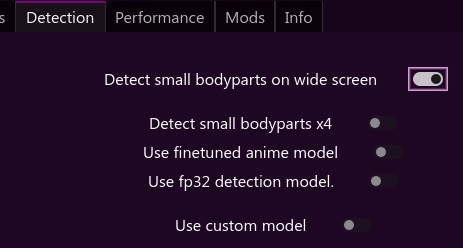
Is Detect small bodyparts on wide screen enabled ?

(2 edits)

Yes Detect Small body parts on widescreen was enabled. I think it was just one time, I'm not sure. I'll mention it again if it notice it or it starts bothering me.

Don't mean to send you on a wild goose chase but I am seeing boxes work on thumbnails and then when enlarged it's no longer censoring it.

Specifically for me it's the reveal area censor function. 

(+1)

Would be nice if the pixel slider bar was bigger or had a field to enter the exact #. It is hard to get precise. Maybe increase font size too. Thank you.

The overlay doesn't always stay on top when a new window is opened. I have to manually alt-tab back to it for the censorship to work.


Hotscreen using profile : default

Hotscreen Overlay starting at Max FPS : 179

Translations added from ./CUSTOM_DATA/translations.csv — languages : ["en", "zh", "es", "fr", "ar", "ru", "pt", "ko", "ja", "de"]

Using saved language code : en

Windows version : Microsoft Windows NT 10.0.26100.0

CPU : AMD Ryzen 5 7500F 6-Core Processor, Cores : 6, Threads : 12, Max clock : 3701 MHz

Using video adapter : NVIDIA GeForce RTX 5070 from NVIDIA type DiscreteGpu

Driver infos : d3d12 version 12_0 api 12_0

Adapter 0 NVIDIA GeForce RTX 5070

Screen Rect 0 : Rect { X = 0, Y = 0, Width = 2560, Height = 1440, Top = 0, Bottom = 1440, Left = 0, Right = 2560, Location = Point { X = 0, Y = 0 }, Size = Size { Width = 2560, Height = 1440 }, TopLeft = Point { X = 0, Y = 0 }, BottomRight = Point { X = 2560, Y = 1440 } } Orientation : 1

Screen Rect 1 : Rect { X = 2560, Y = 296, Width = 1440, Height = 900, Top = 296, Bottom = 1196, Left = 2560, Right = 4000, Location = Point { X = 2560, Y = 296 }, Size = Size { Width = 1440, Height = 900 }, TopLeft = Point { X = 2560, Y = 296 }, BottomRight = Point { X = 4000, Y = 1196 } } Orientation : 1

Adapter 1 Microsoft Basic Render Driver

Starting Screen Recorder

Initializing DXGI using Video card 0 and monitor 0

DXGI initiated with a resolution of 2560 x 1440

Max FPS Record start at 179

Hotscreen version : Windows - Full version - v0.7

Max FPS of Overlay set to 179

Frame Latency of screen set to 0

MaxFPSRecord at 179

Avx is supported.

Detection starting using model : ./models/hs-real-y11n-320-fp16.onnx

Detection starting using eye model : ./models/eyes-detection-01.onnx

Detection starting using device : 0

Max FPS Detection start at 179

Use double Detection start at False

Update time of eyes detection start at 0

Setting MaxFPSDetection at 179

Setting usePreciseEyesDetection at 1

Setting useDoubleDetection at 1

It's only detecting my wallpaper and not any applications I have open. What may be happening?

I have messed with the config a bunch and it's still having extremely poor detection of anything that isn't my wallpaper. 

Developer

This settings should work well, especially for realistic style. Black&white expressive 2d style can be hard to detect, even for the finetuned anime model.

I have attempted toggling all of them, but it doesn't seem to work. However it seems to be tied to screen recording. Starting it recording on my 2nd screen makes it briefly work on my first screen. But them it breaks about 2 minutes later and stops functioning again.

Developer

Please post here the content of hotscreen_logs.txt.

When using DXGI and adding a Screen Latency larger than zero, my screen gamma seems to be thrown out of whack. Funnily enough I can't capture it on a screenshot because it corrects it. It works with BITMAP recording method just fine.

Hotscreen using profile : default Hotscreen Overlay starting at Max FPS : 60 Translations added from ./CUSTOM_DATA/translations.csv — languages : ["en", "zh", "es", "fr", "ar", "ru", "pt", "ko", "ja", "de"] Using saved language code : en Windows version : Microsoft Windows NT 10.0.26200.0 CPU : Intel(R) Core(TM) i5-10400F CPU @ 2.90GHz, Cores : 6, Threads : 12, Max clock : 2904 MHz Using video adapter : AMD Radeon RX 7600 XT from AMD type DiscreteGpu Driver infos : d3d12 version 12_0 api 12_0 Adapter 0 AMD Radeon RX 7600 XT Screen Rect 0 : Rect { X = 0, Y = 0, Width = 1920, Height = 1080, Top = 0, Bottom = 1080, Left = 0, Right = 1920, Location = Point { X = 0, Y = 0 }, Size = Size { Width = 1920, Height = 1080 }, TopLeft = Point { X = 0, Y = 0 }, BottomRight = Point { X = 1920, Y = 1080 } } Orientation : 1 Adapter 1 AMD Radeon RX 7600 XT Adapter 2 Microsoft Basic Render Driver Starting Screen Recorder Initializing DXGI using Video card 0 and monitor 0 DXGI initiated with a resolution of 1920 x 1080 Max FPS Record start at 60 Hotscreen version : Windows - Full version - v0.7 Max FPS of Overlay set to 60 Frame Latency of screen set to 1 MaxFPSRecord at 60 Avx is supported. Detection starting using model : ./models/hs-real-anime-y11n-640-fp16.onnx Detection starting using eye model : ./models/eyes-detection-01.onnx Detection starting using device : 0 Max FPS Detection start at 60 Use double Detection start at True Update time of eyes detection start at 0,1 Setting MaxFPSDetection at 60 Setting usePreciseEyesDetection at 1
Developer

Hotscreen doesn't work with HDR but I don't think it's the problem here. Where do you set the gamma of your screen, in the AMD settings ?

Hi, I downloaded the full version today and I'm having trouble with the app's opacity. The menu is semi-transparent from the start, and when I launch any collection, the censors also easily show through, even with opacity set to 100%. 


Hotscreen using profile : default

Hotscreen Overlay starting at Max FPS : 30

Translations added from ./CUSTOM_DATA/translations.csv — languages : ["en", "zh", "es", "fr", "ar", "ru", "pt", "ko", "ja", "de"]

Using saved language code : pl

Windows version : Microsoft Windows NT 10.0.19045.0

CPU : Intel(R) Core(TM) i5-4670K CPU @ 3.40GHz, Cores : 4, Threads : 4, Max clock : 3401 MHz

Using video adapter : AMD Radeon HD 7900 Series from AMD type DiscreteGpu

Driver infos : d3d12 version 11_0 api 11_0

Adapter 0 AMD Radeon HD 7900 Series

Screen Rect 0 : Rect { X = 0, Y = 0, Width = 2560, Height = 1440, Top = 0, Bottom = 1440, Left = 0, Right = 2560, Location = Point { X = 0, Y = 0 }, Size = Size { Width = 2560, Height = 1440 }, TopLeft = Point { X = 0, Y = 0 }, BottomRight = Point { X = 2560, Y = 1440 } } Orientation : 1

Adapter 1 Microsoft Basic Render Driver

Starting Screen Recorder

Initializing DXGI using Video card 0 and monitor 0

DXGI initiated with a resolution of 2560 x 1440

Max FPS Record start at 10

Hotscreen version : Windows - Full version - v0.7

Max FPS of Overlay set to 30

Frame Latency of screen set to 0

MaxFPSRecord at 10

Avx is supported.

Detection starting using model : ./models/hs-real-y11n-320-fp16.onnx

Detection starting using eye model : ./models/eyes-detection-01.onnx

Detection starting using device : 0

Max FPS Detection start at 10

Use double Detection start at True

Update time of eyes detection start at 0,2

Setting MaxFPSDetection at 10

Setting usePreciseEyesDetection at 1

Closing...

Setting usePreciseEyesDetection at 0

Screen recorder thread ends correctly.

Developer

This is an incredible bug. You don't have the last update of DirectX12 (neither Windows) so you should update your graphic drivers and test it again.

(+1)

Just updated to v0.7 from 0.6 and it seems that the Screen Latency to detect delay keeps resetting to 0 frames after a few minutes. Appears to even happen when the app is in 'Locked' mode so it's definitely not being manually updated when it reverts from the previous value

I believe it's a countermeasure necessary to avoid freezing your pc - in v0.6 it was set so any time that your pc lagged, it got set back to 0. In 0.7 it got changed, but I can still notice this changing to 0, especially after some resource devouring actions

0.7 opens for a split second and then closes. 0.5 worked fine for me. How do i fix it?

Developer

If hotscreen_logs.txt is not created, start hotscreen.exe from a command line :
Right click on the Hotscreen folder -> Open in Terminal Then type hotscreen.exe

(+1)

have told hotscreen to open up (0.7) on startup. It clearly does but the blocking doesn't work until I close it and reopen it, is this a known bug?

Developer

Weird. I just tested it on windows 10 and 11 and it worked. Be sure to have Screen selected at startup to Last used screen. (in case you have multiple monitors)

i only have the one screen. it starts up as planned but the filters just do not work at all. i have to close and reopen for the filters to work.

(+1)

looked through my screen options and it had 
0 Nvidia - GPU
1 AMD - iGPU
2 Nvidia - GPU

so it was listing 0 and 2 as same device. i have chosen 2 now and it may have fixed it. Thanks for the pointer
Hi, I have the following problem: when I lock HotScreen with a password, for example with the password 123, and then restart the PC, HotScreen starts as it should when Windows starts. However, HotScreen is no longer locked, but it behaves as if it were locked; that is, it cannot be closed until I re-enter the password in the field where it is normally entered to lock it. After restarting, I can freely use the HotScreen menu.

To briefly summarize the problem again, if I have entered a password and then restart the PC, the HotScreen menu is no longer locked but starts without the lock, although it behaves as if it were locked.


Developer

Indeed ! I fix this.

Thank you

Hello, I've tried several hours to create a video with OBS, but I get not a single one which includes the record and the censors. Can you explain please, in which order I have to set the sources (Overlay/video/Recorded window) and if there are any other settings, that I have to change?

Developer
  1. Performance / Screen latency to correct delay to 1
  2. Tools / Create a recordable window
  3. In OBS, start the capture of the recordable window
  4. Tools / Hide the window
Viewing posts 44 to 54 of 54 · Previous page · First page