Indie game storeFree gamesFun gamesHorror games
Game developmentAssetsComics
SalesBundles
Jobs
TagsGame Engines

Uwe Kronemann

34
Posts
15
Topics
2
Following
A member registered Jun 25, 2021 · View creator page →

Recent community posts

Pardon Dorial886 - my misunderstanding.

I had think you meen the export from 3d-scenes or 3d-objects!

(My English is not the best) I make my renders with Poser13 and Terragen4.

My Forum: www.3d-board.de ) You can visit, its for everyone!


What I know:

1) FlowScape can export: screenshots (2K-8K Pixels)

2) FlowScape can export: panorama (2d 360grad-panoramas)

3)FlowScape can export: png-pictures for animations

 (the MP4 from the png-pictures you can make with a VideoStudio-App)

(The MP4 is compatible to all YouTube and forums) 

?? Exportation from settings I never heard, its special!)

....with greeting, U.Kronemann
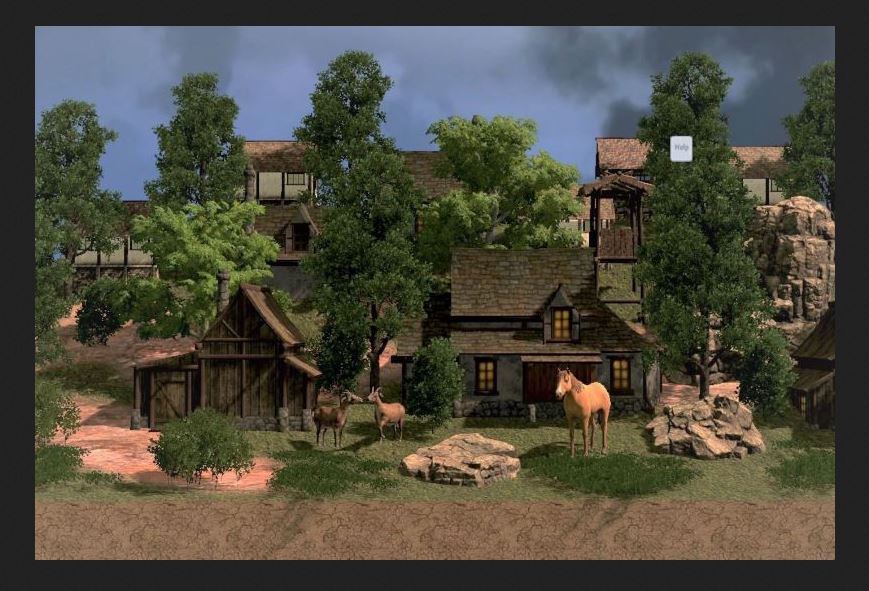
FlowScape1.5 its perfect! The app ist great and complete and with 400 models!

You can build a "FlowBibliothek" for you  with beauty OBJ-models to import in FlowScape scenes!

I made this! . . much fun with the beauty Flow! U.Kronemann
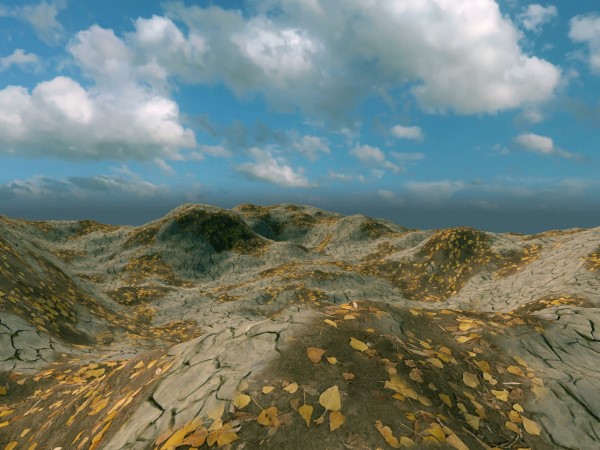
 To theme "Export complete FlowScape-3d-scenes"

Every other 3d-application has special 3d-formats!

(Bryce7, Carrara, Terragen, VUE, Poser, DAZStudio, Blender, Hexagon etc.)

(OBP, OBJ, FBX, BLEND, TGO, VUE, DAE. . .  are all special formats)

Only per OBJ-format is Import/ Export (objects/ scenes) possible, 

but the OBJ-models must be scaled and preparated!

Its better to import OBJ-models into the FlowScape world!

A export of the complete FlowScape-3d-scene is not good to make!

. . . much fun with the beauty!  U.Kronemann
 To theme "Export complete FlowScape-3d-scenes"

Every other 3d-application has special 3d-formats!

(Bryce7, Carrara, Terragen, VUE, Poser, DAZStudio, Blender, Hexagon etc.)

(OBP, OBJ, FBX, BLEND, TGO, VUE, DAE. . .  are all special formats)

Only per OBJ-format is Import/ Export (objects/ scenes) possible, 

but the OBJ-models must be scaled and preparated!

Its better to import OBJ-models into the FlowScape world!

A export of the complete FlowScape-3d-scene is not good to make!

. . . much fun with the beauty!  U.Kronemann
(2 edits)


 To theme "Export complete FlowScape-3d-scenes"

Every other 3d-application has special 3d-formats!

(Bryce7, Carrara, Terragen, VUE, Poser, DAZStudio, Blender, Hexagon etc.)

(OBP, OBJ, FBX, BLEND, TGO, VUE, DAE. . .  are all special formats)

Only per OBJ-format is Import/ Export (objects/ scenes) possible, 

but the OBJ-models must be scaled and preparated!

Its better to import OBJ-models into the FlowScape world!

A export of the complete FlowScape-3d-scene is not good to make!

. . . much fun with the beauty!  U.Kronemann
FlowScape dont need moore application-parts. FlowScape1.5 is very perfekt!

This wonderful app for 10Euro is very great for much artists and gamers!

 FlowScape is beautiful same as a VUE application, special effect same as a Houdini app

 and same fast as UnrealEngine5! (FlowScape 3d-animations)

(with landscape UK-Picture 2025) much fun with flow! U.K.

Another animation with FlowScape1.5 and Poser13

FlowScape1.5 its my "Little Unreal Engine" and Houdini! Its great using for 3d-scenes possible, also for 3d-animations.

I made a Second-Bibliothek with much OBJ-models for Import. (and 400 3d-models are in FlowScape)

LINK TO DAILYMOTION:

https://dai.ly/x9m2qwy


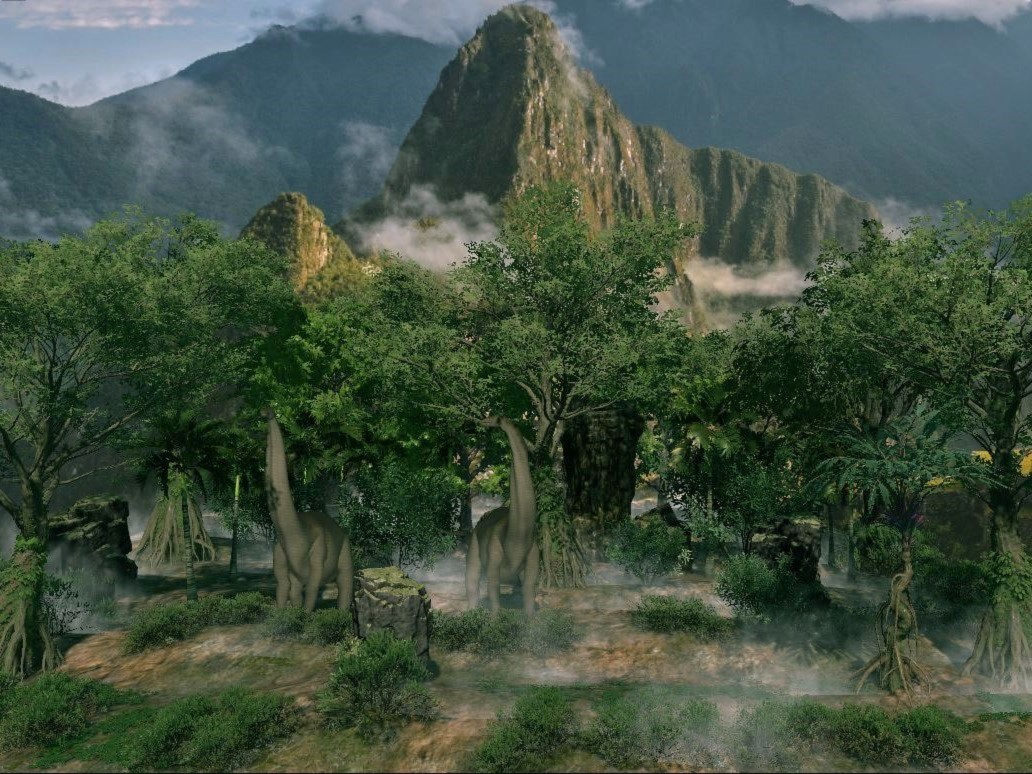
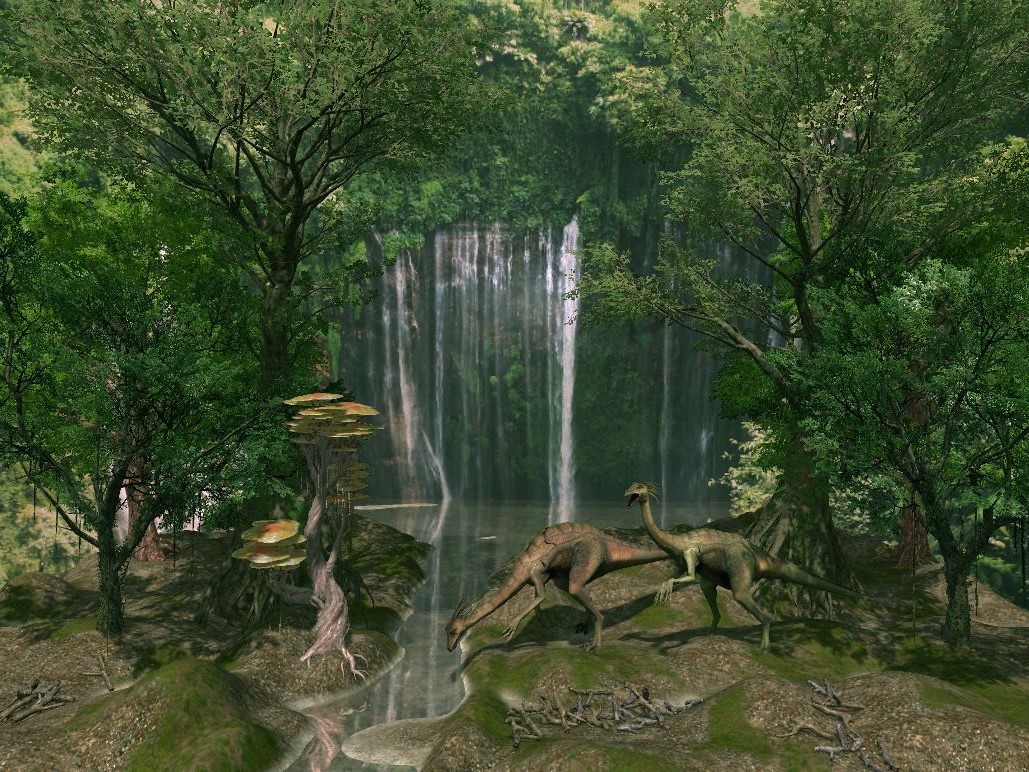
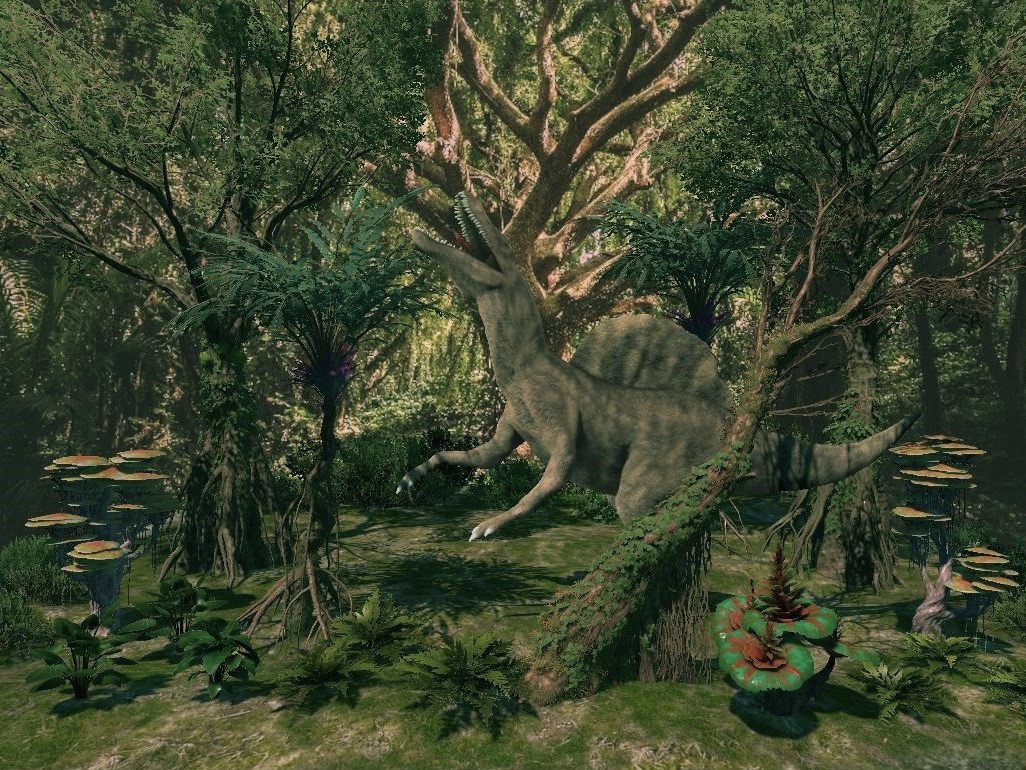
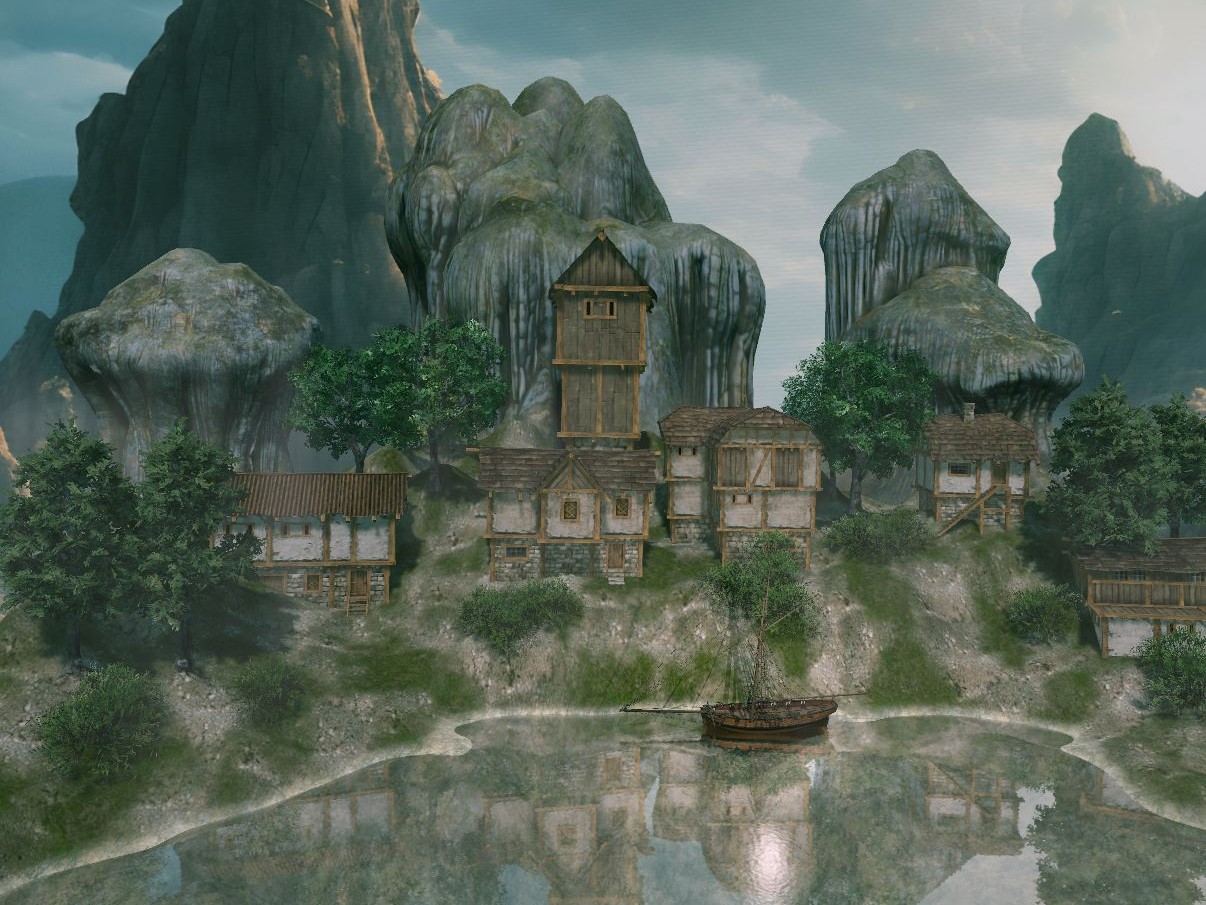
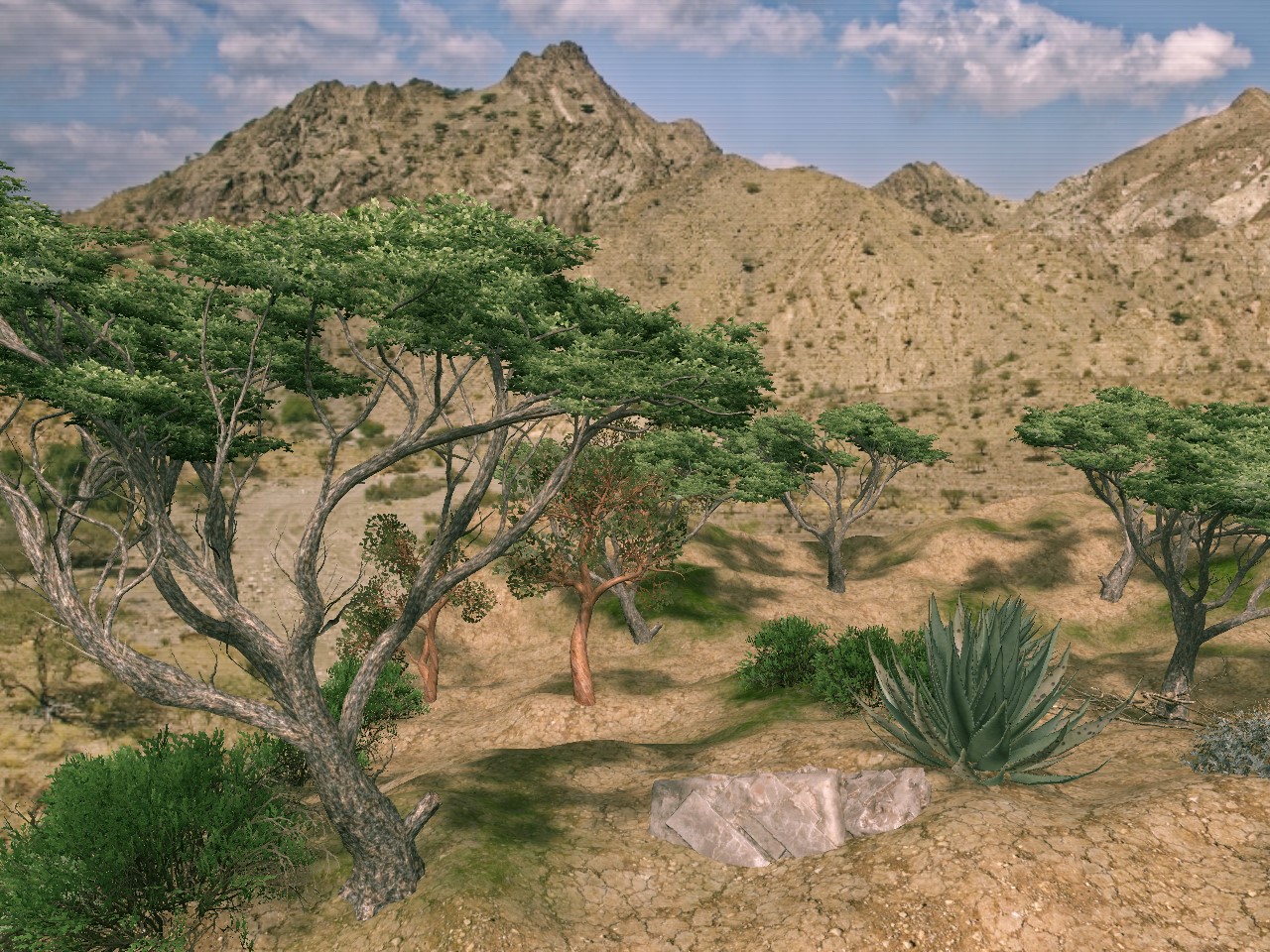
Pictures (D) "Specials Jurassic Island"


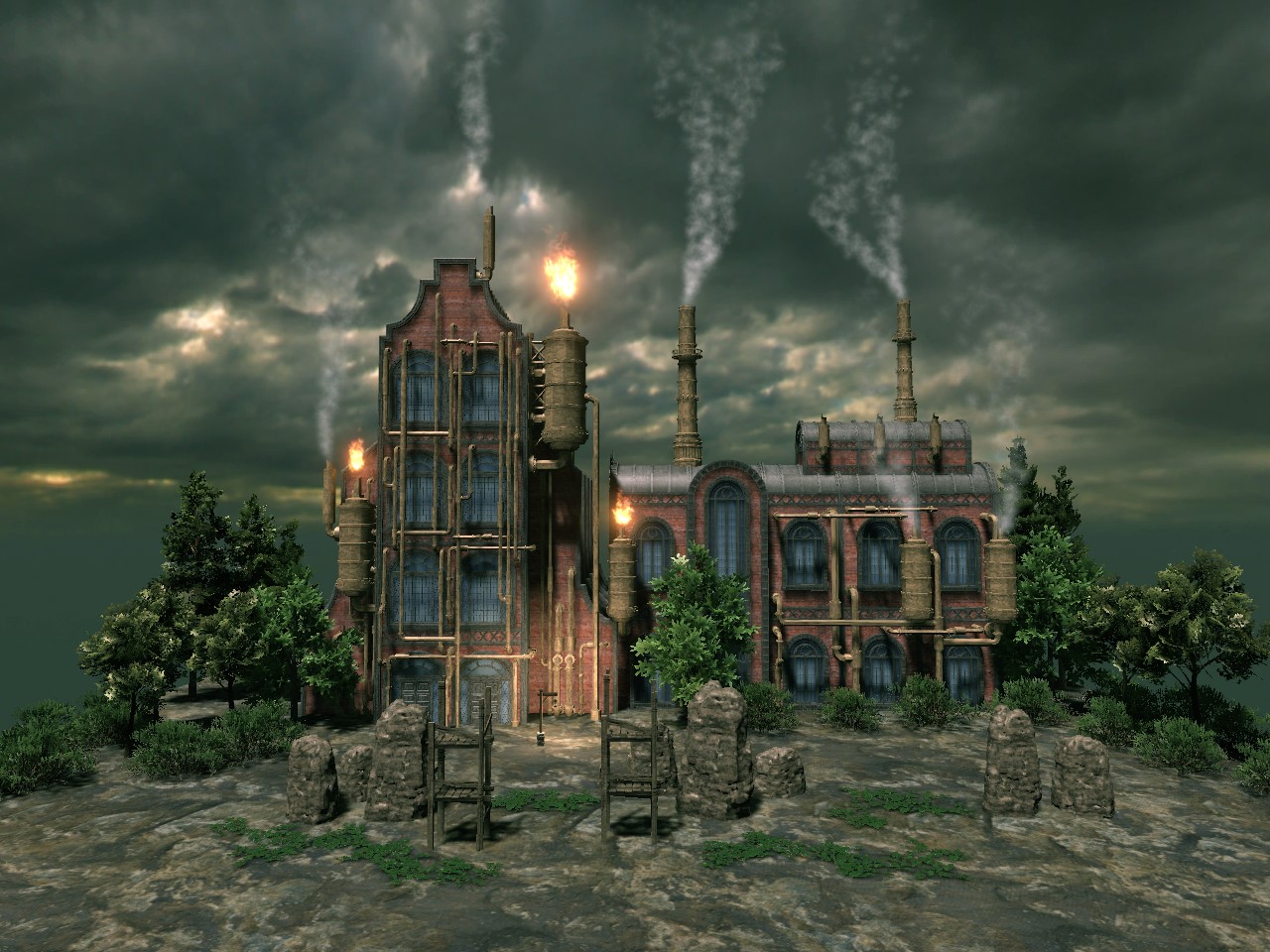
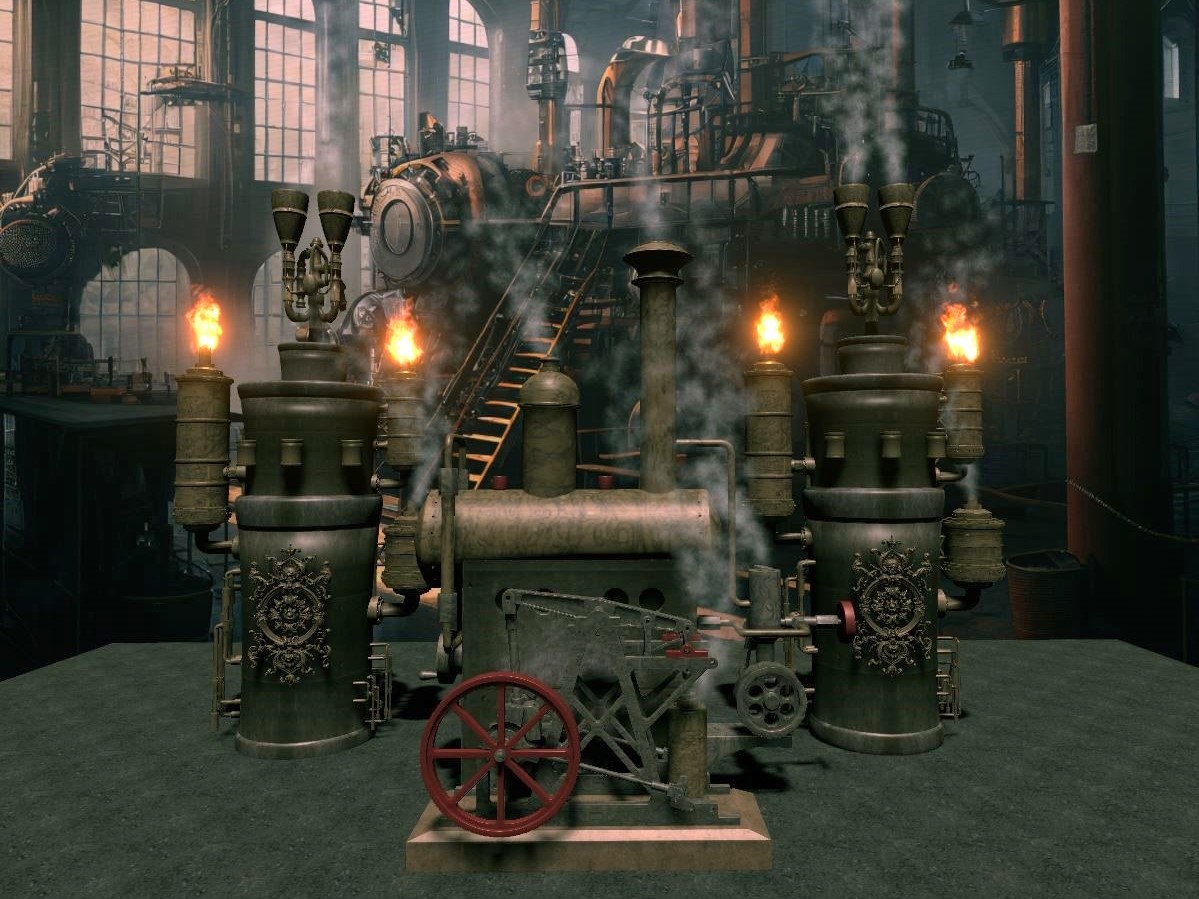
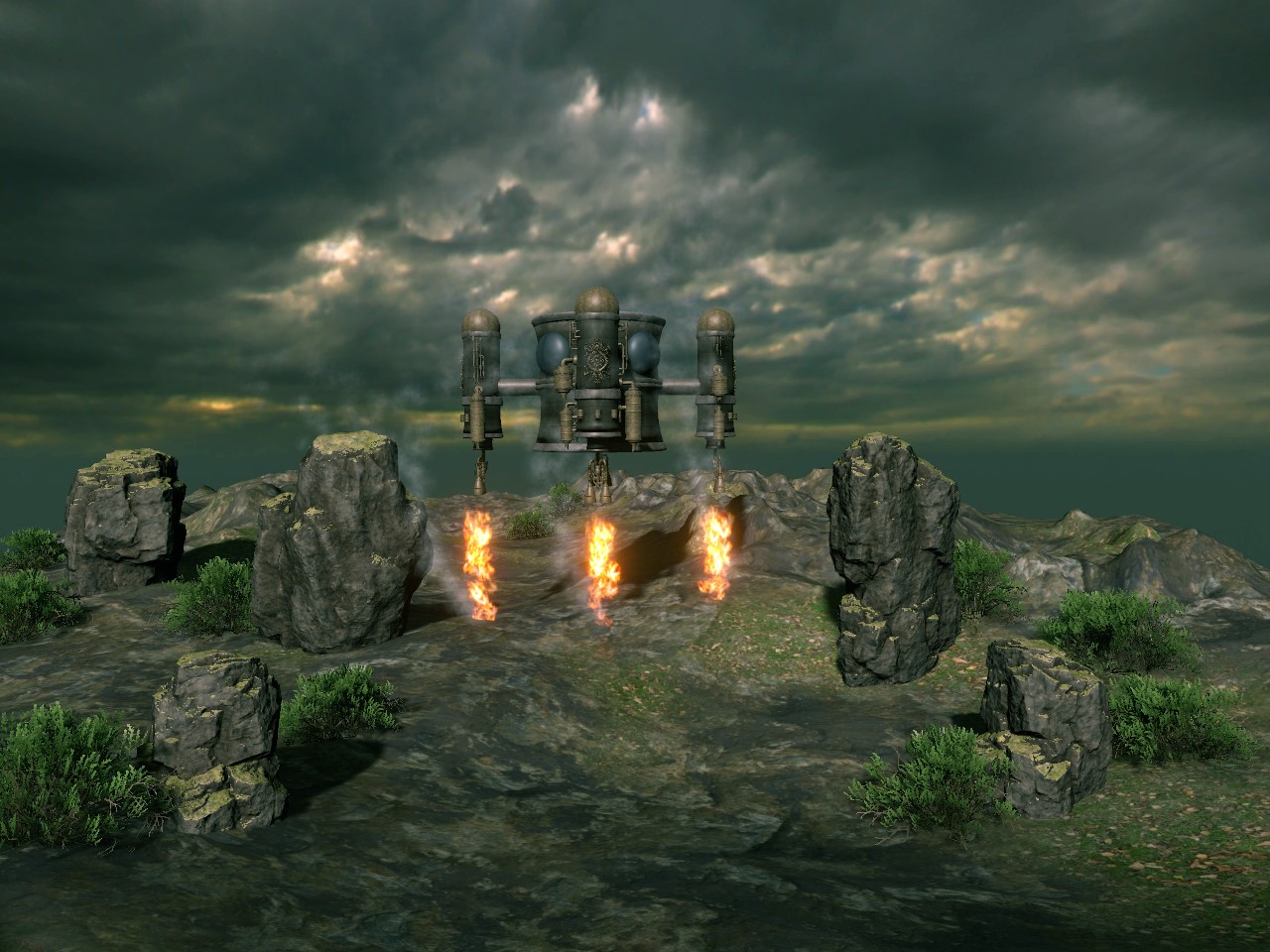
Pictures (C) "Steampunk Technology"


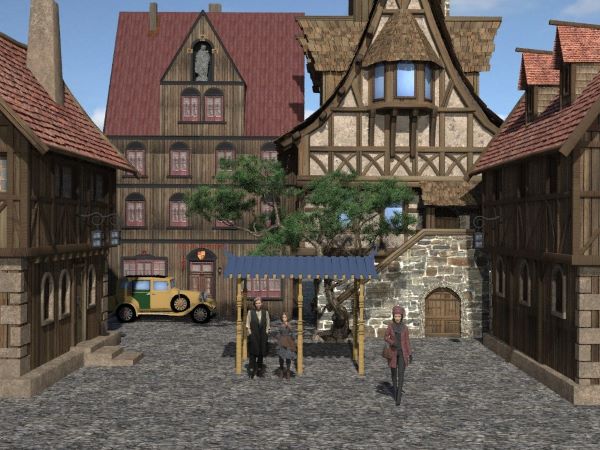
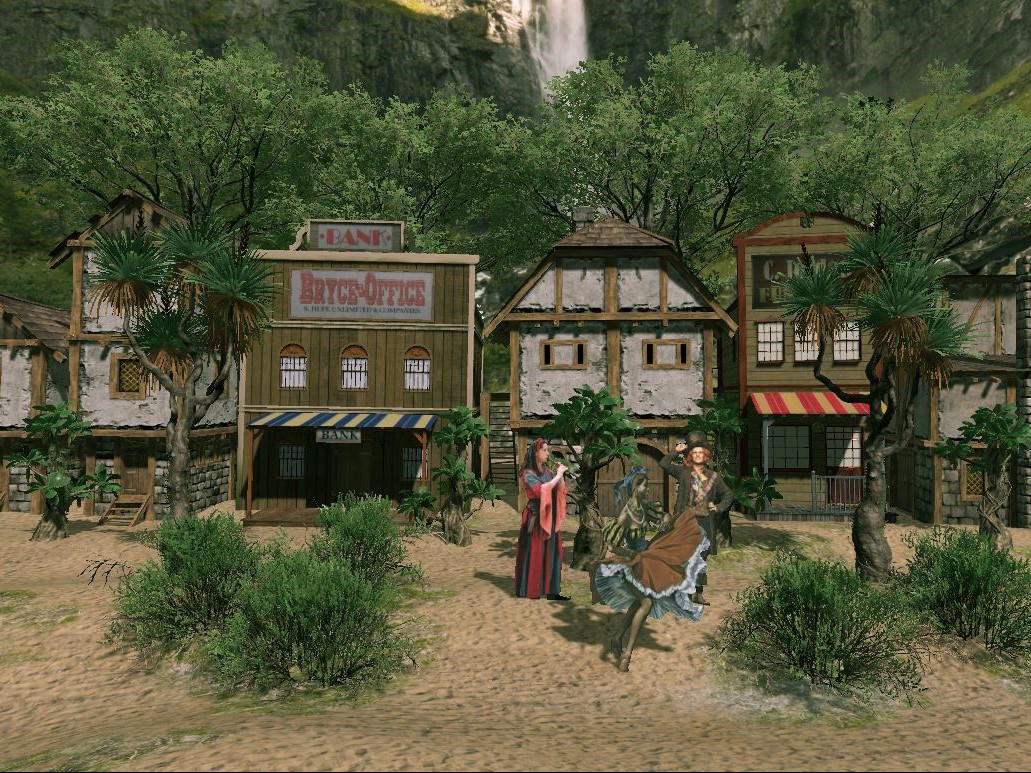
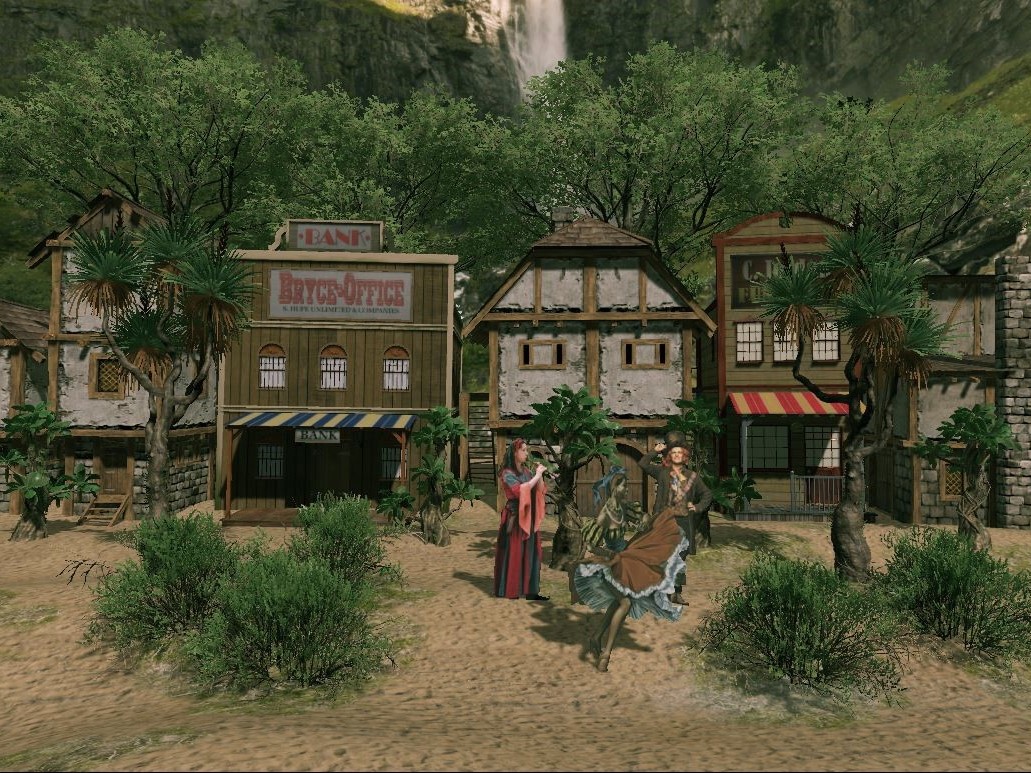
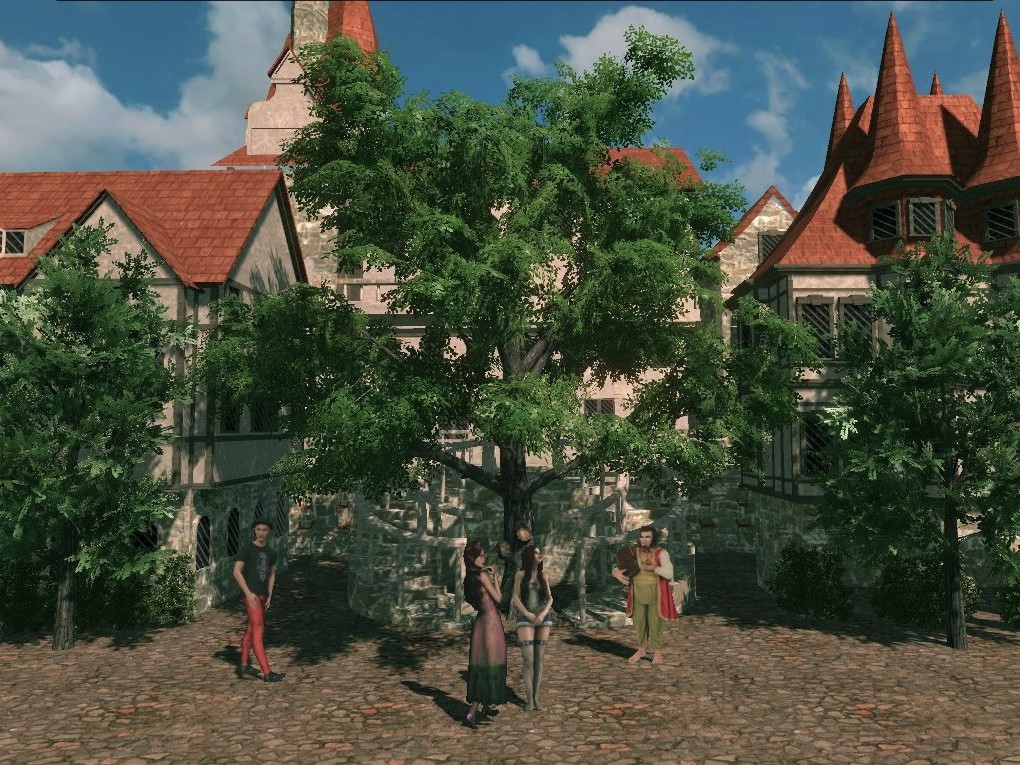
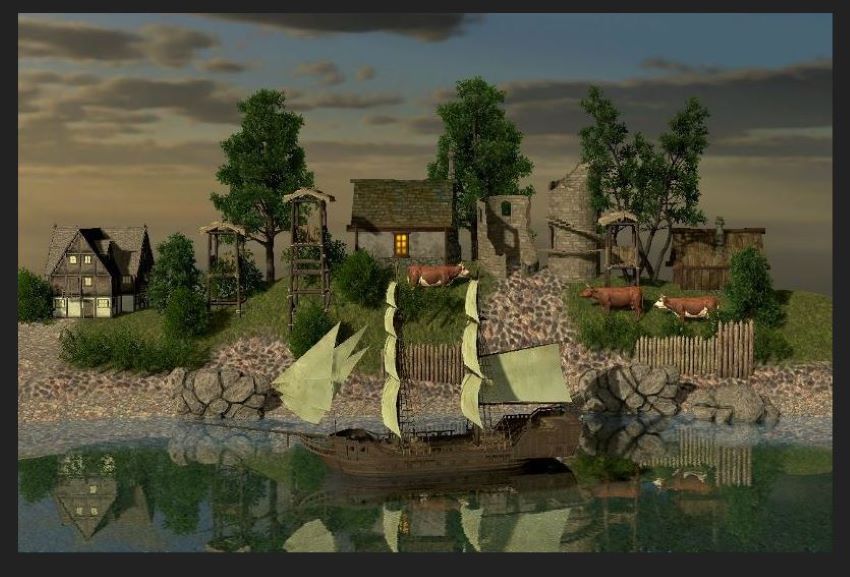
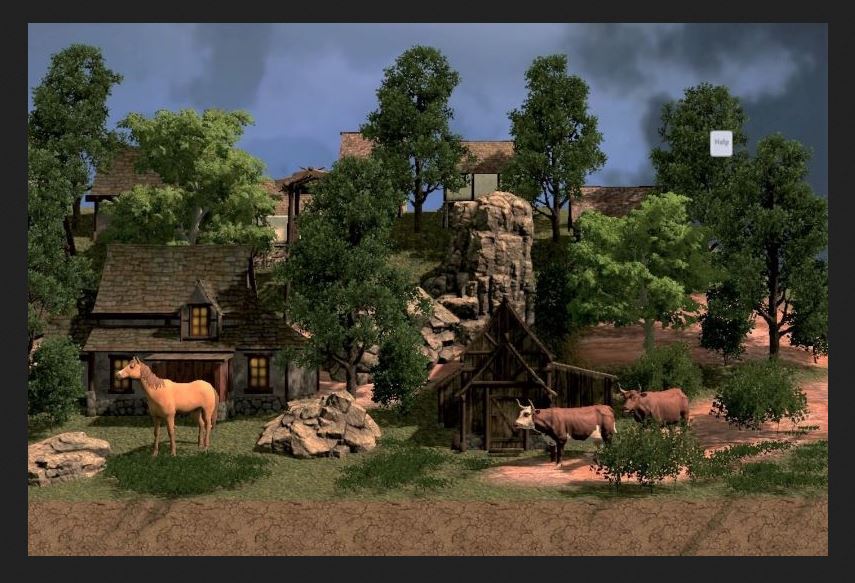
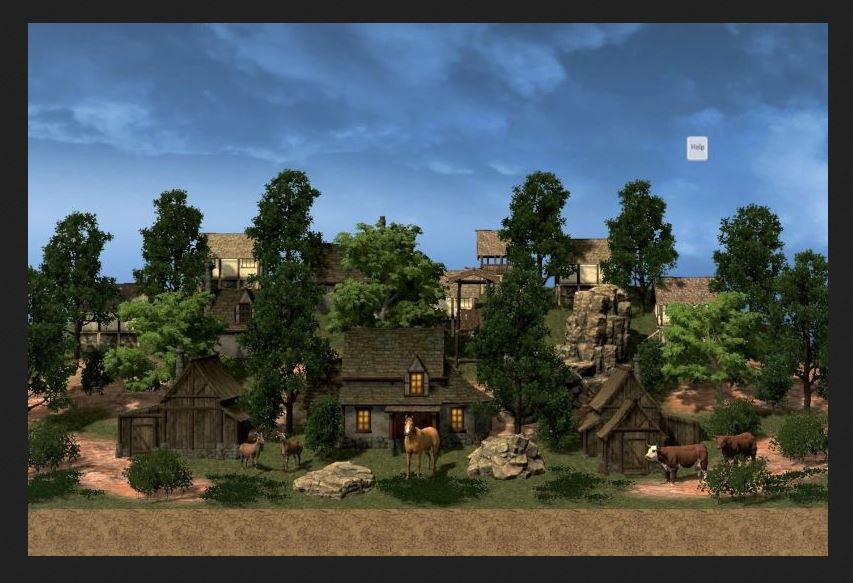
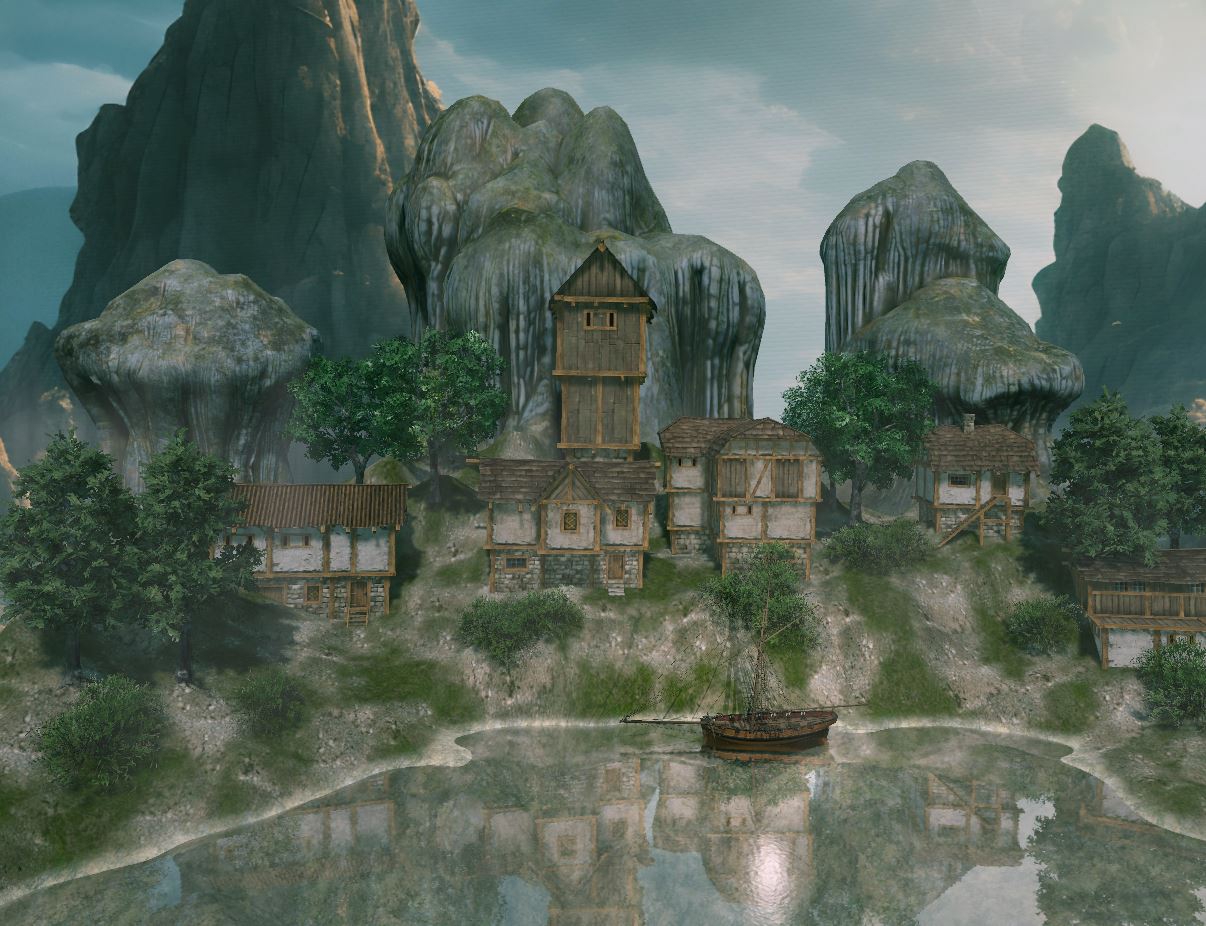
Pictures (B) "Landscapes and Village South"


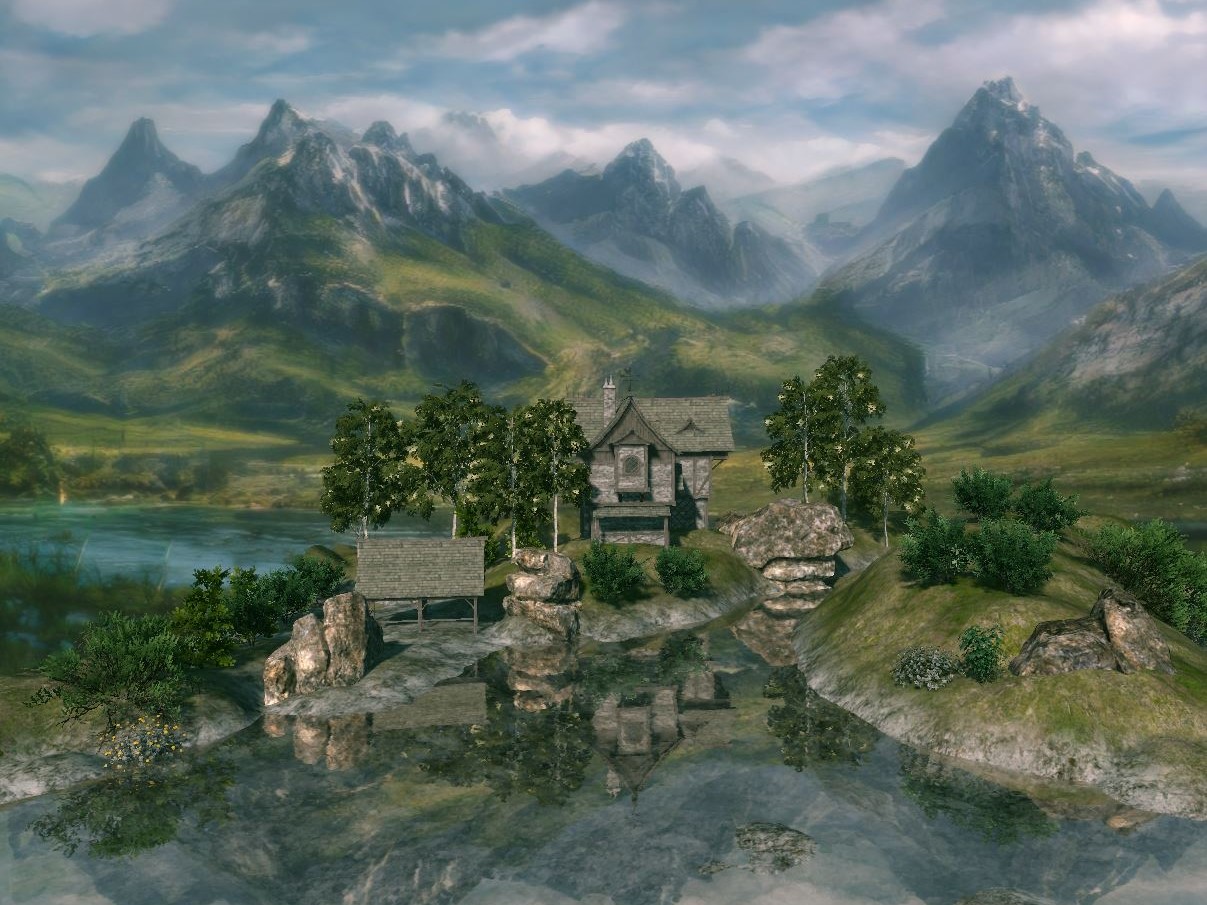
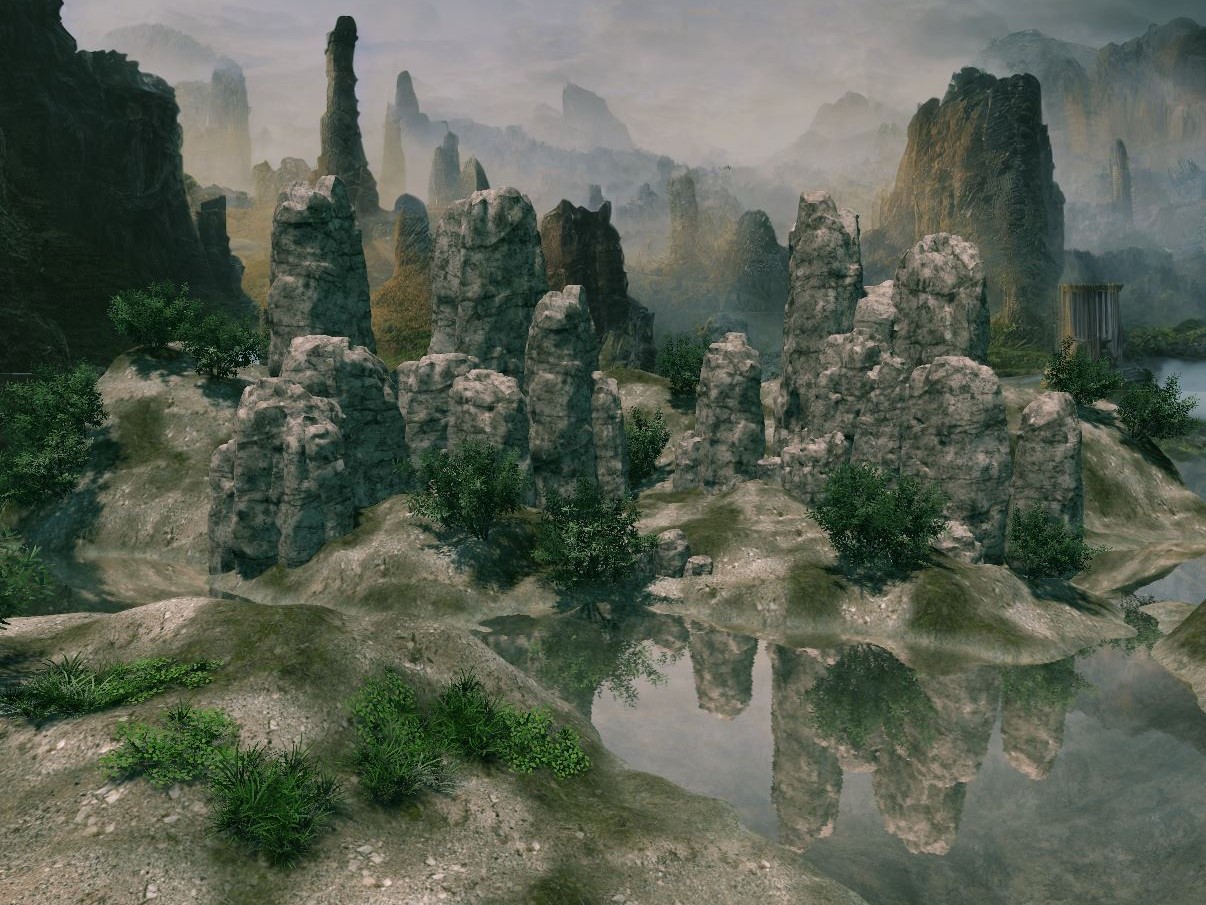
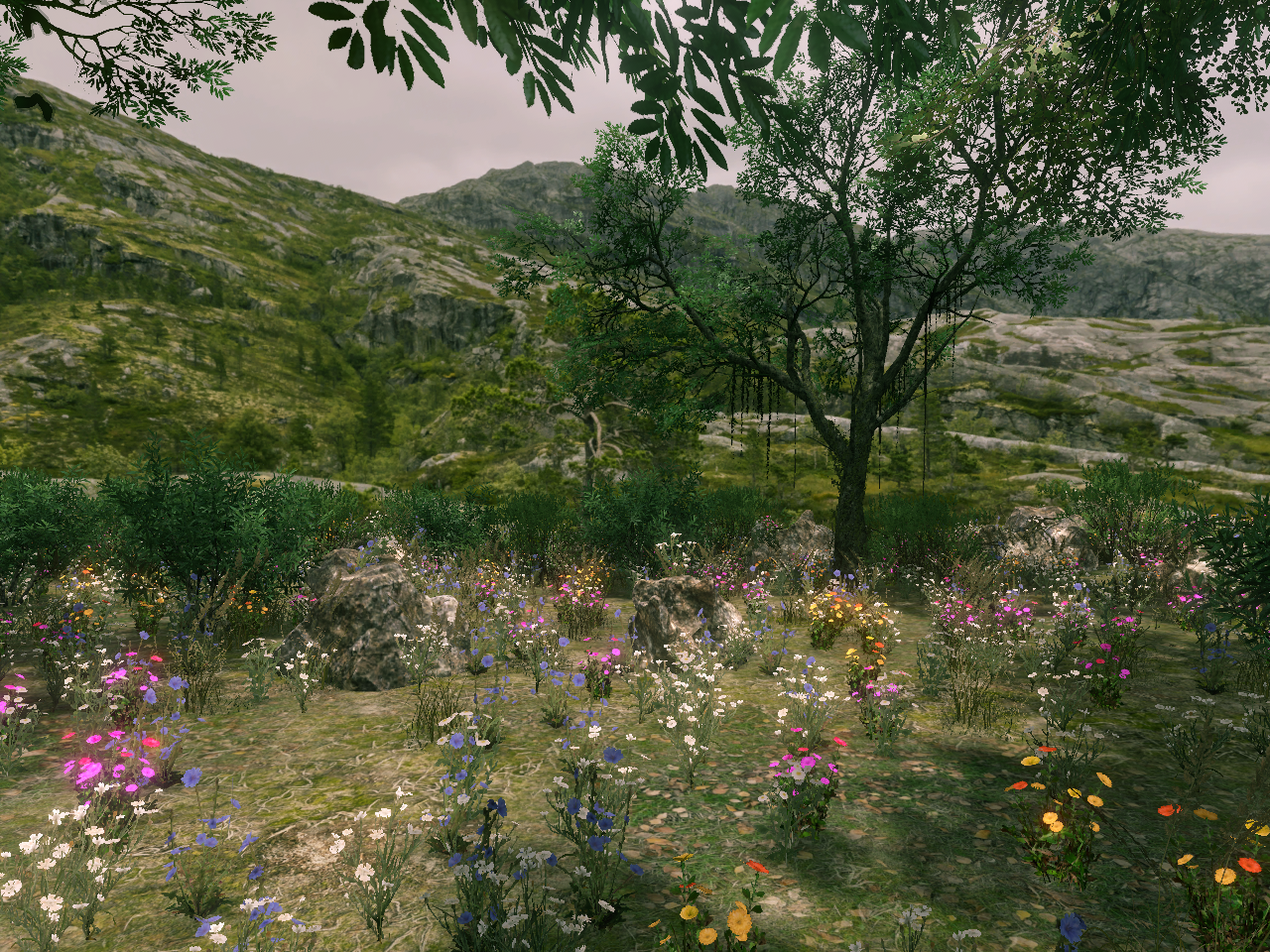
FlowScape-Gallery "My Best Pictures" (2025)

3D-Scenes with FlowScape1.5 (pixelforest.itch.io)

Obj-Models scale and textured with Poser13 (Renderosity)

Pictures (A) "Landscapes in North"


FlowScape. Obj Import, Import models,

Import human man mesh.

For 3D-Scenes in FlowScape in city and village you need persons for the scene.
TIP: SKETCHFAB is a very good source to become Obj-models man, woman, child etc.

LINK: https://sketchfab.com/feed

1) Open the Sketchfab Webside

2) Serchwords: man, human, woman, child, creatur etc.,   klick "downloadable"

3) Look for the format of the models (must be OBJ)

( Much Sketchfab models are Freeware! )

Much fun with the beauty FlowScape!  U.K.

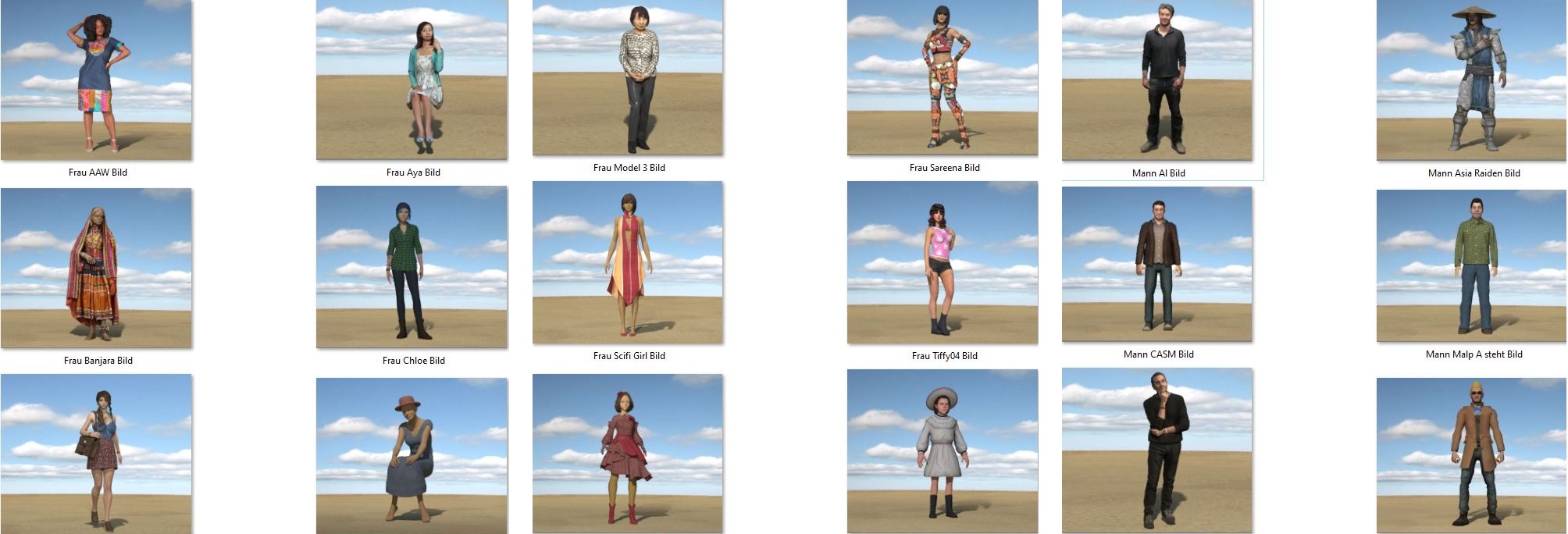
Examples from my FlowScape bibliothek


(2 edits)

FlowScape Gallery Animations (MP4 2025)

Animations with FlowScape1.5, Terragen4 and Poser13

LINKS to DailyMotion: 

https://dai.ly/k2yjVuBGEDc5F7D07RW

https://dai.ly/x8w1x9e


https://dai.ly/x941hqc

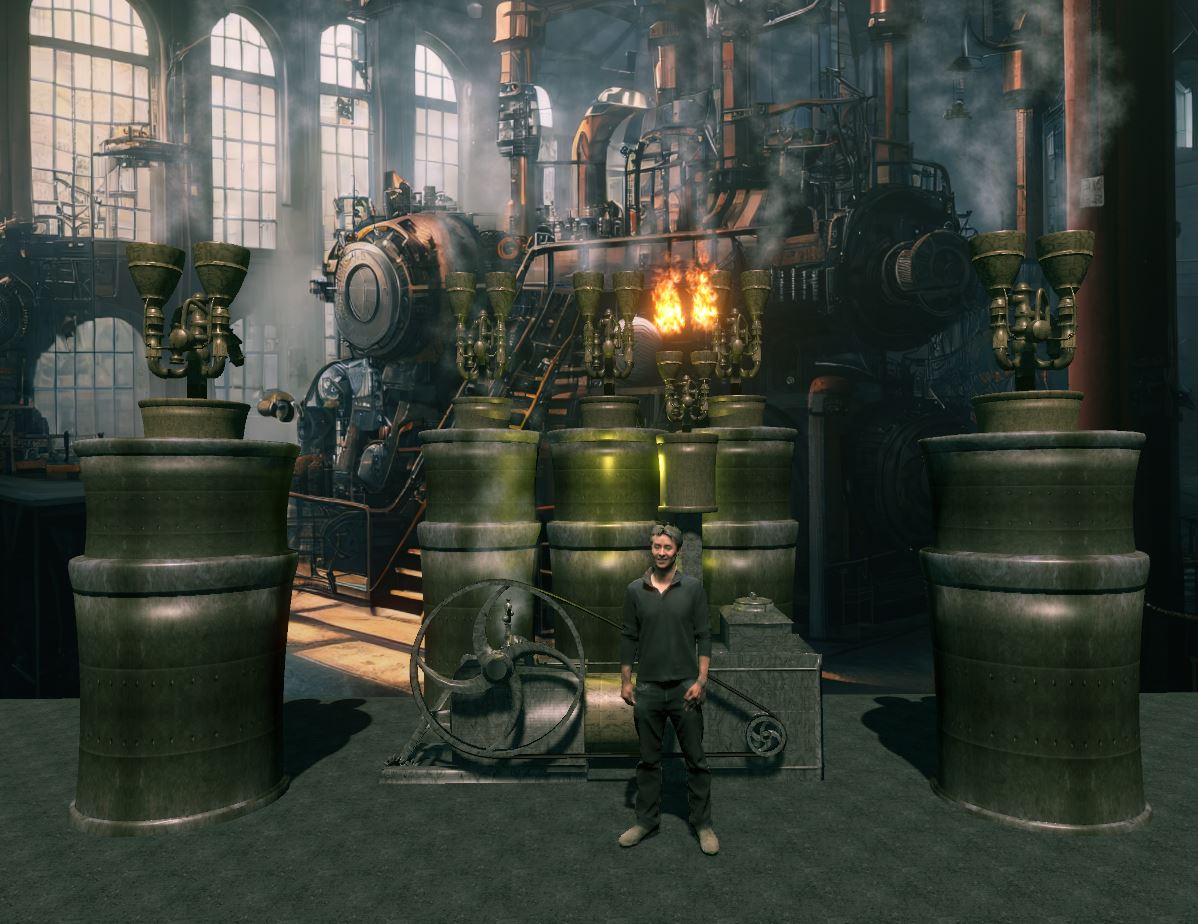
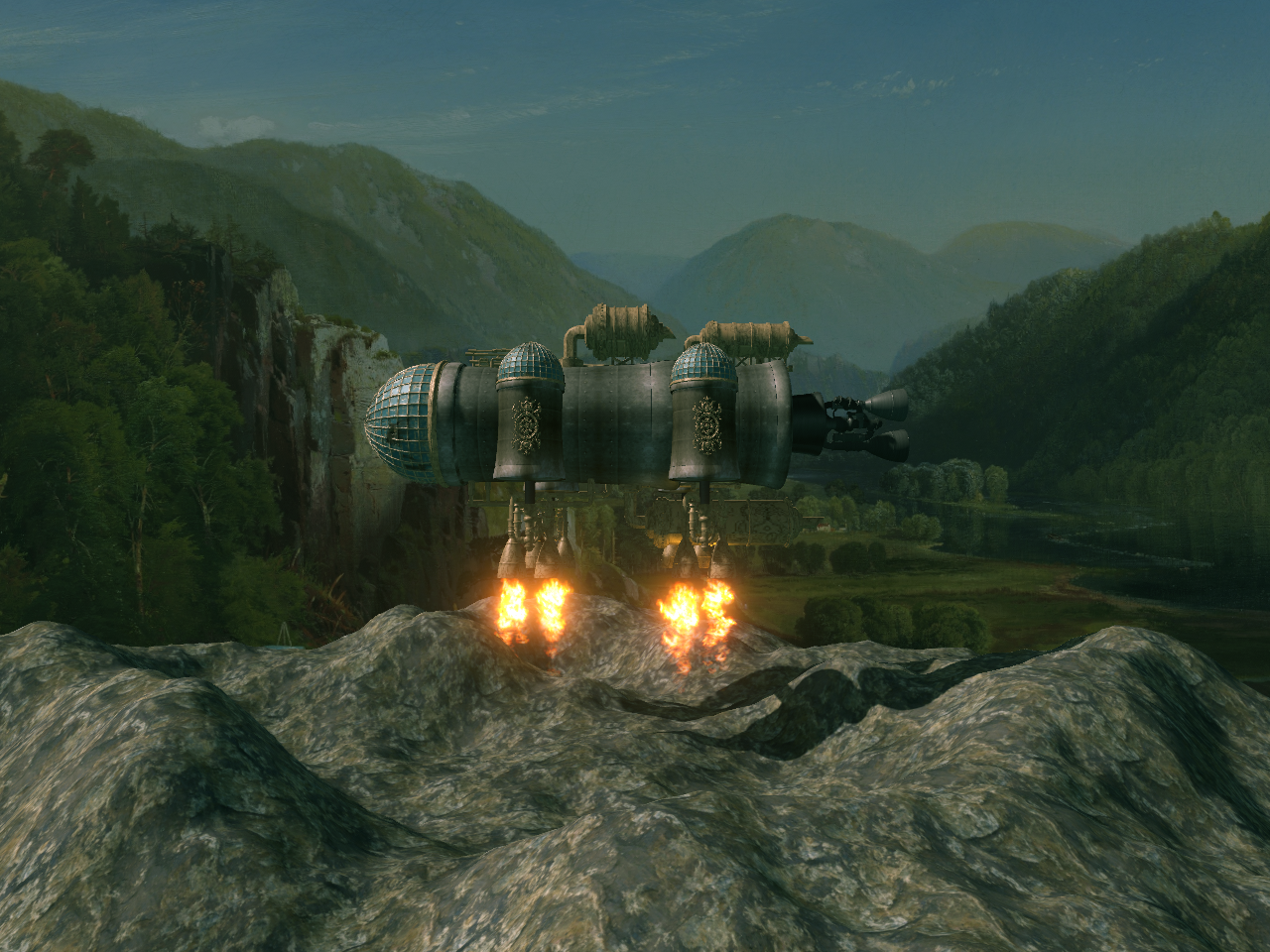
FlowScape Pictures with old SteamEngine and SteamSpaceships.

OBJ Models prepareted with Poser13 and Import in FlowScape1.5. 

FlowScape is my best "Little UnrealEngine" (Animations)


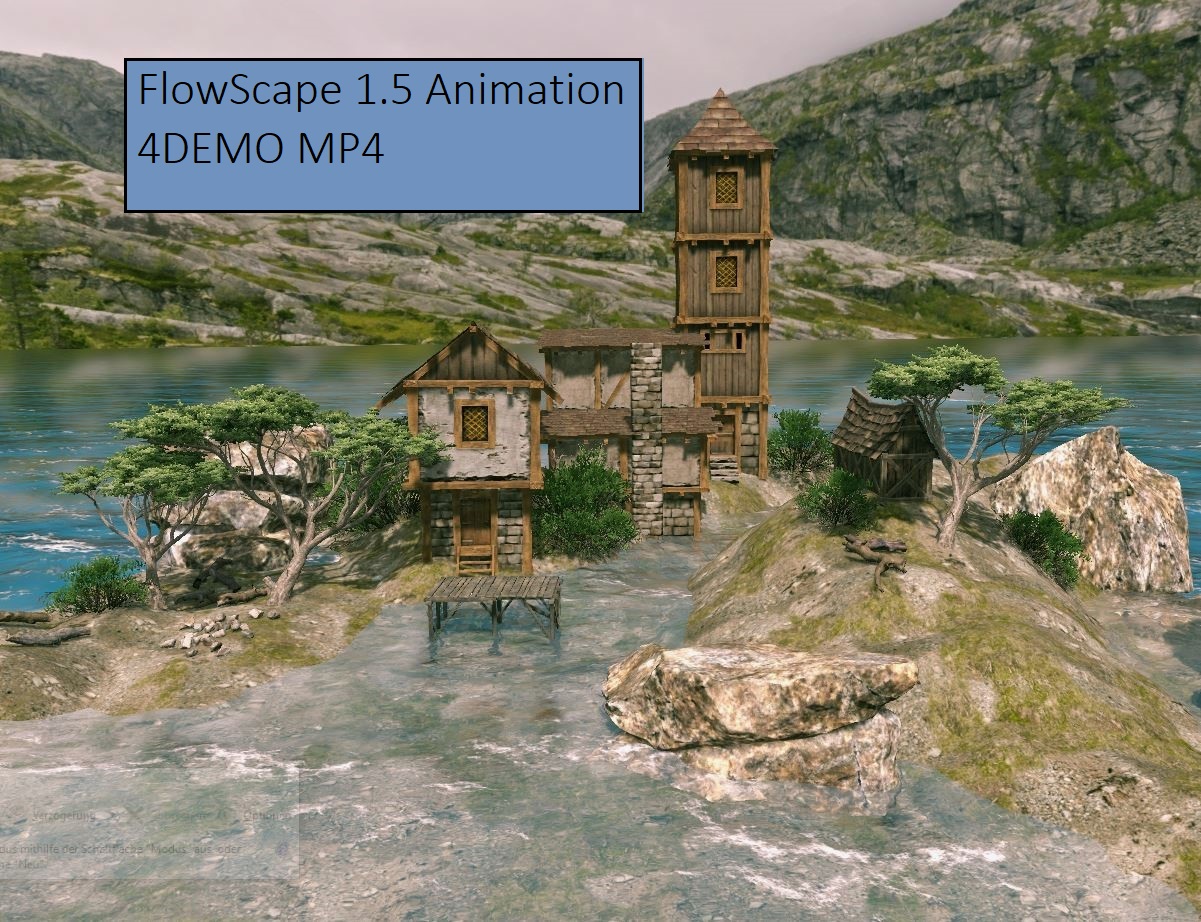
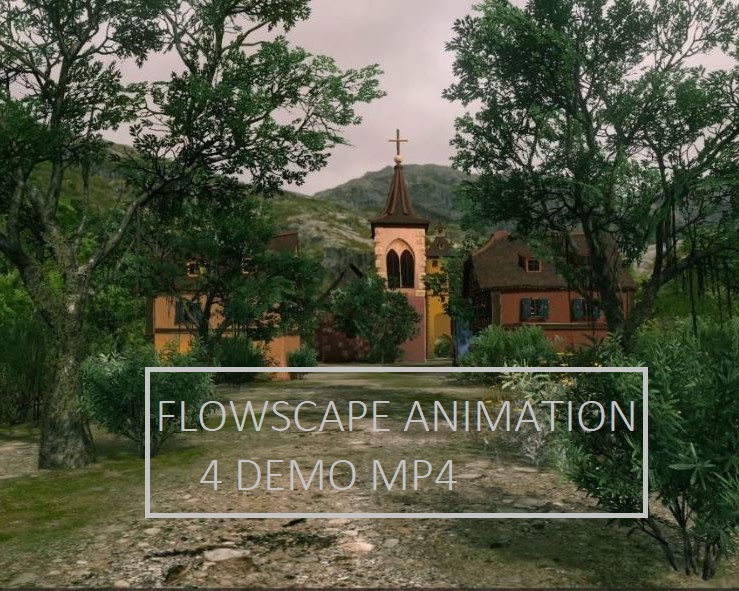
FlowScape 1.5 Animations. 4 DEMO MP4.

LINK DAILYMOTION
https://dai.ly/kuVlBdUCeIGEphB1hjw

FlowScape 1.5 animations. 4 DEMO MP4

Link Dailymotion:

https://dai.ly/k6gvlyks80IfnNB1hjw

FlowScape animations MP4

manual, short instruction

Tags: Flowscape, 1.4, 1.5, animation, MP4,

video, manual, instruction


(Text and translation by U.Kronemann, Germany)

(Translation again in my "the very best English")

DESCRIPTION FLOWSCAPE 1.4 1.5

FlowScape is a App with 3D-engine-application (by Unity)

works the 3D scenes in realtime. FlowScape can works

same as landscape-generator, can beautiful 3D scenes

in village and nature, can map editoring and is also

a beautiful 3D game. FlowScape can also make animations.

3D Engine and 3D content are from Unity, the FlowScape

build/source from a man Australia.

WEBSIDES ITCH.IO

www.pixelforest.itch.io/flowscape

www.itch.io/community

(Searchword: flowscape)

SYSTEM AND PC

Processor: 2-4 Cores  min 2.0-2.5 GHz (more better)

Memory RAM:  min 8GB RAM

Graphiccard: Normal standart (more better)

PC-Warning!

FlowScape works with "3D-Engine-application"(by Unity)

and better be used on PC with processor-aircondition!

Laptop, book PC, surface, tablet/tab, smartphone not good!

START AND START-TUNING FLOWSCAPE

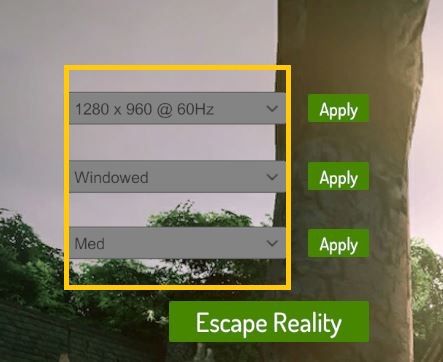
1) Start FlowScape App with 2x clicks

2) Tuning the picture size (zB 1280x960)

x Click for Windowed (for WIN PCs)

x Resolution (zB Med for the grafics)

(Starts later all tunings are saved)


3) Click "Play" to start the FlowScape App

4) Process. PC load 5GB content, waiting 2minutes

5) FlowScape open the 3D-scene

click "stay here" to take this scene

click "clear plants" to make a own new scene


MAKE A BEAUTIFUL 3D SCENE ON FLOWSCAPE

AND PREPARE THE 3D ANIMATION

1)Make a beautiful 3D scene on FlowScape

zB. 3D scene with village and trees ...

zB. 3D scene with animals and nature ...

zB. 3D scene with isle, ocean and ships ...

Finish the tuning sunlight and shadows

for a fine lightning in 3D scene.

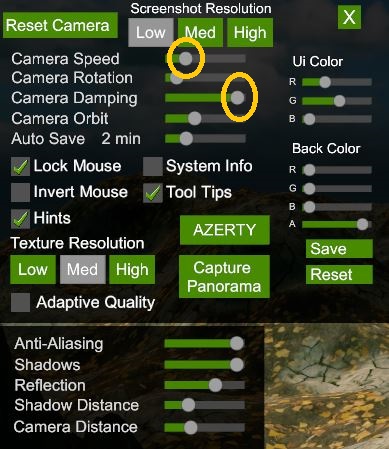
2)Camera tuning (Menu, Top left side)

Screen Resolution:

LOW = Picture dimension 1280x960 pixel

(Low ist the best tuning, other to much MB)

MED = Picture dimension 2500 pixel

HIGH = Picture dimension 4000 (4K)

Camera Speed: Tuning to 5mm (slow)

Camera Dumping: Tuning to right (max)


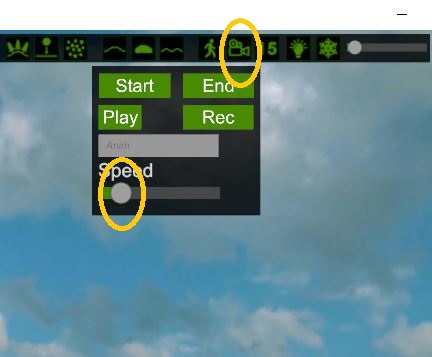
3)Tuning Record camera (Menu, Top right side)

SPEED: Tuning 5mm (slow drive)

(Thats the speed in the finished animation)

Slow drive brings a good quality in the animation!

Fast drive brings not a good quality in the animation!

4)Make a camera-drive to an animation:

x Camera in start position

x Click START

x Cameradrive with the cursor buttons

Cameradrive for zB. 3-10 Seconds

x Click END

x Click RECORD


Now is process-rendering for the picture-serial

for the animation. Wait for 10-30 minutes!

(You can see when the scene shows very slow

its processing, when the scene have again normal

speed the animation is finished rendering)

To the Files:

FlowScape Version itch.io have a Complet-File FlowScape

and the picture serial is saved in inside file "animations"!

(Flowscape Version steam. You must test and give a file

to save the picture serial)

MAKE THE FLOWSCAPE ANIMATION IN MP4 VIDEO

For the transformation of the FlowScape animation into

a MP4 video you need a Video-App witch can transformate

the picture serial to MP4 video! The pictures must have

a speed 25-30 pictures per second!

Problem: The most Video-Apps make only slideshows

from pictures. (only 1, 3, 10 picture per second)
On of the best Video-Apps:

COREL VIDEOSTUDIO 2024 (also 2000, 2022)

(I tested much Videomaker - hat been a long way)

(This Video-App is on of the best and simple to use)

COREL VIDEOSTUDIO (MANUAL TO MP4 VIDEO)

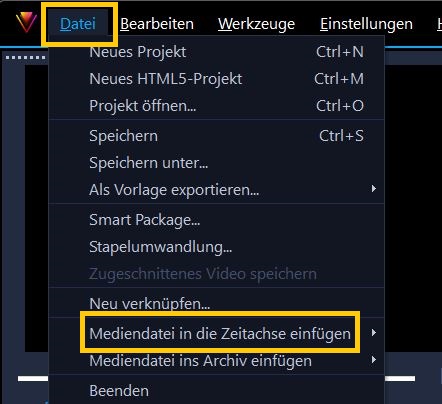
1)Open Corel VideoStudio, click Record (Topmenu)

2)Click Menu "File" (1.Menu top left side)

Click mediumfile insert

Click photo time-lapse


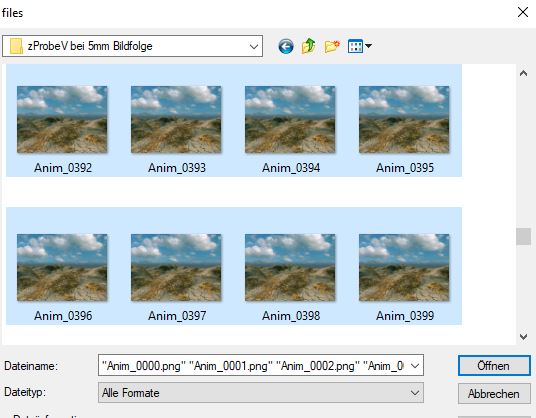
3)Open the file (file with FlowScape picture serial)

Mark all the pictures and open

(now the Video-App import all the pictures)


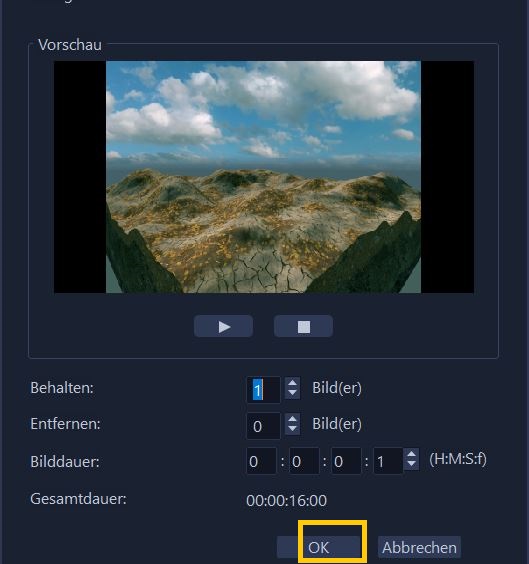
4)Options for photo time-lapse

Option are standart, you must only click OK!

Process runs now, wait for seconds or minutes.

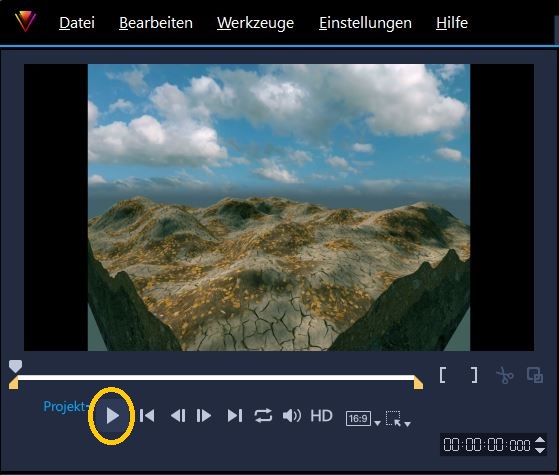
5)Now you can 1.look the video in display, click start.


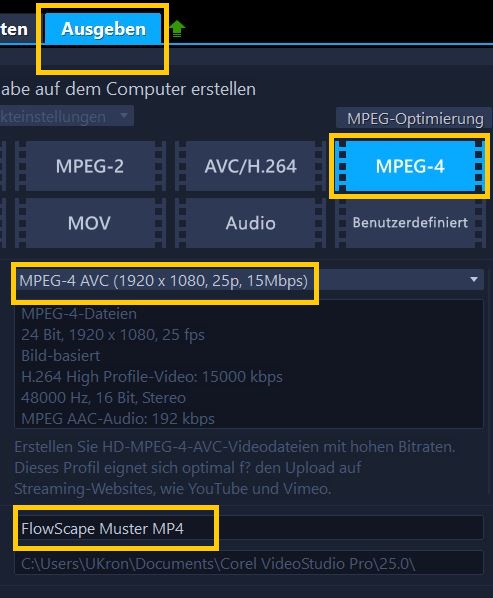
6)Click Topmenu Output (Topmenu right side)

Click to Video MPEG-4

Look for a MPEG-4 videoscale you want

zB 1920x1080 pix,  25 p/sec (25 pictures/second)

7)Give a name for the MP4-file

Video will be saved in the File Corel VideoStudio.

Also you can give a own file to save the video.

8)Click START (for the MP4 process)

Wait some minutes to the end of process.

FlowScape MP4-Video is now ready!


Much fun for the freaks with this "3D-Magic-Engine-Packet"

(Is beautiful and creative same as a small Unreal-Engine) U.K.

FlowScape manual.

Short instruction (English)

Tags/Keywords: FlowScape 1.4, FlowScape 1.5,

manual, instruction, English

(Text: U.Kronemann, Germany)

(Translation in my "the very best English")


Website:    www.pixelforest.itch.io

Searchword: flowscape

DESCRIPTION FLOWSCAPE

FlowScape is a 3D landscape-generator App, a Mapeditor 

and also a beautiful 3D Game. The applications are from

Unity also Content, the build by a man from Australia.

(3D-App and 3D-Content are 5GB)

FlowScape from pixelforest itch.io is a Complete-File

for download (App and Content)

(Flowscape from steam needs a download steam-box

and a download of Flowscape in the steam-box)


VERSIONS: FlowScape 1.4, FlowScape 1.5

FlowScape Apps for WIN, MAC, and LINOX

Processor Cores:  min 2-4 Cores, min 2-2.5 GHz(3-3.5 better)

PC-memory RAM:  min 8 GB RAM

PC-Warning!

FlowScape works with "3D-Engine-application" (by Unity)

and better be used on PC with processor-aircondition!

Laptop, book PC, surface, tablet/tab, smartphone not good!


FLOWSCAPE INFOS

1) Community:  itch.io/community (also steam co.)

2) YouTube:  Search "flowscape youtube"

3) Facebook and other social media


DOWNLOAD AND INSTALLATION FLOWSCAPE

VERSION ITCH.IO

1) Download FlowScape (3GB  ZIP, 10min)

2) Chance the ZIP file into a WIN file

3) Save the FlowScape-File to the userfiles

(to 3D-objekts or to documents)

4) Open the FlowScape-File, click the file with blue icon

(with right mousebutton) and click "fasten to startside"

FlowScape App is now by the Apps and you can

start FlowScape with 2x clicks.

VERSION STEAM

Steam-box must be downloaded before

Flowscape download into the steam-box

Flowscape in the steam-box can be started

(Its a direct-download, not to save the Flowscape-File

 on externe HDD or SSD)


START AND START-TUNING FLOWSCAPE

1) Start FlowScape App with 2x clicks

2) Tuning the picture size (zB 1280x960)

x Click for Windowed (for WIN PCs)

x Resolution (zB Med for the grafics)

(Starts later all tunings are saved)

3) Click "Play" to start the FlowScape App

4) Prozess. PC load 5GB content, waiting 2minutes

5) FlowScape open the 3D-scene

 click "stay here" to take this scene

click "clear plants" to make a own new scene


MANUAL / INSTRUCTION FLOWSCAPE

(Short instruction to FlowScape 1.4 and 1.5)

Right menu symbols = menu for the 3D-objects

Top menu symbols = options to work with the objects

1) Click terrain symbol

Look for a nice terrain and click the symbol

Click the symbol terrain tuning

Look for nice textur for terrain and click symbol

Terrain size = small or great possible per tuning


2) Camera navigation:

Camera to front direction = Cursor button (on PC)

Camera to back direction = Cursor button

Camera to right side = Cursor button

Camera to left side = Cursor button

Camera to the top direction = 1 (on PC)

Camera to down direction = 0 (on PC)

Camera turn the direction = hold right mousebutton

and take an other direction


3)Take trees, plants, houses or animals into the 3D-scene

Click menu 3D-objects (right menu)

Look for nice objects and click the symbol

Tuning for the 3D-objects are in top menu

(zB trees = not much trees or much trees tuning)

(zB trees = little trees or middle or big trees tuning)

3D objects can be "painting" into the 3D-scene with

the left mousebutton (Point in a blue color)

3D objects can be erase with the rubber symbol

(Point in a red color)


4)Sky backgrounds and landscape backgrounds

Click to menu sky symbol (Menu right side)

Look for a nice sky background or nice landscape background

Click to symbol of this background


5)Sunlight tuning and other tunings

Click to symbol "cogwheel"

Sunlight power, direction and others per tuning

(for the best sunlight and light direction in 3D-scene)

(there are many other options, fogs and lightnings)


6)Music and sound effects

Click to symbol "headphone"

Look for a nice music or a nice sound effect

Click to the symbol of this music or sound effect


7)Make a screenshot from the 3D-szene and save the screenshot.

You can click to symbol "photograph" and save the sreenshot,

this screenshot is then in the FlowScape File.

Better: You have a screenshot app on task-menu WIN (below)

make a screenshot with "Snipping tool" and save the screenshot

in a own user-file.

Much fun for the freaks with this "3D-Magic-Engine-Packet"

(Is beautiful and creative same as a small Unreal-Engine) . . . U.K.

(1 edit)

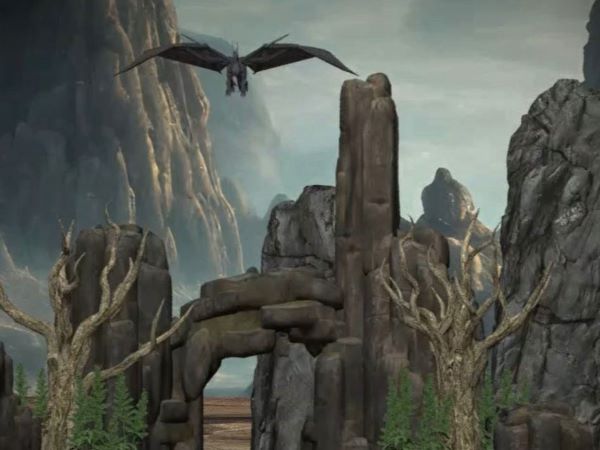
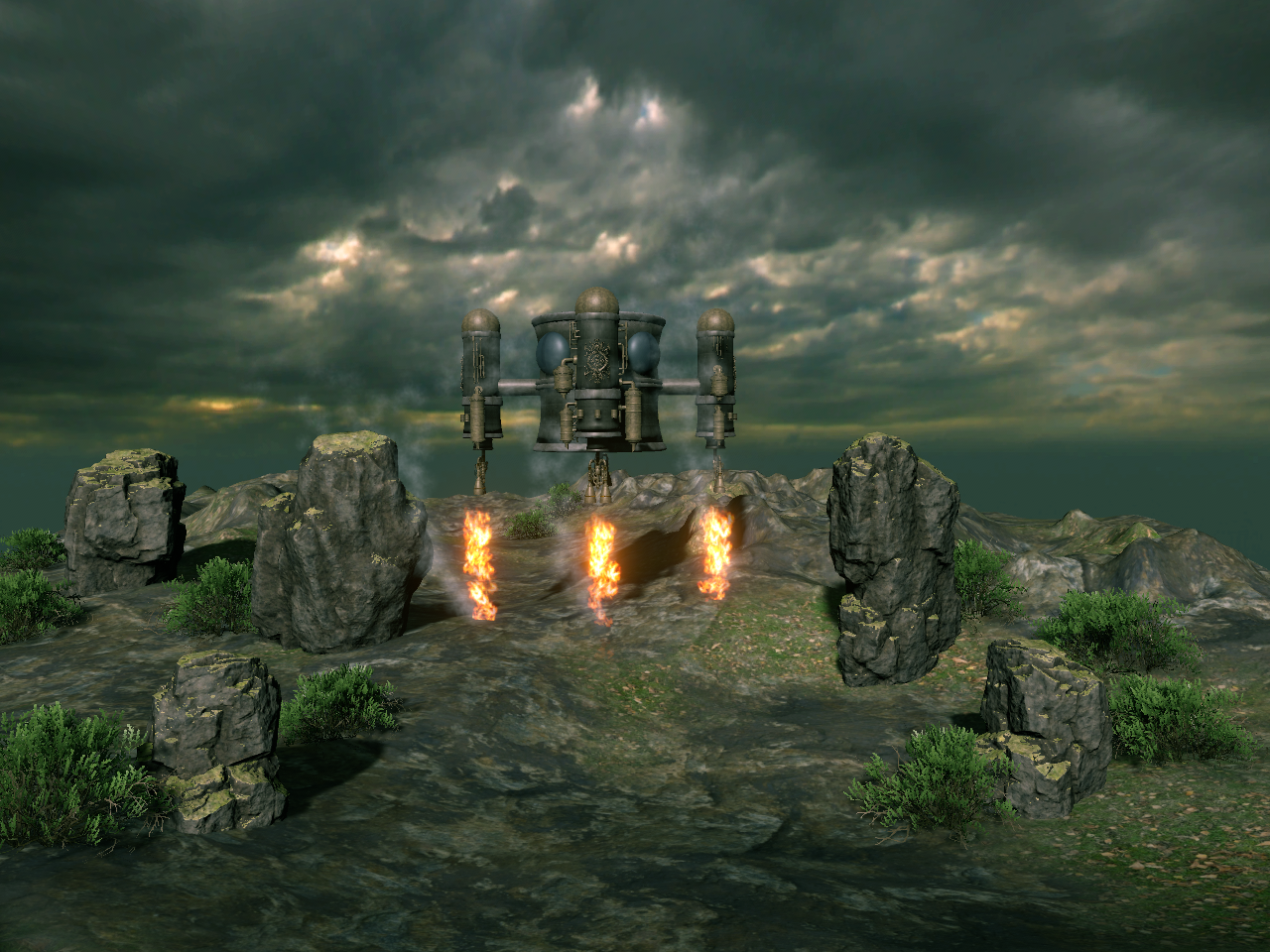
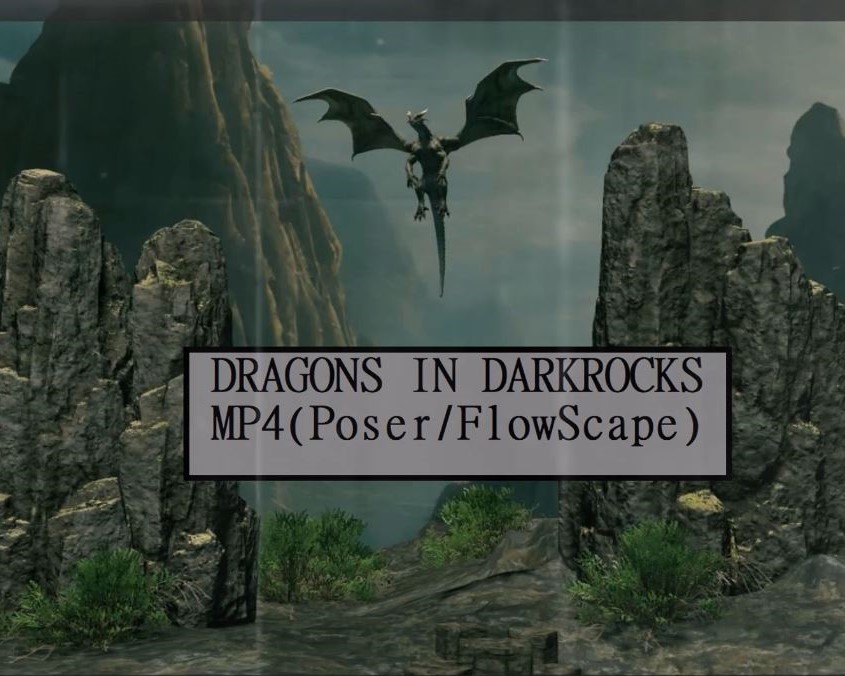
DRAGONS IN DARK ROCKS (MP4, FlowScape/ Poser Animation)

LINK TO DAILYMOTION:

https://dai.ly/x90kef8

FlowScape Video Animation Doku

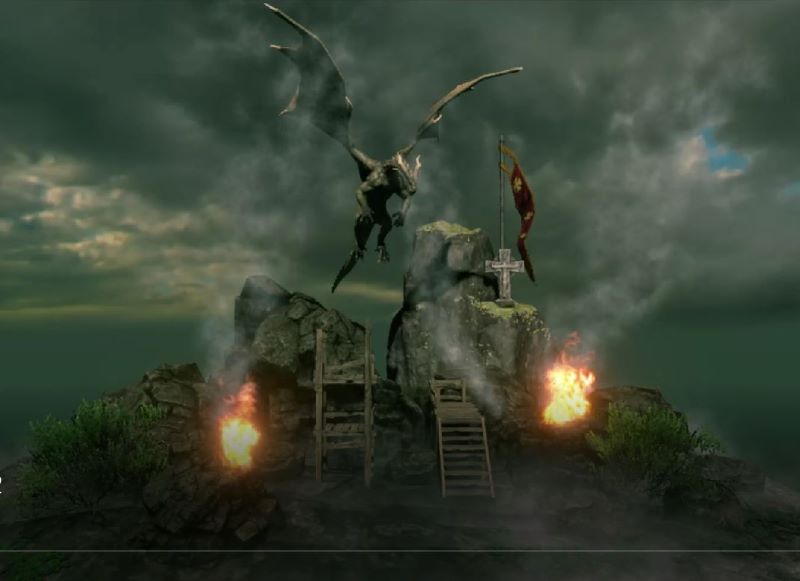
Horrorscene mit Flugdrachen

Link zum Video: https://dai.ly/k38G4PEQP9LFxBxgsvj


(1 edit)

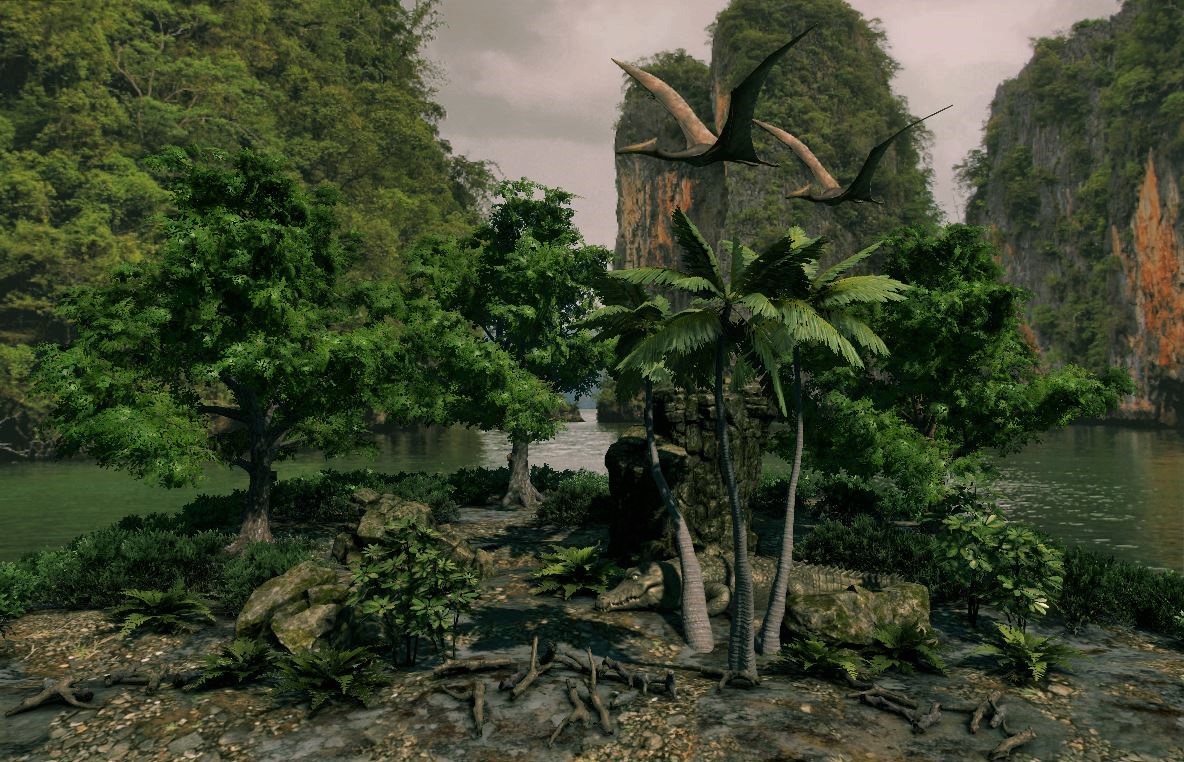
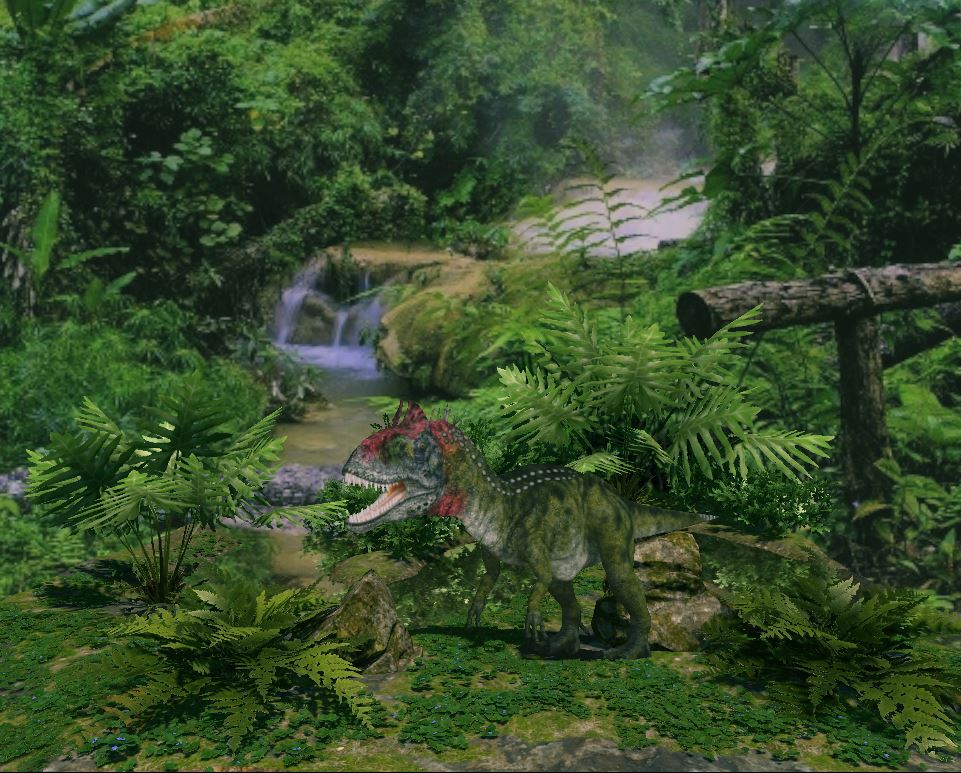
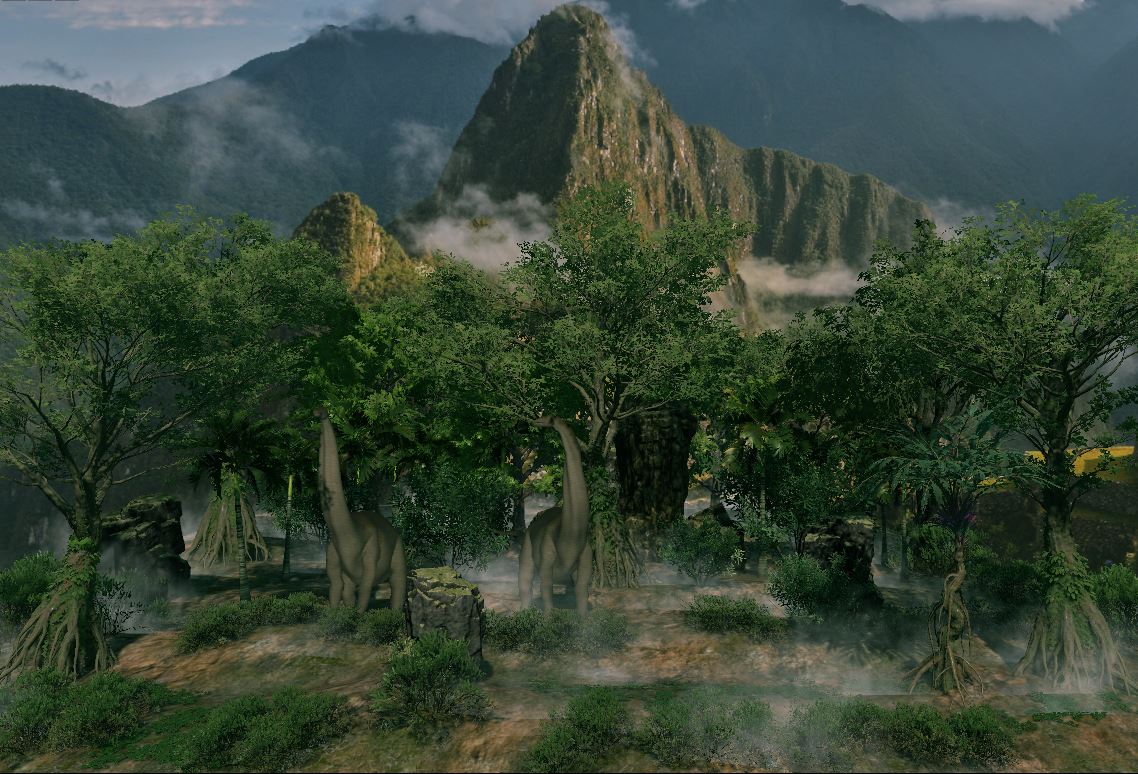
"FlowScape". JURASSIC BILDER

(2 edits)

WILDSHAPE-APP. Bild-Beispiele Natur und Meer

WILDSHAPE APP.  Bild-Beispiele Landschaft und Natur.

(2 edits)

Methode A) Hintergrundbild importieren

per "Sky"-Import (Standartmethode)

FlowScape kann 3D Modelle (OBJ) als "mesh" importieren

und Hintergrundbilder (JPG/PNG) als "sky" importieren.

FlowScape Hütte ein "Rundpanorama", deshalb müssen die

Bilder für den Hintergrund besonders groß sein!

(ZB 10000 x 5000 Pixel ZB 6000 x 3000 Pixel)

(SIEHE ggf. Webseite: "pixabay", Suchwort: Berge, Landschaft etc.)

Bei dieser Standartmethode können die Hintergrundbilder

direkt in FlowScape importiert werden.

Option: Import (oben links) und Option: Sky (unten links)

Nachteil. Diese Standartmethode bringt nicht die optimale

Bild für einen guten Hintergrund!

a)Überlichtung b)Kontrast/Brillanz fehlt c)Bildverkrümmung


Methode B) Hintergrundbild importieren mit einer

Bildträgerplatte (Obj) per "Mesh"-Import (Obj-Import)

TEIL 1) STANDARTBILDPLATTE

Bei dieser Methode benötigt man eine Trägerplatte für die

Hintergrundbilder. Die Trägerplatte muss in der Regel mit

einem 3D-Programm erstellt werden. Vielleicht kann der Mensch sterben

Trägerplatte auch mit einem 2D Programm zB Fotoshop / Gimp

anfertigen. (da kenne ich mich nicht mit aus)

( hat man selbst kein 3D Programm kann man ggf. einen Freund

fragen diese Trägerplatte im OBJ Format anzufertigen )

1) Im 3D-Programm wird eine Platte im Format 16 : 9 bzw. 3: 2

angefertigt. (der 3D Körper sollte ein Körper mit Polygonen sein,

rein geometrischer Körper zB. Würfel, Platten sind oft nicht

konvertierbar in OBJ Modelle )

2) Man erstellt einen Ordner mit Bezeichnung "Standart Bildplatte"

(Win-Ordner, Mac-Ordner, Linox-Ordner)

3) Im 3D Programm kann man dann die Platte per Option: Exportieren

in den Ordner "Standart Bildplatte" exportieren.

Dateiformat: OBJ anwählen! Dateiname: Bildplatte Obj

Im Ordner sind dann:

1 Obj Datei ( die Platte )

1 MTL-Datei

1 Datei (Jpg, Png)

Mit dieser "Standart Bildplatte" kann man nicht nur einen Hintergrund

sondern auch 10, 30, bis 100 Hintergrundbilder für FlowScape

anlegen! Ist eine "Standart Bildplatte".

TEIL 2) VORBEREITUNG DER BILDER

Die Bilder für die FlowScape Hintergründe müssen

für die Standart Bildplatte vorbereitet werden!

a) Die Bilder sollten min. 1900 x 1100 Pixel haben!

b) Die Bilder und die Datei Jpg/Png ( der Bildplatte ) müssen

das gleiche Dateiformat haben! (beide Jpg bzw. beide Png)

c) Bilder und Bildplatte Obj & das gleiche Bildformat

haben! ( Beide Formate 16 : 9 bzw. beide Formate 3 : 2 )

( ggf. FotoApp verwenden ggf. KonverterApp verwenden)

TEIL 3) BILDER ZU DEN BILDPLATTEN SPEICHERN

Die Bilder für die FlowScape Hintergründe kann dann zu

den Standart Bildplatten Gespeichert Werden.

1) Man kopiert den Ordner "Standart Bildplatte" 10 mal

auch zB. 10 Ordner-Kopien für 10 Bilder.

2) Jeder Ordner erhält je eine Bezeichnung. (zB Bildplatte Bergland A)

Die Obj Datei des Ordners erhält gleiche Bezeichnung. (zB Bergland A)

Die MTL Datei bleibt wie sie ist. ( Bezeichnung nicht ändern! )

Die Datei Jpg/Png bleibt wie sie ist. ( Bezeichnung nicht ändern! )

3) Dann werden sterben Bilder zu den Bildplatten gespeichert.

Das Bild wird in der Datei Jpg/Png des zugehörigen Ordners

gespeichert, diese Datei wird überschrieben.

(Dateibezeichnung darf nicht verändert werden!)

4) Diese erstellten Bildplatten kann man in Einem Ordner als

"Bibliothek FlowHintergründe" aufbewahren.

(Ich selbst verwende dabei mehrere Unterordner

Zum Beispiel. Bergland, Landschaft, Küsten, Inseln, Burgen usw..)

TEIL 4) FLOWSCAPE HINTERGRUND IMPORT

Die Bildplatten Obj sind 3D Objekte und müssen als "mesh"

importiert werden, nicht als "Himmel" importiert!

1) Option: Importieren (Dateioptionen, oben links)

2) Option: "mesh" anklicken (Kästchen unten links)

3) Den Ordner mit den Bildplatten anwählen und öffnen.

Dann sterben gewünschte Bildplatte anwählen und öffnen.

Dann die OBJ-Datei anwählen und öffnen.

4) Die Bildplatte erscheint jetzt in FlowScape.

5) Die Bildplatte ausrichten, nach hinten bewegen

und vergrößern bis Bildschirmgröße.

(per Steuerungs-Kreuze im Flow oben rechts)

Diese Methode bringt brillante Hintergründe!

Viel Spaß mit dem Schmuckstück FlowScape! 

Uwe Kronemenn

(leider viele translation Fehler, krieg ich nicht ganz raus)


Methode A)  Hintergrundbild importieren

per "Sky" Import (Standartmethode)

FlowScape kann 3D Modelle (OBJ) als "mesh" importieren

und Hintergrundbilder (JPG/PNG) als "sky" importieren.

FlowScape hat ein "Rundpanorama", deshalb müssen die

Bilder für den Hintergrund besonders groß sein!

(ZB 10000 x 5000 Pixel ZB 6000 x 3000 Pixel)

(SIEHE ggf. Webseite: "pixabay", Suchwort: Berge, Landschaft etc.)

Bei dieser Standartmethode können die Hintergrundbilder

direkt in FlowScape importiert werden.

Option: Import (oben links) und Option: Sky (unten links)

Nachteil. Diese Standartmethode bringt nicht die optimale

Bildqualität für einen guten Hintergrund!

a)Überlichtung b)Kontrast/ Brillianz fehlt c)Bildverkrümmung


Methode B)  Hintergrundbild importieren mit einer

Bildträgerplatte (Obj) per "mesh" Import (Obj Import)

TEIL 1) STANDART BILDPLATTE

Bei dieser Methode benötigt man eine Trägerplatte für die

Hintergrundbilder. Die Trägerplatte muß in der Regel mit

einem 3D Programm erstellt werden. Vielleicht kann man die

Trägerplatte auch mit einem 2D Programm zB Fotoshop / Gimp

anfertigen. (da kenne ich mich nicht mit aus)

( hat man selbst kein 3D Programm kann man ggf. einen Freund

bitten diese Trägerplatte in OBJ Format anzufertigen )

1) Im 3D Programm wird eine Platte im Format 16 : 9 bzw. 3 : 2

angefertigt. ( der 3D Körper sollte ein Körper mit Polygonen sein,

rein geometrische Körper zB. Würfel, Platten sind oft nicht

konvertierbar in OBJ Modelle )

2) Man erstellt einen Ordner mit Bezeichnung "Standart Bildplatte"

( Win Ordner , Mac Ordner , Linox Ordner )

3) Im 3D Programm kann man dann die Platte per Option: Exportieren

in den Ordner "Standart Bildplatte" exportieren.

Dateiformat: OBJ anwählen! Dateiname: Bildplatte Obj

Im Ordner sind dann:

1 Obj Datei ( die Platte )

1 MTL Datei

1 Datei (Jpg, Png)

Mit dieser "Standart Bildplatte" kann man nicht nur einen Hintergrund

sondern auch 10, 30, bis 100 Hintergrundbilder für FlowScape

anlegen! Man verwendet für alle Bilder diese eine "Standart Bildplatte".

TEIL 2) VORBEREITUNG DER BILDER

Die Bilder für die FlowScape Hintergründe müssen

für die Standart Bildplatte vorbereitet werden!

a) Die Bilder sollten min. 1900 x 1100 Pixel haben!

b) Die Bilder und die Datei Jpg/Png ( der Bildplatte ) müssen

das gleiche Dateiformat haben! ( beide Jpg bzw. beide Png )

c) Bilder und Bildplatte Obj müssen das gleiche Bildformat

haben! ( Beide Format 16 : 9 bzw. beide Format 3 : 2 )

( ggf. FotoApp verwenden ggf. KonverterApp verwenden)

TEIL 3) BILDER ZU DEN BILDPLATTEN SPEICHERN

Die Bilder für die FlowScape Hintergründe können dann zu

den Standart Bildplatten gespeichert werden.

1) Man kopiert den Ordner "Standart Bildplatte" 10 mal

als zB. 10 Ordner-Kopien für 10 Bilder.

2) Jeder Ordner erhält je eine Bezeichnung. (zB. Bildplatte Bergland A)

Die Obj Datei des Ordners erhält gleiche Bezeichnung. (zB Bergland A)

Die MTL Datei bleibt wie sie ist. ( Bezeichnung nicht ändern! )

Die Datei Jpg/Png bleibt wie sie ist. ( Bezeichnung nicht ändern! )

3) Dann werden die Bilder zu den Bildplatten gespeichert.

Das Bild wird in die Datei Jpg/Png des zugehörigen Ordners

gespeichert, diese Datei wird überschrieben.

(Dateibezeichnung darf nicht verändert werden!)

4) Diese fertigen Bildplatten kann man in einen Ordner als

"Bibliothek FlowHintergründe" aufbewahren.

(Ich selbst verwende dabei mehrere Unterordner

zB. Bergland, Landschaft, Küsten, Inseln, Burgen etc ..)

TEIL 4) FLOWSCAPE HINTERGRUND IMPORT

Die Bildplatten Obj sind 3D Objekte und müssen als "mesh"

importiert werden, nicht als "sky" importiert!

1) Option: Import (Dateioptionen, oben links)

2) Option: "mesh" anklicken (Kästchen unten links)

3) Den Ordner mit den Bildplatten anwählen und öffnen.

Dann die gewünschte Bildplatte anwählen und öffnen.

Dann die OBJ-Datei anwählen und öffnen.

4) Die Bildplatte erscheint jetzt in FlowScape.

5) Die Bildplatte ausrichten, nach hinten bewegen

und vergrößern bis Bildschirmgröße.

(per Steuerungs-Kreuze in Flow oben rechts)

Diese Methode bringt brilliante Hintergründe!

Viel Spaß mit dem Schmuckstück FlowScape! 

Uwe Kronemann
(1 edit)