








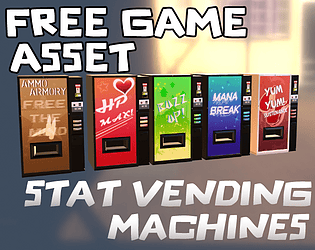








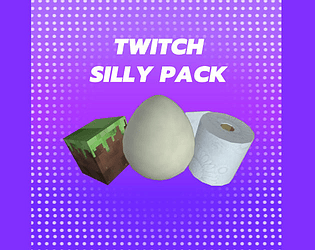
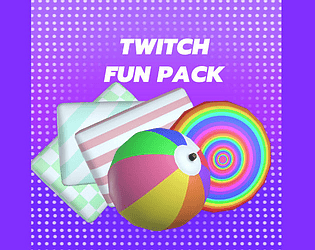




Hello Sprootle! I'm sorry to hear that the assets aren't properly rendering! I apologize for the late response. Sure I can provide a step by step:
1. Upon downloading and unzipping the assets, Open up the Twitch Integrated Throwables Launcher.
2. In the Object Manager Tab, Right Click the left white side panel (asset browser) to Open up an options menu.
3. Click the "Import Model" button. This will open your file explorer.
4. Navigate to the downloaded file folder and click the asset you want to import.
You can also drag select multiple to import but sometimes this can glitch the TITS application to not display all models in the asset browser until relaunching the application. So I recommend one by one just in case.
5. Your selected asset will appear in the asset browser now. Click it's thumbnail to view it and ensure it displays correctly.
Here is a video as well to show the steps in action :)
 Till then, Have a lovely day! <333333333333333333333