

Funny you should say this, because I also made Redungeon :)
A member registered Jul 20, 2020 · View creator page →
Creator of


Weave your liquid body through explosive chaos, consuming the very trail you leave behind to stay whole.
Action
Play in browser








Recent community posts
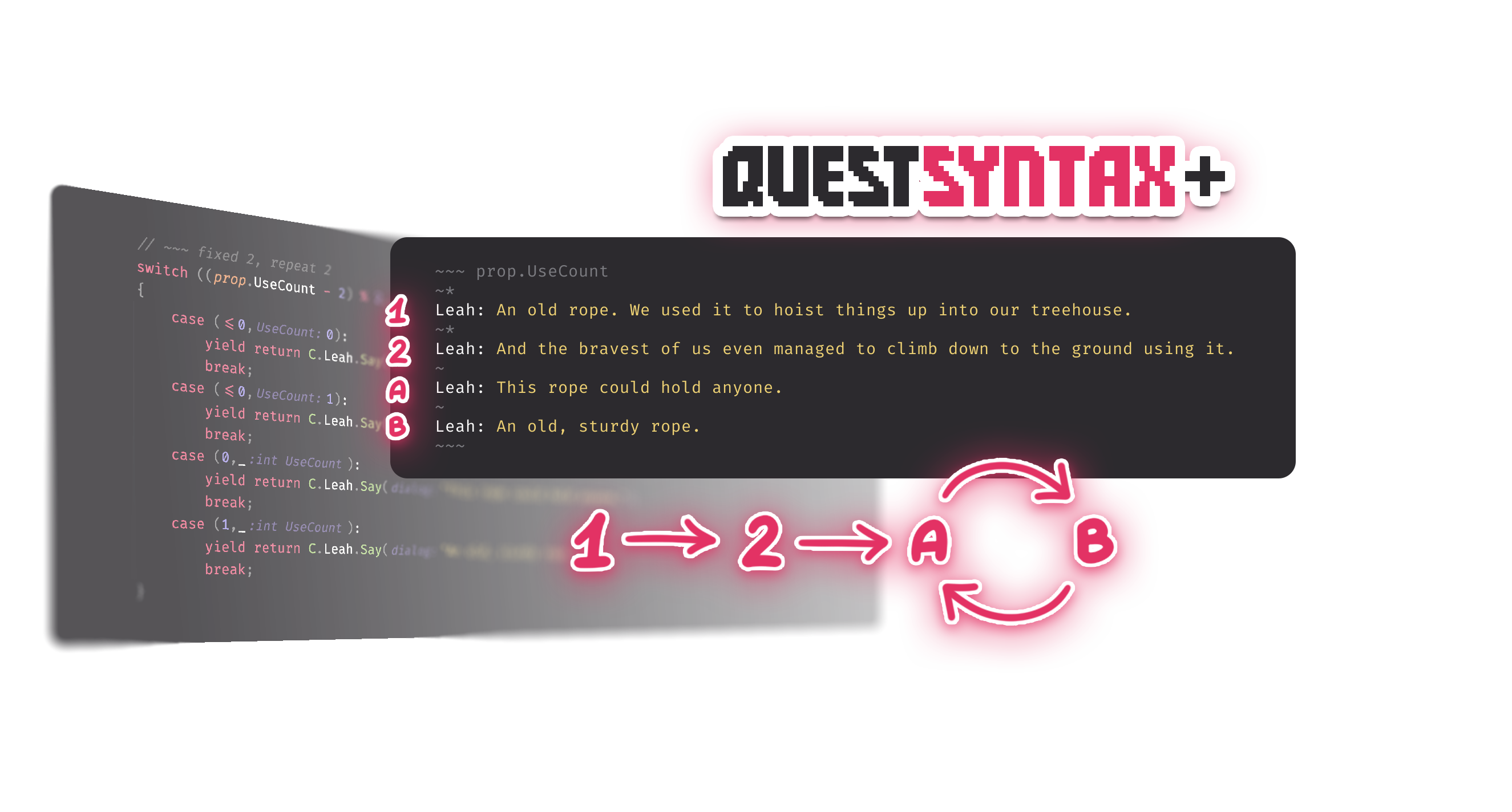
Quest Syntax Plus is a Power Quest extension that provides an easy way to extend Quest Script Editor with advanced syntax features.
Installation
- Download PQQuestSyntaxPlus.unitypackage
- Add it to your project via Assets > Import Package > Custom Package...
Pre-made Features:
Shuffled Options
A feature recently introduced in Power Quest lets you easily create randomized responses using E.FirstOption() and E.NextOption:
if ( E.FirstOption(3) )
    Display: Can't do that
else if ( E.NextOption )
    Display: Won't work
else if ( E.NextOption )
    Display: Nope
QS+ lets you use a syntax like this:
?~~~
Display: Can't do that
?~
Display: Won't work
?~
Display: Nope
?~~~
This syntax is:
- Much more compact and fast to type
- Doesn't require manually passing the options count to FirstOption. Just add or remove options as much as you want!
You can still use string keys to have shuffled reactions to events in different places in code. Where you'd type E.FirstOption(..., "wrong-click"), just add the key string to the header like this:
?~~~wrong-click
Display: Can't do that
?~
Display: Won't work
?~
Display: Nope
?~~~
Reaction Loops
⚠️ NB: you need at least C# 9.0 to use this (it uses tuple pattern matching with relational patterns)
If you're using an older version, consider switching to the later one (they have a lot of fun stuff!) or disable Reaction Loops feature by commenting out the [QuestSyntaxFeature] attribute of QuestSyntaxFeatureReactionLoops class. Or you can just delete QuestSyntaxFeatureReactionLoops.cs altogether. You'll still have the Shuffled Options!
Consider a situation common in any adventure game: you click a hotspot, and a character responds with different lines each time. After a while he runs out of new things to say and starts repeating the last few lines over and over again.
Something like this requires writing a piece of code that is very simple, but surprisingly long, awkward and a headache to modify. The simplest case could look something like this:
switch (prop.UseCount % 3) {
    case 0:
        Vampire: What? Garlic? I hate garlic!
        break;
    case 1:
        Vampire: Get this thing away from me!
        break;
    case 2:
        Vampire: I said no!
        break;
}
All this just to get a loop of three reactions. This is frustrating because:
- Adventure games need this behaviour all the time
- Too much boilerplate code
- Again, we need to keep the case count in sync with a value manually
- What if we wanted the Vampire to say the first line only once and then loop the rest?
if UseCount == 0 say line 1 else switch ((UseCount – 1) % 2)...
Simple enough, but even longer and starts being error-prone. - Editing this is a major, major headache
Introducing QS+ way of writing the same thing:
~~~prop.UseCount
~
Vampire: What? Garlic? I hate garlic!
~
Vampire: Get this thing away from me!
~
Vampire: I said no!
~~~
Add or remove cases as you like, no need to count them and update a value!
Each case starts with a ~ header. If you need one or several first cases to repeat only once before the loop kicks in, mark them with ~* instead like this:
~~~prop.UseCount
~*
Vampire: I will only say this once: I hate garlic!
~*
Vampire: Get this thing away from me!
~
C.Vampire.PlayAnimationBG("hiss");
Vampire: H-s-s-s-s-s!
~~~
This way, the vampire will use words the first two times and rely on endless hissing after that.
You can combine this with Shuffled Options from before!
~~~prop.UseCount
~*
Vampire: I will only say this once: I hate garlic!
~*
Vampire: Get this thing away from me!
~
?~~~
Vampire: H-s-s-s-s-s!
?~
Vampire: Ugh!
?~
Vampire: A-a-a-ah!
?~~~
~~~
Extensibility
The extension can be easily extended!
If you know some Regex-fu and are feeling adventurous, you can write your own syntax feature. To do that:
- Create a class in an Editor folder, under namespace PowerTools.Quest.QuestSyntaxFeatures
- Make the class implement the IQuestSyntaxFeature interface
- Write logic for the two methods, ProcessOnLoad and ProcessOnSave
- Add the [QuestSyntaxFeature] attribute to your class
The attribute will automatically add your feature to the editor. If you ever want to disable it, just comment out the attribute.
Creating syntax features isn't the hardest task out there, but there are pitfalls, you a lot of testing might be required. Please use version control, it's very easy to mess up your code.
Example of a simpler syntax feature
A very simple syntax feature I'm using in my PQ games is a shorthand for declaring enum flags. Instead of writing, say,
public enum weekday_state { Sun, Mon, Tue, Wed, Thu, Fri, Sat }
public weekday_state weekday = weekday_state.Thu;
I can type just this:
flag>> weekday Sun > Mon > Tue > Wed > Thu! > Fri > Sat
With a ! marking the starting state if for some reason it's not the first one.
This combined with some simple replacements for integer and boolean flags makes numerous flag definitions extra easy to read and modify.
It's adapted to conventions in my games, but you can grab it here and modify it to your needs.
Notes
- The extension "uses up" the partial functions of QuestScriptEditor, PostprocessOnLoadEx and PostprocessOnSaveEx. You cannot have two implementations of a partial function. If you still need to use postprocess functions for your own purposes, use the new ones from the extension: PostprocessOnLoadExEx and PostprocessOnSaveExEx.
- The code created by advanced features contains auxiliary comments used for recognizing the patterns and translating them into the quest editor syntax.
- This is probably not the best code in the universe, but it's also not production code, and it seems to work!
Support
Reach out to me in PQ Discord (@13px or @13x666) with any questions or requests
PowerQuest community » Extensions and Templates · Created a new topic Extension: Quest Lens (static code analyser for PQ)
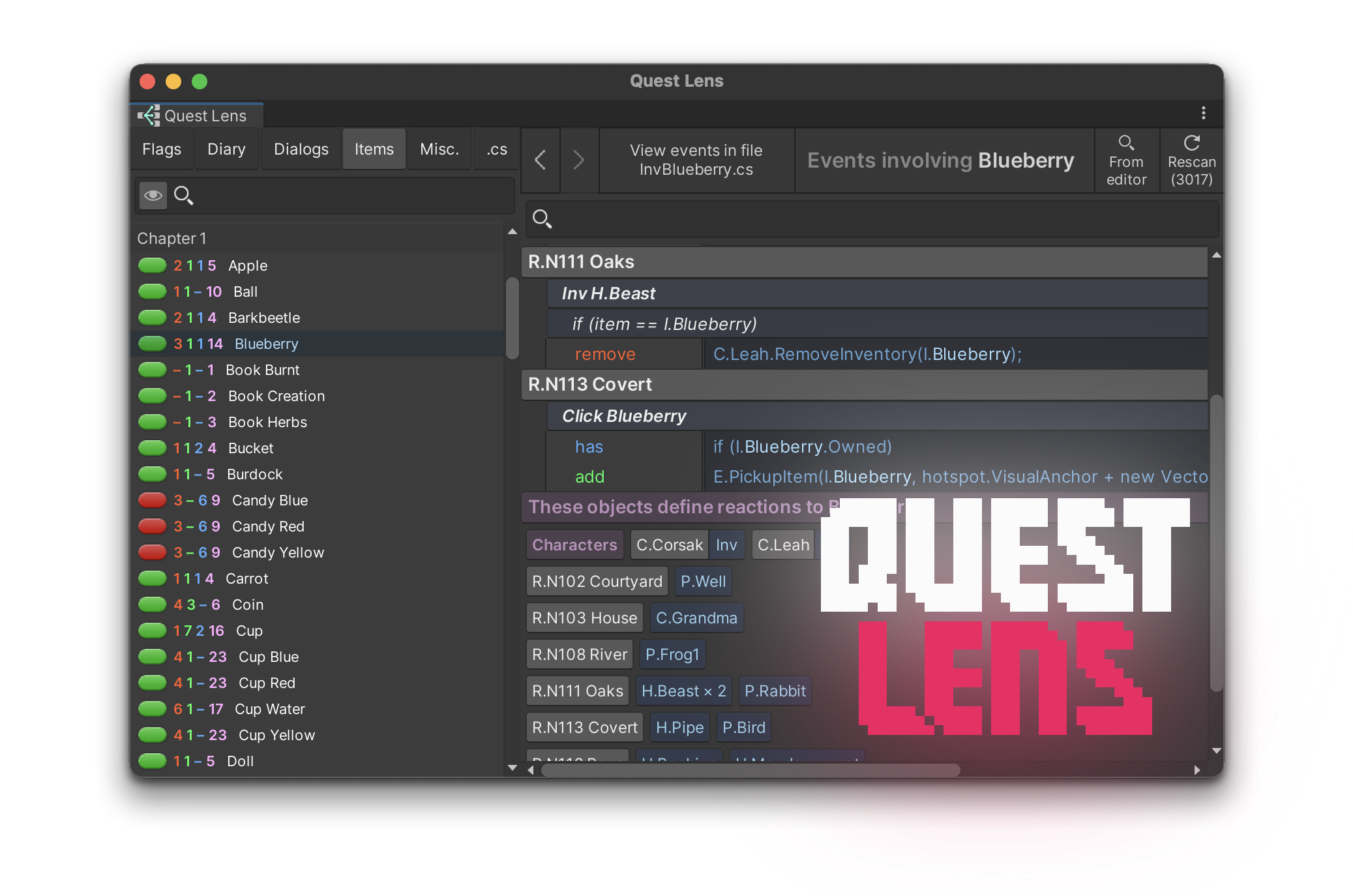
What is this?
Quest Lens is a flexible, extendable static code analysis tool for Power Quest games.
It works by parsing source files, extracting events involving entities of interest throughout your project, and linking them back to files, functions, and specific lines of code.
Where do I set this flag to false? Which props react to clicking with this item? What is going on in this room? How many ways are there to get this dialog option to be "OffForever"? Do I ever check if this item is owned?
The Quest Lens window is a full-featured browser for all this data.
The system is modular under the hood, allowing you to easily write your own parsers to extract any project-specific data you might be interested in.
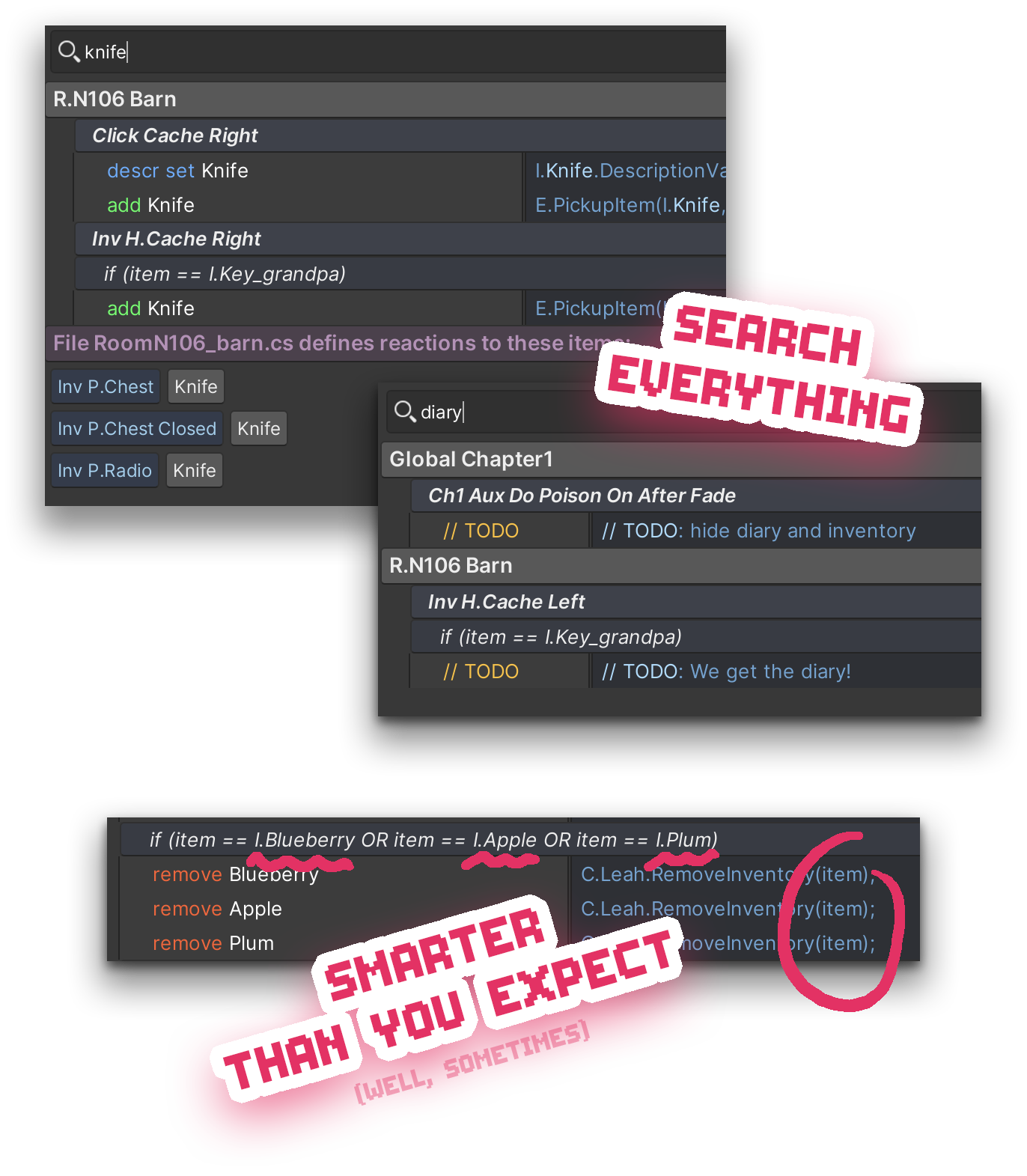
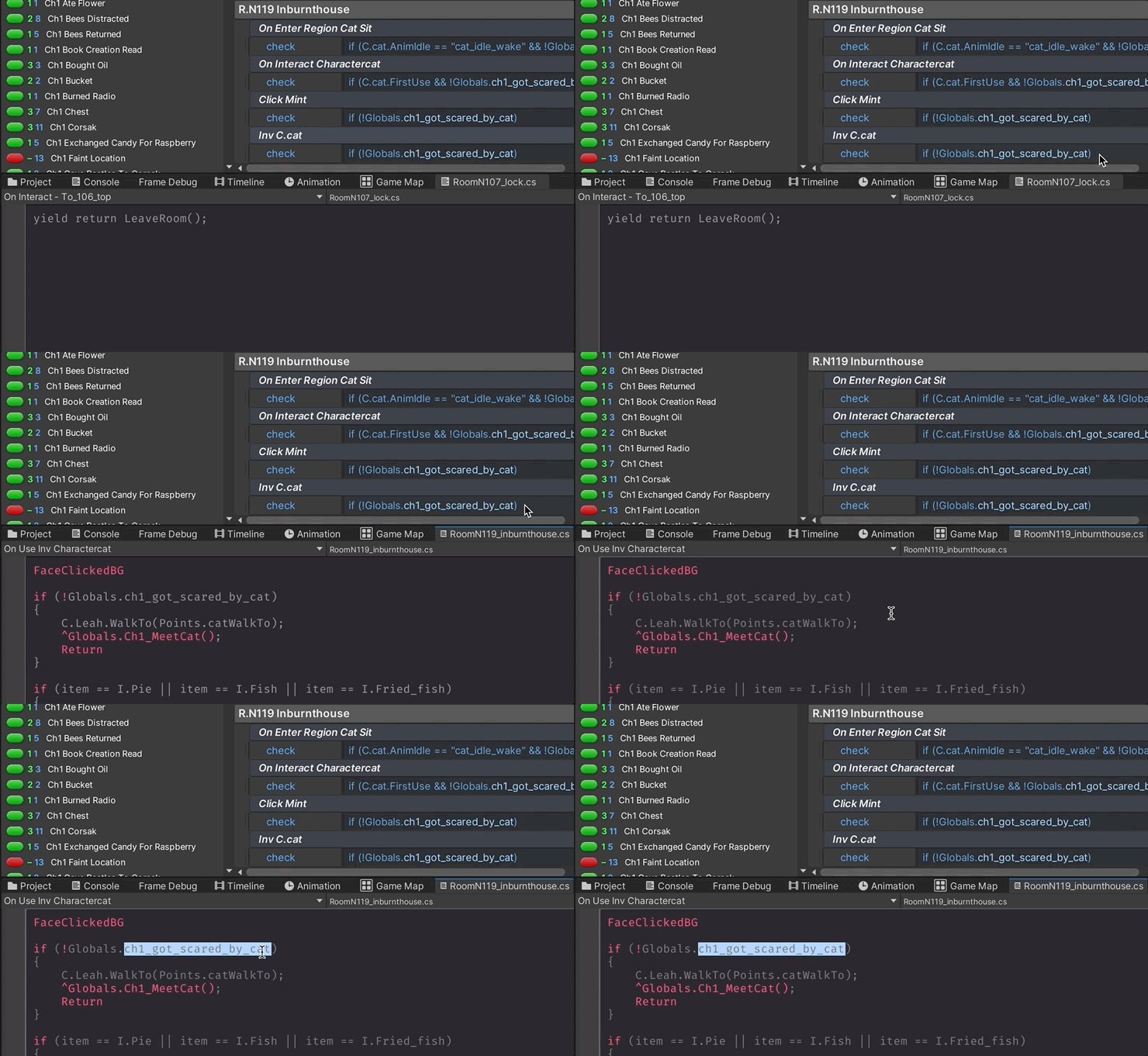
Features:
- Built-in entities and events:
- Global Flags — Set value, Check value;
- Dialog Options — turn On, turn Off;
- Inventory Items — Add, Remove, Owned?, UseInv interactions with every Prop, Hotspot, Character or Inventory;
- Misc. — // TODO comments, Sections;
- Scanner:
- Automatically rescans with each domain reload (in a background thread, and typically <1s);
- Links points of interest to specific classes, methods and lines of code;
- Analyses if-branches with mentioned items
- Is hella smart (sometimes!)
- it will try to deduce what "item", "option", "thisItem", "I.Active", "D.Current", etc. refer to;
- if (item is Apple, Orange or Peach) item.Remove()? It will know what's up!
- Automatically rescans with each domain reload (in a background thread, and typically <1s);
- Browser:
- Badges to indicate potential problems or just properties, e.g.:
- a "red" inventory item is removed but never added;
- a "gray" dialog option is never turned on or off;
- a "red" variable is checked somewhere but never assigned to;
- Preview actual code of every found point of interest;
- Search & Filters;
- Cross-links between entities with navigation History;
- Links to actual code — click a method name or a line of code to open it directly in Quest Editor;
- Links from actual code — when editing code in Quest Editor, click "From editor" and drill in;
- Customization: extend provided classes to easily extract your own data.
- For the adventurous!
- Define entity collection — like from enum values, files, prefabs, predefined lists, etc;
- Describe entity appearance — names, rules for status badges, color-coding;
- Extract data from code — using simple interfaces to assign tags to found events;
- Misc. entities — quickest way to find arbitrary points of interest in the codebase, like comments, uses of a particular function, etc.
Version history:
- v. 0.5 — 29 May 2024
Installation:
- Download PQQuestLens.unitypackage
- Add it to your project via Assets > Import Package > Custom package...
- Open from Game > QuestLens
Notes:
- Current version wasn't tested with verbs or tuned for them, but it can be done;
- Detection of global variables relies on naming convention by default (m_ prefix). Detecting variable access without any convention can potentially be slow (depending on the number of global variables in your project), but possible (just test every line against every variable name, yoohoo);
- If your naming convention has structure (like prefixes for quests, chapters, types, etc) it can be used to render headers in the entity list;
- It's big and wasn't initially planned for publication. I hope it's stable. Seems stable...
Support:
- Reach out in PQ Discord (@13x666) if
- It refuses to work for you
- You found a bug or an oversight
- You have an idea for a great new feature
- You really want to add a project-unique feature but not sure how
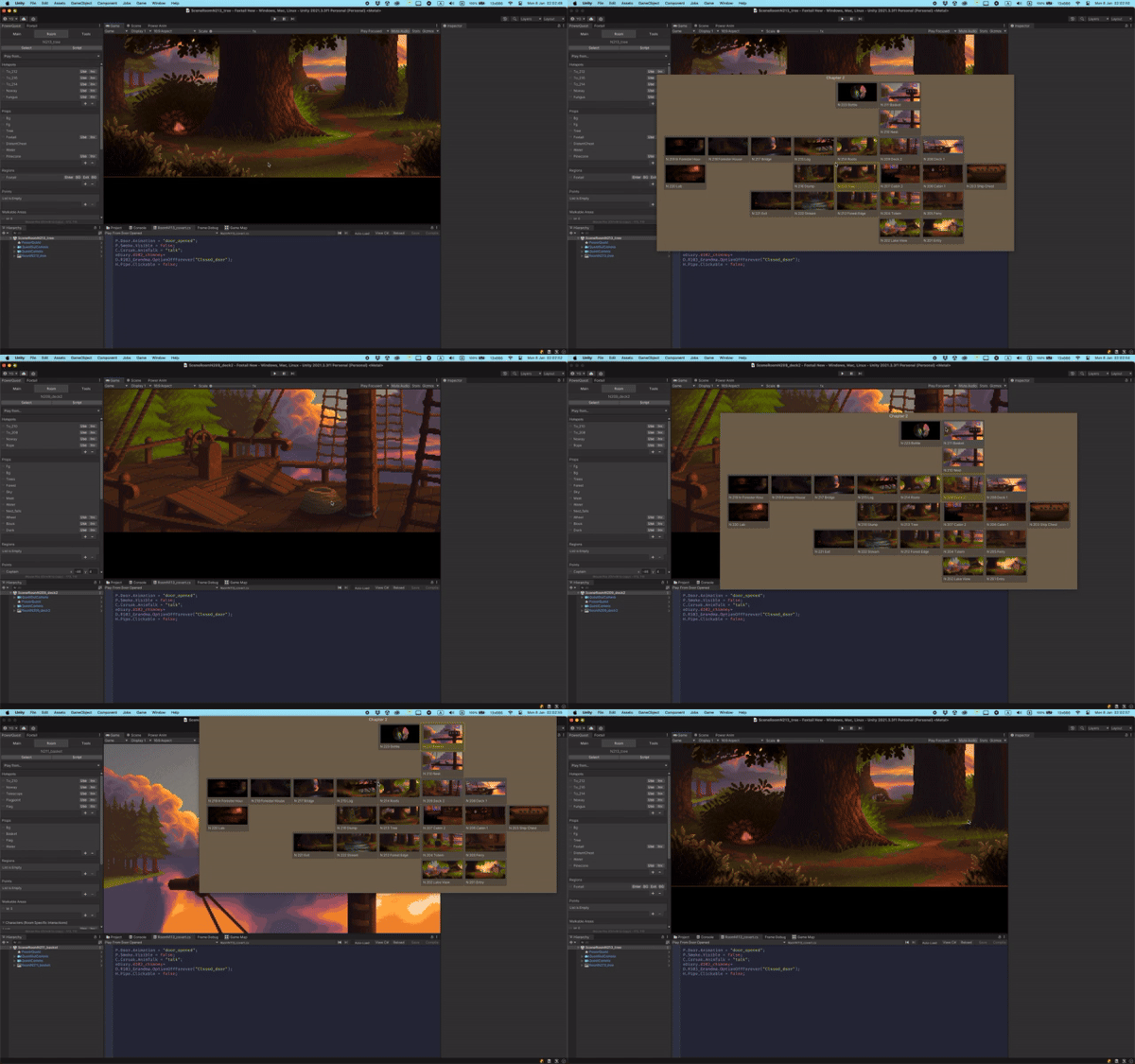
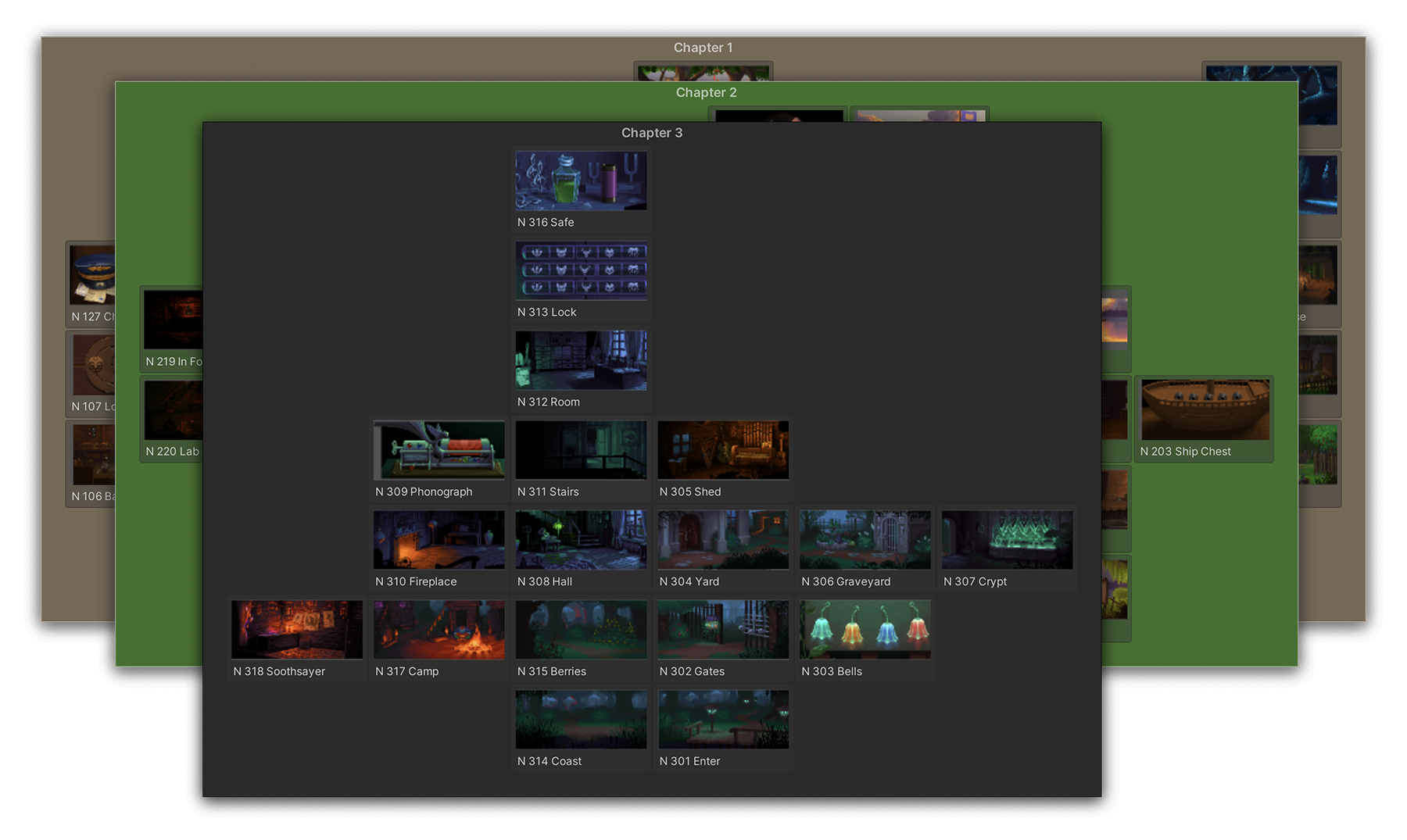
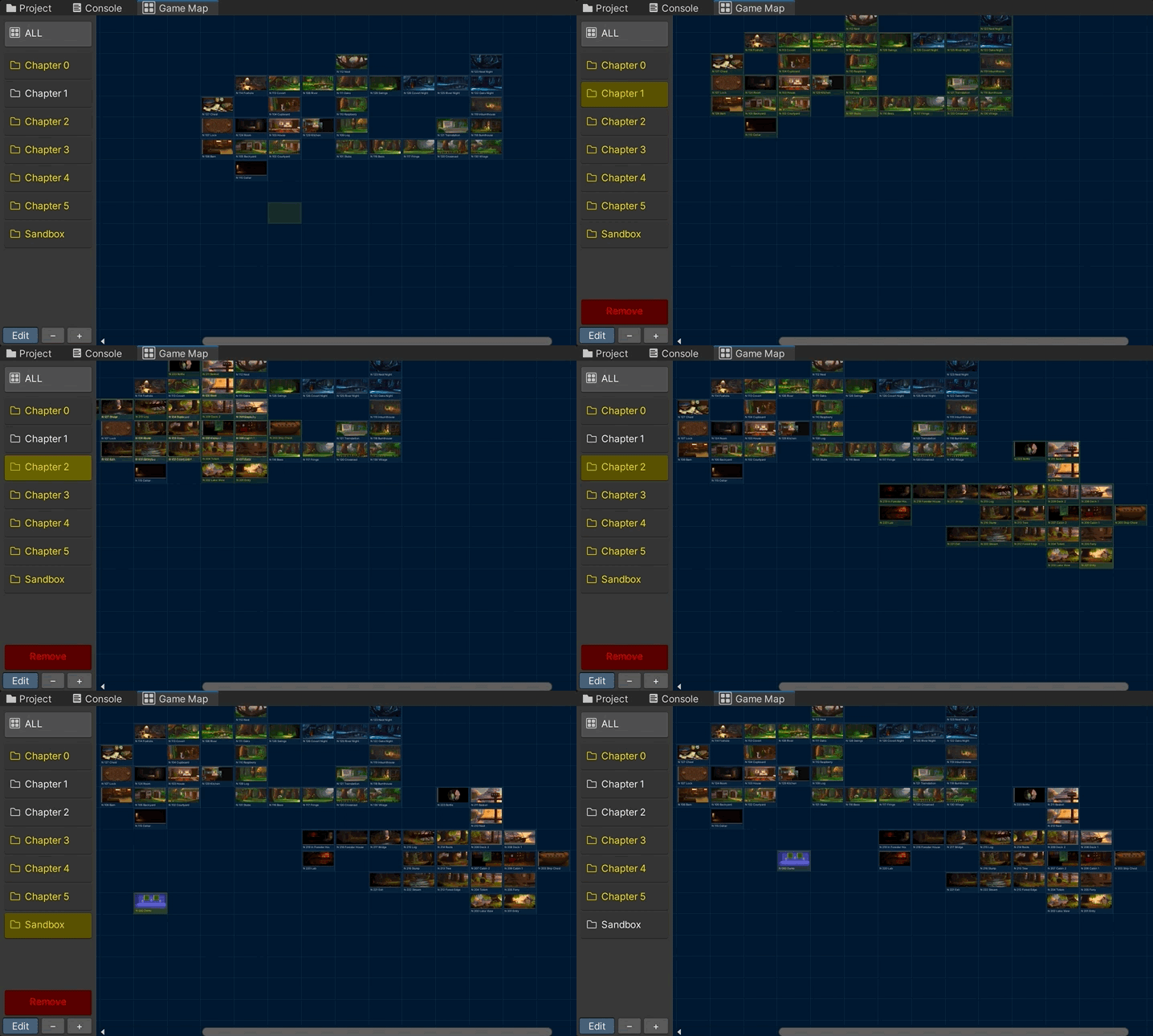
Simple interactive map of your game to easily navigate, open scenes or teleport between rooms.
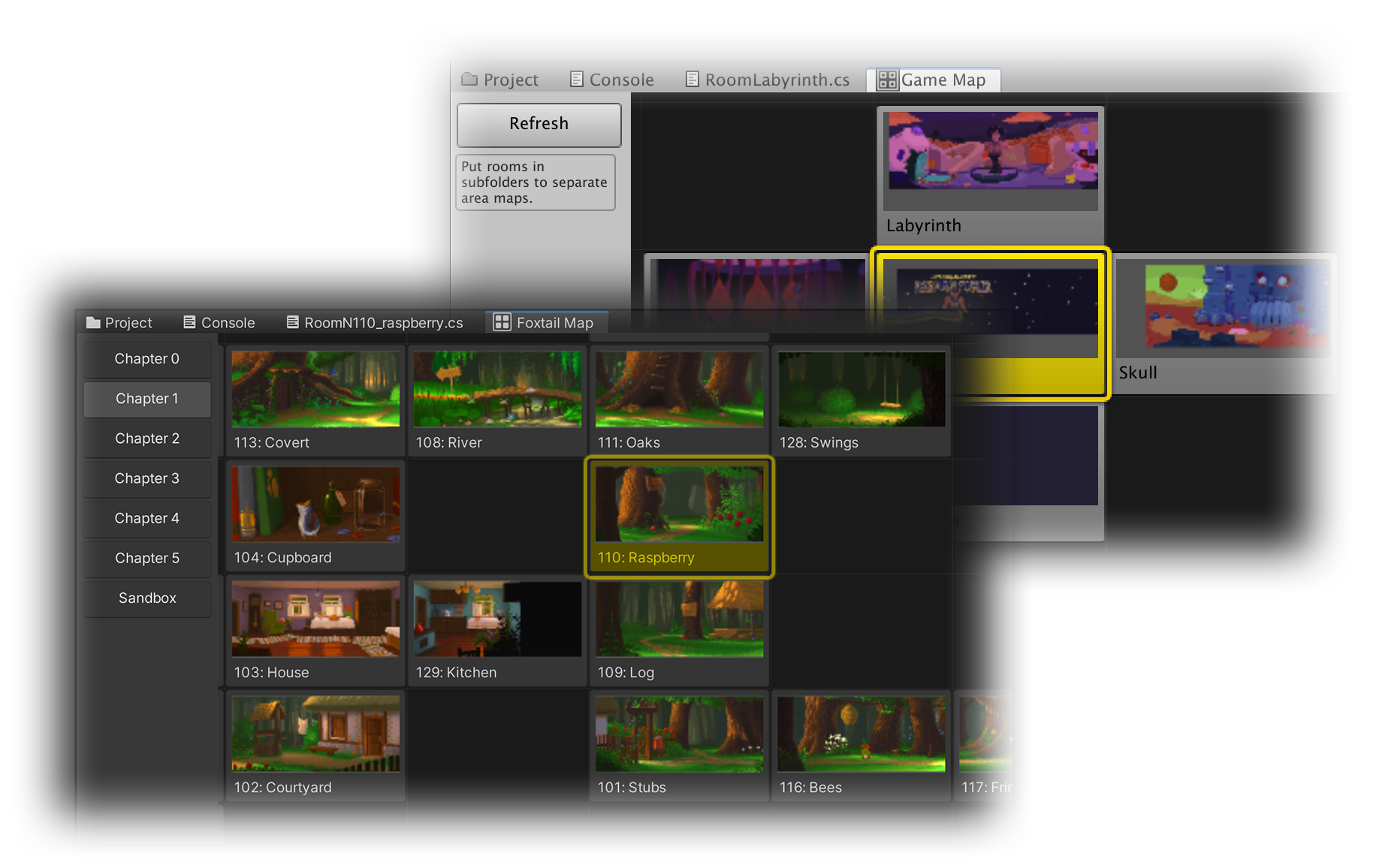
Version History:
- 0.4 — Jan 8, 2024:
- Added QUICK MAP
- 0.3 — Aug 8, 2023:
- ALL tab to see all rooms at once for projects with room subfolders;
- Support for rooms at root level next to subfolders;
- Click active room again to select it for inspection;
- Ability to remove previously added rooms from the map;
- Fix mouse pan speed when zoomed;
- 0.2 — Jul 19, 2023:
- Added zooming (Ctlr/Cmd + mouse wheel or sidebar buttons);
- 0.1.1 — Jul 17, 2023
Installation (v 0.4):
- Do either of these:
- Download PQGameMapEditor.unitypackage and add it via Assets > Import Package > Custom Package...
- OR just download GameMapEditor.cs and stick it into .../Assets/Game/Editor/
- Open the map from Window > Game Map
Usage:
- Optionally, use subfolders in your .../Assets/Rooms folder to separate the game map into areas. Top-level subfolders will be presented as tabs in the side-panel;
- Click [Edit map] button at the bottom to switch to edit mode and create map layout:
- Full list of rooms in current folder will be presented
- Click a room, then click a map cell to place it
- Use arrow buttons under room list to move the whole map if you need more space for new rooms
- Click [Edit] button again to exit edit mode
- Full list of rooms in current folder will be presented
- Use +/– sidebar buttons or Ctrl/Cmd + mouse wheel to zoom the map
- ALL tab: "overworld" view
- Appears if your rooms are sorted into subfolders
- Create a neat area map for every subfolder as described above
- Switch to ALL and enable Edit mode: folders will become selectable
- Zoom out for convenience
- Click a folder and place its map on the canvas
- Click already placed rooms to move whole areas at once
- Click [Edit] button again to exit edit mode
Quick Map:
- Set up the map layout using the Game Map window
- Press ; (semicolon) anywhere in Unity to bring up Quick Map
- Click a room to switch to it
- To close Quick Map, press ; (semicolon) again or just move the mouse out of the map
- If you have room subfolders, use mouse wheel or </, and >/. to navigate between them
- In the main Game Map window you can click Edit and change your Quick Map color if you want!
- Known bug: On some systems it pops up fixed size and square no matter what — don't know how to fix it yet because I can't reproduce it. Please let me know if you've encountered this behaviour too!
Features:
- While the game isn't running, click a room to open its scene;
- While the game is running, click a room to teleport to it;
- Click the active room to select it in the Hierarchy;
- Also, the current room of a running game is highlighted. Just in case you get lost!
Notes:
- If you see empty room thumbnails/prefab icons, refresh the view by clicking Refresh or current folder a few times;
- The layout is stored in ...Assets/Game/Editor/game_map_data.json — delete it to reset the layout;
- Ask me (13x666) in PQ Discord if you have questions/suggestions
Planned features/fixes:
- (your ideas here?)