

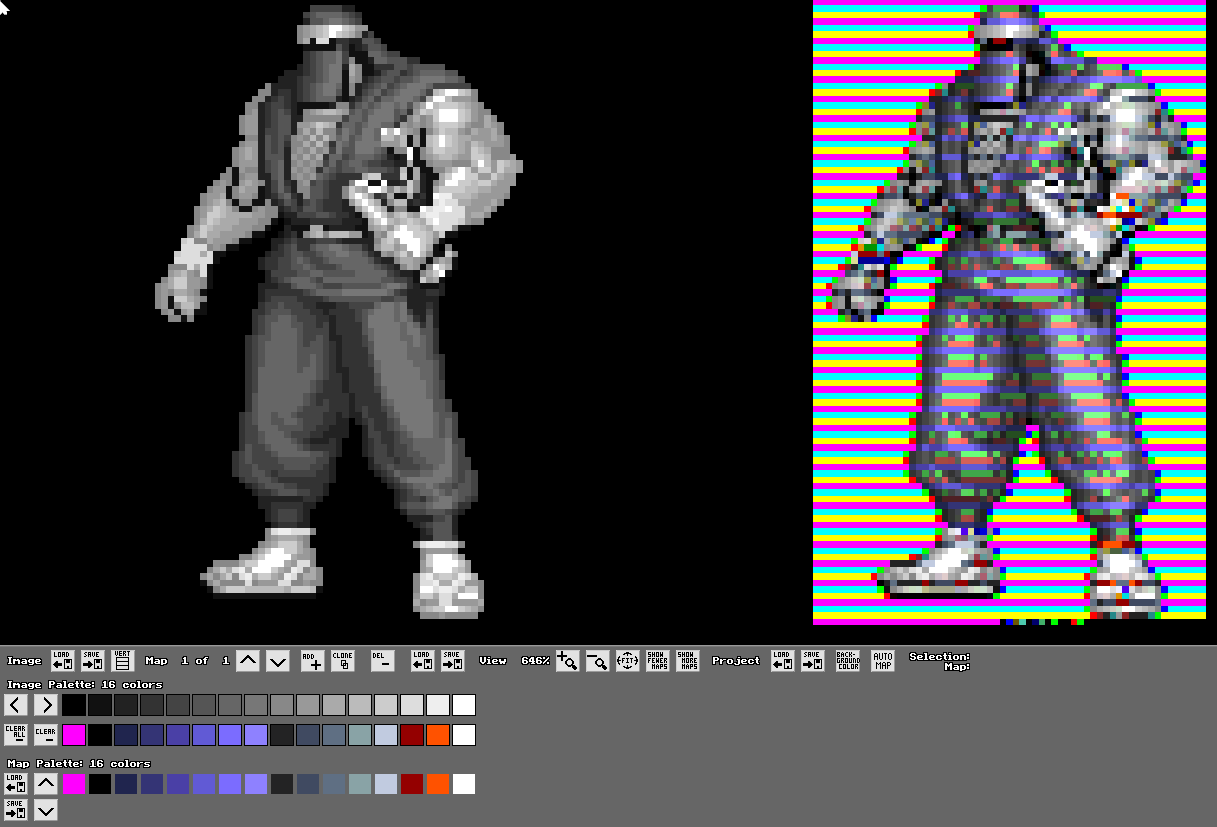
EDIT: Upon further inspection it seems the garbled images with the small pixels beneath them seem to be if the dimensions of the picture are too small. If I use an image file with wider dimensions the problem goes away. Looks like the program crashes if the palette saved is only 16 colours, when it's 256 colours it's fine. That's my observations so far...
Original reply below:
Ok I'd like to help get to the bottom of this for you so I'm here to help.
Here is a file that crashed it.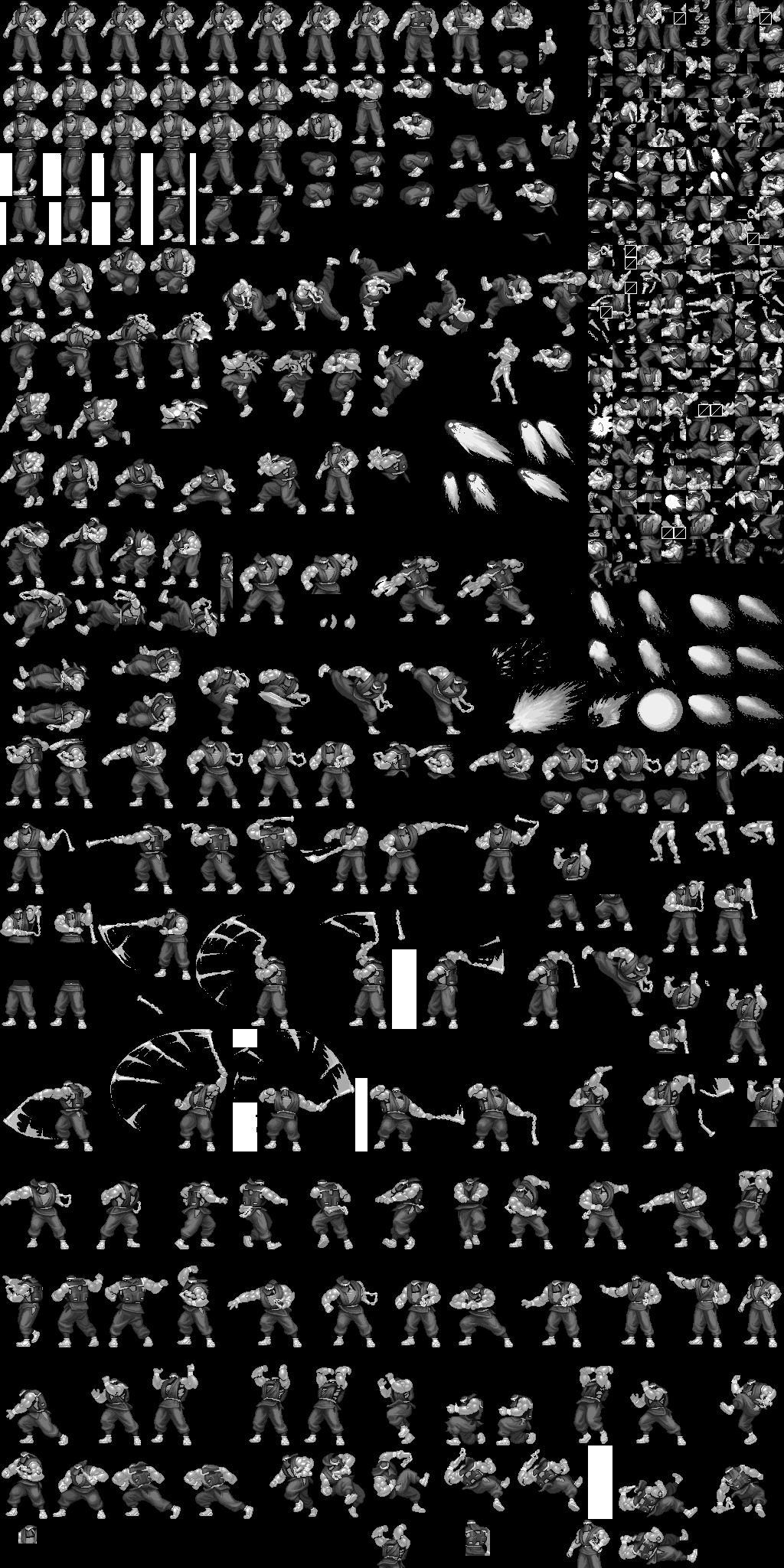
Here is a file that should have the colours in the correct order but doesn't. This one I set the first index value to be a transparency.
Now here is the same image if I don't set the transparency. This one loads the colours in the right order, but it has a funny colour strip below the mapped image (the right panel), and when I try to apply a map it gives funny garbled colours:
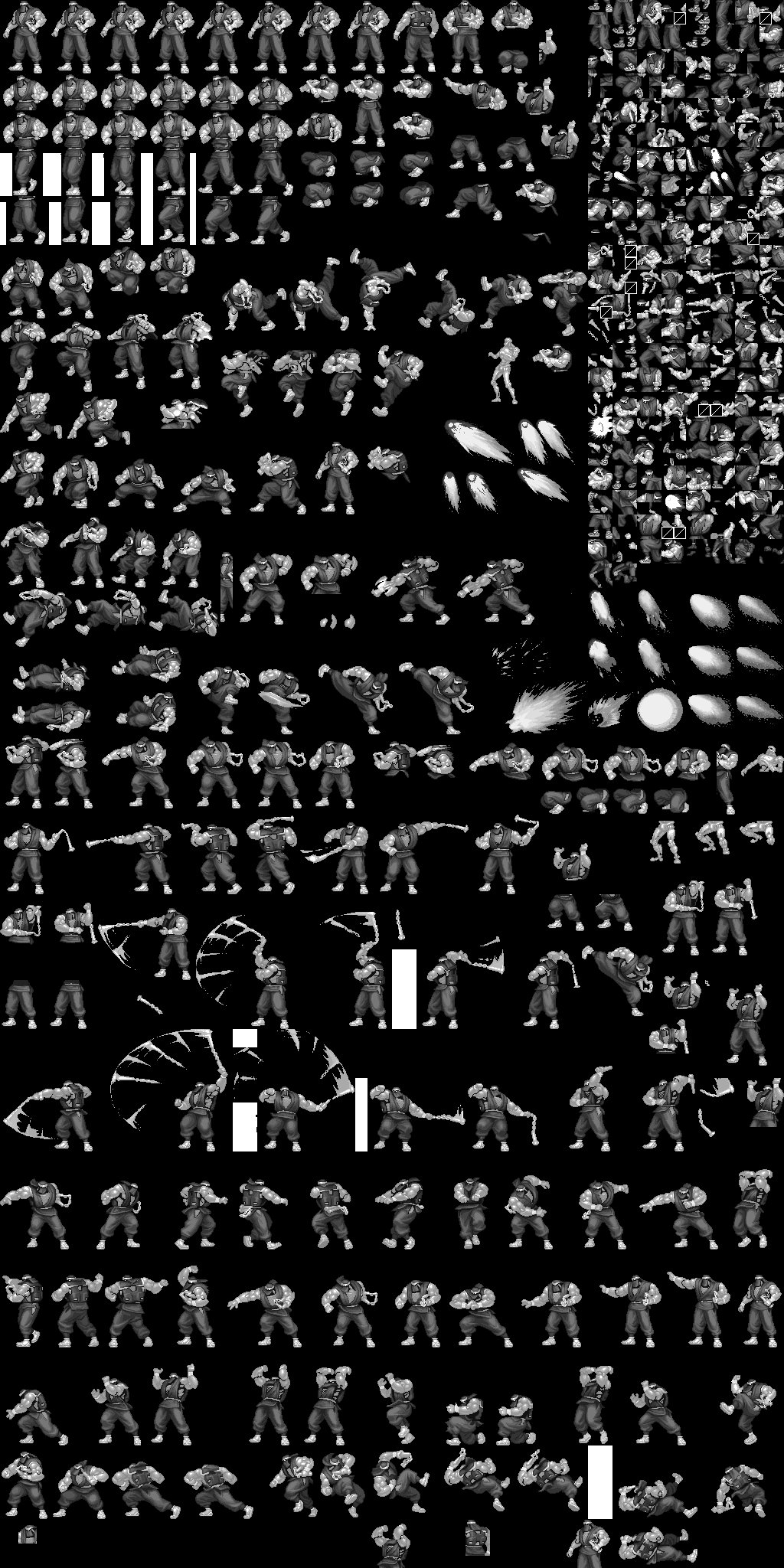
So I was actually able to get the program to work properly with the images one time, what I did was I loaded the original spritesheet and decreased the colour count to 256 instead of 16... Then I got it to work. Here is the file that actually works as intended.
So if I load this palette strip:  I get this result: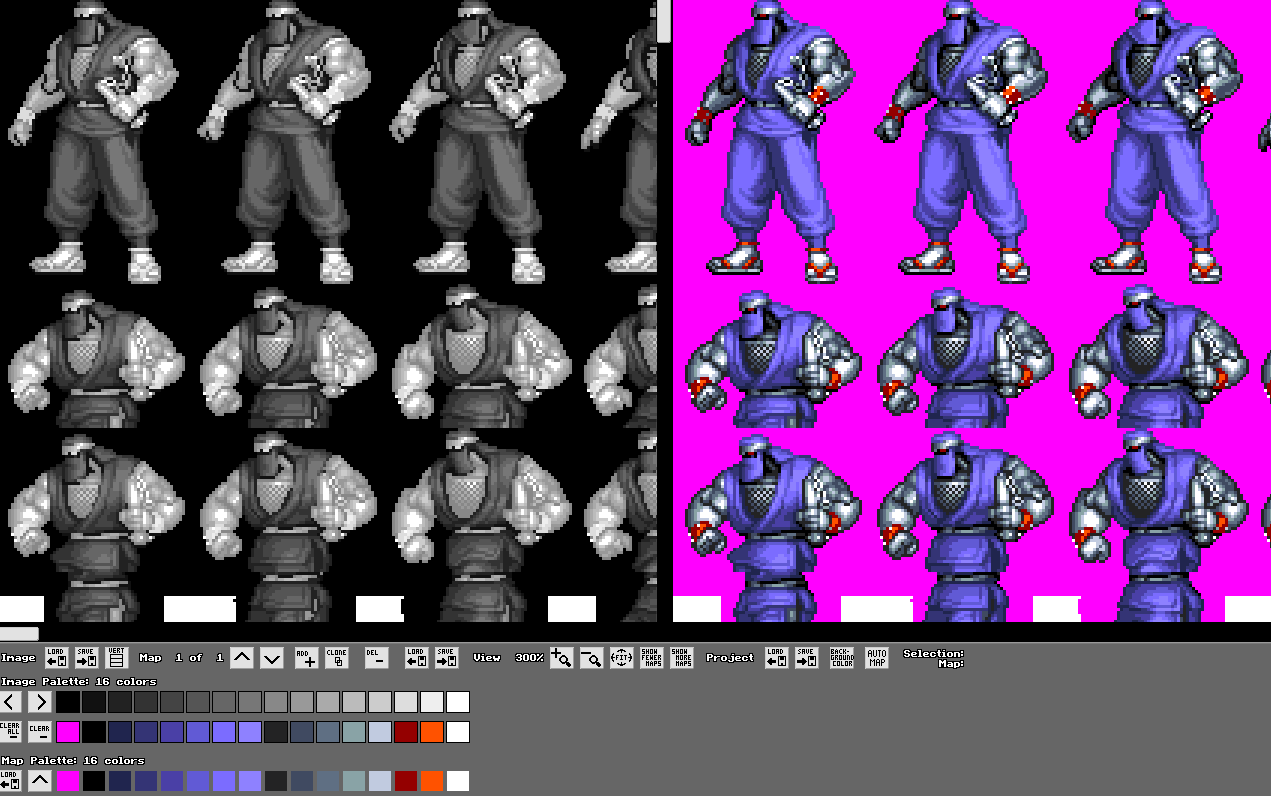
Lastly, for your shift by index count, that is exactly what I want, you explained it the perfect way. "
Map 1 maps Image Colours 1-16 to Palette Colours 1-16
Map 2 maps Image Colours 1-16 to Palette Colours 17-32
Map 3 maps Image Colours 1-16 to Palette Colours 33-48
etc. etc."
Awesome!
Well thanks for reading my long-winded post, hopefully it helps you out!