

Hey Anjonjo,
finally, I got enough time on my hand. First thank you!
Some things can be found be searching (and then clicking on the little binoculars' icon, so it searches the whole project). You find the settings for what you are searching under FirstPersonKitBP→UMG->UMG_InteractionWidget-> on the event graph the top green comment and then the lowest "set custom Text to Tag" -> there you see "will be filled later".
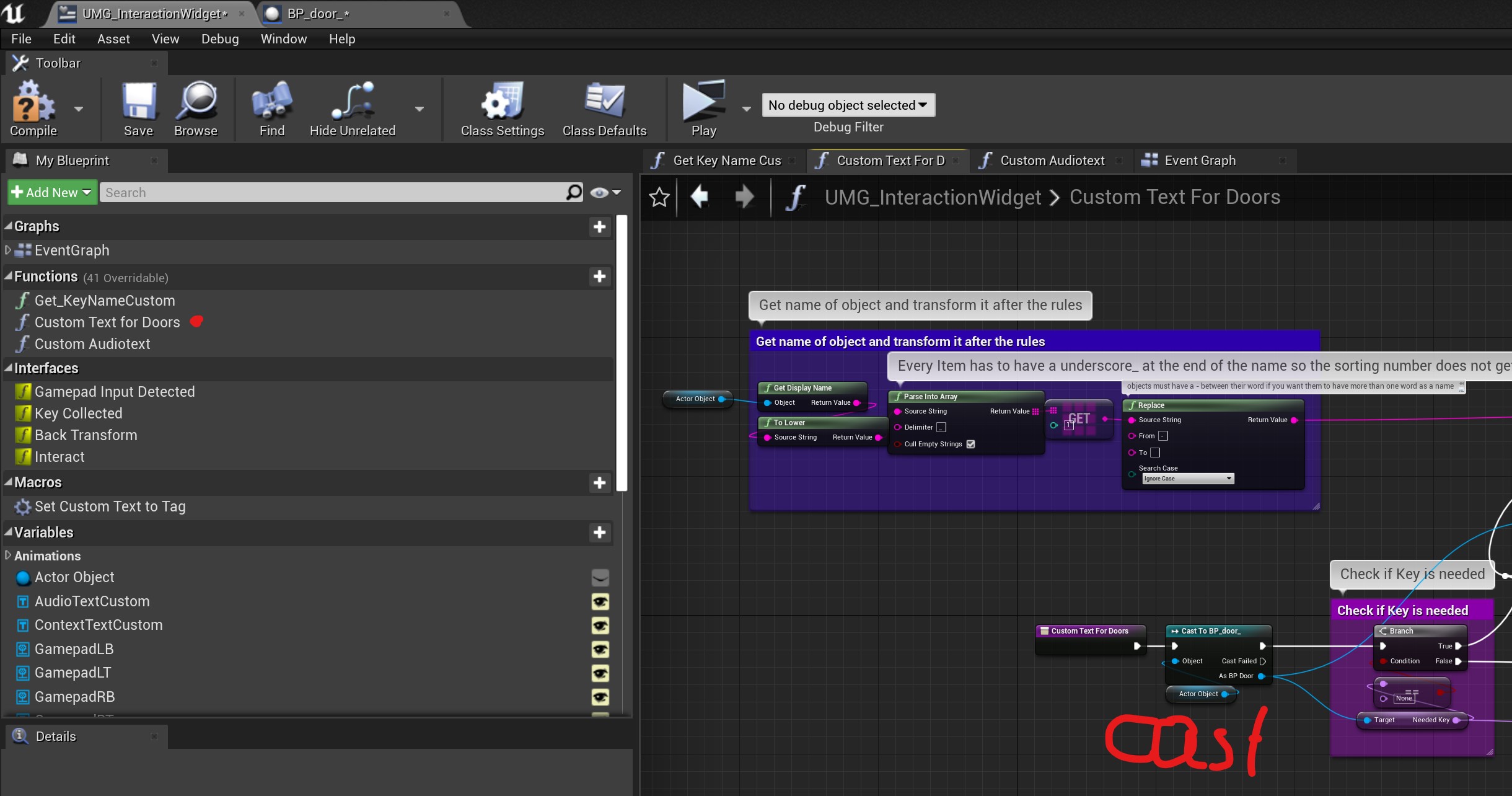
But before you change that because the doors can have three states (open, close and locked) there is a custom function behind it called "Custom Text For Doors". In that function it checks if a key is needed (if you set a custom key name instead of leaving it blank / none it requires that key). That is why you should only use the BP_Door actor as it "casts to" that actor to find out if a custom key is set.
If you have a second blueprint actor for doors just plug a "cast to" where the red cast is written and plug it into cast failed with the first. I would really try to limit your door blueprint actors. It is something as I only made one door asset I did not really think about.
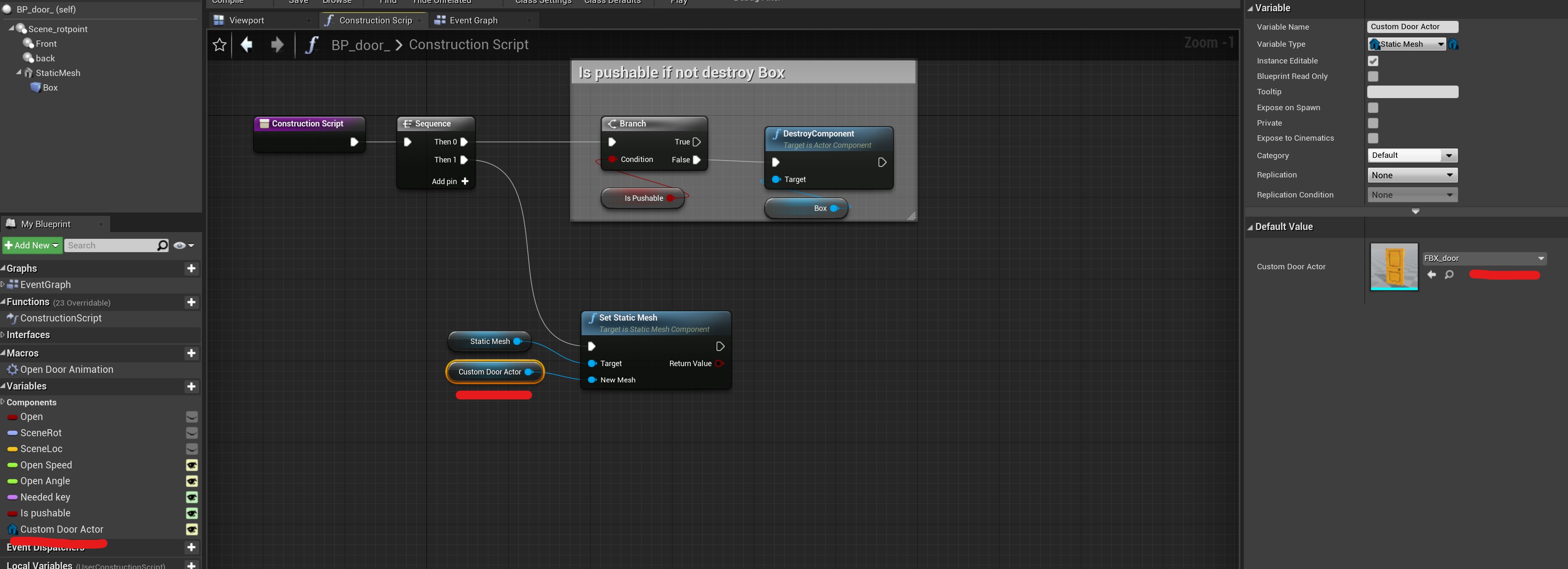
If you just need a different static mesh as your door (just thought about that) create a new function in the "construction script" of the door actor. Say set static mesh and as the target set StaticMesh (the door from the viewport). For the new actor create a custom variable (see right panel for settings) set it to editable and put your default door as the default value (otherwise you don't have a door or have to set it for each actor in the level new). Then you should be able to set a custom door static mesh for each door. :) I hope that was what you were after. In the next update for .26 I will include that.
For tips to get yourself around the assets I would advice to read the comments and slowly click through all actors and in there the Macros and custom functions are probably also interesting. Sadly not everything follows the same logic. That's due to my experience back then. Btw. every variable should have a tooltip explaining what it does and if you search it just do it with control + F.
Have a great day and if you need some guidance again chat me up. It just may take some time ;)