

The font editor was easy to use! I just wanted to make sure that they were working as expected. Maybe I'd just like a way to make more characters at once instead of one at a time?
And of course, thank you for the software!
You're very welcome!
If you haven't tried it already, the "Sheet" tab in the font editor is meant to help with editing multiple font glyphs at once:
First, in the "Font" tab, pick the font you want to work on (or create a new one and choose its dimensions) and then click "Set grid overlay to font dimensions". (You can also set the grid dimensions manually with "View -> Grid and Scale..." in the menu with any drawing tool selected.)
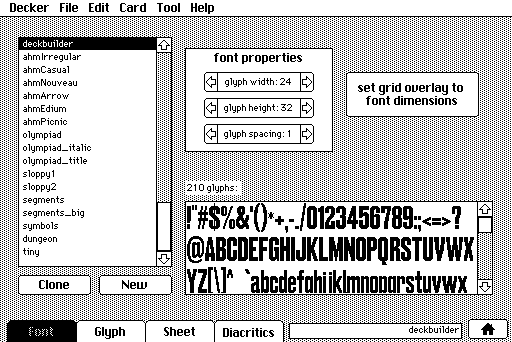
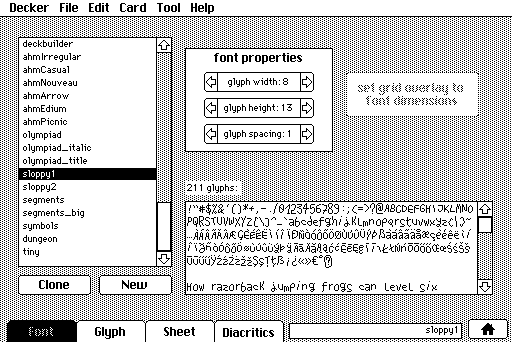
Then, on the "Sheet" tab, switch to widget mode and turn on "View -> Show Grid Overlay" and "View -> Snap to Grid" in the menu. Reposition and resize the "workzone" widget to make room for all your glyphs:
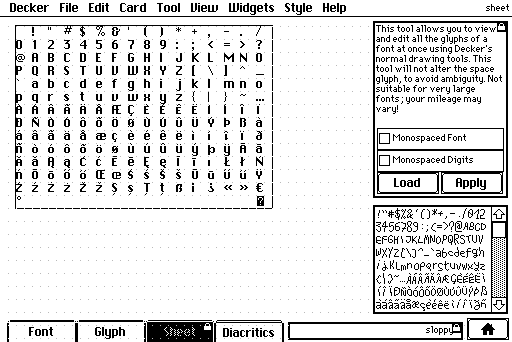
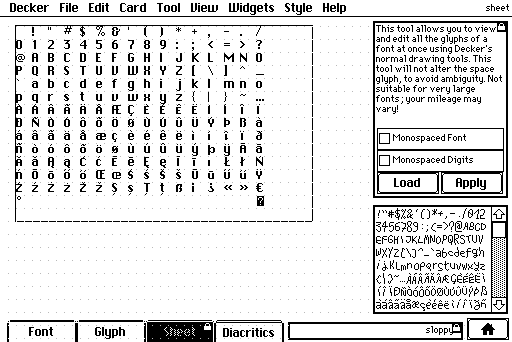
if you want to set up workzone with a precise size, you can use The Listener:
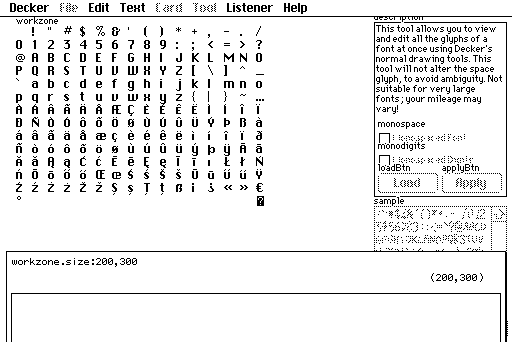
Then, in interact mode, click "Load"; this will splat all the glyphs of your font onto the card background, wrapped and aligned within "workzone". You can then make any edits you want to with Decker's normal drawing and image-editing tools, including importing images and reordering or copying and pasting glyphs:
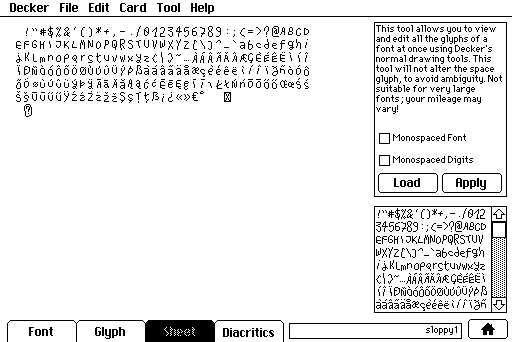
When you're done, click "Apply" and Decker will read the glyphs back out from the card background and update the font. By default this will measure the horizontal pixels taken up by each glyph to set their widths, but you can use the checkboxes to force it to keep all glyphs monospaced or just the digits.
This tool doesn't work for very large fonts, but for small fonts it's a very fast way to perform sweeping edits!