Indie game storeFree gamesFun gamesHorror games
Game developmentAssetsComics
SalesBundles
Jobs
TagsGame Engines
(29 edits) (+1)

I’ll add a tutorial deck to the set in the next few days

note: it’s already gone through a big revamp for usability as I tested it under “real” conditions. it’s been massively simplified to three contraptions; card, canvas, and layercake.

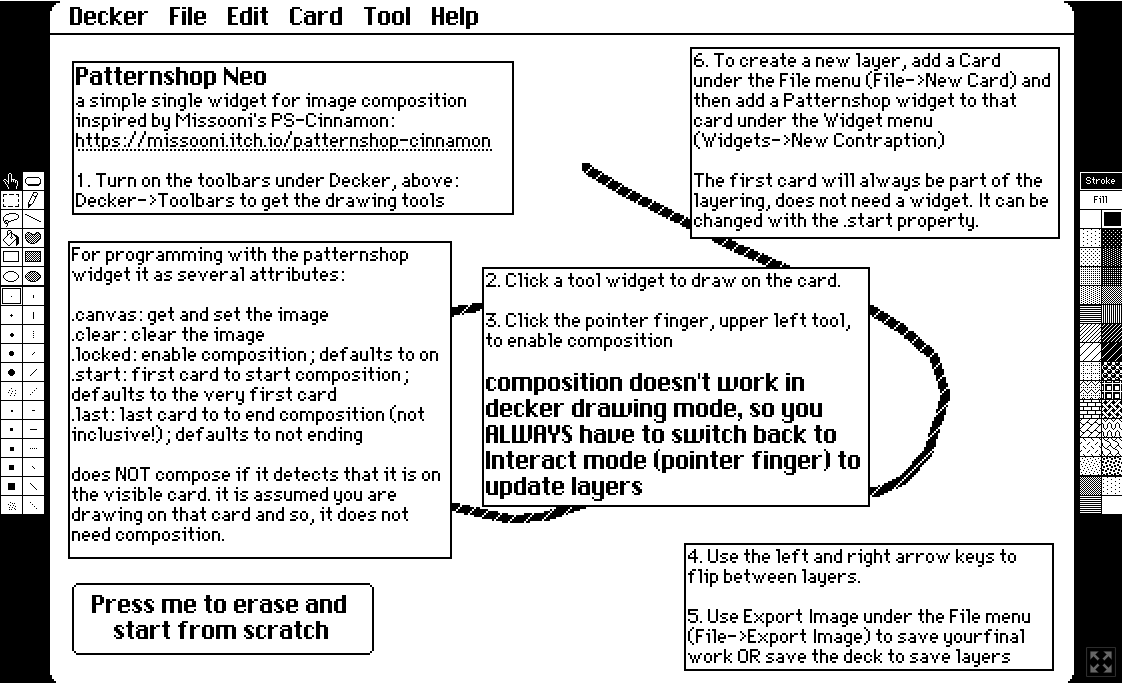
patternshop

a compositing tool for cards and ps canvases as layers

direct download of deck: https://codeberg.org/woodring/decker.patternshop/raw/branch/main/patternshop.deck

project and readme, which is pasted below: https://codeberg.org/woodring/decker.patternshop/src/branch/main

see https://codeberg.org/woodring for more decker things

synopsis

It’s a module and several contraptions that emulate layered composited drawing in other drawing tools. Or, “Decker mega-underpaint mode.”

How it works:

  1. make a card that you want to be the target of the compositing

  2. put the ps_card contraption on that card

  3. make at least two other cards that will act as drawing layers

  4. put the ps_card contraption on each of those cards

  5. click the L checkbox on those contraptions - they are now layers

  6. draw on the layers with the Decker drawing tools; you’ll have to switch to drawing mode

  7. after done drawing, switch back to interact mode and the target card.

  8. press the C checkbox, et voila! layered drawing on cards

hint: reorder the cards to help flip between a layer that you’re currently drawing on. the left and right arrow keys switch between cards.

or

  1. make a card

  2. put the ps_canvas contraption on that card

  3. make at least two other cards

  4. put the ps_canvas contraption on each of those cards

  5. click the L checkbox on those contraptions - they are now layers

  6. draw on the layers with the pointer; use the b and p buttons to change the brush and palette

  7. after done drawing, switch back to the target card.

  8. press the C checkbox, et voila! layered drawing on the canvases

hint: to save your work, save the deck. all layers will be preserved, cards and canvases. composition and layers will be off the next time the deck is opened, to preserve the current state of the cards and canvases.

even more

  • canvases and cards can be combined. drawing on a layer card will update a canvas target and vice versa.

  • non-composition cards and canvases, i.e., layers, can be copied to each other via ps_layercake. it’s an upgraded select/rubberband box. if you copy something onto a ps_layercake, but it’s on another card - cut the widget, i.e., ps_layercake, and paste it in the new card.

  • layers are semi-permanent, unless they are wiped out with drawing over them or pasting into them with ps_layercake. saving a deck will retain them between sessions. IMPORTANT: a layer will be wiped if composition is activated. the image will be replaced by the contents of any other active layers. switching from composition to layer is safe, switching from layer to composition is destructive.

  • when a saved deck is opened again, composition and layers will be off. this is to ensure your results are not updated until you explicitly want them to be. be mindful though, since layers are off, too. to help protect your drawings, if there are no layers it will explicitly not composite.

  • IMPORTANT there is no undo. save your work, often.

  • a limitation is that compositions do not update if you switch into drawing mode. cards can only be drawn on in drawing mode, which means, compositions will not update again until it is switched back to interactive mode, again. this limitation does not affect canvas layers, as they can only be drawn on during interactive mode. but, Decker’s drawing tools will not draw on ps_canvases, only cards. free-form sketching with brushes and patterns is available for cavnases.

controls on the ps_card and ps_canvas

  • only on ps_canvas, v button: toggle visibility of drawing canvas from “solid”, “transparent”, “invert” and “none”

  • only on ps_canvas, y button: yank the controls away, so they don’t block the corner. the r button appears on the other side.

  • only on ps_canvas, r button: restore the controls after being yanked away

  • C checkbox: composite - combine all currently active layers and replace the card or canvas image with the layers. this is destructive and will wipe out any contents on that card or canvas. you can have multiple composites on and they will all receive the combined layer results. exclusive with the L checkbox. NOTE: unchecking C will stop composition. this in effect, “freezes” whatever was the last set of combined layers. good for incremental drawing, as now the image can be turned into a layer by checking the L checkbox. but, checking C, if it was previously L, will wipe the contents of the layer if there is any other active layer. be careful, save often.

  • L checkbox: layer - activate the card or canvas as a layer. its image will be combined with all other images and output onto active composite cards or layers. all layers are combined in numerical order via their compositing operator. see the following. exclusive with the C checkbox. NOTE: unchecking L will stop combining (composing) this layer with any other layer, so it will stop contributing to any active composite (checked C cards or canvases) images. checking L again will reactivate the layer. but, checking C will wipe the contents of the layer if there is another active layer. be careful, safe often.

  • +/- buttons: increases/decreases layer number. the smallest layer is on top, with larger numbers after; i.e., compositing happens in numerical order, such that the top layer (smallest number) is added first. has no effect in composition mode.

  • number box: shows the layer number for that ps_card or ps_canvas has no effect in composition mode.

  • </> buttons: switch the compositing operator. it starts in under (u) mode, i.e. underpaint - which is probably what most people want. the order of operators is, starting with u: +, -, *, &, |, <, >, =, o, u compositing operators are: “what’s being done per pixel between the image stack and the next layer being added.” o stands for “over,” i.e., layer goes on top of everything. has no effect in composition mode.

  • text box: shows the current compositing operation for this layer; i.e., given the previous layers, what does this layer do to the stack of images, since it’s a cumulative effect. has no effect in composition mode.

  • only on ps_canvas, b button: change the brush. it will ask you for the name or number for the brush. to change the brush in Decker card drawing mode, use the Style->Brush menu like normal. custom brushes created by ps_layercake can be used. has no effect in composition mode.

  • only on ps_canvas, p button: change the pattern. it will ask you for the number for the pattern. to change the pattern in Decker card drawing mode, use the Style->Pattern menu like normal. has no effect in composition mode.

controls for ps_layercake

a copy & paste tool for cards and layers. think of it as select/rubberband box that has a few more features.

layercake operates in interactive mode. grab the corner handles to move it around and resize it. note: you cannot paste into an active composition target - it will be immediately replaced. paste into a layer - or - turn off composition.

hotkeys drive the other functions:

hotkeys

  • c > copy from the card background. completely replaces the contents of the layercake buffer. see merge up.

  • v > paste to the card background. completely replaces what the layercake covers. see merge down.

  • n > merge up, i.e. composite copy from the card background, treating pattern 0 as transparent. a non-destructive copy.

  • m > merge down, i.e. composite copy to the card background, treating pattern 0 as transparent. a non-destructive paste.

  • d, f, h, j > copy, paste, merge up, merge down for a canvas, rather than a card. if you have multiple canvases on a card, will try to do all of them.

  • b > turn the layercake contents into a custom brush. it will ask you to name the new brush.

  • w > wipe/clear layercake

  • t > toggle/cycle through visibility modes; solid, transparent, invert, and none.

NOTE: pasting or merging into an active composition card or canvas will have no effect. this is because it will be immediately replaced by any active layers, replacing whatever was pasted into that composite. turn composition off if you want to paste into a composite. but, if composition is turned on again, the pasted contents will immediately be lost.

usage notes

  • reminder: save your deck frequently. there isn’t undo.

  • reminder: while C is checked, the card or canvas is an active composition and will receive updates from active layers. unchecking C will deactivate composition and “freeze” the image. it will stop receiving layer updates. while L is checked, the card or canvas is an active layer and will provide content for active compositions. unchecking L deactivate a layer and it will stop being included in any active compositions.

  • hint: deactivating a layer makes sense if it might have been a “guide layer” to trace over, like sketching a rough layout or draft. this will remove the rough from the final composites. deactivating a composition makes sense to freeze the image if it is a final or if the image will be used as a layer for a new composition.

  • reminder: when composition is on, anything that you directly draw into composition card or canvas will be immediately wiped by layers. this includes ps_layercake merges or pastes. turn composition off if you want to draw on top of a composited layer.

  • hint: in general, draw on logical layers not compositions - unless the composition will be turned into a layer. layers are semi-permanent, unless drawn upon, while compositions are dynamic and are actively updated results of combining layers.

  • hint: to trace over the top of an existing layer, use a transparent ps_canvas layer with a ps_card composition. use the v button to toggle visibility modes on a layer. composition doesn’t need to be actively on for the card. but if it is, the card target will show the composition of all of the currently active layers; including the one you’re drawing on if it is active and transparent.

  • hint: use the v button to make canvases transparent or hide them to see cards behind them; or other layers if they are on the same card.

  • hint: there isn’t a palette contraption, but you can use a card to mark the numbers of brushes and palettes so you can visually refer to them - like a real world palette. also, that provides a way to save custom brushes, too, by marking them on a palette card.

  • reminder: Decker drawing tools can only be used on cards. canvases are restricted to brushes and patterns that can be selected via the b and p buttons.

  • hint: noted previously, it is possible to copy an image into ps_layercake and then cut or copy the widget. pasting layercake onto another card allows you to copy and then paste the image there. this can be done with cards and canvases, too, like normal Decker. this allows you to keep multiple copies of compositions and layers in the same deck, to experiment or back up your work.

  • hint: consider composing results onto cards and then removing the ps_card contraption. this makes it so you don’t accidentally turn on composition mode and lose your work. (save often!)

  • hint: reorder the cards to help flip between card layers and compositions, like a flipbook.

  • hint: since both canvases and card can switch from composition mode to layer mode - this allows one to work incrementally. compose several layers together, turn layers and composition off, and then copy the results. use the copy as a layer and work from that. this also helps to keep Decker from slowing down, especially if you’re working in web Decker. “baking” several layers into one squashed image means Decker will only need to do a couple of composites, greatly speeding it up.

  • hint: the patternshop module and contraptions can be dropped into any other Decker project and be used as-is. but, all are required, the contraptions and the module: the contraptions require the ps module.

TODO

  • create a tutorial deck
(2 edits)

I’ve made several updates. In particular, added over and under composite modes, along with several other things.

It probably operates more like people expect, now.

I plan on merging a lot of the functionality into the canvas target and layer widgets, to reduce the number of contraptions. Card target and layer contraptions will mostly remain the same. While the cards seem relatively limited compared to the canvases, they both serve a purpose: 1. being able to composite with the existing Decker drawing tools, and 2. a composited background for a canvas layer to trace over or underpaint.

(+1)

it’s already gone through a big revamp for usability as I tested it under “real” conditions.

it’s been massively simplified to three contraptions; card, canvas, and layercake.