


Using lyrics in AJ Audio
There is a variety of options when it comes to displaying and interacting with lyrics.
Searching for lyrics
You can search for lyrics automatically which will replace the current lyrics on file (if there is any). To do this:
- Right-click on one or more tracks and select "Lyrics" > "Find automatically"
This will perform a search in the background. Time synchronised lyrics are preferred in the search. However, if none are found, it will resort to plaintext lyrics.
Uploading lyrics manually
You can also replace lyrics manually via file. To do this:
- Right-click on a track and select "Lyrics" > "Replace from file"
You can import .txt or .lrc files this way
- All lyrics are retrieved from lrclib.net
Replacing lyrics via clipboard
If your clipboard contains text, you can replace your lyrics with this text. To do this:
- Right-click on a track and select "Lyrics" > "Replace from clipboard"
How lyrics are processed
Lyrics are uploaded to your Jellyfin server (if applicable). For local files, the .lrc file is saved alongside the track file on your computer.
When reading lyrics, AJ Audio will detect if timestamps exist which will determine whether this is in fact a time-synchronised track.
- The app will automatically sort timestamps in ascending order
Some lines within .lrc files contain a timestamp and no text. For example:
- [00:01.56]
AJ Audio will interpret this as a break. Meaning once this timestamp has been reached, the current lyric will no longer be highlighted, while still retaining its position at the top.
Customising the lyrics
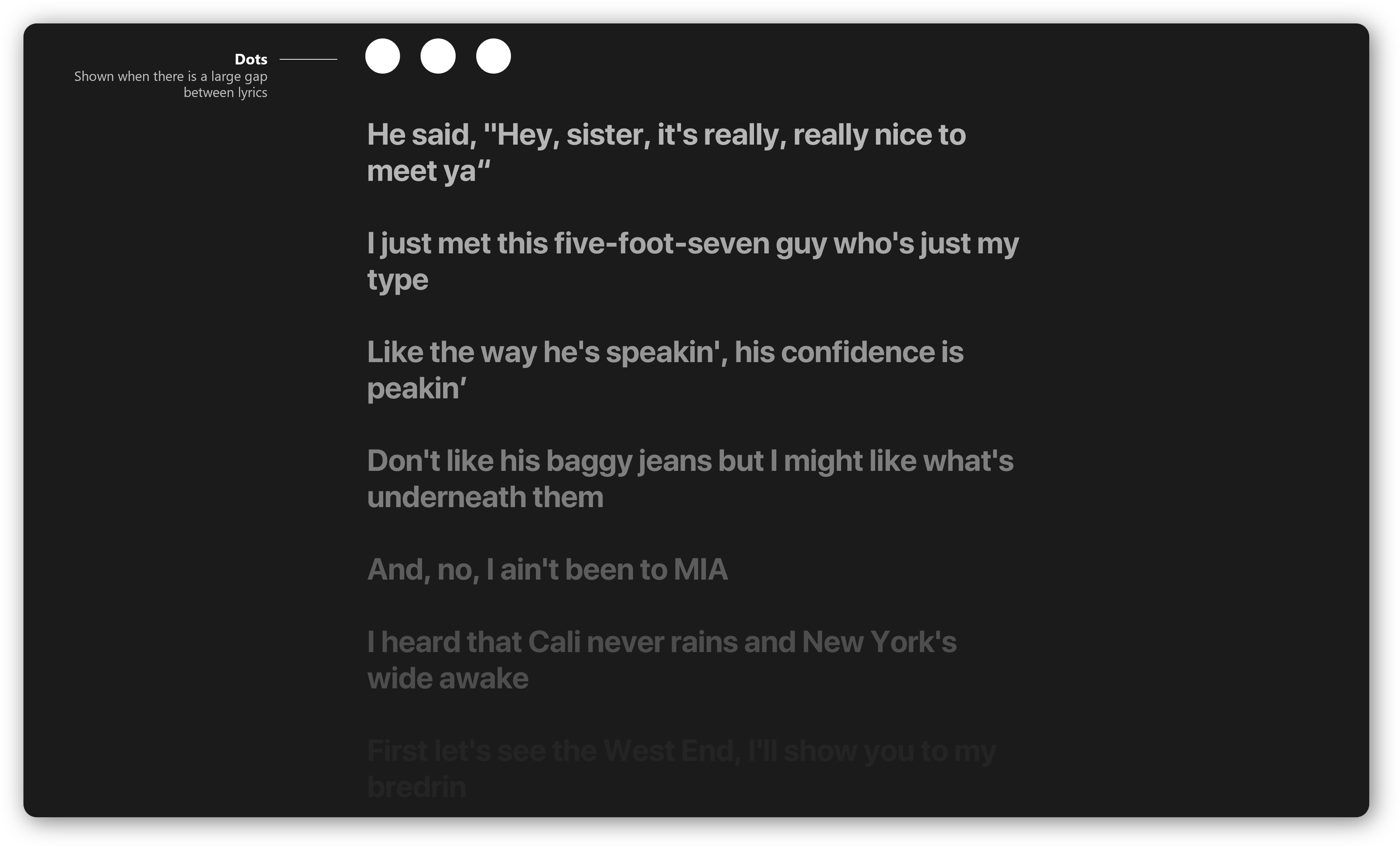
About the dots
The dots are shown when there is a large gap between one lyric and the next one. You can customise the time threshold in the Settings page. By default, dots are inserted if the gap is 12 seconds or more
Options
Within the settings page, there are a variety of options for displaying lyrics:
- Format lyrics: This will insert any text within brackets on a new line underneath the current lyric
- Enable dots: Enable or disable the dots, as explained above
- Insert dots after the allotted time: the threshold as explained above
- Uncensor lyrics: This will attempt to uncover censored lyrics
- Lyric offset: Offset all lyrics by the allotted time, in ms