

Just thought I'd drop this in as I found it helpful after trying and experimenting with a few tools after discovering limitation with my xbox controller (inherent due to driver implementation, nothing to do with rahituber).
This translates mouse movement into virtual controller input, and gradually eases the input back to 0,0 rather than needing to move your cursor about a fixed point as with the inbuilt mouse tracking - it also keeps working in games that steal focus like FPSs. I found this to be give ample motion where needed
See it working here - https://bsky.app/profile/wattermelem.bsky.social/post/3mc4fc5aq4c22
You'll need the following software, all of which are available freely -
vJoy - https://sourceforge.net/projects/vjoystick/
FreePIE - https://github.com/AndersMalmgren/FreePIE
This script - https://gist.github.com/jake-lewis/e89207690cbc777fa82e9ae248b683ab
HIDHide - https://ds4-windows.com/download/hidhide/
Step 1 - install everything (just mash OK for the most part), and restart
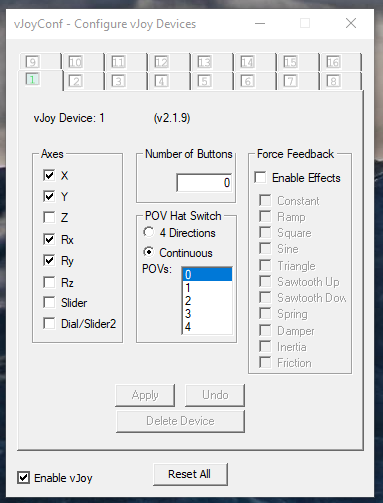
Step 2 - open vJoyConf, and ensure Device 1 has X, Y, rX and rY enabled. Untick everything else/0 buttons/POV hat doesn't matter. Ensure "Enable vJoy" in the bottom left is ticked.
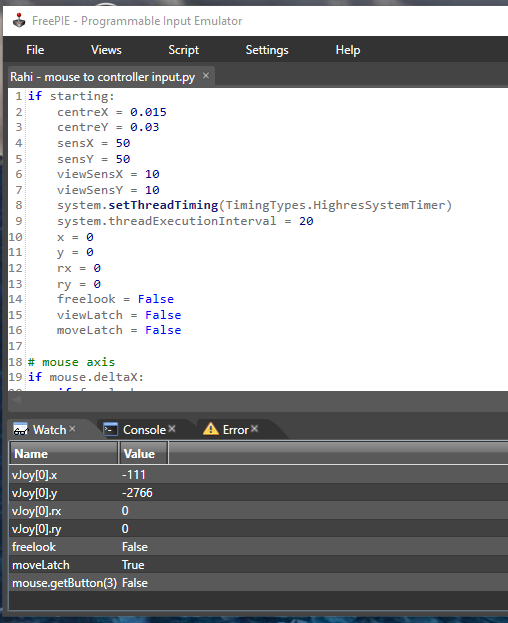
Step 3) Open FreePIE, and paste the script content from above in. Save it somewhere sensible - you'll need this every time. Press F5 to run the script, and check the "Watch" tab - you should be able to see the vJoy[0].x and .y values change as you move your mouse, before lowering back to 0
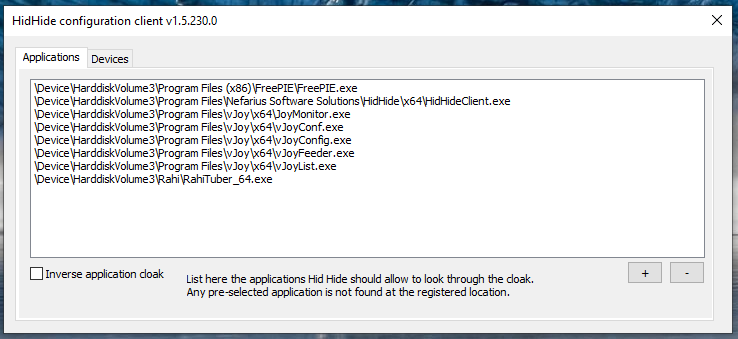
Step 4) Open HidHide Configuration Client, and on the first tab add the EXEs for FreePIE, vJoy (all of them) and RahiTuber. HidHide should already be in there.
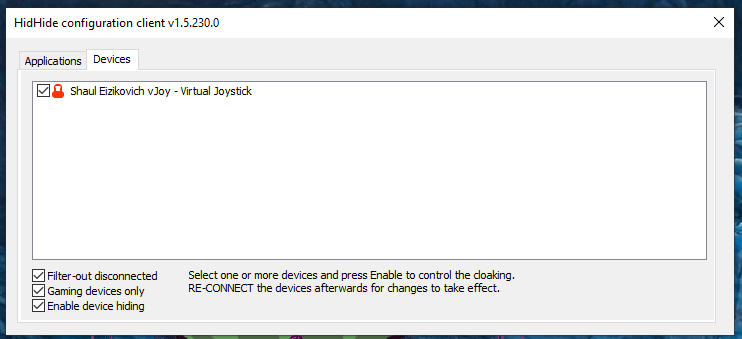
Step 5) Go to Devices tab, tick the box next to vJoy, and tick the "Enable Device Hiding" box at the bottom.
Step 6) Return to vJoyConf, then untick and retick "Enable vJoy" to unplug/reconnect the virtual controller.
Step 7) Configure your avatar in RahiTuber to use "Controller Axis" tracking on X/Y. I left mine as "First available", you may wish to specify the vJoy device if you use other controllers.
Notes:
1) if you're already using vJoy, you may need to alter some of the steps/script. I'll assume you're bright enough to work that out.
2) the script has extra bits and bobs in it which aren't strictly relevant, but the code is easy enough to read. If you feel strongly, it should be pretty trivial to strip out anything but the x&y outputs.
3) similarly, if you want the input to decay faster or slower, it should be achievable by altering the script values. sensx and y are the sensitivity (how quickly it moves TO position), if you want to slow down the return speed you'll need to add a coefficient to the calculations that look like this - "x = vJoy[0].axisMax * x / abs(x)"