

Indie game storeFree gamesFun gamesHorror games
Game developmentAssetsComics
SalesBundles
Jobs
TagsGame Engines

Sushiko

3
Posts
3
Followers
A member registered Aug 21, 2024 · View creator page →

Creator of

Recent community posts

I did receive this reply from the dev which fixed the issue on my Switch 2, hope this helps you too!

  1. Go to System Settings on your Switch home screen.
  2. Scroll down to TV Settings.
  3. Find RGB Range. It is usually set to "Automatic" by default.
  4. Change it manually to "Limited Range" (or test "Full Range" if Limited doesn't work).

In 90% of cases, forcing this setting will make the picture instantly snap back to those deep, crispy colors without that milky/bright filter.
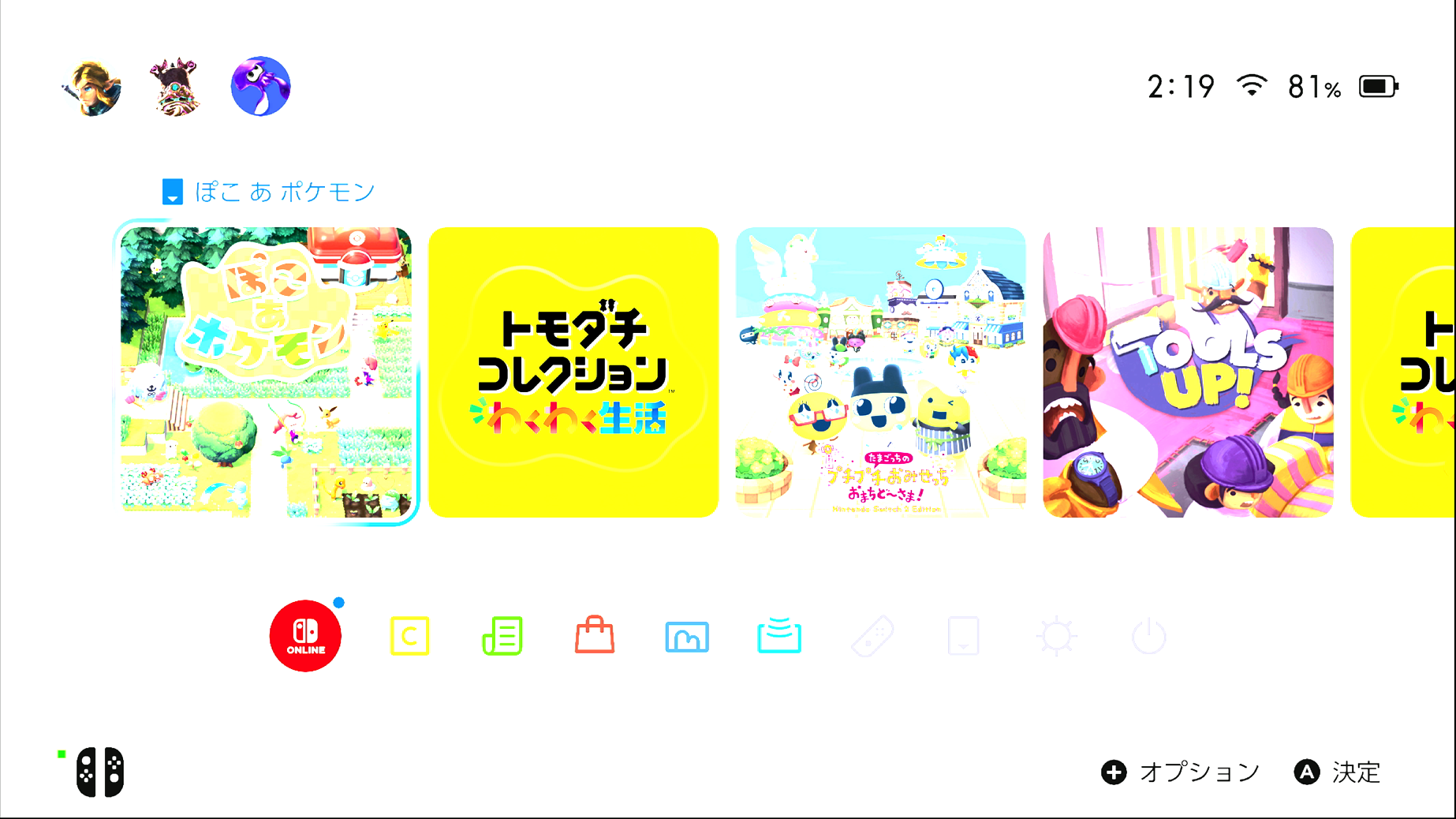
Here is a screenshot of what it looked like on my screen fyi

I'm using JVA11 4K HDMI Capture Adapter. The screen looks very bright when I try to use it. Is it something that I can tweak in settings?

Thanks a lot for making this! I played a bit despite blinding my eyes and I can't tell the delay at all :D