UHH, this looks amazing!
SparkleArtsDev
Recent community posts
Here are the plugins I have enabled:
- YEP_CoreEngine
- YEP_X_CoreUpdatesOpt
- YEP_BattleEngineCore
- YEP_MessageCore
- YEP_OptionsCore
- YEP_SaveCore
- YEP_StatusMenuCore
- YEP_ItemCore
- YEP_EquipCore
- YEP_WeaponUnleash
- YEP_ShopMenuCore
- YEP_BuffsStatesCore
- YEP_X_VisualStateFX
- YEP_DamageCore
- YEP_ElementCore
- YEP_QuestJournal
- CustomLogo
- Hendrix_Pictures_UI_Creator
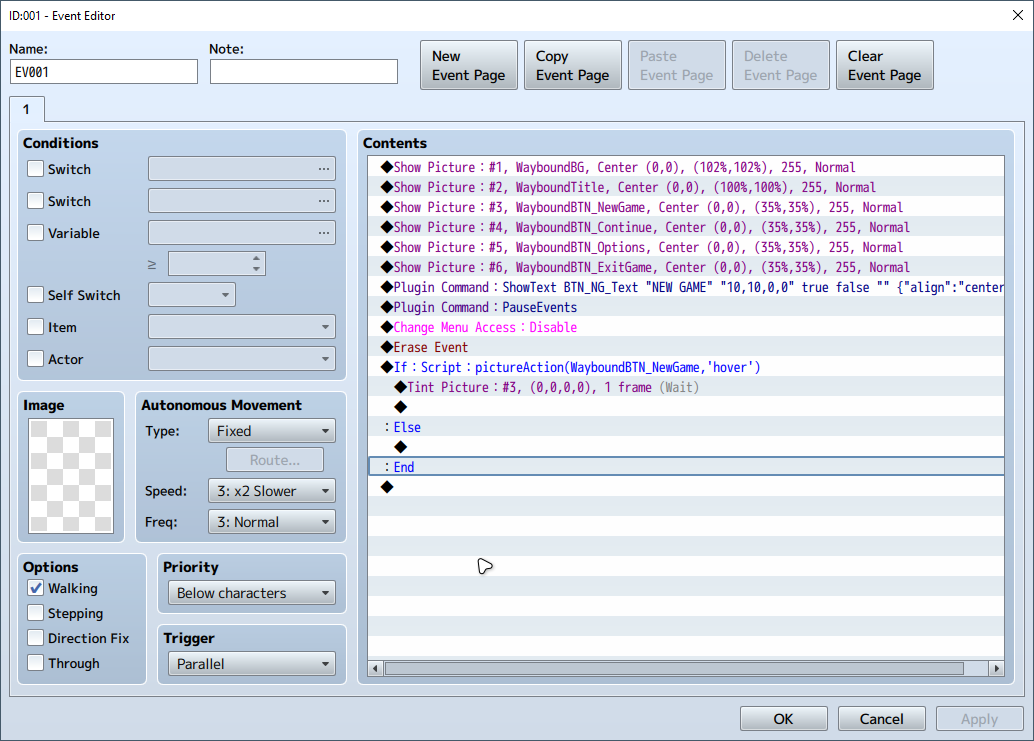
Also here is the Screenshot of the Eventing:
if you create a shortcut and add a "--fullscreen" you can fix that.
like this:
C:\Games\ParasiteInfection2\ParasiteInfection2.exe --rendering-driver opengl3 --fullscreen
You can use these command line arguments from godot for that.
1. Right-click the game’s `.exe` file and choose Create shortcut
2. Right-click the shortcut and select Properties
3. In the Target field, after the `.exe` path, add:
--rendering-driver opengl3
4. Click OK to save
This forces Godot to use the OpenGL3 rendering driver, which is necessary if your PC doesn’t support Vulkan.
This could fix your issue that you cannot open/run the game.
Am the only person that I cannot continue playing Part 5?
VM7:13386 Uncaught TypeError: Cannot read properties of undefined (reading 'area')
at eval (eval at call.output.output (Parasite_Infection.html:3:140549), <anonymous>:13386:48)
at Array.forEach (<anonymous>)
at window.change_npc_passage_visibility (eval at call.output.output (Parasite_Infection.html:3:140549), <anonymous>:13378:7)
at eval (eval at call.output.output (Parasite_Infection.html:3:140549), <anonymous>:1:1)
at call.output.output (Parasite_Infection.html:71110:140549)
at Object.evalJavaScript (Parasite_Infection.html:71110:140561)
at Parasite_Infection.html:71110:154270
at HTMLAnchorElement.<anonymous> (Parasite_Infection.html:71110:147255)
at HTMLAnchorElement.<anonymous> (Parasite_Infection.html:71110:45856)
at HTMLAnchorElement.<anonymous> (Parasite_Infection.html:71110:45634)
Here is a more easier version of the readme text file!
For Mac Users
How to Install the Game:
- The game is packed as a
.RARfile. To unpack it, you'll need a tool like The Unarchiver (an official tool, but we haven’t tested it yet!). - After unpacking, you'll get a folder named something like
MtE.app.
How to Run the Game:
- Open Terminal and navigate to the app folder:
cd <PATH_TO_YOUR_APP>/<APP_NAME>.app/Contents/MacOS/
Visual guide. - Add executable permissions to the game:
chmod a+x <APP_NAME>
More help onchmod a+x. - After this, the game should run as expected.
Why is this necessary?
The game was built on Windows, and Windows doesn’t set the proper permissions for Mac executables. You’re just fixing that.
Steps to Find the Path
- Locate the
.appFolder- Go to the folder where you extracted the
.RARfile. - Find the file named something like
MtE.app.
Example: If you extracted it to the
Downloadsfolder, your app might be in:~/Downloads/MtE.app - Go to the folder where you extracted the
- Open Terminal
- Press
Command + Spaceand typeTerminal, then hit Enter.
- Press
- Navigate to the Correct Directory In Terminal, use the
cd(change directory) command to go to your app folder. Type this command (replace<PATH_TO_YOUR_APP>with your actual path):cd ~/Downloads/MtE.app/Contents/MacOS/