And how do I make the target detect the checkbox? :v
MrrPalta
Recent community posts
What I do to draw in WigglyPaint on my iPad is use this page https://beyondloom.com/tools/wigglypaint.html and be able to use WigglyPaint without any problems
I also use Safari because it has the option to zoom in on the page, allowing me to zoom out as much as possible. I refresh it, and that way I can use WigglyPaint without it looking blurry
I would also like it to be on the AppStore or PlayStore, but unfortunately the engine of this app (Decker) is not fully compatible with mobile devices :(
Now, to customize its hexadecimal value, you'll need to do a little programming. In the same options section, change the name of the Hex text box for the new number to any name you like to identify it. Then, open the "Card" tab and click on "Script..." where you'll simply need to paste this:
on view do TheSigmaColor.text:f format patterns[40] end on apply_pal do patterns[40]:f parse TheSigmaColor.text end
Then exit the section by going to "File -> Close Script"
Changing its color tone will be a little more difficult. You have to go to the options section of WigglyPaint and then duplicate a colored square and its Hex text. Change the name of the new square to "c*the same number as the new marker*" and with that you will be able to customize the sixth color!
Im a hacker bro. I just tweaked the page a bit to add brushes with different colors Bv
but is little easy, although it requires knowing how the program in which wigglypaint was created works internally
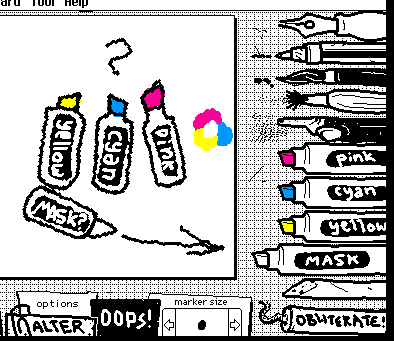
First, you have to click on "Tool" located in the top bar, and then click on "Widgets" This will allow you to modify the interface. You will have to duplicate the markers and rename (You can change its name by double-clicking on its sprite) the new ones to "hi*numbers*" by placing a number between [32 - 47] except for 33, 36, 39, 32, 47, 44 those numbers are already in used (it won't work if you use other numbers, so strictly speaking, the limit is 16 color palettes, plus the number 44 is reserved for the preview when changing colors in "options")

estoy intentando hacer un controlador de colores para Decker utilizando valores HSV pero cuando intento usar "Col Module" no me funciona, el resultado final simplemente queda vacío y el color se vuelve negro
estaba usando ese método ya que lo vi en "all about colors" https://beyondloom.com/decker/color.html y pensaba que lo podía usar para esta herramienta
eso si, puedo pasar valores RGB a HSV utilizando métodos matemáticos que me ocupan unas cuantas lineas de código pero me funcionan, lo que trato ahora es pasar los valores HSV a RGB o Packed Color para poder ajustar colores por ese medio
I'm trying to create a color controller for Decker using HSV values, but when I try to use "Col Module," it doesn't work. The final result is simply empty, and the color turns black.
I was using that method because I saw it on "All About Colors" (https://beyondloom.com/decker/color.html) and thought I could use it for this tool.
However, I can convert RGB values to HSV using mathematical methods that take a few lines of code but work. What I'm trying to do now is convert the HSV values to RGB or Packed Color so I can adjust the colors that way.
(This will be written with Google Translate, sorry, my English is very bad.) A few days ago I discovered Decker and I'm learning how to use it. Right now I'm trying to figure out how to import an image into Decker while preserving its color palette and patterns. When I draw something in Decker and export and import it again, I can't get it to retain its pattern. I can keep the colors, but the pattern becomes a solid image without that characteristic drag effect, which makes it difficult to transfer to a canvas. At least I already know how to transfer an image to a canvas in Decker, so I just want to know how to import an image with all its patterns using Aseprite or some other external program. I don't want to draw the whole thing directly in Decker because, honestly, it's inconvenient.
texto original: (esto estará escrito con traductor google, perdón pero mi ingles es muy malo) hace pocos dias descubrí sobre decker y estoy aprendiendo a cómo usarlo y ahora mismo estoy viendo como puedo importar una imagen a decker conservando su paleta de colores y sus patrones ya que cuando hago un dibujo en decker y lo exporto e importo nuevamente, no logro que conserve su patrón, puedo hacer que mantenga sus colores pero el patrón se transforma en imagen solida sin ese efecto característico que tiene al arrastrarlo y eso me dificulta para cuando quiera pasarlo a un canvas, almenos ya sé como pasar una imagen a canvas en decker, así que solo quiero saber como logro importar una imagen con sus patrones y todo usando aseprite o algún otro programa externo porque no quiero estar dibujando todo un dibujo directamente desde decker ya que honestamente me es incomodo.