
Indie game storeFree gamesFun gamesHorror games
Game developmentAssetsComics
SalesBundles
Jobs
TagsGame Engines

EdgarShrodinger

2
Posts
A member registered 50 days ago

Recent community posts

You’re welcome!

No, I hadn’t tried that yet! I’d been totally focused trying to get the ‘unsigned’ zip to function, so I hadn’t thought about if fixing an already deployed version manually was even possible!

I gave it a go with the SDK version first and it ran without any trouble. The Normal NW.js also works but asks permission for network access as well as Keychain/Passwords. I denied both and it still functioned fine with my own test game. It might be relevant though for games that need internet access.

In summary, updating the NW.js of a deployed MV Mac version is doable without any other apps/programs! The method is the same as updating the Mac playtest mentioned above and can be done with either the SDK or Normal versions.

I tried it on my Windows desktop PC and this method can also be used by Windows users (and most likely Linux users also) to update a deployed Mac version of their game while on their preferred OS.

Your suggestion that the folder structure has changed is probably correct, though I think I should clarify my results from trying to update the 'unsigned' zip  as I’ve probably explained it poorly. Unzipping it, placing the NW.js files in what should be the correct places, removing the ‘Versions’ folder and re-zipping everything back together, always results in three very odd deployments as you can see below.
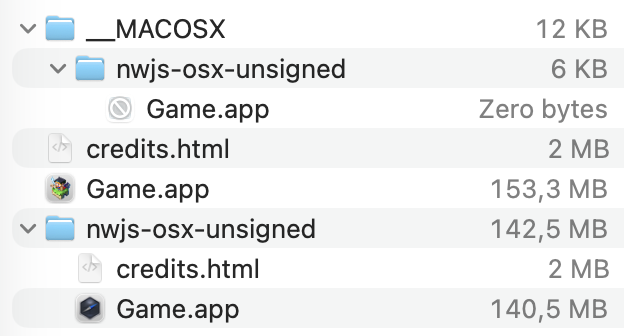

The first Game.app is an empty shell at 0 bytes.

The second .app is the MV game exported with only the resource files and nothing else. 

The third .app is an unconfigured version of NW.js that runs but does nothing else.

The file sizes of the .apps fluctuate by several hundred megabytes depending on what I try. You can make the second and third .apps function normally by adding the missing files of one to the other, but it’s about the same amount of steps as exporting an out of date one and fixing it. 

I still couldn't find a solution to updating the unsigned zip for ease of automation, but I suppose the nice thing with being able to update the deployed version instead is that at least you'll always have the latest NW.js installed.

Thanks for the suggestion!

Thanks a lot for this tutorial!

I’m a Mac user of MV and following your instructions for Windows and with a little bit of trial and error, I managed to recently get a functional playtest in Mac OS Tahao 26.

You can achieve a functional Mac playtest by doing the following:

Step 1: Download and prepare to copy NM.js SDK files

  1. Go to: https://nwjs.io/downloads/ and download the Mac ARM64 SDK. (Or 64-bit SDK if you wish to maximise compatibility with older Mac OS versions. At the time of writing this, the current version is 0.106.1)
  2. Unzip the file and open the resulting folder. Right-click ‘nwjs.app’ and choose ‘Show Package Contents’. Then go into the ‘Contents’ folder.
  3. Leave this window open to prepare for later steps.


Step 2: Preparing RPG Maker MV

  1. In Steam, right-click RPG Maker MV and select ‘Manage’ then choose “Browse Local Files”. (You can also browse to it through:  Your User folder > Library > Application Support > Steam > steamapps > common > RPG Maker MV)
  2. A Finder window will open. Right-click ‘RPGMaker MV.app’ and choose ‘Show Package Contents’
  3. Navigate to Contents > MacOS. You should now see three ‘nwjs’ folders with ‘lnx’, ‘osx’ and ‘win’ as well as a .zip file called ‘nwjs-osx-unsigned’.
  4. Open the ‘nwjs-osx-test’ folder and (you guessed it) right-click on ‘Game.app’ > ‘Show Package Contents’. Finally open the contents folder.
  5. You’re now set up to drag and drop files!


Step 3: Updating the NW.js of the playtest

Unlike the Windows and Linux solutions, there is a bit more to drag and drop to the correct place. I’d recommend making a copy of the nwjs-osx-test folder just in case!

Now from the SDK ‘nwjs.app’ Contents folder, do the following.

From

Copy

To

Paste/Overwrite Location in Game.app

njws.app > Contents

‘Frameworks’ folder

->

Contents

njws.app > Contents > MacOS

‘nwjs’

->

Contents > MacOS

njws.app > Contents

All files within ‘Resources’

->

Contents > Resources

Finally: Delete ‘Versions’ folder [FROM] Contents > Versions [IN GAME.APP]

Your end result should look something like this:


Now you’re done! (: Run a playtest in RPG Maker MV to see if it works!

----------------------------------------

There's probably a more optimised solution out there waiting to be discovered, but this is just what seemed to work for me. 

I want to mention that in my first playtest I encountered an ‘Error Loading Extension’ but it was quickly solved thanks to the above tutorial.

Lastly, while the above solution I’ve given solves the issue of playtesting on more recent versions of Mac OS, it doesn’t fix problems with deployment/exporting. The ‘nwjs-osx-unsigned’ folder that Windows, Linux and Mac all have in ther RPG Maker MV folder are what MV seems to use to make the Mac version of a user’s game. I tried manually updating the zip with different parts from the SDK but I could never achieve a half-usable result like what happens with the out of date version that’s there already.

The work around I found was to use m5kro’s ‘RPG Maker Launcher’ which patches your app for you with an up to date version of nwjs. It also works for turning Windows exports into running Mac apps which is a great bonus if your Mac export still doesn’t work! The app/program is available at the following link: https://forums.rpgmakerweb.com/index.php?threads/rpg-maker-launcher-for-macos-osx-3-3-2.174332/ 

Hope this is half helpful and thanks again for the tutorial! (: