

Hey there! This version of component sandbox is no longer being developed. Go to my profile and check out Component Sandbox 2. It is downloadable but I have no idea if it’ll run on windows 8 haha.
A member registered Apr 08, 2022 · View creator page →
Creator of
Recent community posts
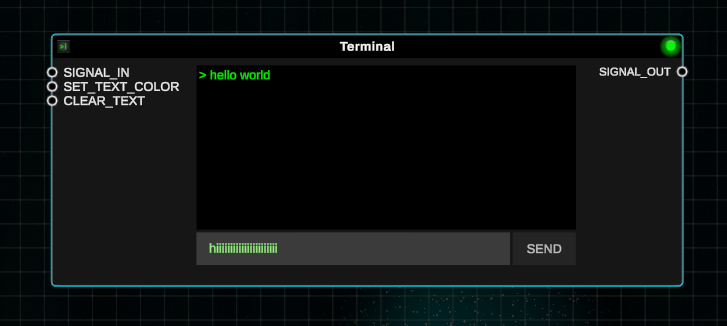
hey again rafrap, please see version 1.3.0 for the terminal! https://austephner.itch.io/component-sandbox-2/devlog/1561306/v130-notes
okay I got it working fairly easily. Although I’m not sure if this is a Barotrauma thing or a byproduct of my code, I am going to keep debugging this - but for some reason when I pasted the item assembly in-game it auto connected the inputs and outputs to open inputs inside of the circuit box.
Here’s CS2:
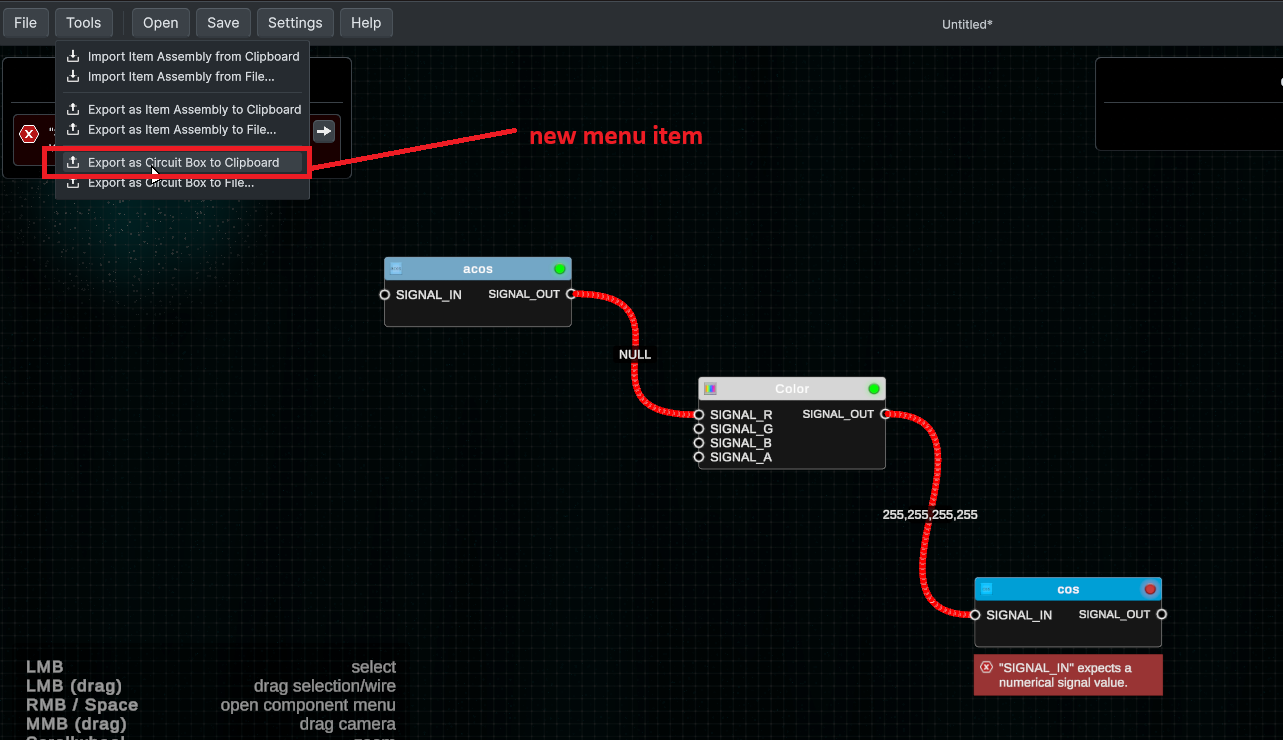
Here’s the output for the above example:
<?xml version="1.0" encoding="utf-8"?>
<ItemAssembly name="ItemAssembly" description="" hideinmenus="false">
	<Item name="" identifier="circuitbox" ID="10" markedfordeconstruction="false" rect="-16,16,32,32" NonInteractable="False" NonPlayerTeamInteractable="False" AllowSwapping="True" Rotation="0" Scale="0.5" SpriteColor="255,255,255,255" InventoryIconColor="255,255,255,255" ContainerColor="255,255,255,255" HasBeenInstantiatedOnce="True" InvulnerableToDamage="False" Tags="smallitem" DisplaySideBySideWhenLinked="False" DisallowedUpgrades="" SpriteDepth="0.8" HiddenInGame="False" conditionpercentage="100">
		<Holdable Attached="True" DisallowAttachingOverTags="" DisallowAttachingOverSize="0,0" SpriteDepthWhenDropped="0.55" PickingTime="5" CanBePicked="True" AllowInGameEditing="True" Msg="ItemMsgDetachWrench">
			<requireditem items="wrench,deattachtool" type="Equipped" optional="false" ignoreineditor="false" excludebroken="true" excludedidentifiers="multitool" />
		</Holdable>
		<ConnectionPanel Locked="False" PickingTime="0" CanBePicked="False" AllowInGameEditing="True" Msg="ItemMsgRewireScrewdriver">
			<requireditem items="screwdriver" type="Equipped" optional="false" ignoreineditor="false" excludebroken="true" />
			<input name="signal_in1" />
			<input name="signal_in2" />
			<input name="signal_in3" />
			<input name="signal_in4" />
			<input name="signal_in5" />
			<input name="signal_in6" />
			<input name="signal_in7" />
			<input name="signal_in8" />
			<output name="signal_out1" />
			<output name="signal_out2" />
			<output name="signal_out3" />
			<output name="signal_out4" />
			<output name="signal_out5" />
			<output name="signal_out6" />
			<output name="signal_out7" />
			<output name="signal_out8" />
			<input name="signal_in0" />
			<input name="signal_in9" />
			<output name="signal_out0" />
			<output name="signal_out9" />
		</ConnectionPanel>
		<ItemContainer QuickUseMovesItemsInside="False" AutoFill="True" PickingTime="0" CanBePicked="False" AllowInGameEditing="True" Msg="" contained="11,12,13,,,,,,,,,,,,,,,,,,,,,,,,,,,,,,,,,,,,,,,,,,,,,,,,,,,,,,,,,,,,," ExtraStackSize="0" />
		<ItemContainer QuickUseMovesItemsInside="False" AutoFill="True" PickingTime="0" CanBePicked="False" AllowInGameEditing="True" Msg="" contained=",,,,,,,,," ExtraStackSize="0" />
		<CircuitBox Locked="False" PickingTime="0" CanBePicked="False" AllowInGameEditing="True" Msg="ItemMsgInteractSelect">
			<requireditem items="idcard" type="Picked" optional="false" ignoreineditor="true" excludebroken="true" msg="itemmsgunauthorizedaccess" />
			<InputNode pos="-747.51135,31.953491" />
			<OutputNode pos="512,0" />
			<Component id="0" position="-250,0" backingitemid="0,0" usedresource="fpgacircuit" />
			<Component id="1" position="0,0" backingitemid="1,0" usedresource="fpgacircuit" />
			<Component id="2" position="250,0" backingitemid="2,0" usedresource="fpgacircuit" />
			<Wire id="0" backingitemid="" prefab="redwire">
				<From name="signal_in0" target="" />
				<To name="signal_in" target="0" />
			</Wire>
			<Wire id="1" backingitemid="" prefab="redwire">
				<From name="signal_out" target="0" />
				<To name="signal_r" target="1" />
			</Wire>
			<Wire id="2" backingitemid="" prefab="redwire">
				<From name="signal_in1" target="" />
				<To name="signal_g" target="1" />
			</Wire>
			<Wire id="3" backingitemid="" prefab="redwire">
				<From name="signal_in2" target="" />
				<To name="signal_b" target="1" />
			</Wire>
			<Wire id="4" backingitemid="" prefab="redwire">
				<From name="signal_in3" target="" />
				<To name="signal_a" target="1" />
			</Wire>
			<Wire id="5" backingitemid="" prefab="redwire">
				<From name="signal_out" target="1" />
				<To name="signal_in" target="2" />
			</Wire>
			<Wire id="6" backingitemid="" prefab="redwire">
				<From name="signal_out" target="2" />
				<To name="signal_out0" target="" />
			</Wire>
		</CircuitBox>
		<itemstats />
	</Item>
	<Item name="" identifier="acoscomponent" ID="11" markedfordeconstruction="false" rect="0,0,16,16" NonInteractable="False" NonPlayerTeamInteractable="False" AllowSwapping="True" Rotation="0" Scale="0.5" SpriteColor="255,255,255,255" InventoryIconColor="255,255,255,255" ContainerColor="255,255,255,255" OnInsertedEffectsApplied="True" HasBeenInstantiatedOnce="True" InvulnerableToDamage="False" Tags="circuitboxcomponent,smallitem,logic" DisplaySideBySideWhenLinked="False" DisallowedUpgrades="" SpriteDepth="0.8" HiddenInGame="False" conditionpercentage="100" hideinassemblypreview="true">
		<FunctionComponent PickingTime="0" CanBePicked="False" AllowInGameEditing="True" Msg="" />
		<Holdable DisallowAttachingOverTags="" DisallowAttachingOverSize="0,0" SpriteDepthWhenDropped="0.55" PickingTime="5" CanBePicked="True" AllowInGameEditing="True" Msg="ItemMsgDetachWrench">
			<requireditem items="wrench,deattachtool" type="Equipped" optional="false" ignoreineditor="false" excludebroken="true" excludedidentifiers="multitool" />
		</Holdable>
		<ConnectionPanel Locked="False" PickingTime="0" CanBePicked="False" AllowInGameEditing="True" Msg="ItemMsgRewireScrewdriver">
			<requireditem items="screwdriver" type="Equipped" optional="false" ignoreineditor="false" excludebroken="true" />
			<input name="signal_in" />
			<output name="signal_out" />
		</ConnectionPanel>
	</Item>
	<Item name="" identifier="colorcomponent" ID="12" markedfordeconstruction="false" rect="0,0,16,16" NonInteractable="False" NonPlayerTeamInteractable="False" AllowSwapping="True" Rotation="0" Scale="0.5" SpriteColor="255,255,255,255" InventoryIconColor="255,255,255,255" ContainerColor="255,255,255,255" OnInsertedEffectsApplied="True" HasBeenInstantiatedOnce="True" InvulnerableToDamage="False" Tags="circuitboxcomponent,smallitem,logic" DisplaySideBySideWhenLinked="False" DisallowedUpgrades="" SpriteDepth="0.8" HiddenInGame="False" conditionpercentage="100" hideinassemblypreview="true">
		<FunctionComponent PickingTime="0" CanBePicked="False" AllowInGameEditing="True" Msg="" />
		<Holdable DisallowAttachingOverTags="" DisallowAttachingOverSize="0,0" SpriteDepthWhenDropped="0.55" PickingTime="5" CanBePicked="True" AllowInGameEditing="True" Msg="ItemMsgDetachWrench">
			<requireditem items="wrench,deattachtool" type="Equipped" optional="false" ignoreineditor="false" excludebroken="true" excludedidentifiers="multitool" />
		</Holdable>
		<ConnectionPanel Locked="False" PickingTime="0" CanBePicked="False" AllowInGameEditing="True" Msg="ItemMsgRewireScrewdriver">
			<requireditem items="screwdriver" type="Equipped" optional="false" ignoreineditor="false" excludebroken="true" />
			<input name="signal_r" />
			<input name="signal_g" />
			<input name="signal_b" />
			<input name="signal_a" />
			<output name="signal_out" />
		</ConnectionPanel>
	</Item>
	<Item name="" identifier="coscomponent" ID="13" markedfordeconstruction="false" rect="0,0,16,16" NonInteractable="False" NonPlayerTeamInteractable="False" AllowSwapping="True" Rotation="0" Scale="0.5" SpriteColor="255,255,255,255" InventoryIconColor="255,255,255,255" ContainerColor="255,255,255,255" OnInsertedEffectsApplied="True" HasBeenInstantiatedOnce="True" InvulnerableToDamage="False" Tags="circuitboxcomponent,smallitem,logic" DisplaySideBySideWhenLinked="False" DisallowedUpgrades="" SpriteDepth="0.8" HiddenInGame="False" conditionpercentage="100" hideinassemblypreview="true">
		<FunctionComponent PickingTime="0" CanBePicked="False" AllowInGameEditing="True" Msg="" />
		<Holdable DisallowAttachingOverTags="" DisallowAttachingOverSize="0,0" SpriteDepthWhenDropped="0.55" PickingTime="5" CanBePicked="True" AllowInGameEditing="True" Msg="ItemMsgDetachWrench">
			<requireditem items="wrench,deattachtool" type="Equipped" optional="false" ignoreineditor="false" excludebroken="true" excludedidentifiers="multitool" />
		</Holdable>
		<ConnectionPanel Locked="False" PickingTime="0" CanBePicked="False" AllowInGameEditing="True" Msg="ItemMsgRewireScrewdriver">
			<requireditem items="screwdriver" type="Equipped" optional="false" ignoreineditor="false" excludebroken="true" />
			<input name="signal_in" />
			<output name="signal_out" />
		</ConnectionPanel>
	</Item>
</ItemAssembly>
And here’s the in-game result:
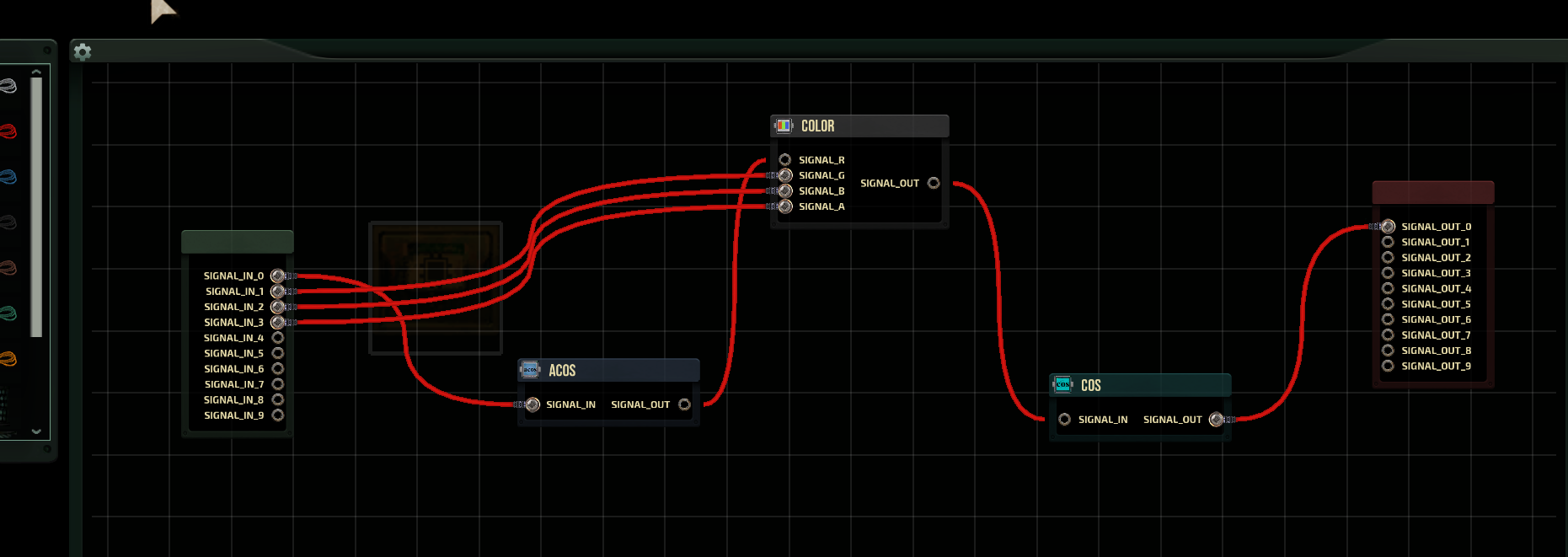
Although I kinda moved stuff around in-game because it was all piled on itself. So I am going to keep working on this but I’ll have an update for you by Sunday.
Thanks for the patience :)
Component Sandbox 2 community » Bug Reports · Posted in Oscillator frequency and output incorrect math
okay I’ve further updated how the oscillator calculates x to guarantee it hits the correct extremes:
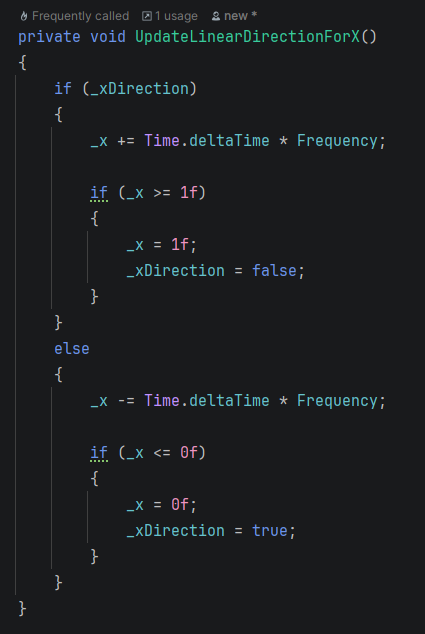
it’s possible to further refactor this but I like simplicity because it helps me return to the project and mentally load the code when needed. I’d like to also note that my implementation is an alternative implementation to Barotrauma and may not function exactly. They use a phase value which I call “x” and modulate the value wherein I am “ping-ponging” a value to determine a position in the wave form.
here’s the calculations for each wave form:
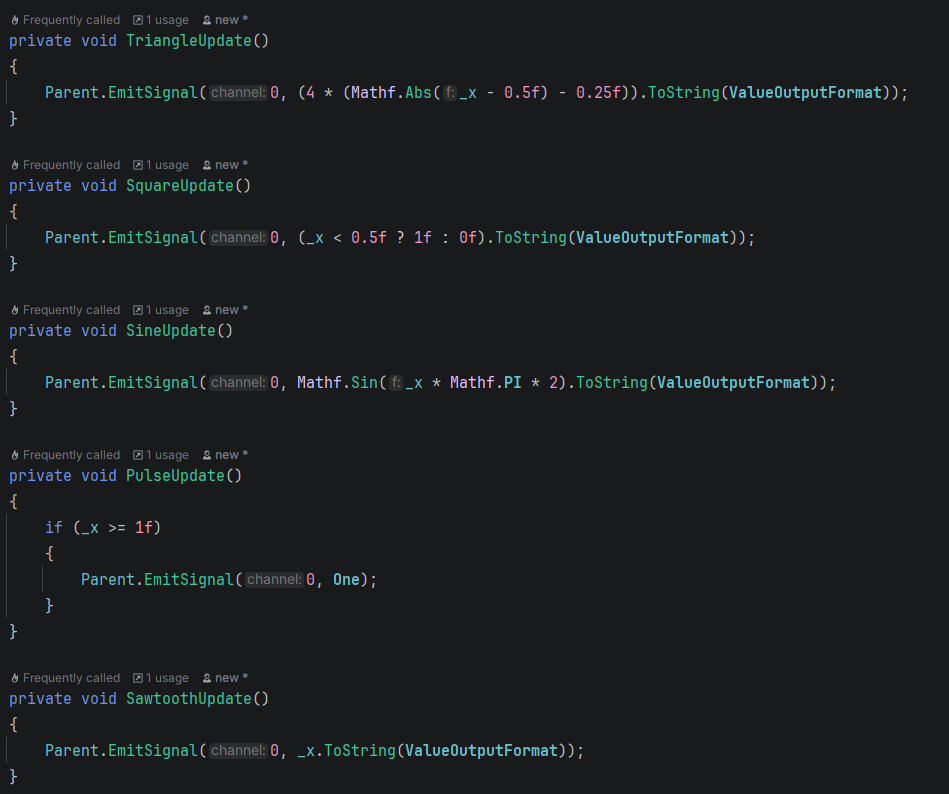
I updated the frequency calculation (which I forgot to do after taking screenshots) so that it isn’t at half herz. With that said, after some testing I think it all works now… let me know if you disagree. I’ll publish the new version soon.
I also found some other bugs/issues while testing that will be included.
Component Sandbox 2 community » Bug Reports · Posted in Oscillator frequency and output incorrect math
Here’s what the logic looked like prior to this bug:
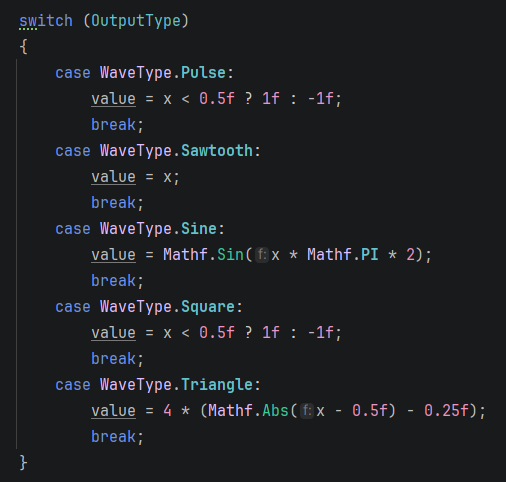
I’ve updated the signal processing method to behave as you described:
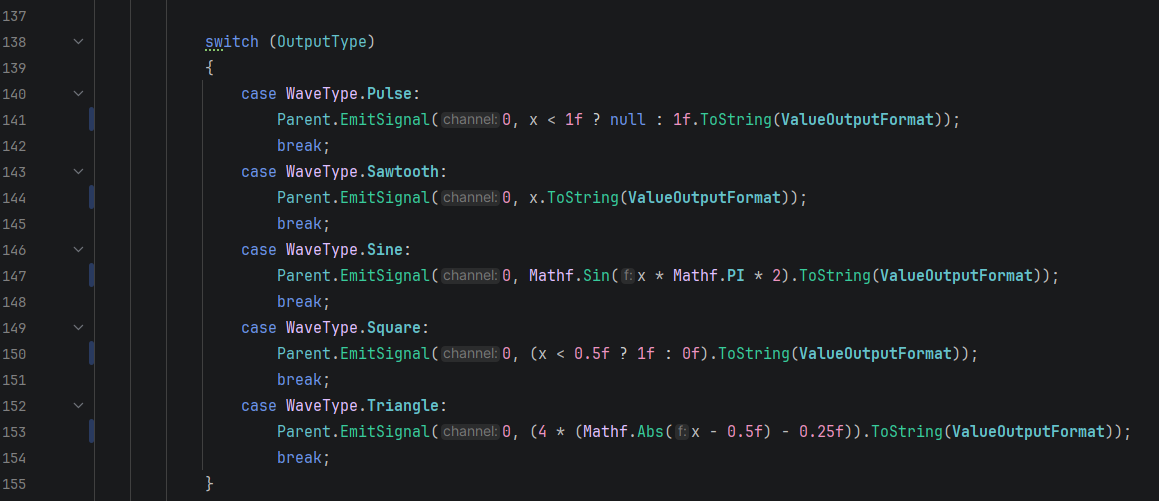
For frequency, I realized I was modulating by a value of 1, meaning the value of x will always be between 0 and 1.

This worked (mathematically) but where it falls short is accuracy. Time in Unity is not inclusive to every possible moment of real time, making the incrementation (and thus calculation) inaccurate. It stutters and doesn’t increment as you would expect, so I had to change how x is calculated.
^ TLDR: the numbers were getting skipped because Time.time is not accurate.
Pulse has been updated to look like this, using delta time instead of application time:
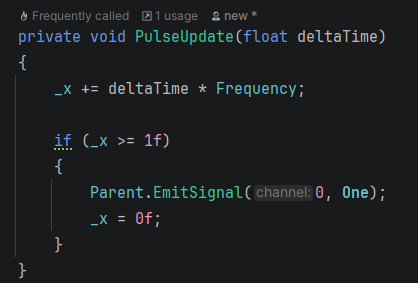
I tested this with a light component, it can toggle the light on/off with every pulse.
This fixes pulse, I am going to continue on the others, even though I believe they’re working now. But I will continue to test.
CS2 has an issue tracker that displays common errors and data type mismatches between signals. Let’s take a look at an example to learn how to read and use the issue tracker.
Below is a working component system. Each component has a tiny green light in its upper right hand corner to mean it’s functioning correctly.

The Adder component typically only works with numerical values. In the screenshot below I’ve changed one of the constant components values to a non-numerical field like a string.
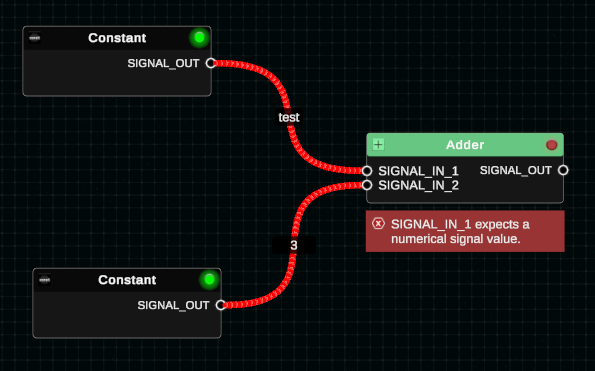
You can see that the green light in the upper right hand corner of the Adder component is now a red light. There’s also an error displayed beneath the component. Additionally, there’s an error that appears in the Issue Tracker window in the top left hand corner of the screen.

Clicking the arrow button on this error will take your camera to the screen position where the error component exists.
From there, you can make corrections as needed. This feature is simply meant for alerting you to when a signal doesn’t appear to be used correctly.
Here you’ll learn how to add two numbers together and display it on a preview node. It will cover the following:
- How to create component nodes
- How to edit components
- How to connect components
- How to display results
Creating Components
- Press space bar or right click in an open area of the component editor
- In the search box, type “Add”
- Select the “Adder”

Editing Components
- Using step 1 above, create a “Const” component instead of an “Adder” component
- Select the “Const” component by left clicking it
- In the top right corner, use the Component Editor to set the component’s memory value to 1

Connecting Components
- Using step 1 and 2 above, create another “Const” component and assign it’s value to 2 (hint: you can copy/paste inside of CS2!)
- Click and drag from each of the Const components’ output nodes to the Adder’s input nodes
Note: The right side of the component nodes is the “output”, the left side is the “input”. You can’t ever connect two input nodes nor two output nodes.

Display Results
- Use the above steps to create a “Preview” component
- Use the above steps to connect the Adder component’s output node to the Preview component’s input node

Getting your work into Barotrauma is as easy as creating a blueprint in CS2 and pasting it as an item assembly in the submarine editor.
Step 1
Either deselect everything or select only the components you’d like to export to Barotrauma. In this example, I have the following components and I’ve selected nothing because I’d like the system to automatically export everything.
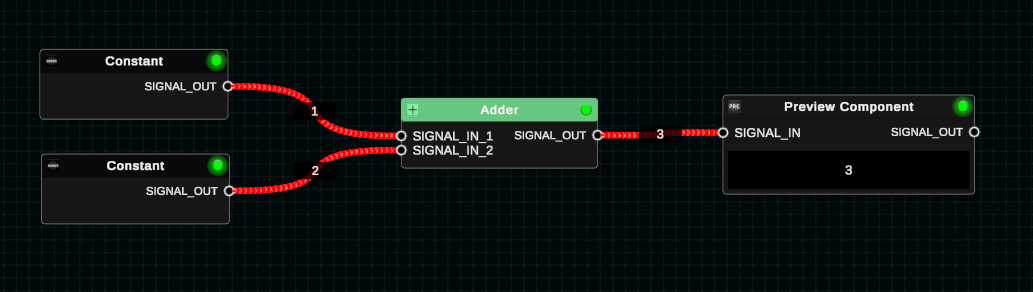
Step 2
- Go to Tools -> Export as Item Assembly…
- You can do either “to clipboard” which will let you paste it into Barotrauma, or you can create an XML file. In this case I’ve chosen to clipboard.

Step 3
- Go to the Barotrauma sub editor and hold SHIFT and then right click
- Select “Paste item assembly”

Notes
- This feature was difficult for me to implement and get the way it is. I’m still working on it, but you may notice that sometimes wires don’t move with the components they’re supposedly connected to. To fix this, go into wire editing mode and make sure each wire’s start/end nodes are overlapping with the component they’re meant to be attached to. Moving the circuits around will then include moving the wires around too.