Indie game storeFree gamesFun gamesHorror games
Game developmentAssetsComics
SalesBundles
Jobs
TagsGame Engines

Malenkiy Soft version 0.2 (in progress)

A topic by DimaLink created 15 days ago Views: 86 Replies: 2
Viewing posts 1 to 3


Psycho Durka – a project for tracking dark, distressing events.


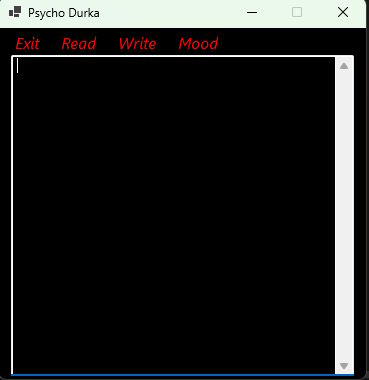
In September, I started working with Visual Basic and brought an old idea to life: a simple program for making entries—short notes—centered around a specific theme: the Psycho Durka. It’s designed for recording particularly heavy or traumatic episodes. It features a stylized black-and-red interface.

It serves as a self-analysis journal—a list of bad events, logged by date with a brief title or just a couple of lines describing what happened. This is important for self-reflection and for putting distance between yourself and the event over time. You look back and see: "On such-and-such date, *this* happened." It had a bad, perhaps even disastrous, impact—a negative effect with lasting consequences. Like a wave that gradually fades—a sine wave pattern. A month goes by; you look back and realize it was really hard a month ago—a heavy blow. But now, a month later, you’ve almost forgotten. The effect lingers, but things have improved. After all, what else could you expect? A sense of depression, perhaps? That was the mindset when I first conceived the idea. I had been busy with other projects, but now—in September—it’s a fresh start for me. Another attempt, you could say.

I’ve already had some practice as part of my learning process. I created a local demo version first, then took that demo and refined it into a finished program ready for release. It has a black-and-red look and functions as a list—essentially just a text file containing entries. You can write anything you want, but the suggested theme is the Psycho Durka—logging negative experiences to track your state of mind, gain temporal distance, and try to maintain a sense of normalcy.

When launched, the program opens the text file where all the data is stored, and there are several buttons at the top. That’s how the controls work. The first button is "Exit"—the most important one. Then there are options to read or write. You can open a file containing existing entries or write a new event to a file. And then there’s "Mood"—or "Settings," really. It’s just a stylistic choice; "Mood" is just a label for the configuration options.
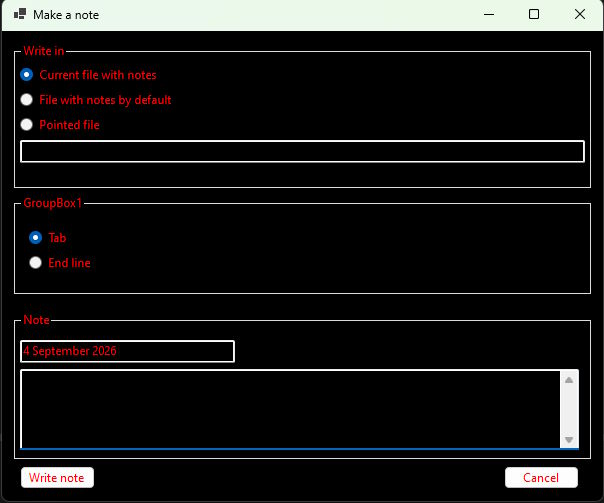
"Read" simply means opening a file—specifically, a text file containing these kinds of entries. "Write" opens a dedicated window with various settings for adding a new event. Here’s where the actual entry goes. The format is simple: the first text field is for the date. It fills in automatically, but you can manually enter whatever you like. Below that is the main text field for the entry itself—a description, an event title, or whatever else you want.

There are also some other settings—nothing critical, but they make the program look a bit more substantial. As a Visual Basic enthusiast, I couldn't resist adding them while practicing. I’m learning Visual Basic, so I’m putting into practice what I’ve picked up—throwing in radio buttons, creating menus, making it look like an Office-style application. That’s how I handle the settings.

Then there’s the question of *where* to write the data. There are a few options. You can write to the current file—the one that’s open right now and appears when the program starts. Or, when you close the "Add Entry" window, it writes to that same visible text file. Alternatively, you can write to a default file—a standard, pre-set file. Or you can specify a custom path—wherever you like. If the file doesn't exist, the program creates it; just type a filename, and a new file is made. If you specify an existing file, it appends the data to it. You simply specify the file path, and the program either creates the file or appends to it if it’s already there.
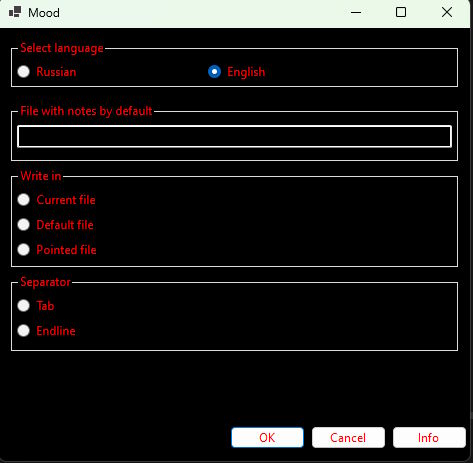
There’s also a setting for *how* to write the data. It records the date and the content itself, but how should they be separated? You can write the date... Then a tab character, followed by the content. Or perhaps a date. Then a line break, with the content starting on the next line.

These are the settings—preferences, really. Here, you can choose the language: Russian or English. You also configure startup behavior: which file to open and the default separator to use. This affects the options available when adding a new entry. You can customize it to your liking; the program will then operate according to those initial settings.

It’s a small program—a compact software tool I decided to develop.
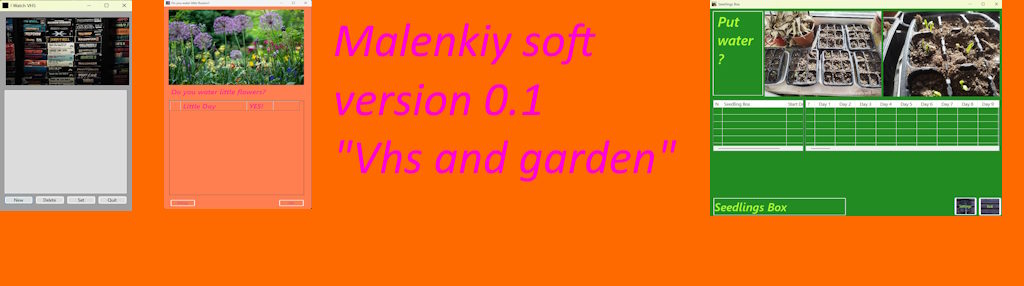

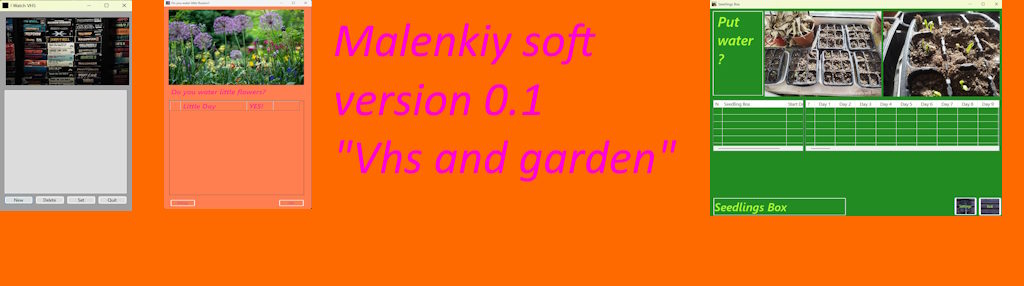
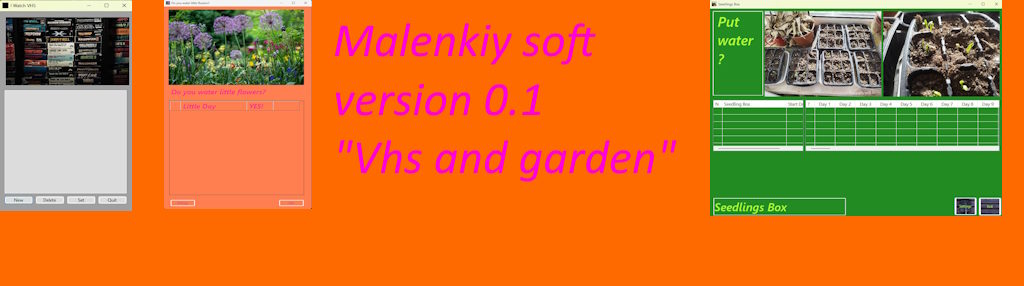
Malenkiy soft  0.1 "Vhs and garden" - most newest version. With this version 3 programs. I watch Vhs,Do you put water on flowers?, Seedling box.

It is now in development new version. This soft will be included in a new version.

Malenkiy soft: http://www.dimalink.tv-games.ru/apps/malenkiysoft/index_eng.html
Website: http://www.dimalink.tv-games.ru/home_eng.html

"Yellow Note" – just a few lines, a few words.

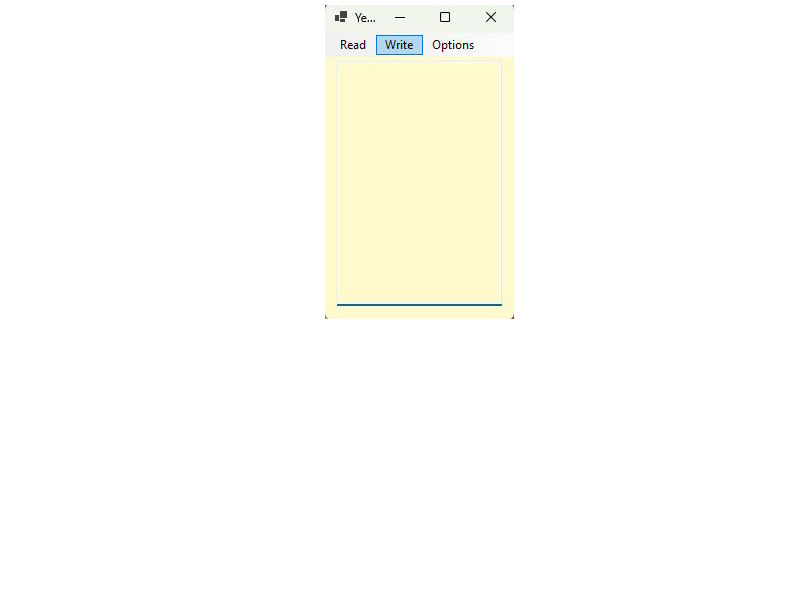
This is another program in the "Small Software" series. It is a very simple program designed for jotting down a quick note. The concept is straightforward: a yellow background, a compact size, and space for just a couple of lines. You type something and keep it visible on your screen, or you can save it to a file—or open a text file containing a previously saved note.

The window is tiny—literally the size of a quarter of a notebook page. You use it to write down something simple so you don't forget it, keeping it on your screen, or you save it to a file to open later. It uses a standard text file format. The idea is similar to a notes app on a phone: a small screen area acting as a slip of paper where you jot things down.

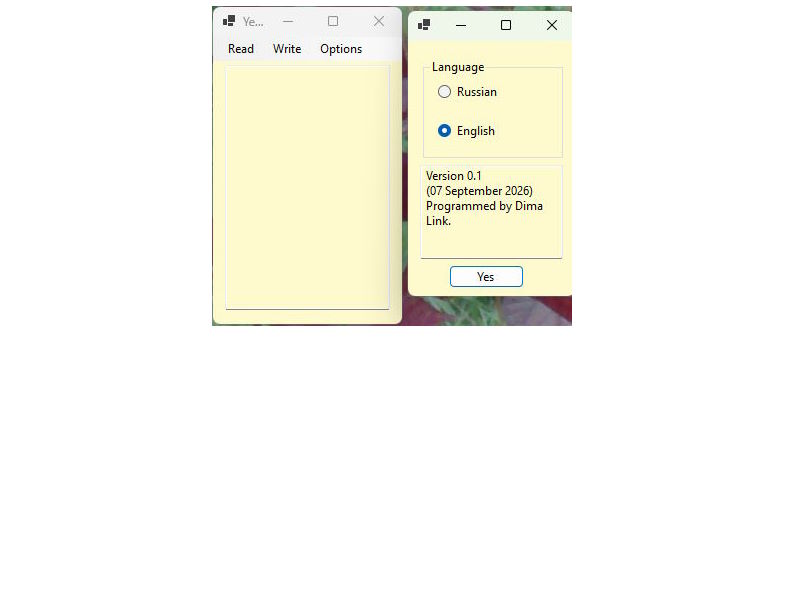
The interface is as simple as possible, tailored to these specific needs. There are settings—language selection (Russian or English) and the program version—plus two main buttons: "Read" and "Write." The first button opens a file dialog to load a text file and display its contents. The second opens a "Save" dialog so you can store the file and open it again later.

It has a minimalist, compact design, intended for small text files—just a few short lines. Think of a shopping list or a to-do list with only a few items, or a brief reminder just a couple of words long. That’s the concept.

It looks like a small yellow slip of paper—like an autumn leaf—where you can quickly scribble something down in the simplest form. You can keep the program open on your desktop; the window is small and doesn't take up much space. There are essentially just three buttons: make a note, read a note, and settings.

The main thing—the core idea—is its simplicity and small size, designed for handling short text files and quick notes. It has just a couple of buttons—two, to be exact: Read and Write. Plus, there’s the text field itself where you can jot things down. Just don’t forget to save the entry later if you need to.

It’s handy to keep notes like this right on your desktop and just glance at them occasionally. The window is tiny—literally minimal in size. The interface isn't cluttered; it’s just a simple, straightforward Windows window. Nothing else. It’s a very lightweight application—small in size and simple in its controls. You won’t get lost using it.

I personally like little programs like this. You can make a quick note, save a file, or sketch out a table—whether in Excel, OneNote, or even a PowerPoint slide. It’s great having all this software around you—so many different programs. They might seem similar, but each has its own specific purpose. This one is for *this* task; that one is for *that* purpose. Check the calendar here, jot down something important in the app, and save the file. Look at you—busy with tasks. A professional with a schedule full of notes and to-dos.

You can create a simple note here—just a few words, or a few words per line, spanning several lines. It’s perfect for lists or simple bullet points—no need for elaborate explanations. A quick note is the ideal solution: not a wall of text, just a word or two so you don’t forget. You just jot it down and keep that useful information right in your system. And don’t forget to check off whether you’ve actually completed the task.


Malenkiy soft  0.1 "Vhs and garden" - most newest version. With this version 3 programs. I watch Vhs,Do you put water on flowers?, Seedling box.

It is now in development new version. This soft will be included in a new version.

Malenkiy soft: http://www.dimalink.tv-games.ru/apps/malenkiysoft/index_eng.html
Website: http://www.dimalink.tv-games.ru/home_eng.html


I’m a Little Star – look how great I am!

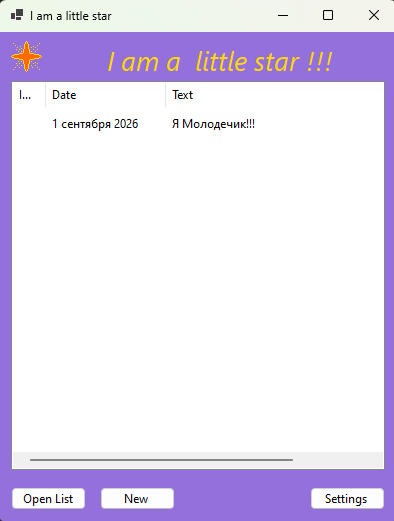
I came up with the idea for this little program a long time ago. The name itself captures the whole concept and meaning: "I’m a Little Star." It’s a list where you record your positive achievements. "I played a game." "I’m cheerful." "I learned something new." "I beat a level in a game," "I watered the flowers." "Good job, me." It’s all about creating a sunny, magical mood.

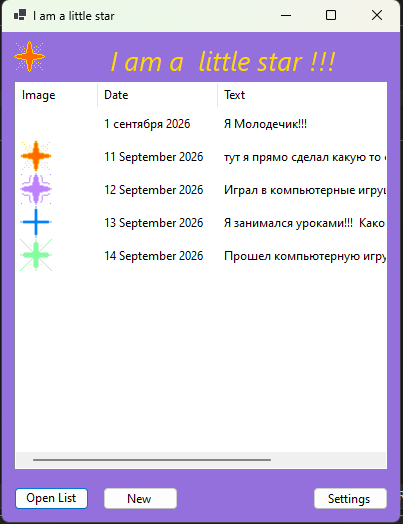
The program has a light, airy style—a bright, slightly magical, celestial background. And there’s a little star icon involved. You get a set of stars to choose from; for every achievement, you pick a specific star to go with it. The star images are stored in a "Data" folder and loaded by the program when it starts up.

The star serves as a distinctive touch—just for fun. You write down something good that happened to you, then pick a star. That’s the basic idea. It’s not finished yet, but the initial version is ready. It can load the list from a text file using a specific format: the filename of the star image, followed by the date (e.g., September 1, 2026), and then the positive event itself—the note's content. For instance: "I went to school" or "I beat IceWind Dale." The notes are meant to be short—just a brief sentence—though the program does support left-and-right scrolling within a single line.

I was sitting there one day, feeling that autumn mood—gray skies and all—when I thought of the singer Cher. That’s when the idea struck me: "I’m a little star." What if I made a program where you could mark things with stars and write down your little achievements? A way to celebrate life. I remember Cher once had a performance featuring an ankh symbol and a shiny, disco-style outfit.


I’m a little star. Mark it with a star. And write down something good that happened to you. Anything at all. Think of it as a list of achievements—and they don't even have to be huge ones. "I watered the flowers." "I'm in a good mood." It’s a small program—basically a list-based app with a few control buttons: Open List, Add Entry, and Settings. This is just a first look at the program; not everything is fully coded yet.

Right now, it’s just an idea—a small square interface and some list files. It’s a simple implementation with a bright, cheerful theme. After all, a "star" implies everything is good, fun, sunny, and bright—whether it’s winter sun, autumn sun, or summer sun. The mood remains bright and sunny regardless; it’s all about that sunshine. Positivity is the main thing. Something sunny. Take a look here, and you’ll realize what a star you are. You could have ten achievements or a hundred; the list has no limits. However, the program is minimalist, so it’s probably best suited for files containing just a few achievements each—though you can create as many files as you like. Or, if you prefer, you can write everything into one massive list.

It’s a list of your positive little deeds—or big ones, too. Whatever you like. You can even pick a star icon from the set in the "Data" folder. Right now, the demo includes four star options to choose from, sized 32x32 pixels. This was developed using VB.NET (Visual Basic).

The light purple background creates a magical, upbeat atmosphere—like a catchy pop song. Everything feels beautiful, magical, sunny, and purple, as if you’re up in the clouds, on friendly terms with the sun. You look at it and realize: you’re a star, too. Did you water the flowers? You did! Look at all the positive things you’ve accomplished! You can write it all down and celebrate what a wonderful person you are!


Dima Link is making retro videogames, apps, a little of music, write stories, and some retro more.

WEBSITE: http://www.dimalink.tv-games.ru/home_eng.html
ITCHIO: https://dimalink.itch.io/

TUMBLR: https://dimalink.tumblr.com/

BLOGGER: https://dimalinkeng.blogspot.com/

MASTODON: https://mastodon.social/@DimaLink