

I would start looking at stuff like multiple monitors, screen resolution or upto date graphic drivers then... Maybe Event Viewer might show some application error or warning if you make a note of what time it happens?
When checking my devices I find my keyboard's name pasted 5 times in a row, though deleting one of them causes the keyboard to tweak and not work at all. In Event Viewer, the closest thing I could find was this: Windows cannot load the extensible counter DLL "C:\WINDOWS\system32\sysmain.dll" (Win32 error code The specified module could not be found.). I also have all drivers updated.
In the realms of guess work now:
Main Fixes to Try
- Input Device Conflicts (most common solution):
- Disable Bluetooth completely (Windows Settings → Bluetooth & devices).
- Open Device Manager (right-click Start → Device Manager).
- Under Keyboards, remove the duplicate entries (uninstall all but one), then restart your PC.
- Also check Bluetooth, Human Interface Devices, and Sound, video and game controllers for extras and disable them.
- Wireless devices or hidden pairings often cause this.
- Launch in Windowed Mode:
- Locate the main game .exe in your Starmaker Story folder.
- Right-click → Create shortcut.
- Right-click the shortcut → Properties → Target field.
- Add at the end (after the closing quote): -screen-fullscreen 0
- Try launching with this shortcut. You can also experiment with -screen-width 1920 -screen-height 1080.
- Quick In-Game Attempts:
- While stuck, try Alt + Enter (toggles fullscreen).
- Press F1 multiple times (helps refresh UI in some cases).
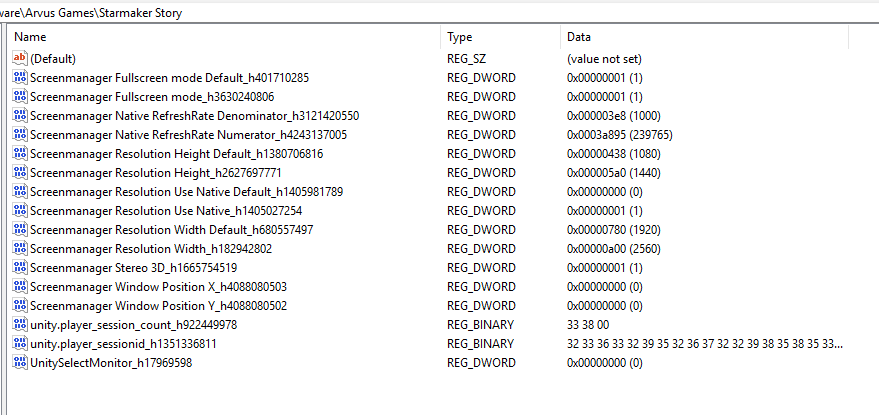
- Registry Reset for Display Settings:
- Press Win + R, type regedit.
- Navigate under Computer\HKEY_CURRENT_USER\Software\Arvus Games\Starmaker Story and look for any Starmaker Story / Arvus-related key.
- Delete entries starting with Screenmanager.
- Launch the game again.
Other steps:
- Run the .exe as Administrator.
- Close any background apps with overlays (Discord, etc.).
- Ensure graphics drivers are up to date.
Start with step 1 (Bluetooth + duplicates) as that's fixed it for others with identical symptoms.
About the Event Viewer error (sysmain.dll)
This is a common Windows performance counter issue and unlikely to be the main cause of your game problem. You can try fixing it with:
cmd
lodctr /r
(run as admin). Or run sfc /scannow + DISM commands. But focus on the input stuff first.
Good stuff, great to hear.
Just a reminder that the game will reintroduce endings in the next release 1.9 which should be due in a couple of weeks and every decision you make results in different scenarios so you are encouraged to try multiple playthroughs to see everything.
Once you feel like you have seen everything personally you want to do, feel free to use the guide to navigate the different characters, paths & locations from the Guide & FAQ on the main itch page.