
Indie game storeFree gamesFun gamesHorror games
Game developmentAssetsComics
SalesBundles
Jobs
TagsGame Engines

How do i add text to colored gif in wigglypaint

A topic by Isilgaladh created 8 days ago Views: 98 Replies: 3
Viewing posts 1 to 4
(+2)

I'm working on a article and using wigglypaint for explainer drawings. 

it's currently in early draft 

https://diamond-ashy.vercel.app/
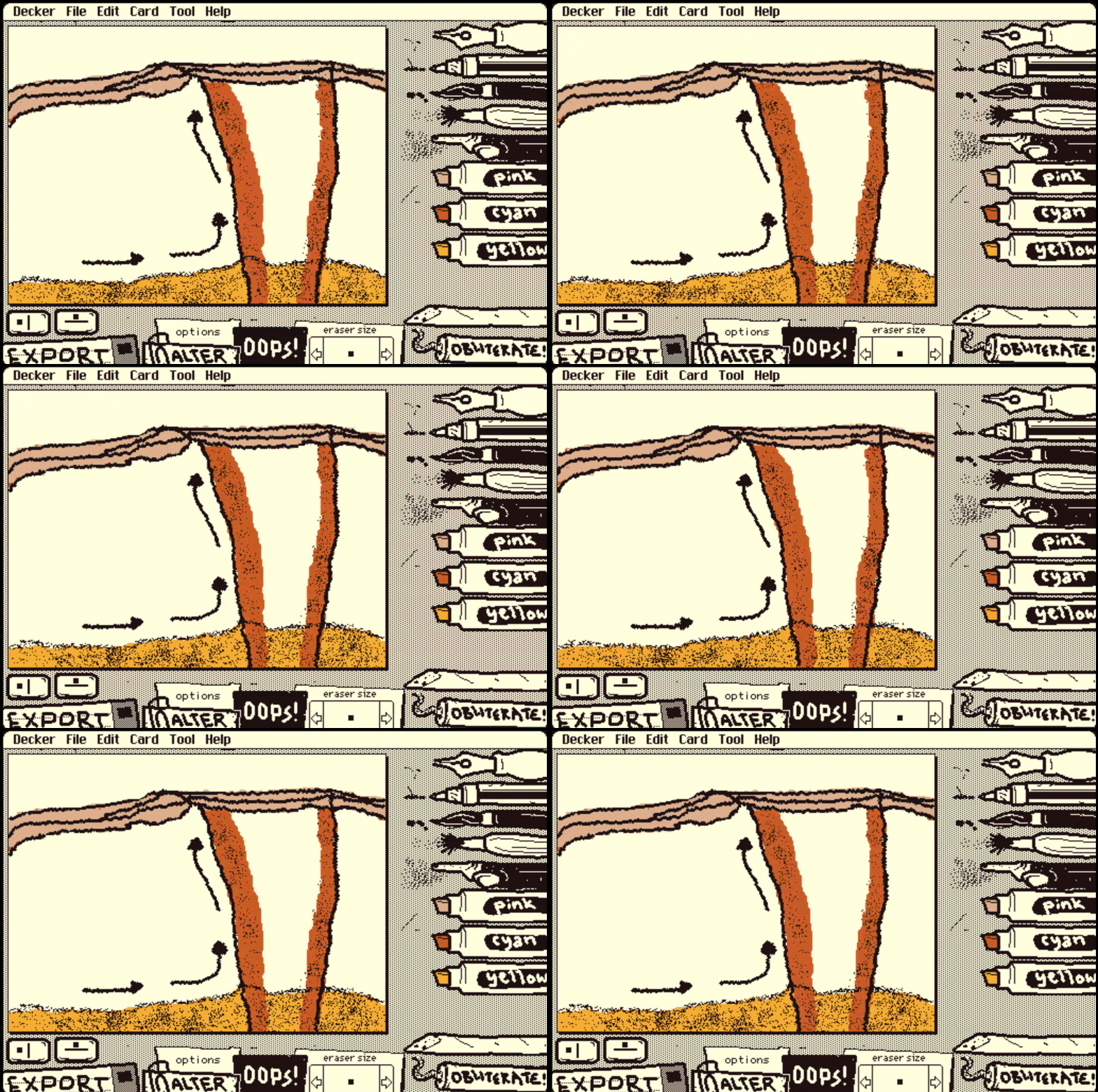


this is one of the gif where i want to add text. which  from the docs I can do it with text widgets. which would be like this
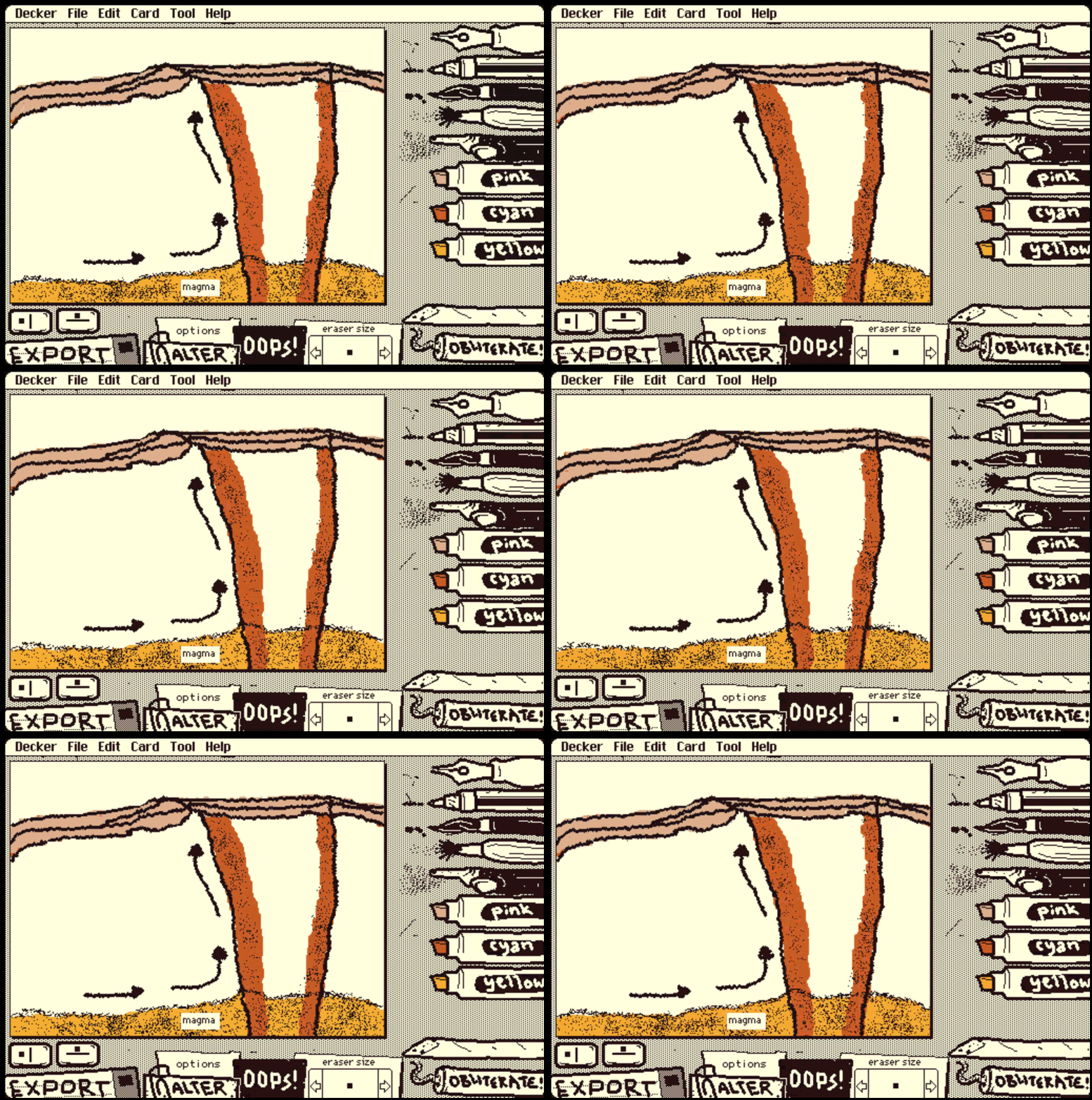


but exporting this with "export" button gives gif without text. I'd be really happy to see how this would work.
also, if there is any way to change font.

thanks for making such an awesome tool :) 

Developer(+2)

WigglyPaint can't do that out of the box, but it's possible with some minor tweaks!

If you switch to the "Widgets" tool and double-click on the invisible button over the "Export" floppy disk in the bottom left corner (it is currently named "button1"), you can click the "Script..." button in its properties panel to view the script that handles GIF exports. Currently it should look something like this:

on click do
 play["snap"]
 t:if options.widgets.mask.value () else 0 dict 32 end
 gif.frames:target.frames..copy[].map[t]
 gif.delays:3 take 10
 write[gif]
end

Replace it with the following:

on click do
 play["snap"]
 t:if options.widgets.mask.value () else 0 dict 32 end
 o:image[card.size]
 each w in (target.index+1) drop card.widgets
  o.paste[app.render[w] w.pos]
 end
 o:o.copy[target.pos target.size]
 gif.frames:target.frames..copy[].map[t].paste[o 0,0 1]
 gif.delays:3 take 10
 write[gif]
end

This updated script finds all the widgets on the card which are above the WigglyPaint drawing canvas (it is currently named "target"), draws them without the card background, and then overlays that drawing on each frame of the GIF.

When you make customizations like this I recommend saving a local copy of WigglyPaint so you don't have to perform this modification every time. Everything about Wigglypaint can be improved to suit your preferences!

You can change a field widget's font by selecting it with the "Widgets" tool active and choosing "Font..." from the main "Widgets" menu. By default, WigglyPaint only includes Decker's three built-in fonts, but you can install more: see the "All About Fonts" deck which comes in Decker's "examples" directory for more fonts, more information about fonts, and a font editor. You can also download a copy from here:

https://beyondloom.com/decker/fonts.html

Does that work for you?

(1 edit) (+2)

thank you sooo much! exactly what i needed.
I've just finished up my article at diamond.jaydip.me.
provided the credits to you in "Thank You" section. lemme know if the link is correct :)

(+3)

lovely use of wiggle gifs! And I learned about diamonds too. Very cool!