How to Add or Remove Mods by Incontinent Cell :
💾 How to Install Mods:
2. Find Your Downloaded Files.
- On Android, they’re usually in the
Downloadsfolder.
❗ DO NOT extract/unzip them! Mods must stay in .zip format.

3. Open the Game
- Tap the “Mods” button on the title screen.
- (If the button isn’t there, update your game to the latest version.)
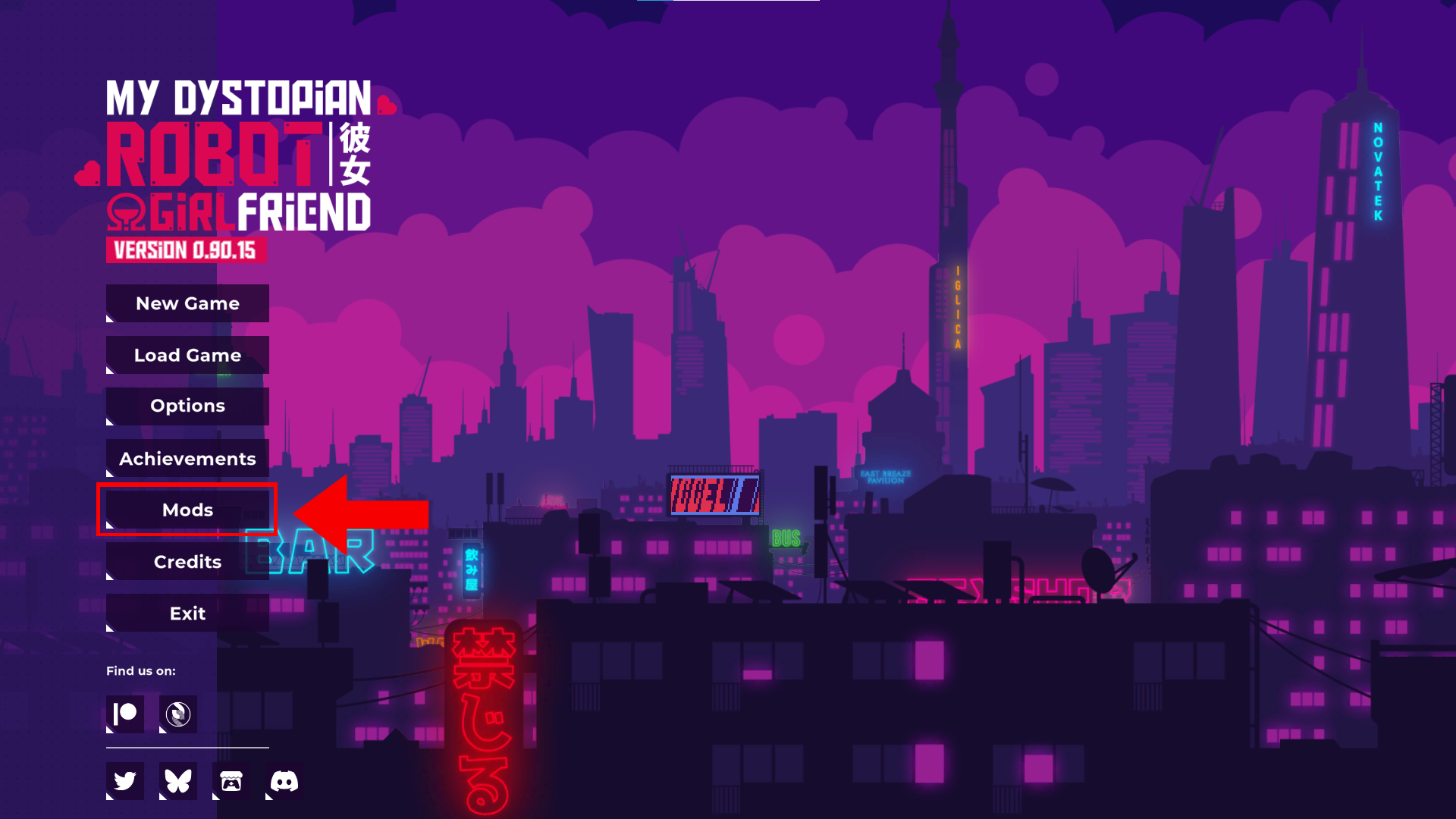
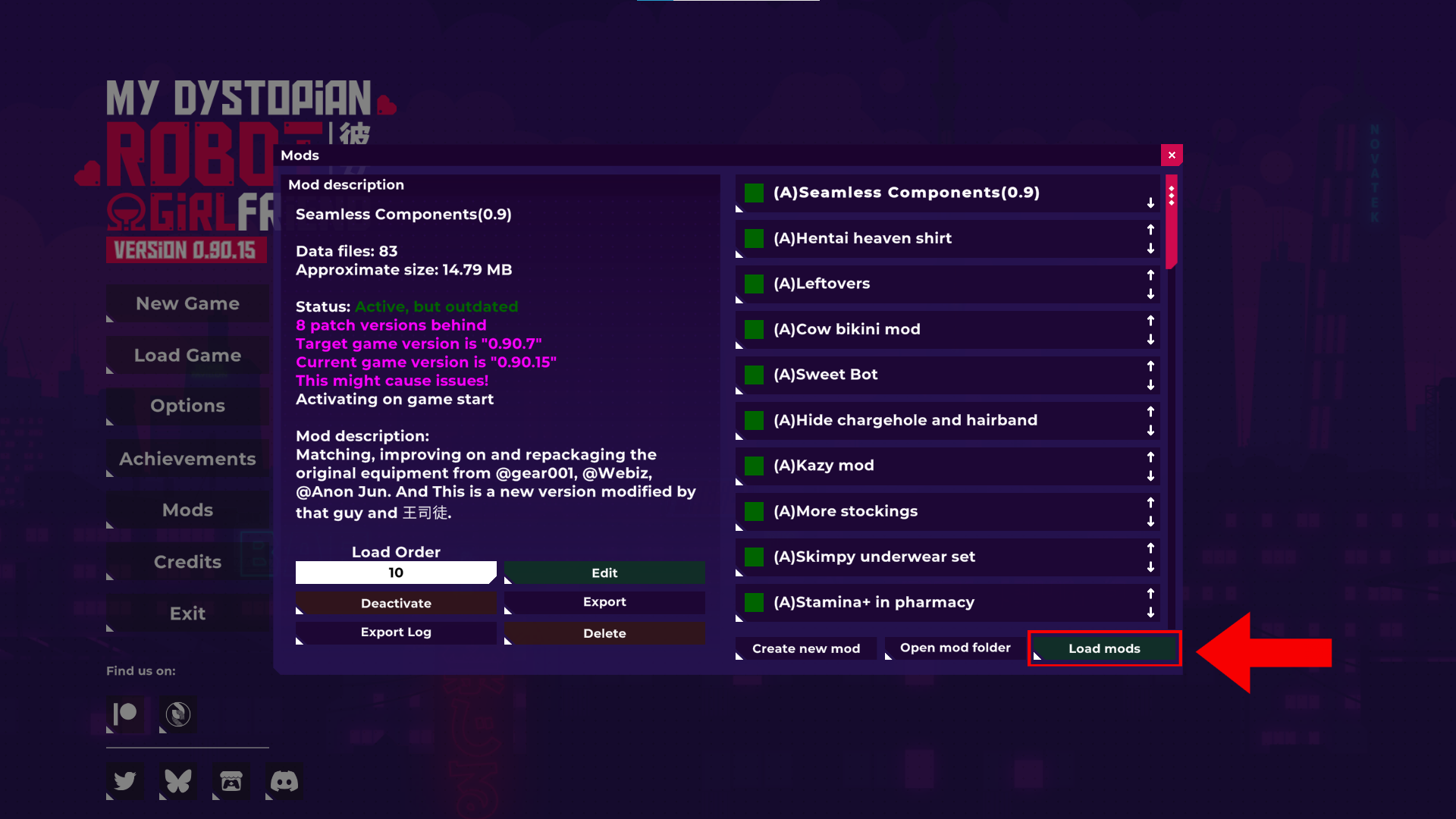
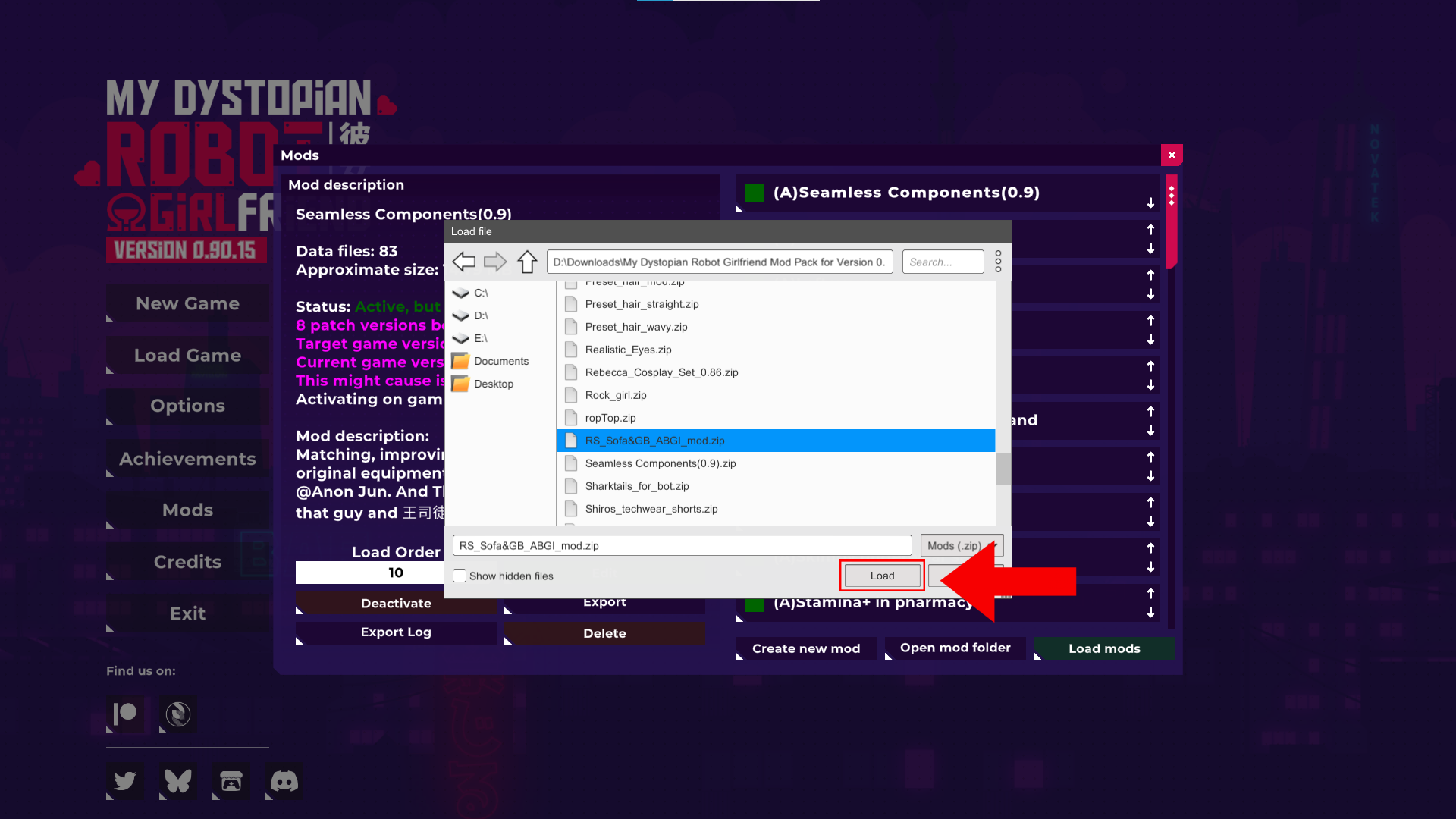
4. Click "Load mods".
5. Select the Mod Files.
- Choose one or more
.zipfiles you downloaded. - On PC: Hold Shift to select multiple mods.
- On Android:
- If no files appear, you may need to allow file access: 👉 How to give file permissions on Android
- After you have permitted the game to have access to your files, create a Folder, then choose that folder as your Mod folder.
- Move the Mod Files into that Folder.
- After you choose the folder for your Mod Files, the game should bring you back to the Mod Window.
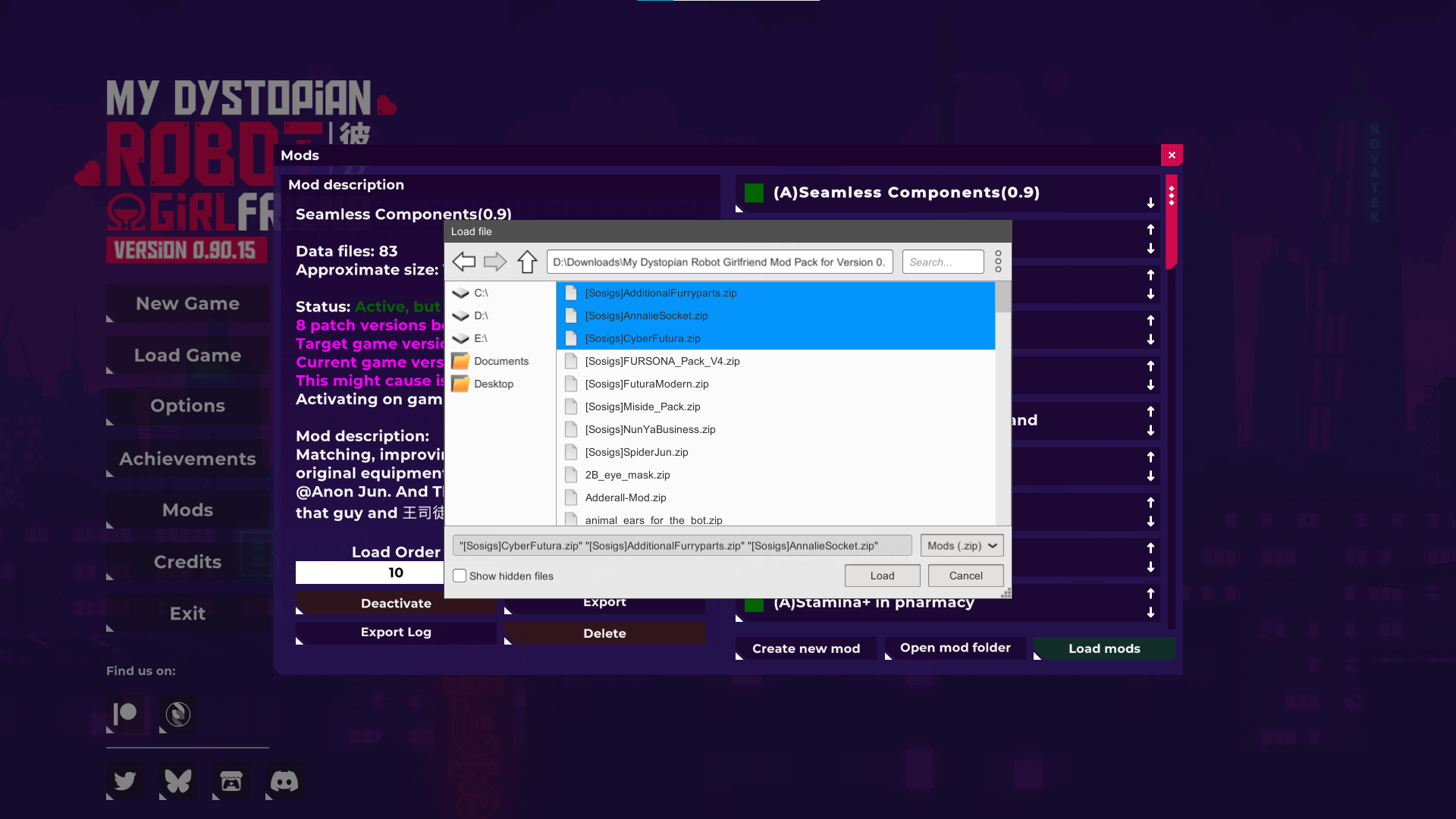
6. Click “Load”.
- The game will add the mods you selected.
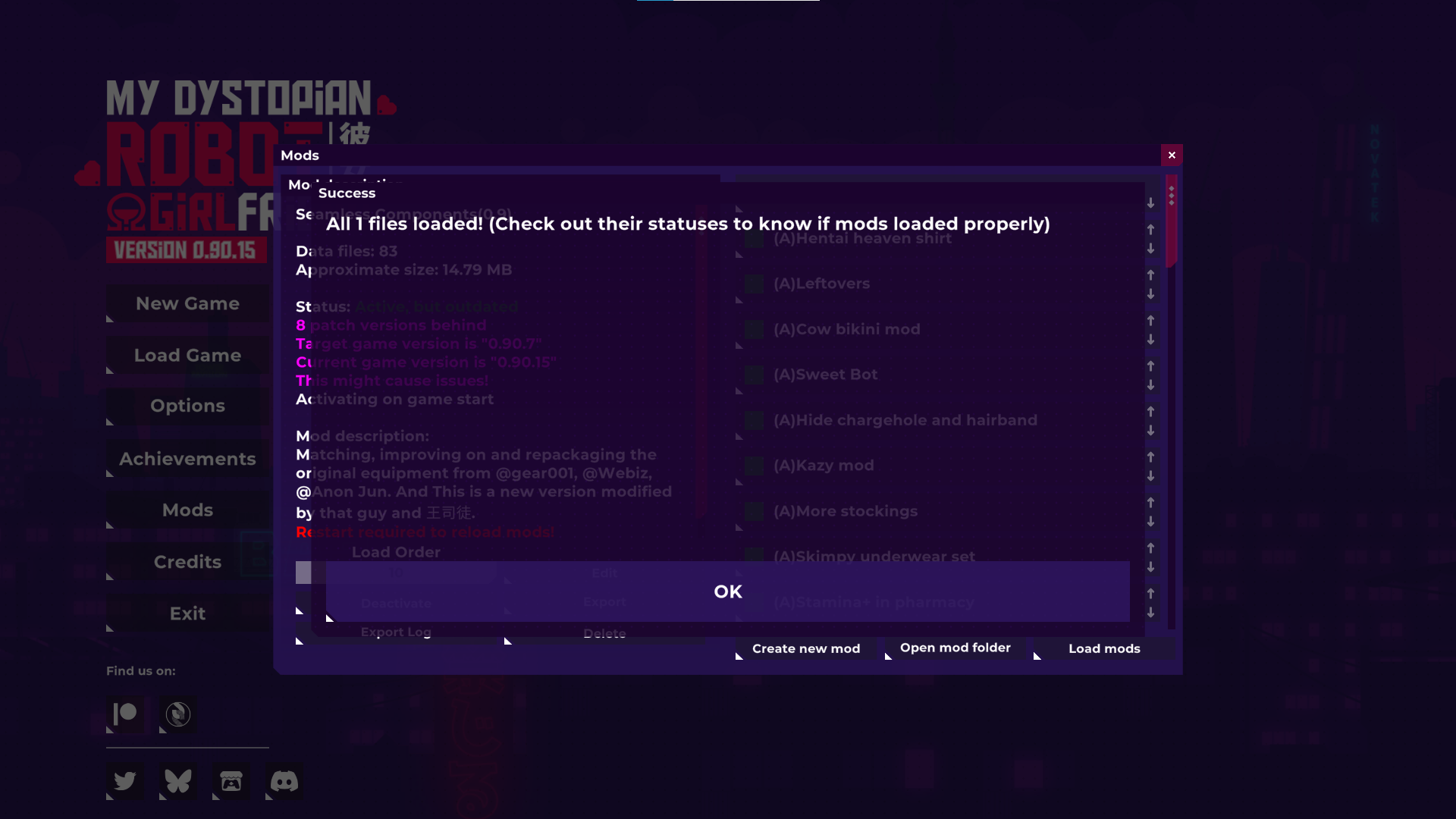
7. Close the Mods Window.
- The game will automatically shut down.
- This is normal—restarting helps load the mods properly.
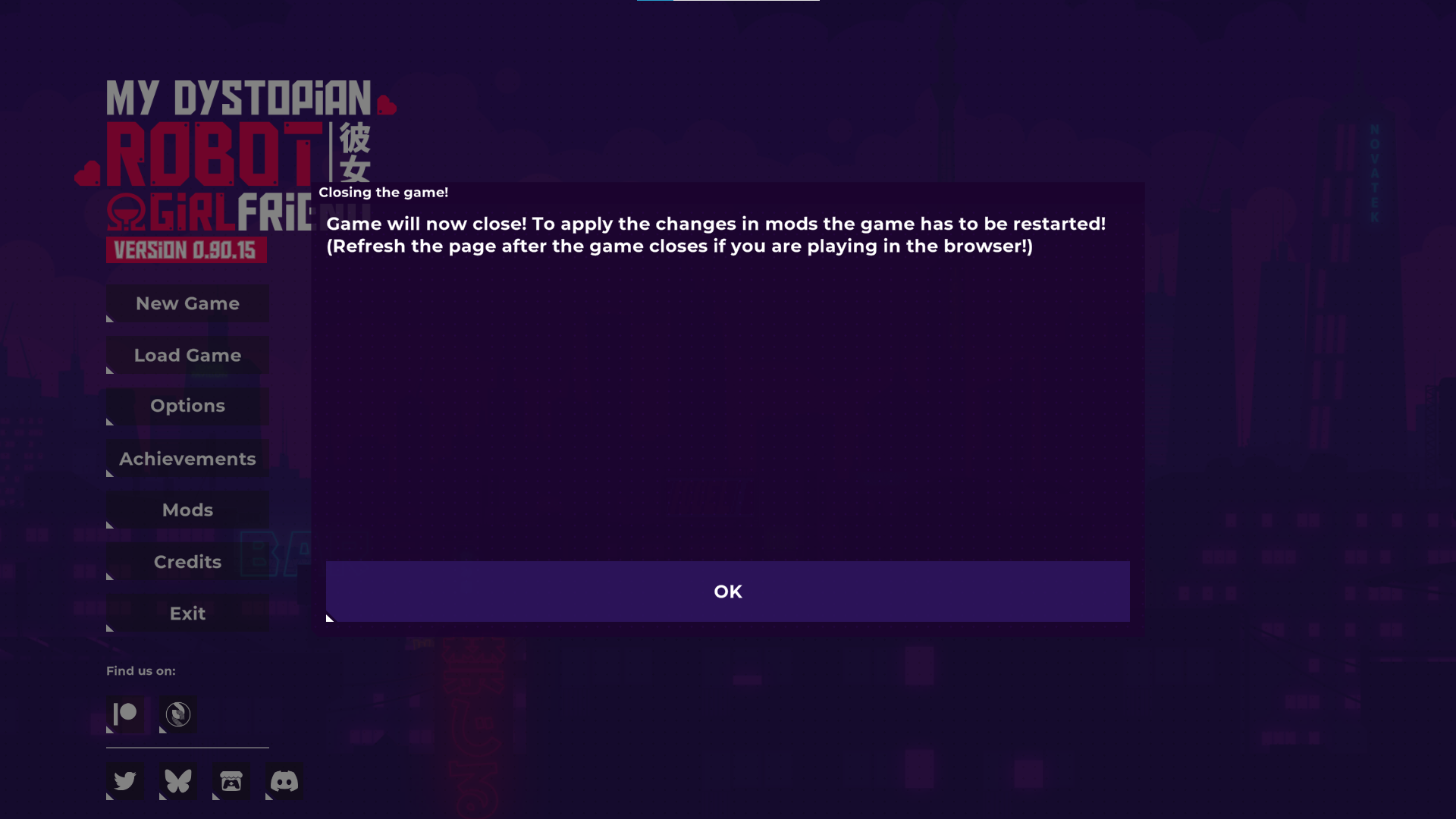
8. Reopen the Game.
9. (Optional) Check the Mods Window Again.
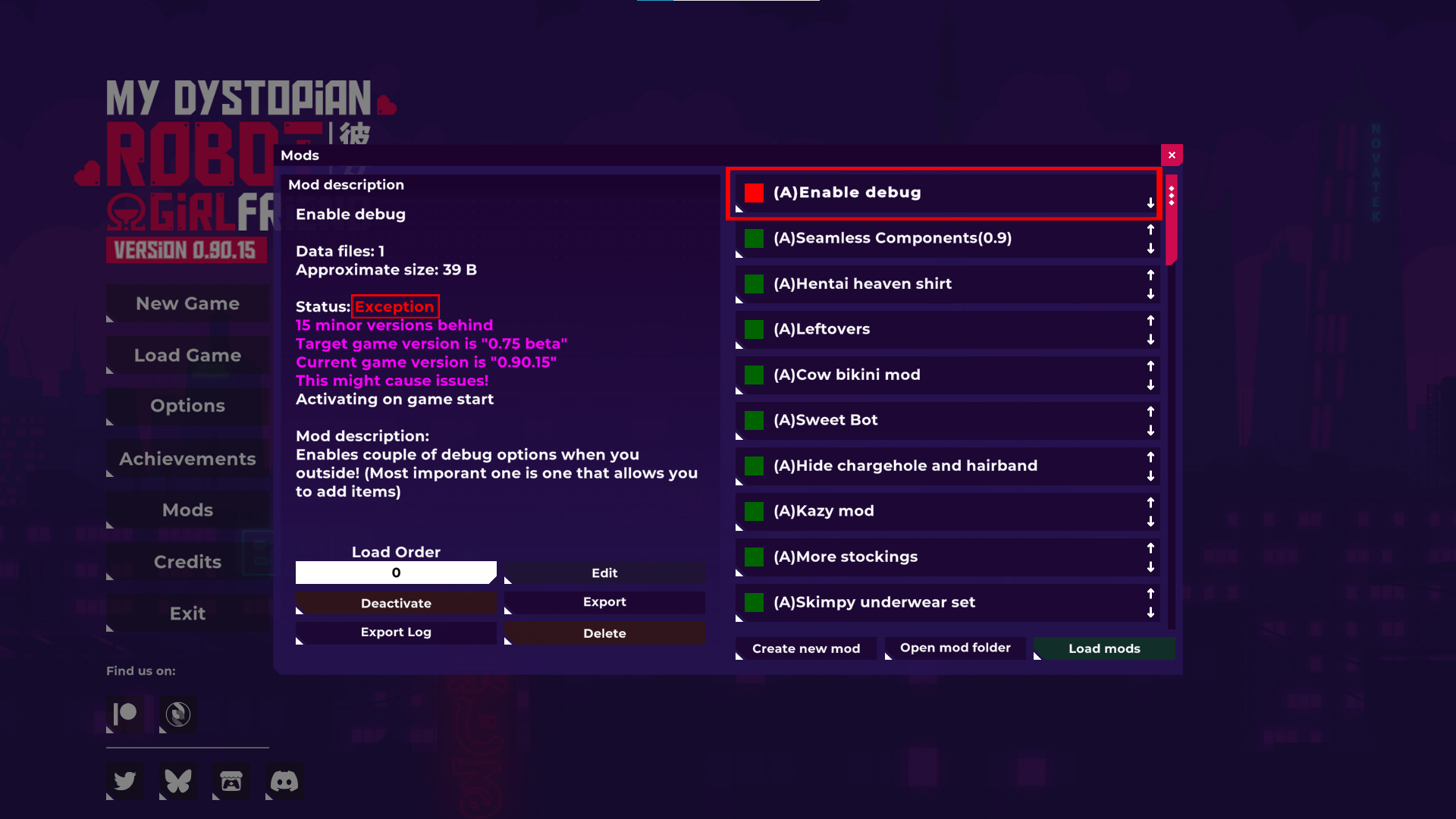
- ✅ If the mod name is green, it loaded successfully.
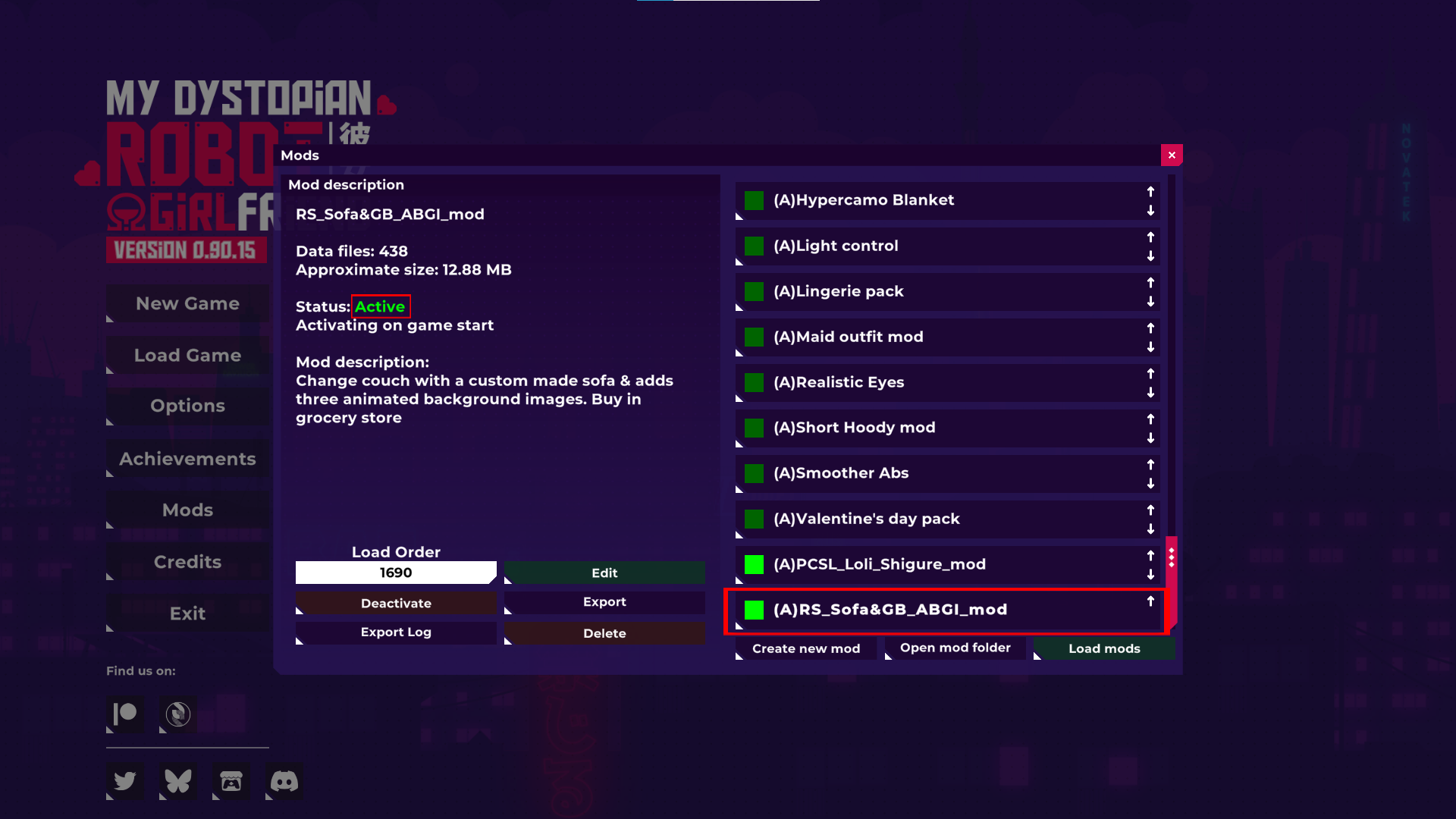
- ❌ If it’s red, it didn’t work. It’s best to uninstall that one.
.....
🧹 How to Uninstall Mods:
1. Open the Game and Go to the Mods Window.
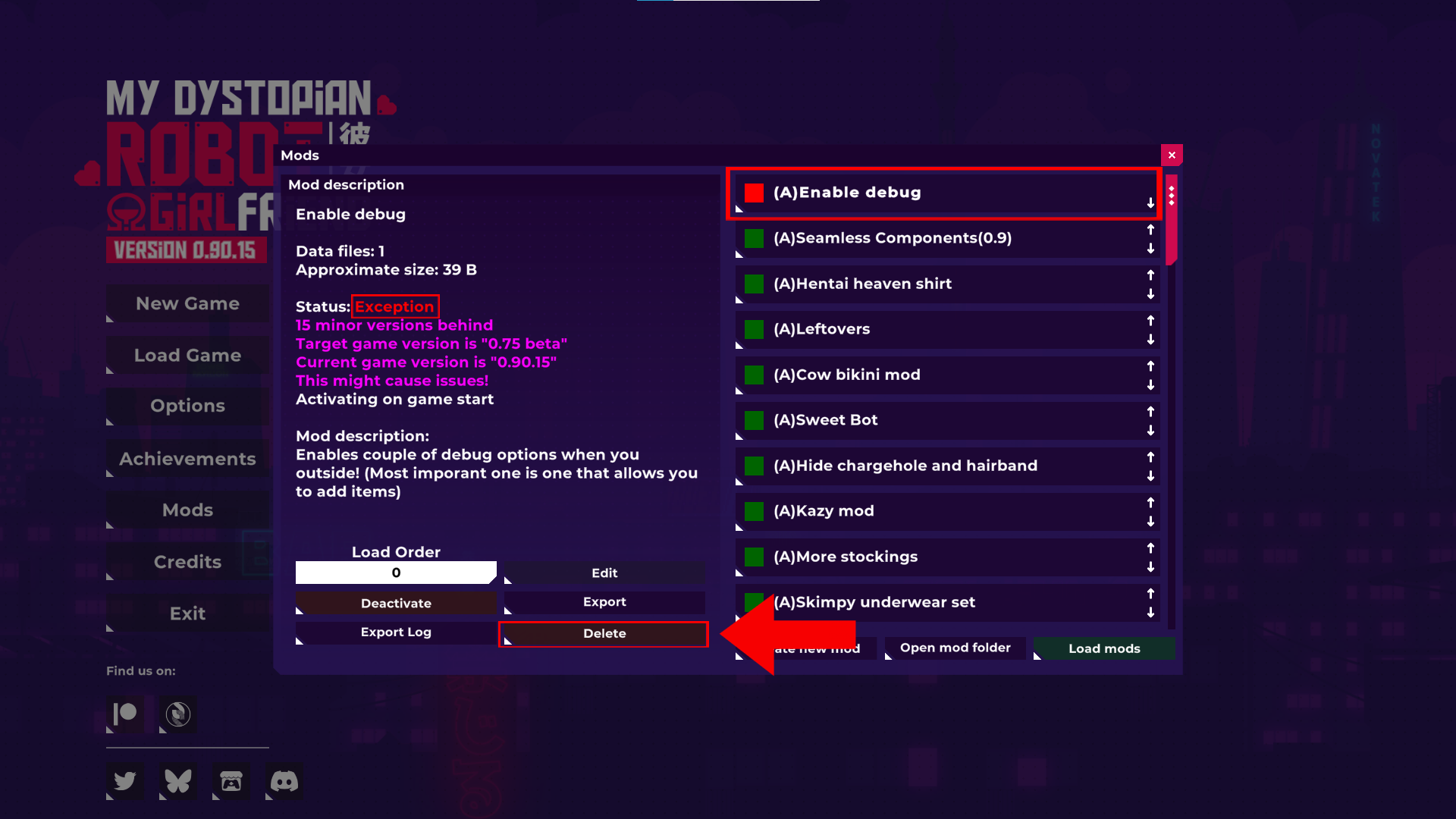
2. Select the Mod You Want to Remove.
3. Click "Delete".
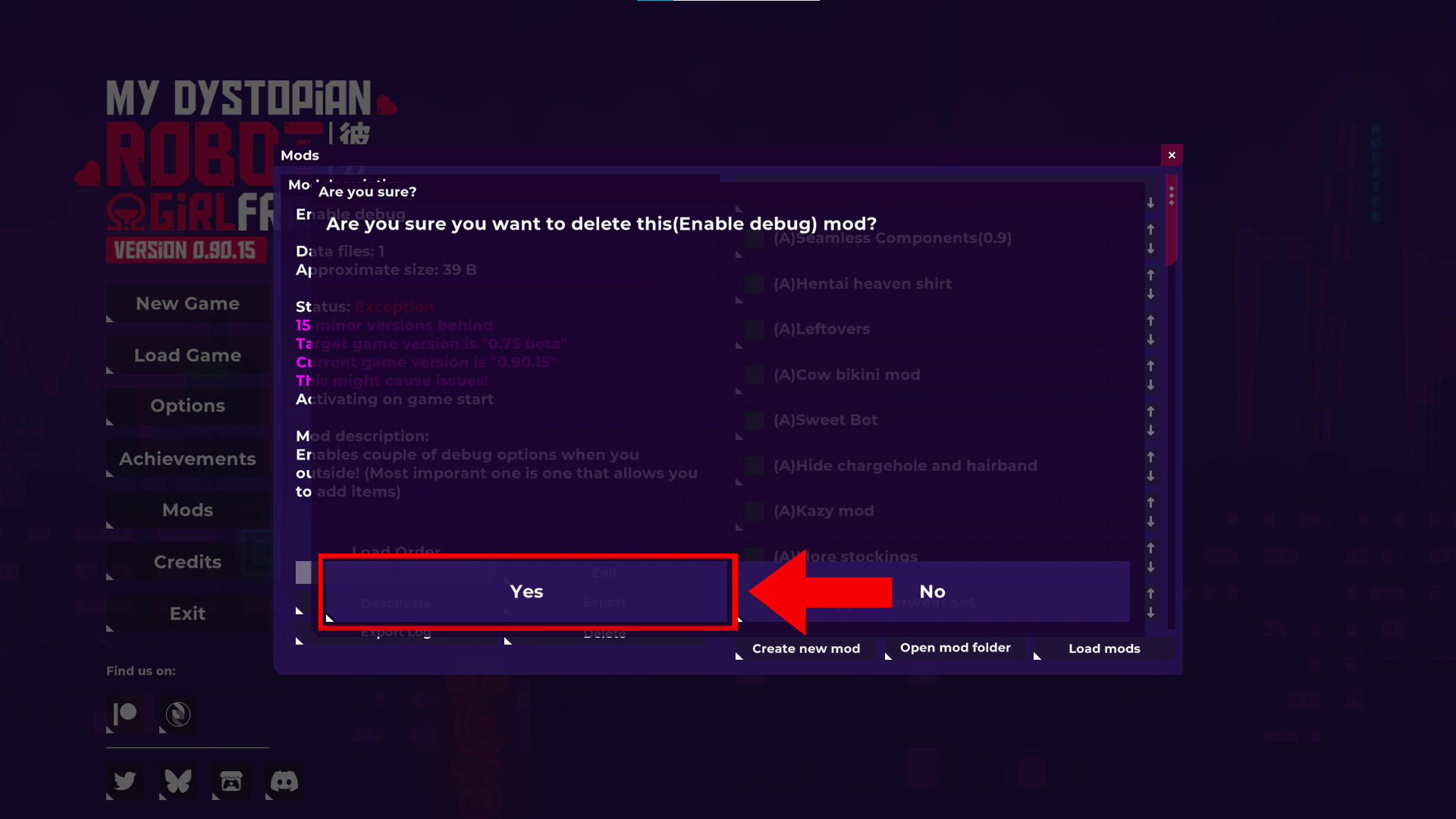
4. Click "Yes".
5. Close and Reopen the Game
- Restarting ensures the mod is fully removed.
6. (Optional) Check Your Save.
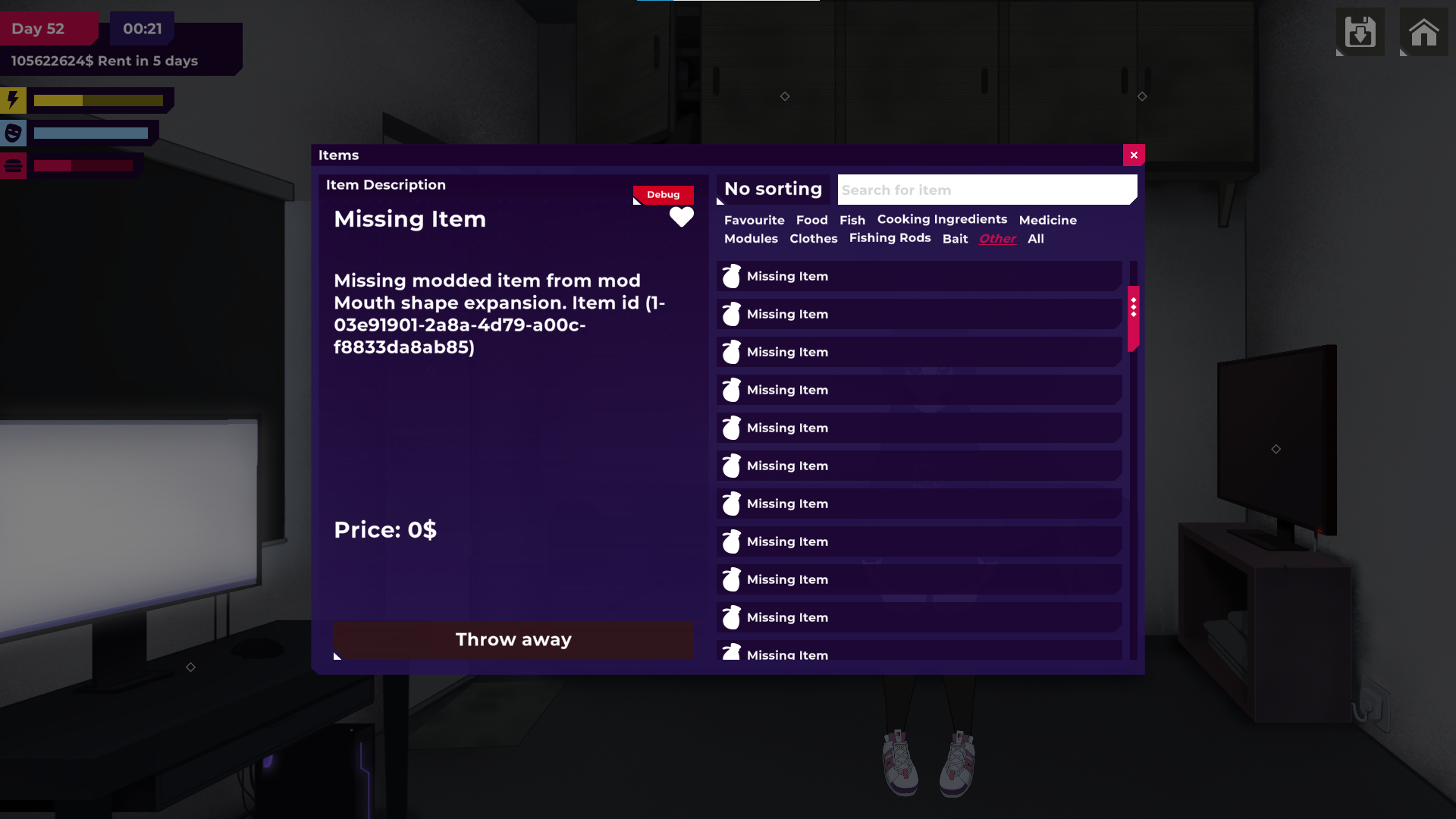
- If the mod was removed correctly, any items from that mod will now show as “Missing Item” in your save file.