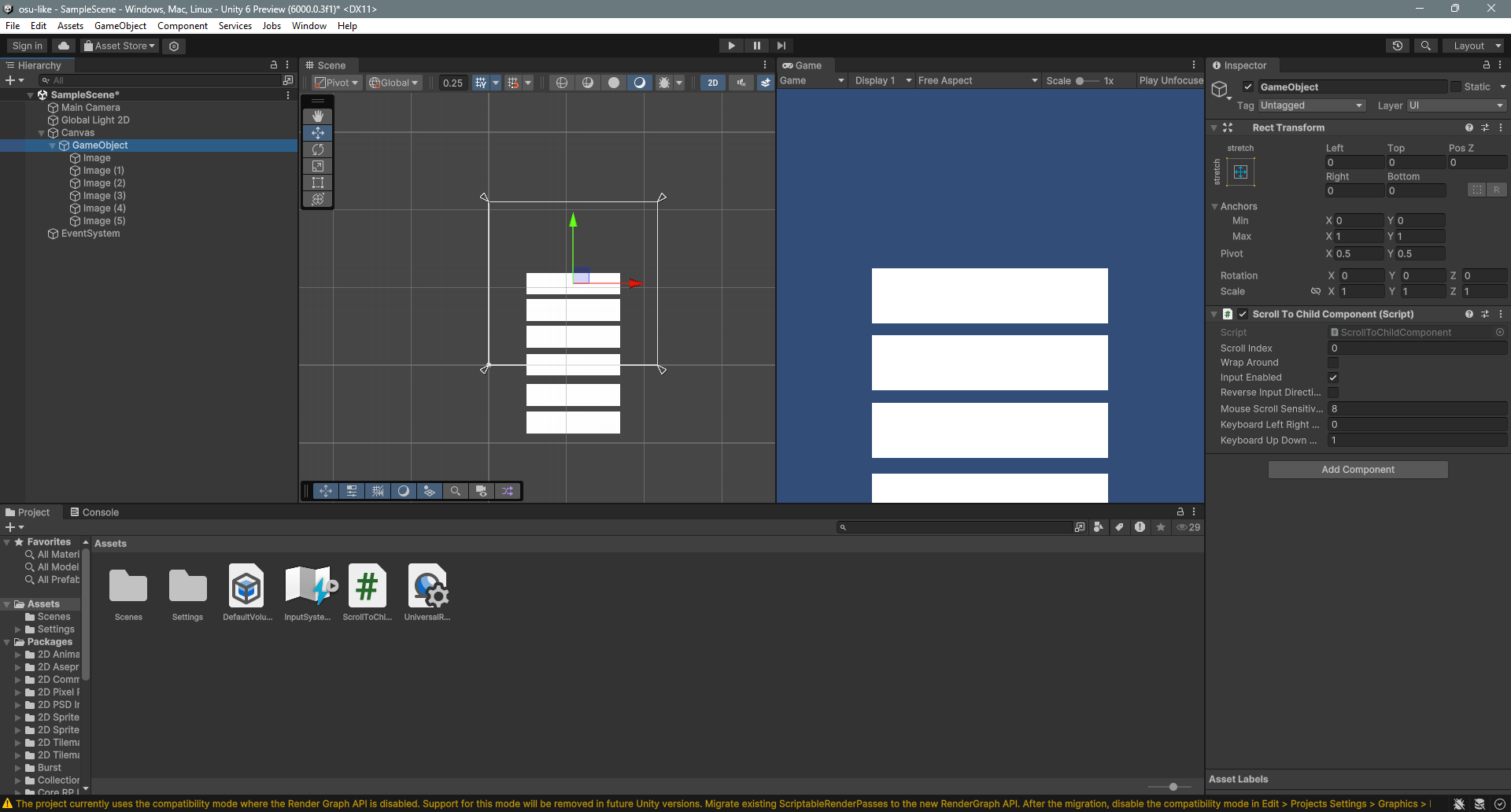
I made a script called "ScrollToChildComponent.cs" you can attach it to a gameobject that has children and it will allow the player or a programmer to cycle through the children in hierarchy order. My goal was for it to be flexible and there are options you can tweak to make it work for different setups like horizontal instead of vertical or ascending versus descending. In the future you can add a script that looks through a folder for songs and adds a child ui object for each song then this script will automatically scroll through them in the manner you determine. It's a first pass though and I'm not pleased with the mouse scrolling but it wasn't working well for me in Osu either so I think it's my touchpad in combination with my basic approach
I posted it to pastebin.com as they are a site I'm familiar with for sharing code snippets. I'll post the public variables of the script here for some validity and so you can see some of the options, there are other ways to share if needed this is just my preference. The link is https://pastebin.com/2D3TcEHM and the password is "e4eacZjTRC"
// Scrolls (translates) to the child at 'scrollIndex'
public class ScrollToChildComponent : MonoBehaviour
{
    // Public Variables
    // The child index
    public int scrollIndex = 0;
    // Scroll Options
    public bool wrapAround = false;
    // Input Options
    public bool inputEnabled = true;
    public bool reverseInputDirection = false;
    public float mouseScrollSensitivity = 8;
    public int keyboardLeftRightMultiplier = 0;
    public int keyboardUpDownMultiplier = 1;
...
Below is some guidance on adding the code to your project and a basic example on how to use it so you aren't totally lost.
Adding the Script
You may need guidance on turning that blob of text into a script in unity, if you already know how and you get no errors you can skip to the part labeled "A Basic Example".
1) open a basic text editor like (notepad for windows, TextEdit or BBEdit for Mac)
2) copy the code into the empty file
3) save it as "ScrollToChildComponent.cs" in your project's assets folder
You can right-click on the assets window in unity and select "show in explorer" to see where the folder is.
Did it Work?: Open the console in Unity by selecting Window>General>Console or pressing ctrl+shift+c. If you see any red messages that means an error occurred, hopefully this doesn't happen but if it does we can chat somehow but first consider the common mistakes below.
Common Mistakes:
1) The name of the file must match the name in the code: "ScrollToChildComponent". In code it appears on line 5:
public class ScrollToChildComponent : MonoBehaviour
2) It must be a C# file (file extension ".cs").
3) It's contents must match the code I give you or you may have errors. If you have programming ability you may change things after getting it working the first time.
A Basic Example (Vertical Scrolling)
Once you have the file please try testing it out on a basic example. (Warning: This is just an example, you should look into better ways of constructing UI but the script should be flexible to those needs. Let me know if it doesn't work as you need.)
1) Add a canvas to your scene if you dont already have one
2) add an empty gameobject as a child of the canvas (in hierarchy: right click on canvas>create empty)
3) add the ScrollToChildComponent script to it
4) add a new image to the empty game object and set its width and height to your liking (in hierarchy: right click on the gameobject>ui>Image)
5) Click the image and duplicate it (ctrl+d) then use the move tool (W) and place the new copy beneath the previous one.
6) Repeat step 5 until you have a good number of images (5-7) you should be able to just duplicate and move one after the other.
7) Click on the empty game object so you have the script's options available, at this point you should have something like I have below.
8) You can press play and use the up/down keys or mouse/touchpad scroll to scroll up and down.
If the mouse scroll direction is inverted from your preference you can make the mouse scroll sensitivity negative (default is 8, lower means less sensitive, higher means more sensitive, zero means disabled, negative means invert). You can also turn on "wrapAround" to make the scrolling wrap back to the beginning or end when you reach the limit.
Remember this is a very general purpose component, it will scroll in the order determined by the hierarchy, you can place the children anywhere really, horizontally, diagonally, in a circle, you just have to use the options such as "wrapAround" "reverseInputDirection" and know you can use negative values to flip the directions of just the keys or the mouse to make them work how you like. Atleast thats the goal. Thanks for reading I hope it works for you, please tell me how it goes.