

From a scripting perspective, what you may have been stuck on is the ".pattern" attribute of canvas widgets, which controls the pattern or color used for subsequent drawing operations.
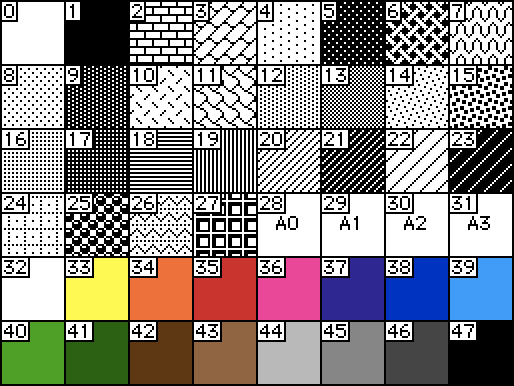
As described in All About Color, Decker represents various solid colors and textured fills with pattern indices. Here's how the default palette and patterns look:
Given a canvas named "c", we can open the Listener and interactively issue some drawing operations:
c.pattern:35
c.rect[10,10 30,20]
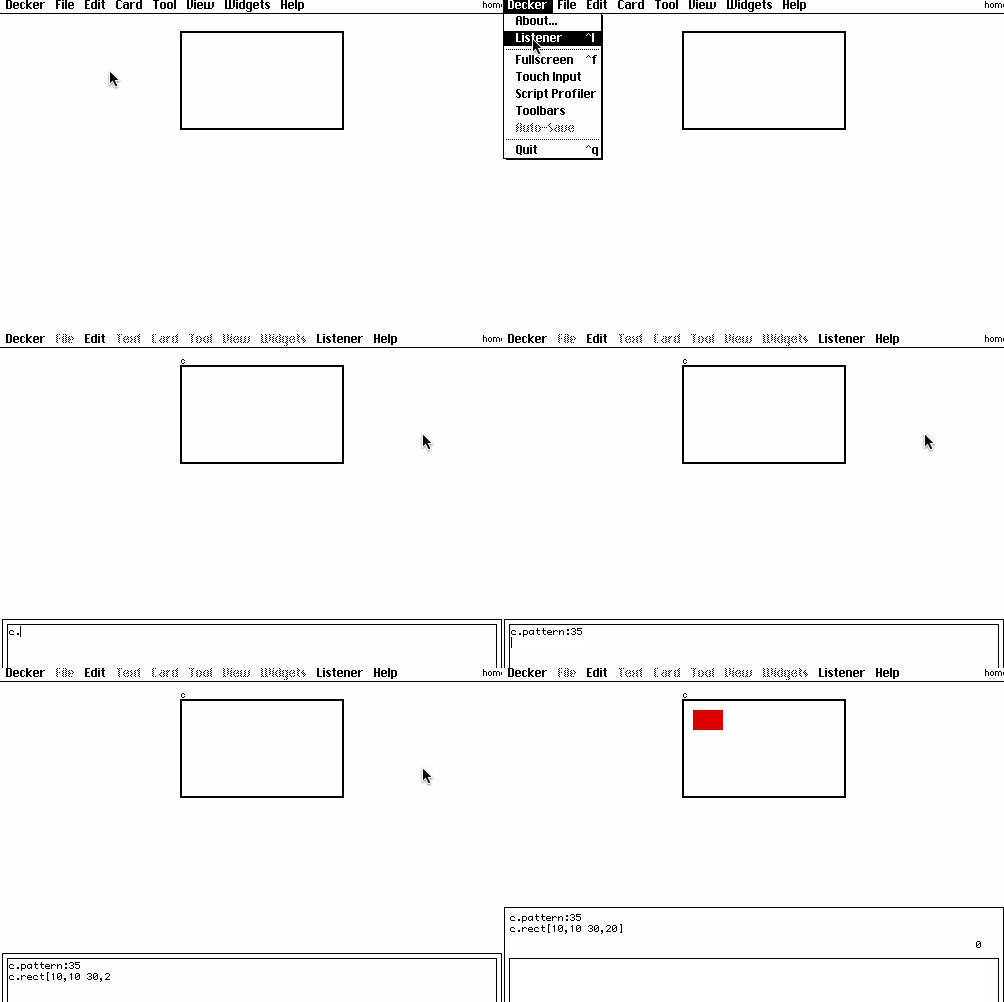
(Remember: Shift+Enter evaluates a code snippet)
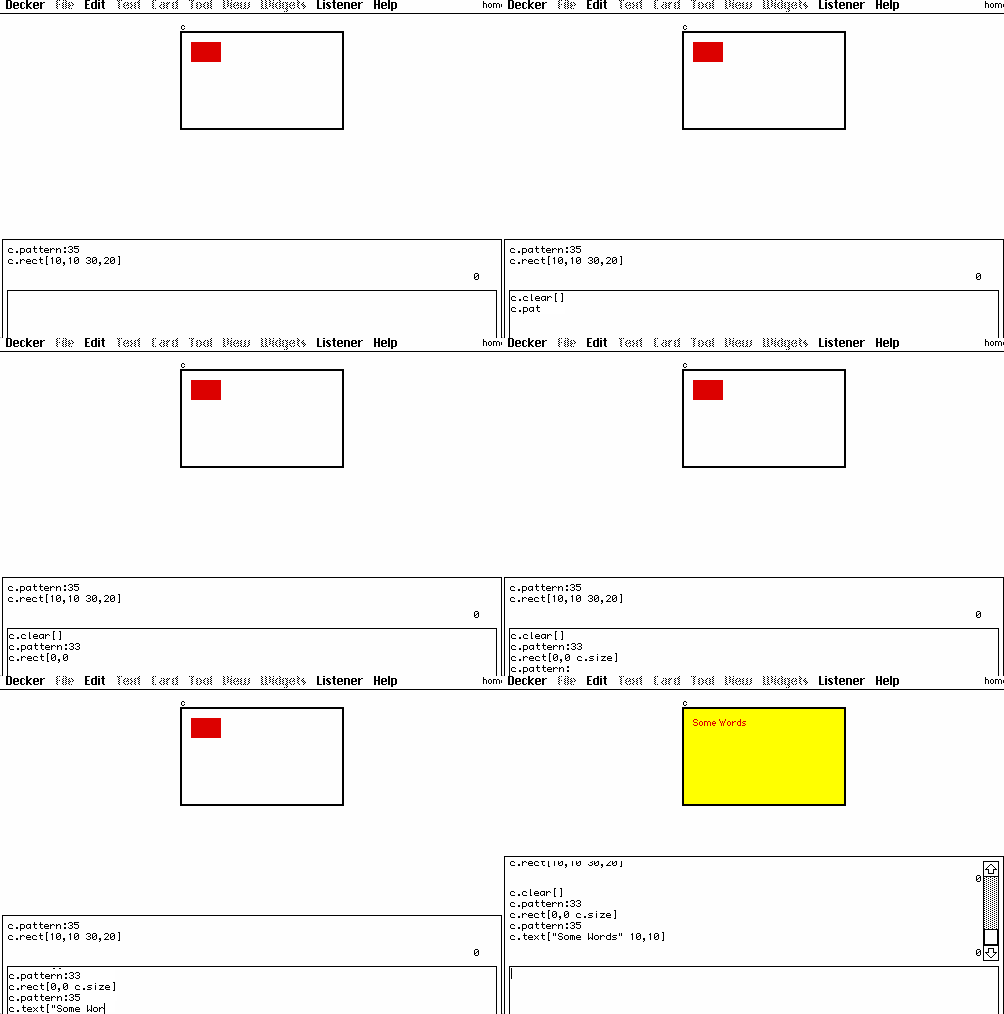
To draw colored text on a colored background, set the pattern, then fill the canvas, then set the pattern again, and finally draw the text:
c.pattern:33
c.rect[0,0 c.size]
c.pattern:35
c.text["Some words" 10,10]
The Canvas Interface section of the Decker reference manual briefly describes all the drawing operations that are available. As a convenience, there is a constantdictionary named "colors" which maps logical names to each of the solid color pattern indices; if you haven't customized your palette you can use these to make your code a little easier to read:
c.pattern:colors.yellow
c.rect[0,0 c.size]
c.pattern:colors.red
c.text["Some words" 10,10]
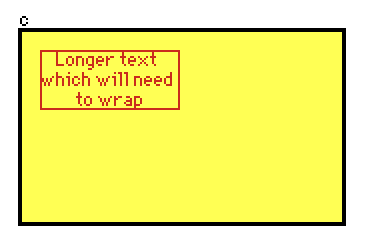
Text layout can get a bit complicated. If you specify an (x,y,width,height) rectangle as the second argument to canvas.text[], Decker will apply word-wrap within that rectangle, and the third argument can indicate an "anchor" for text alignment within thatbox:
rpos:10,10
rsize:70,30
c.pattern:colors.yellow
c.rect[0,0 c.size]
c.pattern:colors.red
c.box[rpos rsize]
c.text["Longer text which will need to wrap" rpos,rsize "center"]
There's some additional information about measuring text in All About Fonts.
Does any of that help? Any questions?