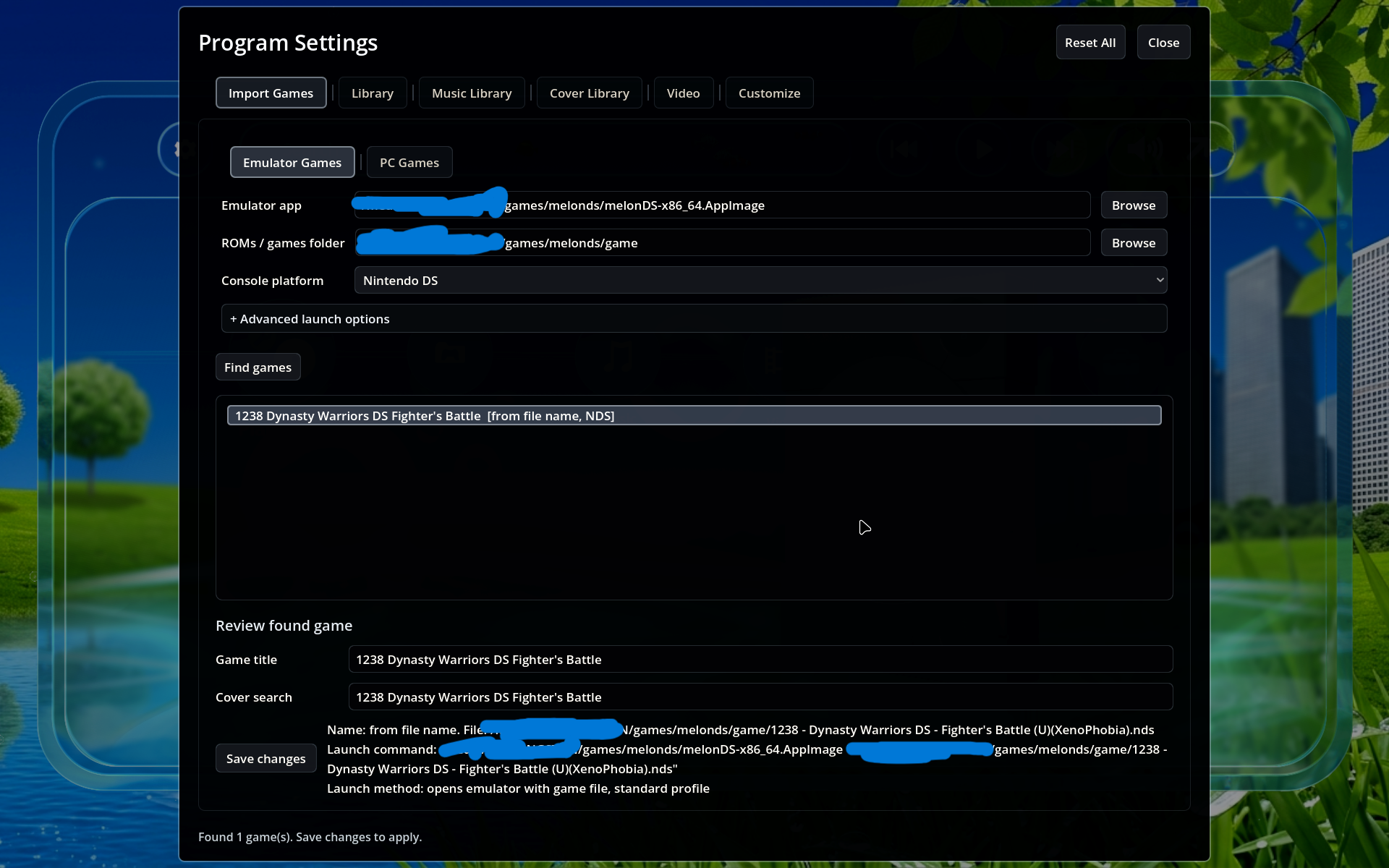
Adding Console Games
Open Settings, go to Import Games, then Emulator Games.
Choose the emulator app first. For example DuckStation, PCSX2, RPCS3, Xenia, Dolphin, PPSSPP, Cemu, or another supported emulator.
Choose the ROMs / games folder. This should be the folder where your console games are stored.
Leave Platform on auto-detect unless the launcher asks you to choose manually.
Use Start in folder only if your emulator needs a custom working directory. Most users can leave it empty.
Press Find games.
If any result is marked with !, select it and fix the game title or cover search text.
Press Save changes to add the found games to the launcher.
Adding PC Games
Open Settings, go to Import Games, then PC Games.
In Game executables, choose a game .exe or .lnk file.
Each selected executable is added to the queue. You can add multiple PC games one by one before saving.
Select a queued game if you want to edit its title or SteamGridDB cover search text.
Press Save changes to add the queued games to the launcher.
For PC games, adding the exact executable or shortcut is usually better than scanning a whole folder.