Indie game storeFree gamesFun gamesHorror games
Game developmentAssetsComics
SalesBundles
Jobs
TagsGame Engines

YabDev

3
Posts
3
Topics
1
Followers
A member registered Aug 23, 2018 · View creator page →

Recent community posts

(1 edit)

The Problem

In Unreal, the main way to save progress across instances of the game and across levels is using a custom SaveGame class. Initially as I was setting it up, I was saving the items using an array of item pointers in the SaveGame class. This worked initially, as when I saved and loaded the current scene, the changes made to the items made for testing were saved and loaded correctly. However, once I moved over to a different map and loaded the item data, it mysteriously disappeared!

The Solution

I began to do some troubleshooting. If I saved the initial scene and then moved to the other scene directly from the editor, the items still wouldn't load. If I started in the second scene and moved to the first, the items also wouldn't load. This made me think initially that it was an issue with scene loading.

My next step was to look through the documentation, and I noticed that data members in a SaveGame class needed to be tagged with a SaveGame tag. I tried that with the items, and once again, did not work. At this point I was considering manually saving each item attribute manually in the SaveGame class and reconstructing them manually, however, another solution showed it's head.

I can't fully take credit for finding it, as Jessie was helping me out while looking at the documentation, and he discovered that a SaveGame class cannot properly store a pointer reference, but they could store a struct. I looked further into what he had found, and saw that the class can store a TsubclassOf type variable, and like that a solution was born.

I created a struct called FItemData, with a boolean that tracks whether an item exists in the current inventory slot, and a TsubclassOf type variable which stores the item type. Then upon saving the game, if an item exists in an inventory slot, the type of the item is stored in the struct and the exist boolean is set to true. Otherwise, the exist boolean is set to false. Then once the game is loaded again, it rebuilds the items using the NewObject function. 
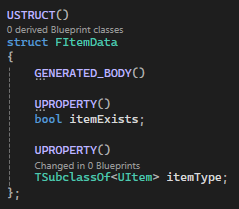

The final step was to replace the array of item pointers in the save game class with an array of FItemData structs. And just like that, the items loaded perfectly!
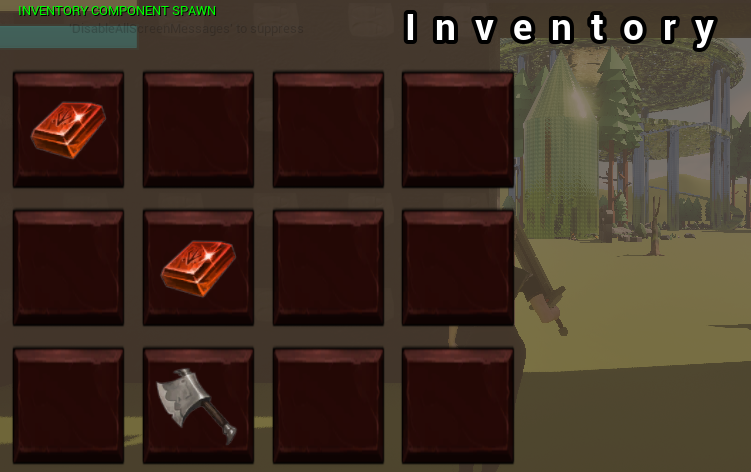

The Problem

In Ryssa Through Time there is going to be an item/inventory system, and it was up to me to implement it. I've done systems like these before in Unity in the past, so this is nothing new to me. However in Unity I made heavy use of the ScriptableObjects feature, while in Unreal (to my knowledge) a feature like this does not exist, so I had to make my own.

The Solution

I first began with creating an Item class derived from Unreal's UObject class. Doing so allows the item to have the UCLASS() macro specifier, which will allow me to tag the item so that blueprint objects can be derived from it. Doing so also allows me to tag the class as abstract, so that only derived versions of it can be created. (This prevents creating an item with no data.)

Within the item class I also define a few parameters that act as the item data. Things such as the item name and description, as well as a texture for the item icon. This is very similar to the way you would set up a ScriptableObject class in Unity. The parameters needed to be tagged with a UPROPERTY(), so that it can be edited in blueprint.

The next step is to actually create some items! I did this by creating a blueprint class that derives from the Item class that was previously defined. Then once in blueprint, each parameter can be defined, exactly like a ScriptableObject! The one thing that really tripped me up at this point was referencing these items. In order to get a reference to the blueprint class, I needed to use a TSubclassOf<Item>, then use the NewObject function to create an instance of the class. From this instance we can get the data stored in the class and use it however we want!


"Centering UI Elements across Different Engines"

Author: Ethan Yabsley

Posted on November 7th, 2025

The Problem:

When creating the designer layout for the controls GUI portion of the player HUD, I realized that centering the controls GUI popup elements using a single horizontal box would not suffice. Each popup would either be left aligned or spaced way too far away from each other popup. This was the approach used in Unity, and I realized that this would not work 1-to-1 in Unreal, so I needed to find a solution.

The Solution:

Initially I had my controls GUI setup as the following: A canvas to store all of the UI elements, then as a child to that I had a horizontal box element to contain all of the control GUI popups. Through code it would spawn the popups as children to this horizontal box. As stated earlier this method would cause the popups to be placed incorrectly, where my goal would be to have them spaced an arbitrary distance from each other, all aligned in the center. My first idea to solve this issue was to play around with the horizontal box settings in Unreal, but this was to no avail. Unlike Unity, element formatting in the horizontal box is controlled on the element itself, as opposed to the box. Realizing this I attempted another solution. Instead of having just one horizontal box, I had two. It was formatted as the following: A canvas for the UI elements, then as a child to that was the first horizontal box, then as a child to that box were two spacers with the second horizontal box in the middle. The key here was to set the second horizontal box size settings to auto, and both of the spacers sizes were set to fill. This is what would cause the central alignment for the control popups. The padding between each popup was then set in code as they were created, which ended up creating my desired effect!

