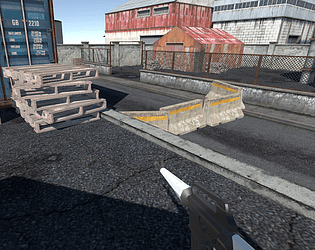
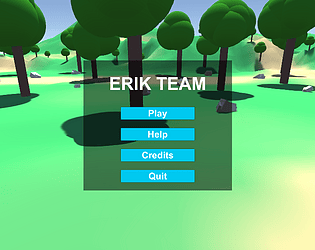
Hi LZX,you're doing pretty well for a beginner. Here I have a few suggestions. You can add help or talk about your game on your website, otherwise users won't know how your game works. Also, hopefully you'll check your miniaturized code later, it will reverse the size of the character after a certain amount of miniaturization.
WLLOBJECT
Creator of
Recent community posts
Hi Ting cao, this is one of the best layouts I've seen. Clean, crisp, and well-spaced for an efficient use of screen real estate. The text in the buttons is well spaced and white space is used smartly. I think you've applied the color theme pretty consistently throughout, and the interactions with your objects are running smoothly.
The fly in the ointment may be that the position of the Reset button causes the overall layout to be a bit confusing. It may be better to adjust the position of the button.
Anyway, well done and looking forward to working together on the final project!
Operation guide:
First click the full screen button in the lower right corner of the game interface to adapt to the current screen size for the best gaming experience.
After officially entering the game page, the player can change the appearance of the character through the buttons in the Controls interface.
The Left and Right buttons in the Rotate control the rotation of the character.
The Left and Right buttons in the Move control the left and right movement of the character.
The "—" and "+" in the Scale ” button controls the overall size of the character.
The red RESET button can restore the original size of the character.