

How to play this game in your browser (no Wine)
Hi! As far as I know, there's no post explaining how to run this game directly in a browser instead of fighting with Wine. Turns out the Windows .exe is actually just a wrapper (NW.js) around a plain HTML/JS/CSS game, so you can skip the wrapper entirely and run the actual game in Chrome, Firefox, or Safari.
Before you start
You don't need to be a programmer, but you'll need to get comfortable with two things:
- The terminal, just copy-pasting a few commands, that's it.
- Your browser's developer console , sounds scarier than it is. We'll only use it for saving/backing up your progress.
Important: your save files will live inside your browser (not as files on disk), so if you ever switch browsers or computers, you'll need to manually copy your save data over. There's a section below explaining exactly how to do that.
This tutorial covers macOS, Linux, and Windows. Skip to the section for your OS.
Step 1 — Get the files
Download the .zip version of the game (not the .rar, .zip is natively supported everywhere and avoids needing extra extraction tools). Extract it wherever you like.
Inside the extracted folder you should see something like Game.exe, package.json, and (importantly) a www folder. That www folder is the actual game, everything else (the .exe, the .dll files) is just the Windows wrapper we're going to skip.
Step 2 — Install Python
We need Python only to run a tiny built-in local web server (nothing fancy gets installed on top of it)
macOS
Check if you already have Python:
python3 --version
If that gives you a version number, skip ahead to Step 3.
If not, install Homebrew first (a package manager for macOS):
/bin/bash -c "$(curl -fsSL https://raw.githubusercontent.com/Homebrew/install/HEAD/install.sh)"
Then install Python:
brew install python
Linux
Almost every distro already has Python 3 installed. Check with:
python3 --version
If it's missing, install it with your package manager, e.g. on Debian/Ubuntu:
sudo apt install python3
Windows
You already can play the game with the Game.exe file, lol
Step 3 — Run the local server
Open a terminal (macOS/Linux: Terminal app) and navigate into the wwwfolder inside the game's extracted directory. For example:
cd "/path/to/the/game/www"
You can also do this if you don't know how to navigate, drag the file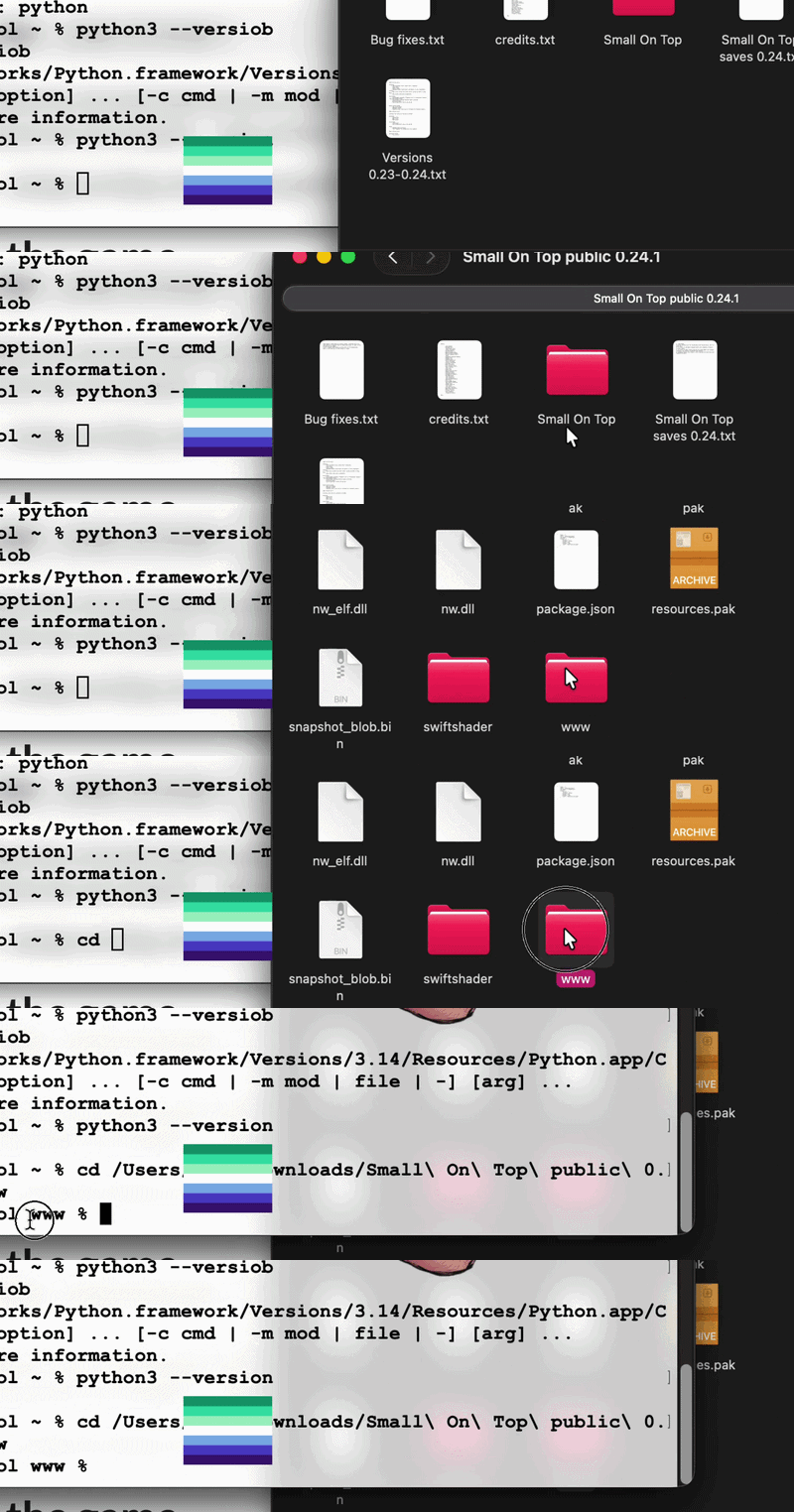
Then start the server:
python3 -m http.server 8000 --bind 127.0.0.1
Why --bind 127.0.0.1? By default, this command makes the server visible to anyone on your local network (WiFi/LAN). Adding --bind 127.0.0.1 restricts it to just your own computer.
Leave this terminal window open, closing it or hitting Ctrl+C will stop the server.
Step 4 — Open the game
In your browser, go to:
http://localhost:8000/index.html
That's it, the game should load and run exactly like the desktop version, minus the Wine/compatibility issues.
Tip: Don't just double-click index.html to open it directly (file:// in the address bar), it won't work
About saving your progress
The game saves using your browser's localStorage , not files on disk. This means:
- Your save is tied to that specific browser, on that specific device.
- Switching from Firefox to Chrome (or from your PC to your phone) will not carry your save over automatically.
- Using a private/incognito window will not show your existing saves (private windows use isolated storage that gets wiped when closed).
Backing up / transferring your save
If you want to move your progress between browsers or computers, open the developer console on the page where the game is running:
- Chrome/Firefox:
F12, then go to the "Console" tab - Safari: enable the Develop menu first (Safari → Settings → Advanced → "Show Develop menu"), then
Cmd + Option + I
To export everything in one shot, run this in the console:
copy(JSON.stringify(localStorage))
This copies all your save data to your clipboard as text. Paste it somewhere safe (a text file) to keep as a backup.
To restore it later (same game, different browser/device), open the console on the new browser with the game loaded, and run:
const data = JSON.parse(`PASTE_YOUR_BACKUP_HERE`); Object.keys(data).forEach(k => localStorage.setItem(k, data[k]));
Replace PASTE_YOUR_BACKUP_HERE with everything you copied earlier, keeping the backticks (`) at both ends. Reload the page afterward, your saves should now show up in the game's load menu.
Quick recap
- Download the .zip, extract it
- Install Python if you don't have it
cdinto thewwwfolder and runpython3 -m http.server 8000 --bind 127.0.0.1- Open http://localhost:8000/index.html in your browser
- Play! and if you ever switch devices/browsers, back up your save via the console commands above
Happy to answer questions in the replies if anything doesn't work for your setup.