

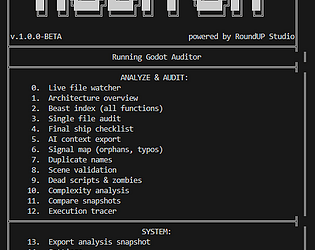
Godot Auditor — Troubleshooting & Setup Guide
This guide covers common setup requirements to ensure the Auditor and its Watcher system function correctly.
1. Onboarding: Navigating to Your Project
To work effectively, the Auditor needs to see your entire project hierarchy.
Project Root: Always execute the Auditor from the folder containing your project.godot file. This is the root of your Godot project.
Watcher Requirements: The Watcher system requires the project root to monitor file changes recursively. If you run the Auditor from a parent or sibling directory, the Watcher may fail to initialize or ignore your scripts.
Troubleshooting "Cannot find Godot project":
If you see this error, ensure you have navigated to the directory containing project.godot in your terminal.
Verify that the workspace path set during initial setup matches your project root.
2. Workspace & Data Locations
The Auditor keeps your workspace clean by storing configuration, logs, and sensitive data in specific hidden directories.
Hidden Configuration & Logs
Workspace Data: ~/.godot_auditor_workspace
This file acts as a pointer to your current working project path.
License Cache: ~/.godotaudit/
This directory stores your validated license key in an encrypted format.
Log Files
Watcher Logs: [Your Project Root]/CLI/logs/watcher.log
If the Watcher reports "Suspicious" or "Harakiri" patterns, check this file for details.
Error Logs: [Your Project Root]/CLI/logs/error.log
If the CLI crashes or behaves unexpectedly, this file will contain the traceback.
User Root Fallback
If the Auditor cannot create a hidden directory in your workspace due to OS permission restrictions, it will fall back to your User home directory:
Windows: C:\Users\[YourUsername]\.godotaudit
Linux/macOS: ~/ .godotaudit
3. License Validation
Activation: The initial license check requires an internet connection to validate against our secure gateway.
Offline Mode: Once activated, the license is cached locally. You can work offline for up to 30 days. After 30 days, the Auditor will require a brief re-connection to verify the license status.
Key Format: Ensure your key is entered as XXXX-XXXX-XXXX (uppercase, no spaces).
4. Common Issues
"Watcher not starting": Ensure your terminal has read/write permissions for the project folder.
"Changes not detected": Check that your file extensions are .gd or .tscn. Files outside these formats are ignored by default.
"License validation failed": Check your internet connection. If you have recently performed a chargeback or refund, your key will be automatically revoked via our backend, and the CLI will lock access.
Pro Tip: If you ever need a completely fresh start, delete the .godot_auditor_workspace file and the .godotaudit folder to trigger the initial onboarding wizard again.