


AJ Audio features built-in public Internet Radio stations, which are independent to your Jellyfin server.
Default streams
There are around 30 streams available to all users by default. These are called public radio stations, and can be disabled completely in the Settings menu:
- Radio > Enable public radio stations (on by default)
Creating an in-app stream
To create a new Internet Radio stream, simply click "Create > New Internet Stream" which will create the following window:
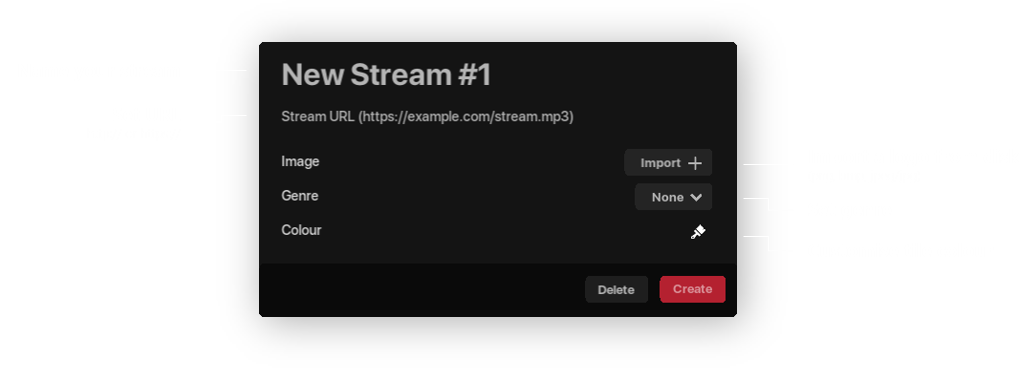
Give your station a new name and the URL to stream from and you're good to go.
- You can use http/https stream URLs, or a file on your computer (.m3u8 are supported)
Deleting a stream
To delete a stream, simply right-click and select "Delete". You cannot delete specific public radio stations, rather they must all be disabled completely
Importing m3u playlists
You can import an m3u playlist easily:
- Click "Create" > "Add file to library"
A new radio station will be created for every URL in the m3u file
Importing m3u8 files
AJ Audio supports .m3u8 files natively, even without Jellyfin. To do this:
- Click "Create" > "Add file to library"
This will create a new radio station for you to stream
Internet Radio via Live TV on Jellyfin
Jellyfin also supports Internet Radio natively through its Live TV section. This is fully supported by AJ Audio. These stations are shown amongst the public radio stations, and custom in-app streams.
Live TV Container
You can set which container the Live TV stream will be transcoded to when playing this through AJ Audio. The following containers are available:
- ts
- flac
- mp3
- ogg
The default container is flac.
Replacing art
You can replace radio art individually or in batches for Live TV channels and user created stations by right-clicking the item